
Editing with Excel allows you to modify different attributes, with different values, on a set of objects of the same subtype. The process consists of three phases:
-
Download the object metadata into a specific Excel file for editing.
-
Edit the attributes in the Excel file.
-
Upload the Excel file to Anjana so it can process the changes.
How to enable editing with Excel
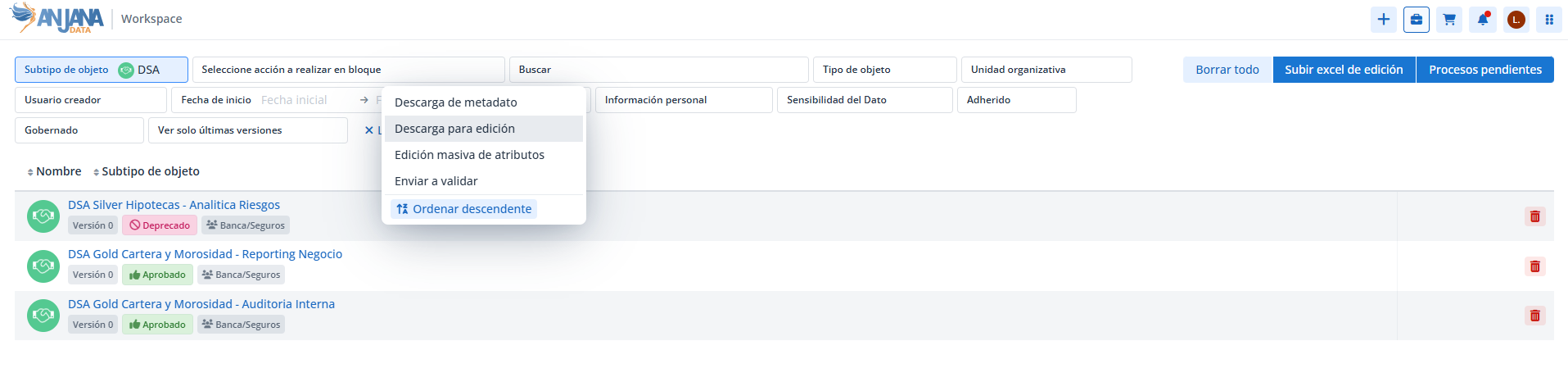
Download for editing is enabled from the workspace by following these steps:
-
Filter by an object subtype (mandatory). This is the step that enables the «Select action to perform in bulk» filter; without it, it is not possible to choose the action to perform next.
-
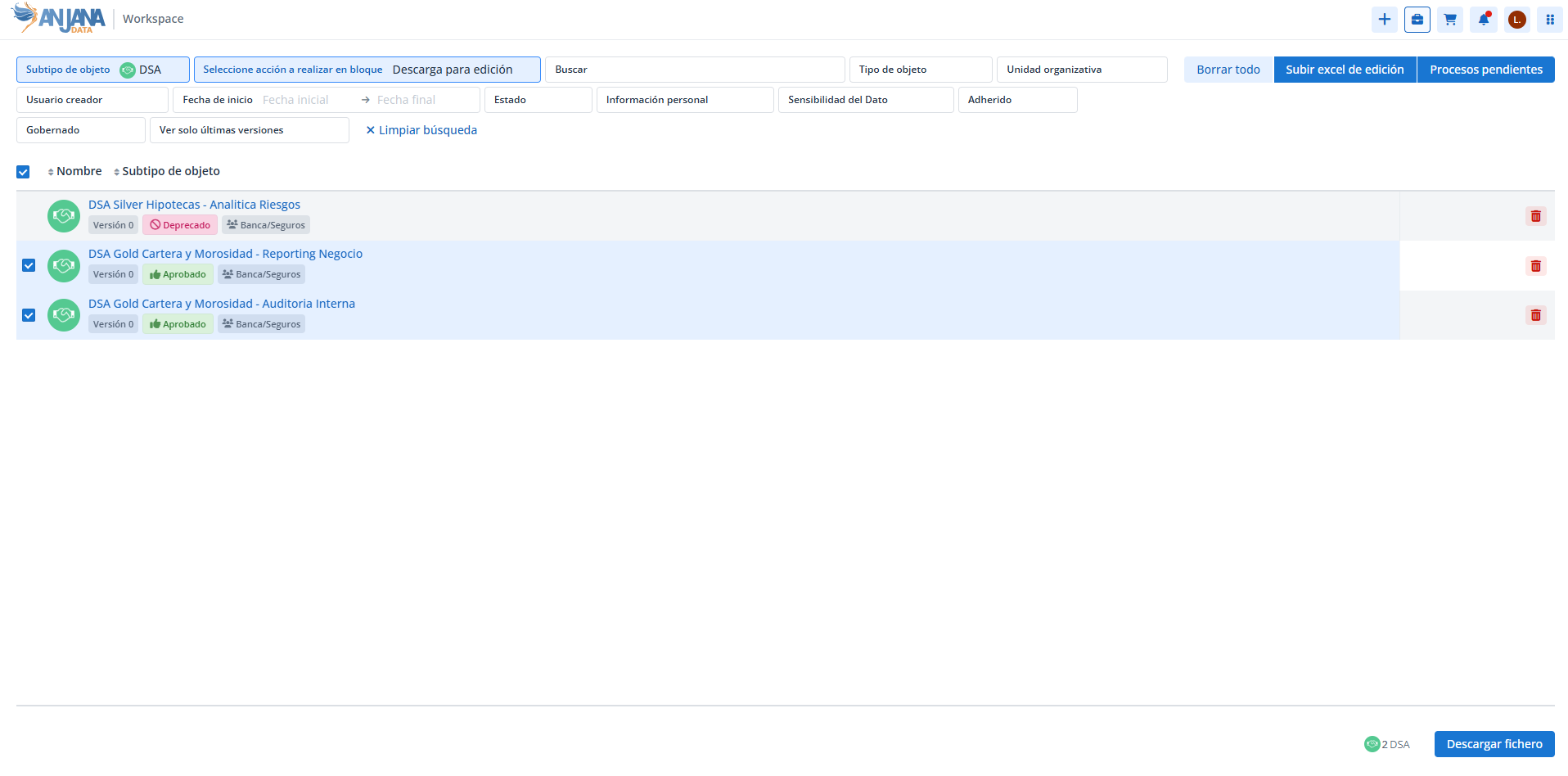
Select the «Download for editing» action in the «Select action to perform in bulk» filter. Doing so enables the checkboxes to select the objects whose metadata you want to download to edit and re-import. Only objects that are editable by the user can be downloaded, that is:
-
those for which the user has editing permissions based on the object type and/or the organizational unit to which they belong;
-
those that are in an editable state and have no more recent versions or ongoing workflows that would block editing. In practice: objects in draft, imported or rejected state, or in approved, deprecated or expired state, provided they have no other pending or draft version.
-
-
Apply search and filtering criteria (optional), if you need to locate specific objects to work with.
-
Select the objects using the corresponding checkbox. As soon as you check one, the «Download file» button is enabled. The total number of selected objects is shown in the bottom right, next to the download button; if that total does not match your selection, review the applied filters. For datasets, the number of
dataset_fieldsthey include is also shown.
The editing file
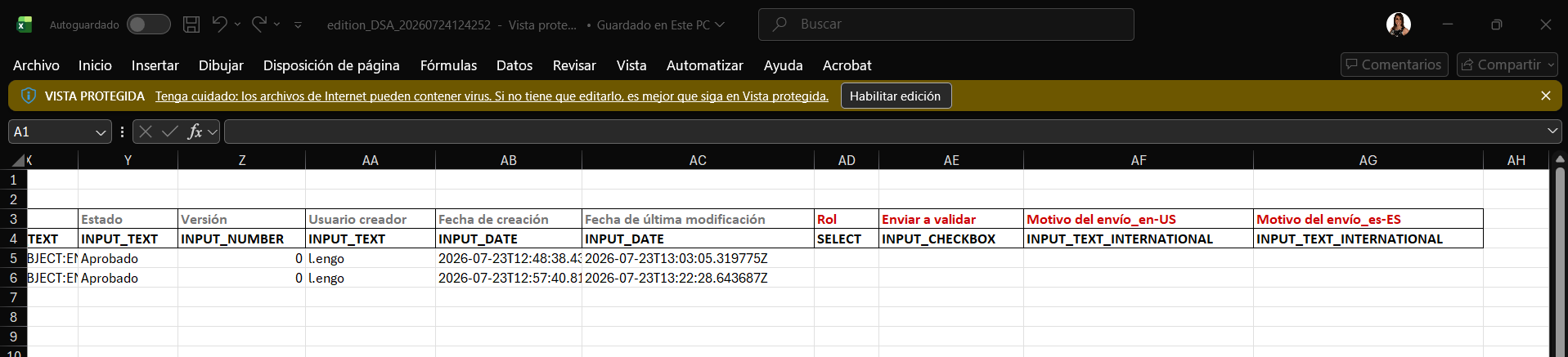
The Excel editing file is similar to the metadata download file, but it also includes two additional columns to indicate whether the object will be sent for validation automatically and with which user role the submission will be made.
The file contains the complete metadata of the objects to be edited, together with the possible values of the preconfigured attributes (Reference metadata, users, organizational units...). It also includes the custom attributes, although these cannot be edited via Excel.
Attributes with HEREDABLE validation are not included in the downloaded Excel template, since their value is calculated internally by Anjana.
The download may take a considerable amount of time depending on the size of the selection, since the Excel file is generated including all the information needed to edit the templates (metadata reference values, users, validations, etc.).
Edit and re-upload the Excel file
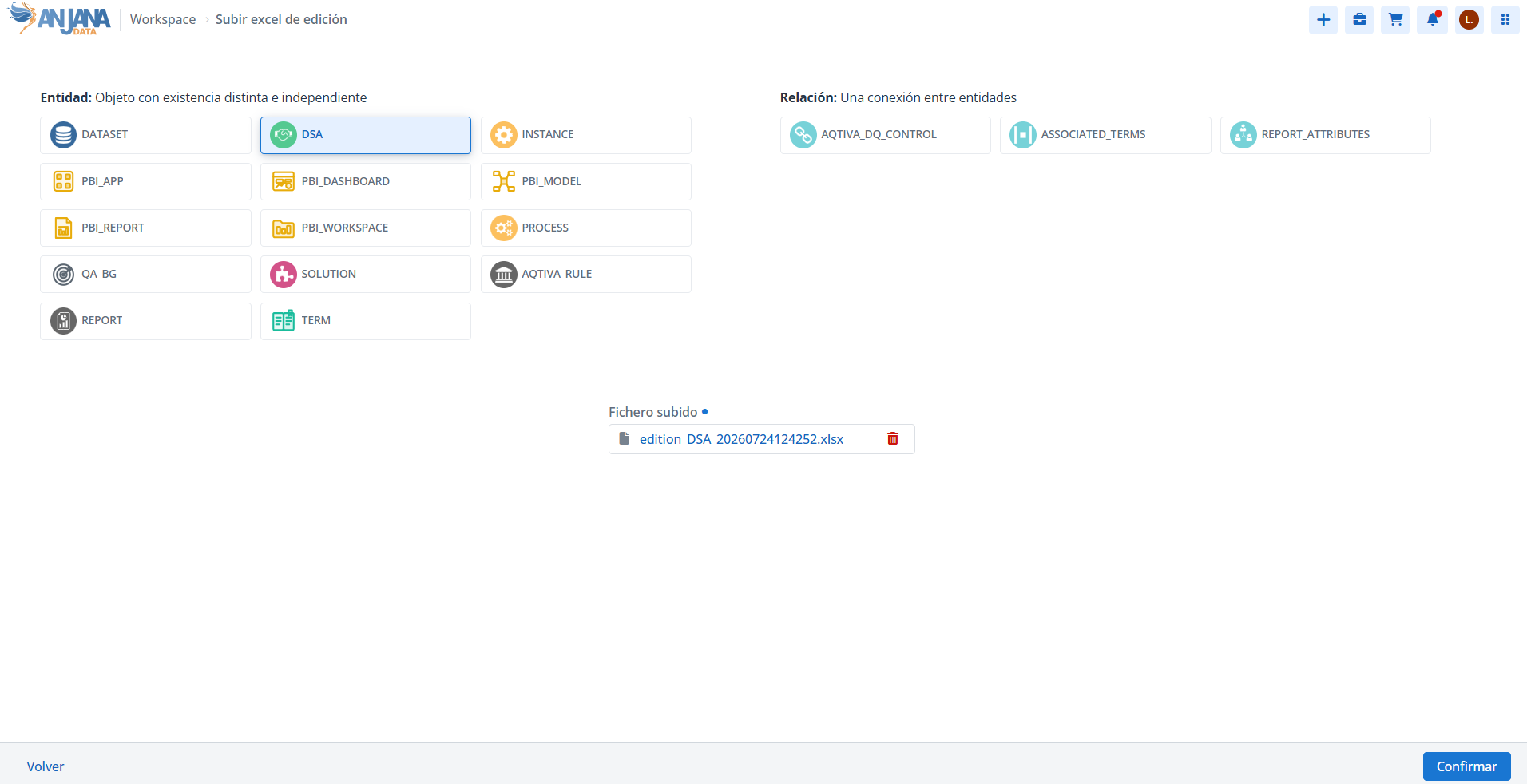
Once the file has been edited to modify the attribute values, save the changes (you can rename the file if you wish) and upload it back to Anjana using the top «Upload editing Excel» button so it can be processed.
Re-importing the changes is possible as long as the object remains in an editable state and the user retains their editing permissions over it.
Processing the Excel file launches a job, for which Anjana automatically generates a name that the user can modify. When the processing is confirmed, Anjana redirects to the job detail, where the changes for each object in the Excel file can be seen, and the job becomes part of the workspace's Pending processes.
Reviewing the job (Pending processes)
Since processing may take a few seconds, in the job detail the user can refresh the screen using the corresponding button. The filters at the top make it easier to locate objects when there are many, and the list is shown below.
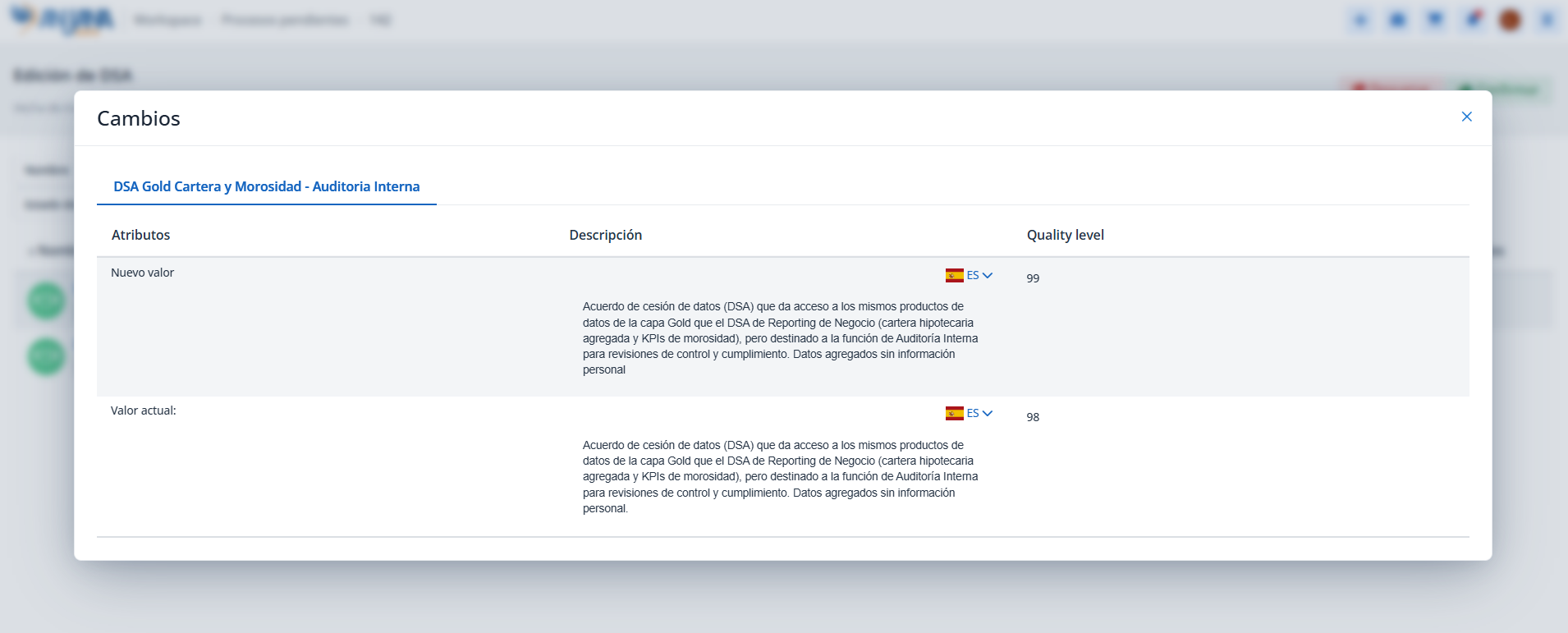
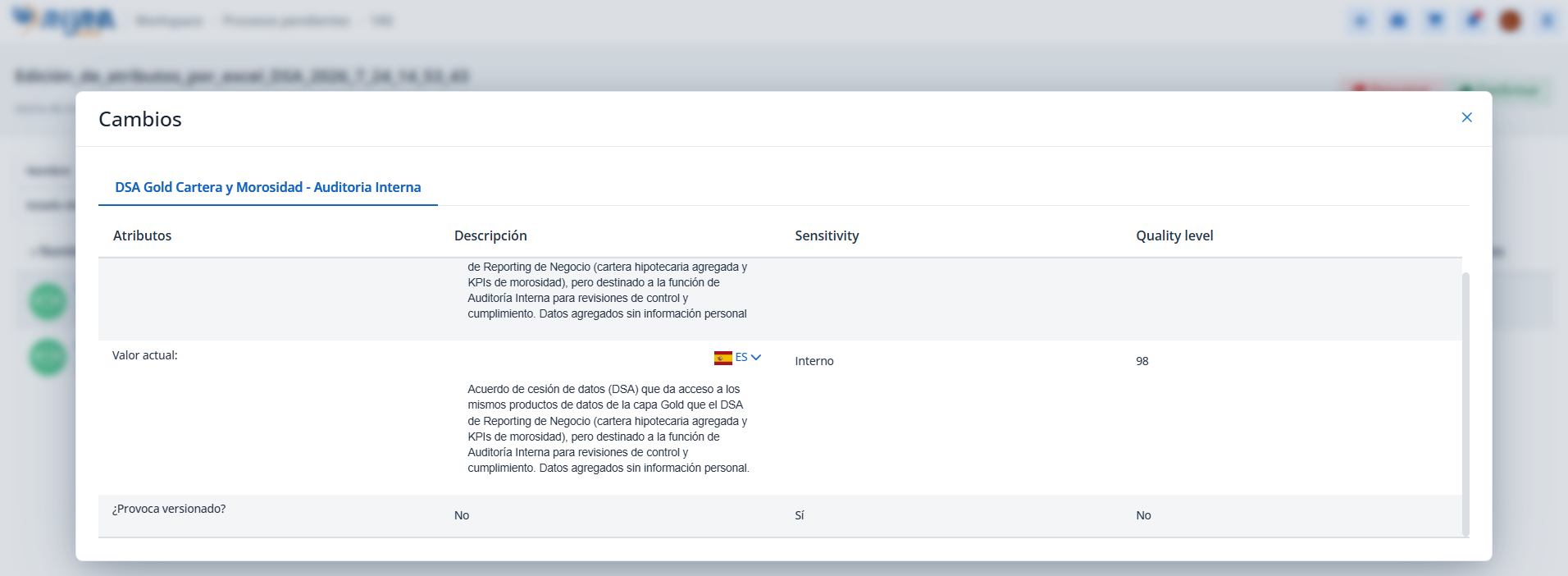
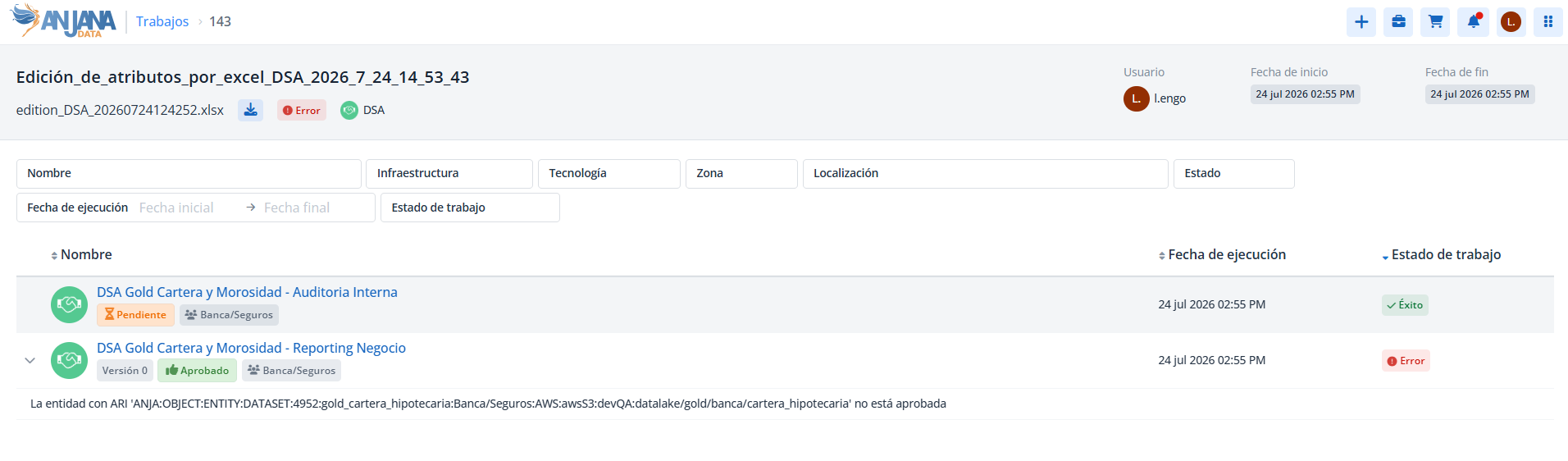
For each object you can see whether the processing was a success or had an error (dropdown with the details), as well as a specific window with the changes made to the object. When the object is going to be sent for validation when processing the Excel file, that window also indicates whether the change versions the object or not.
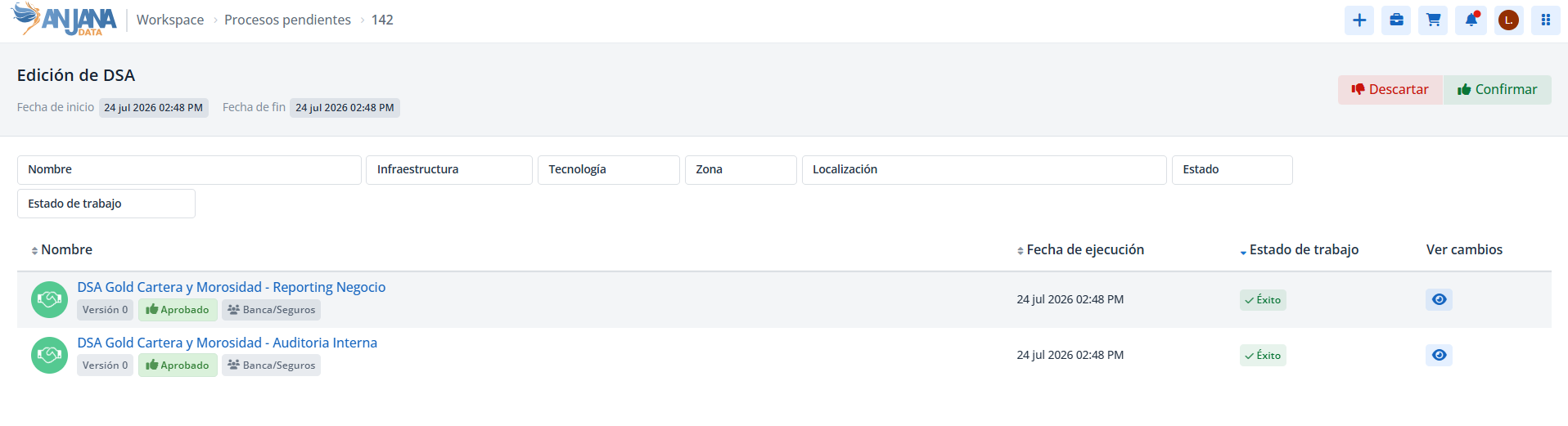
The set of Pending processes is accessible from the panel and from the Workspace screen, and it is only visible to the user themselves. The list includes all the Excel editing jobs launched and not yet reviewed. For each one, the following is shown:
-
the name assigned by the user;
-
the name of the uploaded Excel file;
-
the subtype of the edited object;
-
the start and end dates of the processing;
-
the progress: in progress, completed successfully, or completed with errors that must be corrected in order to edit the objects.
When you hover the mouse over the progress, Anjana shows the number of processed and pending objects. In a dataset Excel file, that number counts both the datasets and the dataset_fields. From the icon located to the right of each process you can access its details, with the list of processed objects and, by clicking on each one, the changes applied by the Excel file.
How Anjana calculates the changes
The calculation of the changes depends on whether the object is sent for validation automatically or not.
If the object is NOT sent for validation automatically
During preprocessing:
-
it is checked that the PK, OU, and subtype attributes, and information such as the
id_datasetof thedataset_fieldsor theprocessAriof the instances, are complete; -
it is checked that attributes with non-editable validation have not been modified;
-
the values in the Excel file are compared with the object in its current state, without considering other previous changes relative to its original version. Example: if there is an approved report and a draft with changes in Domain, and via Excel the Ontology of the draft is edited, when viewing the changes in the Excel file only Ontology is shown, because the comparison is made with the draft.
If the user confirms the job:
-
if the object was in imported, draft or rejected state, its attributes are modified and it remains in draft state (in the previous example, there will be the approved report and the draft with Domain and Ontology changed with respect to the approved version);
-
if the object was approved, deprecated or expired, a new version is created in draft state with the modified attributes.
If the object IS sent for validation automatically
During preprocessing:
-
the PK, OU, subtype attributes and the
id_dataset/processAriare checked, just as before; -
it is checked that the non-editable attributes have not been modified;
-
the values in the Excel file are compared with the original object, accumulating all the changes made to it (even those prior to the Excel file), and it is checked whether they version or only modify the object (in the case of Anjana's native entities), since all changes will accumulate when the workflow is launched. Example: approved report and draft with changes in Domain; via Excel, Ontology is edited and marked to be sent for validation; when viewing the changes in the Excel file, Domain (draft vs. approved) and Ontology (Excel vs. draft) are shown.
If the user confirms the job:
-
it is checked that the values are of the expected type and comply with the configured validations;
-
it is checked that the mandatory attributes are complete;
-
if the object was imported, draft or rejected, its attributes are modified, its validation workflow is launched, and it remains in pending state;
-
if it was approved, deprecated or expired, a new version is created with the modified attributes, its workflow is launched, and it remains pending;
-
if the workflow is a versioning workflow: if the original object had an expiration date, it is respected when the original is deprecated; if it did not have one, Anjana sets it by adding to the workflow's end date the configurable variable in the new Administration Portal
anjana.expiration.days.
Confirm or discard the job
-
If the user confirms, the changes that were successful during processing are persisted on the objects, the process is no longer in Pending processes and moves to Jobs, and the edit is audited. After confirmation, Anjana redirects to the Jobs module, where the user can check whether the job has completed successfully or whether there have been errors.
-
If the user discards, no object is modified and the process is removed from Pending processes.
The editing of each object and the launching of its workflow are audited and the corresponding snapshot of the object is saved.
Limitations
-
To avoid penalizing performance, it is recommended not to edit more than 5000 objects per Excel file. When modifying datasets together with their
dataset_fields, the total number of entities in the Excel file (datasets + dataset_fields) must also not exceed 5000; if you need to edit more, do so in several files. -
The maximum file size is 10 MB, a limit that can be modified via configuration.
-
Edit the file with Microsoft Excel. Using LibreOffice, Google Sheets, OneDrive Excel or other tools may cause formatting errors in the file being imported.
