
The Workflows module centralizes the validation flows (approval or rejection) that govern the assets in Anjana Data Platform. Starting with version 26.1, this module has evolved completely: the information that used to be displayed together has been split into four independent submodules, each focused on a type of flow and visible based on the user's permissions.
Workflows submodules
Each submodule is displayed only if the user meets the corresponding visibility conditions.
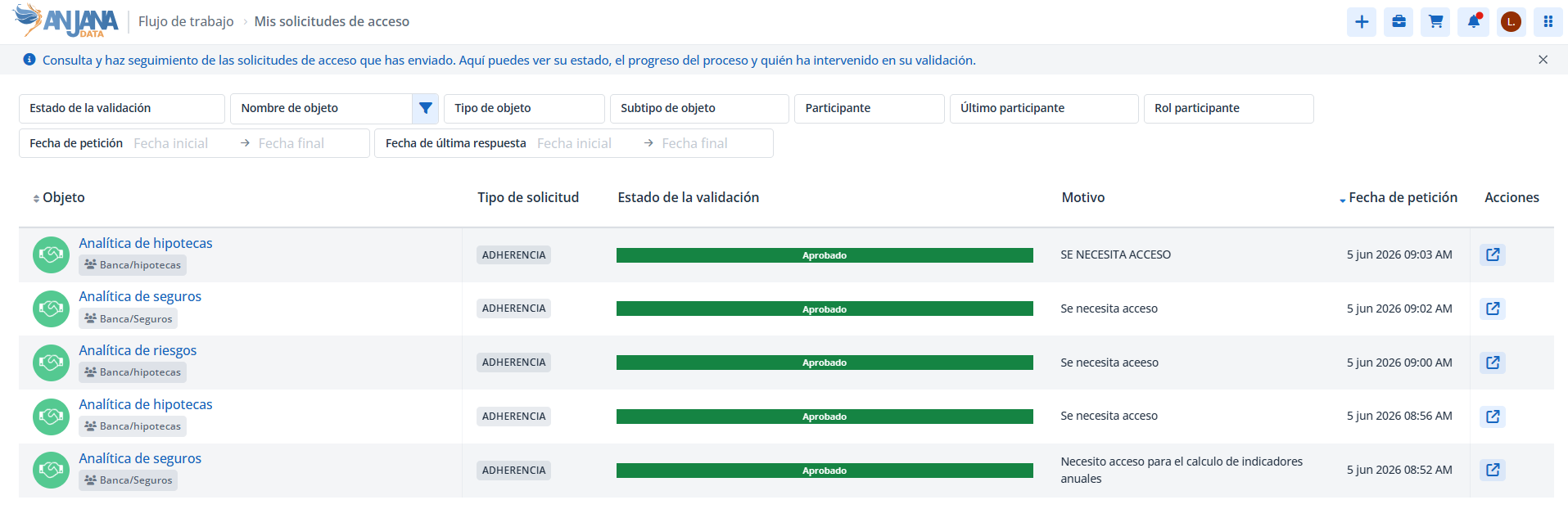
My access requests
Shows the workflows that the user has triggered to obtain access to assets. This submodule is only displayed if the user has access permissions to the Marketplace, or had them in the past and made access requests.
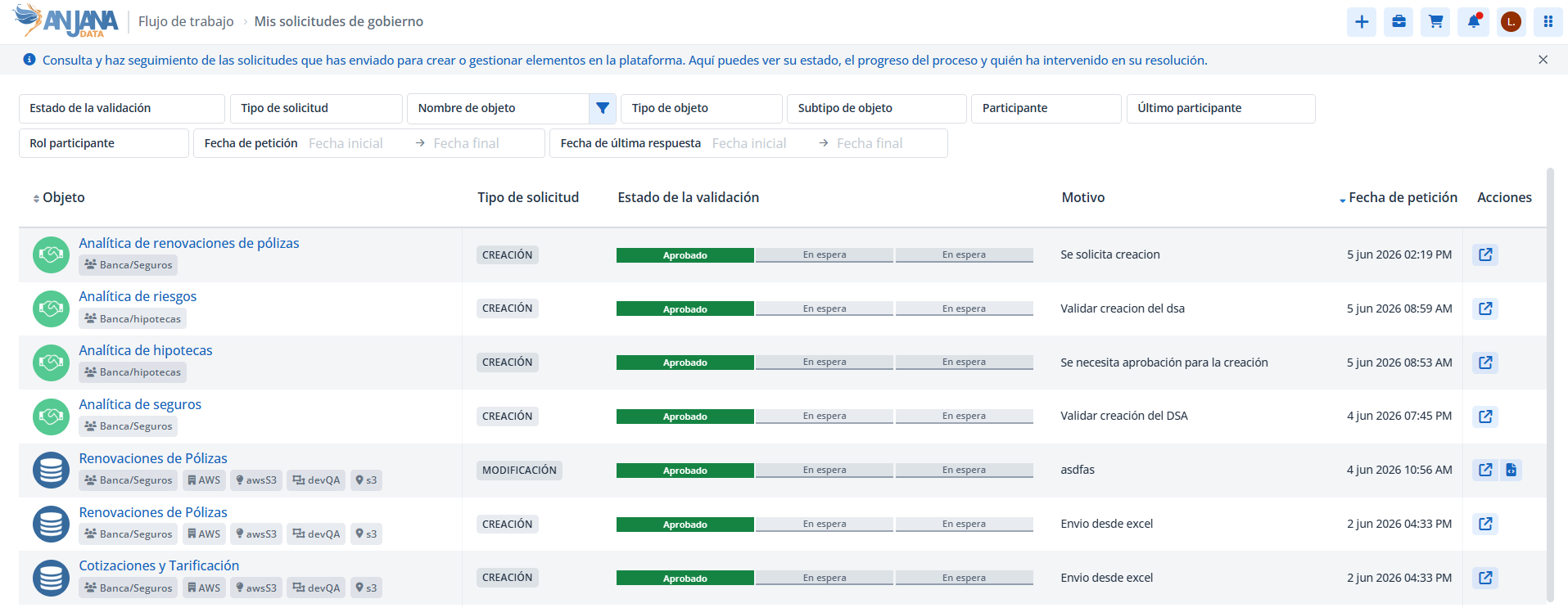
My governance requests
Shows the workflows that the user has submitted to create, validate or manage governance model elements. It is only displayed if the user has permissions for creation, modification, deprecation, status change or organizational unit change, or had them in the past and made any of those requests.
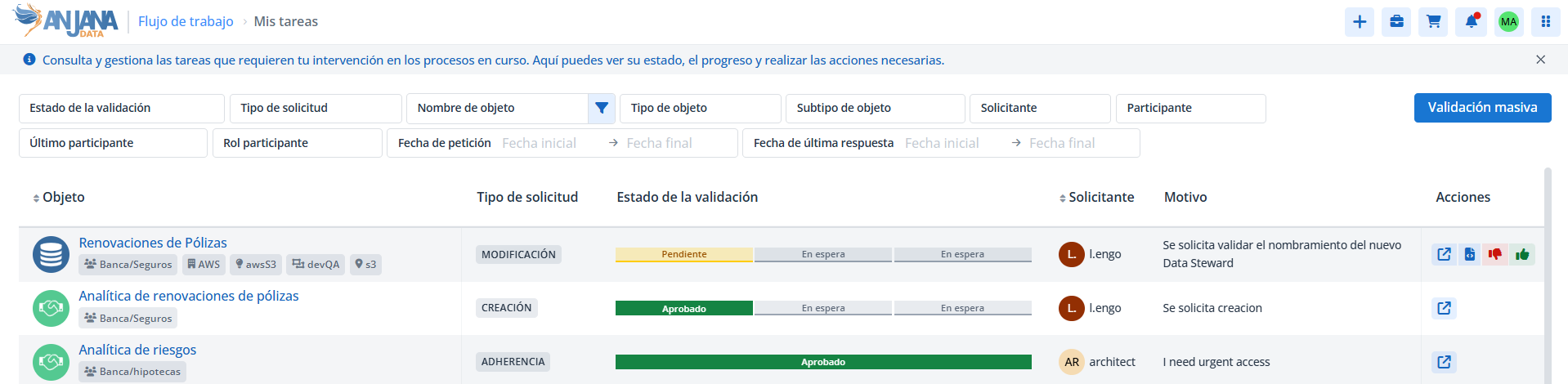
My tasks
Shows the workflows that require the user's intervention within ongoing processes. It is only displayed if the user has a role assigned - or had one in the past - that has taken part in oversight tasks.
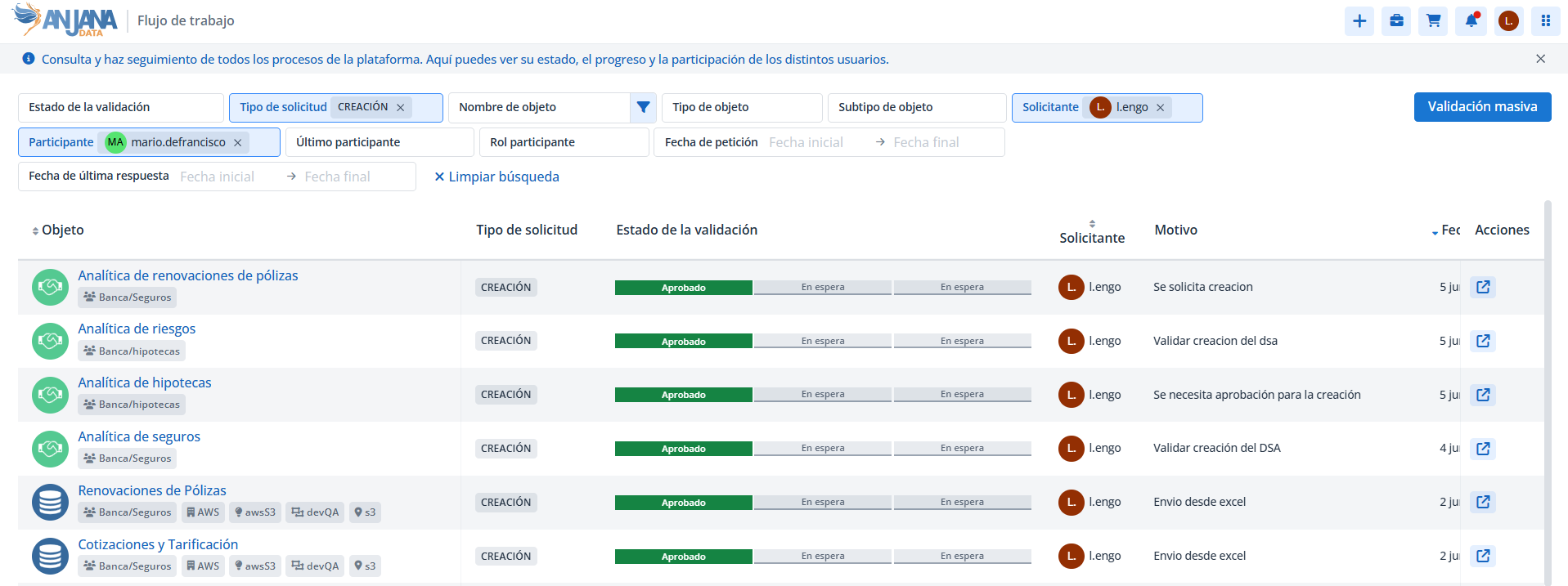
All workflows
Shows all workflows without exception. It is only displayed if the user has permissions to view this submodule.
How to access the workflows
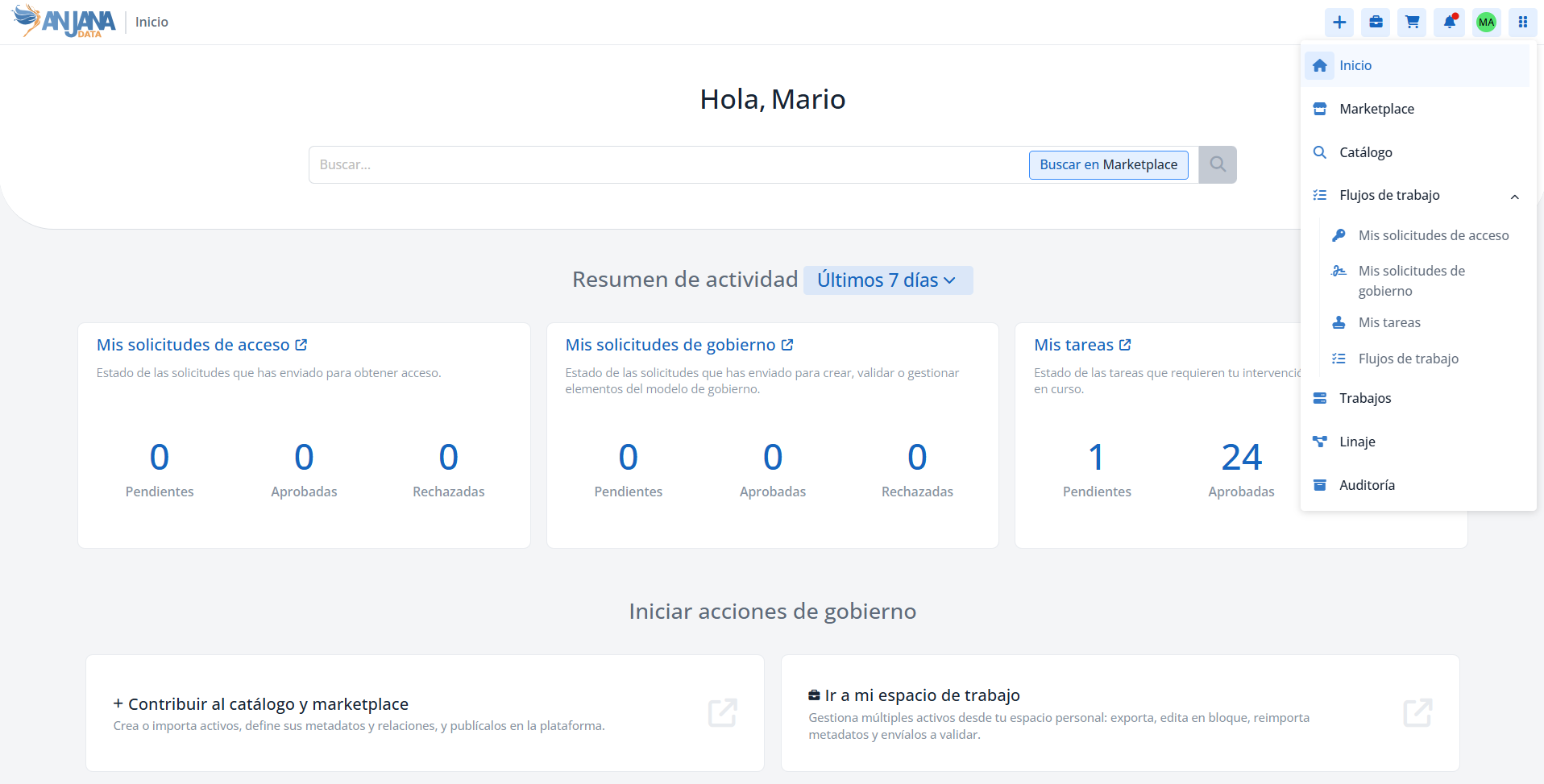
The workflow submodules can be accessed in two ways:
-
From the Home (Data Portal home page), by clicking the corresponding links.
-
From the navigation panel.
Search filters
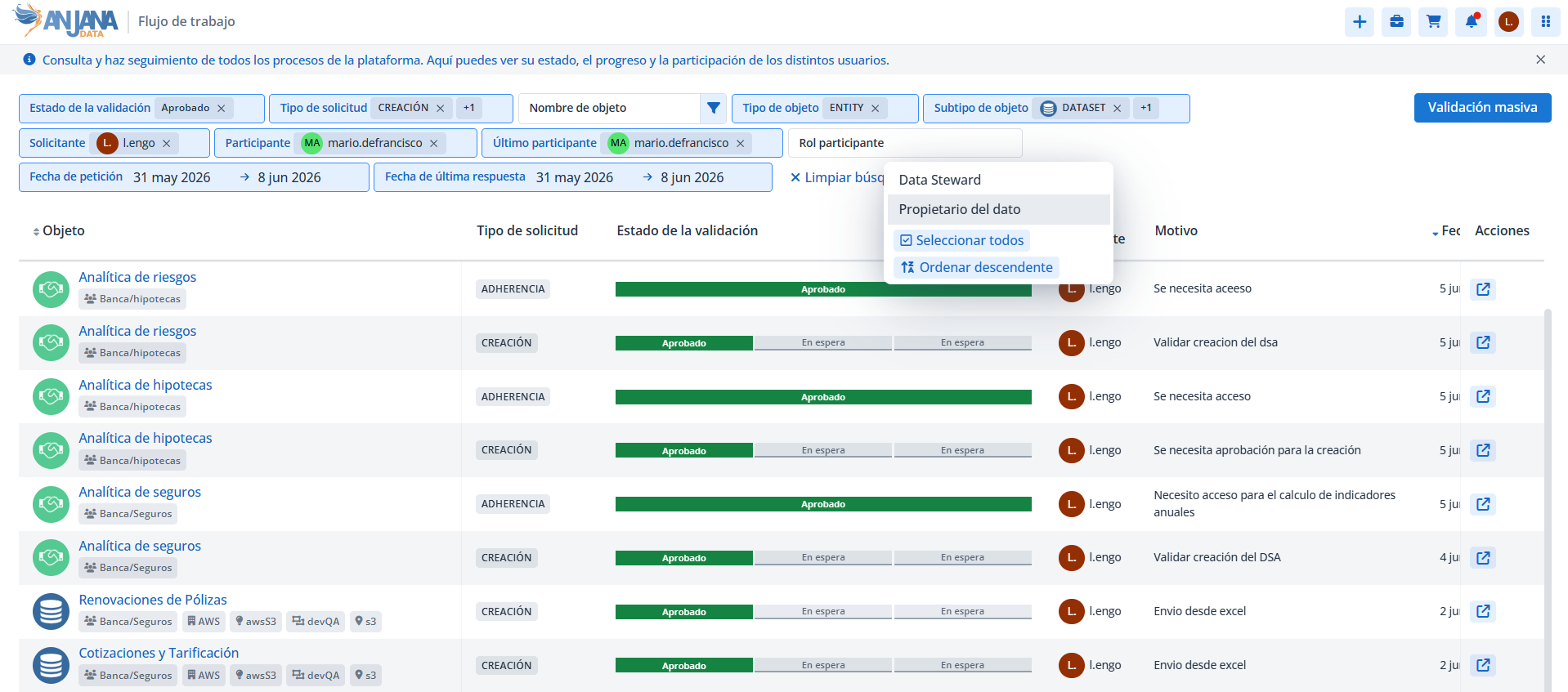
The table results vary depending on the following filters. Some filters are not available on all screens, as they would be redundant with the content already shown.
-
Validation status, allows viewing approved workflows (finished with approved status), pending ones (still under validation: there are still participants who need to take part in some step) and/or rejected ones (finished with rejected status).
-
Request type, creation, modification, renaming, activation, adherence, deprecation, deactivation, transfer.
-
Object name, entity to which the workflow applies.
-
Object type, allows filtering by entity or relationship.
-
Object subtype, allows filtering by the different types of entities or relationships.
-
Requester, named user who triggered the workflow with the action that requires validation.
-
Participant, named user who has taken part in any of the validation steps.
-
Last participant, named user who took part in the last validation step executed (this does not have to be the last step of the workflow, since additional validators may be required to complete it).
-
Participant role, allows filtering by the roles that have taken part in any of the validation steps.
-
Request date, allows filtering by a date range on the start of the workflow.
-
Last response date, allows filtering by a date range on the execution of the last validation step performed (this does not have to be the last step of the workflow).
Information in the workflows table
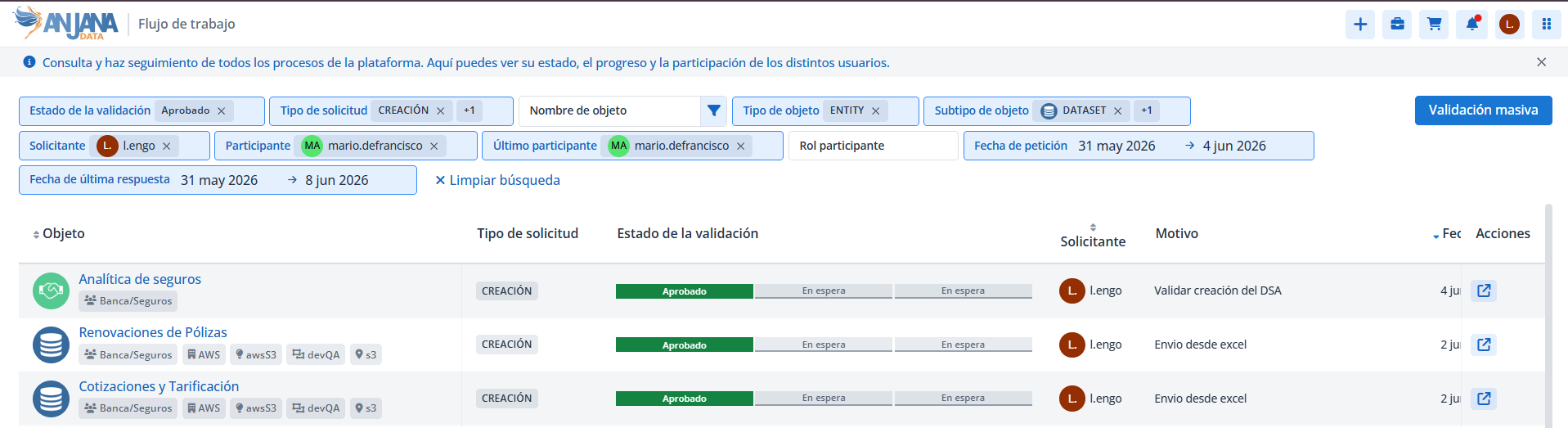
For each workflow, the results table shows:
-
Object, entity or relationship on which the action requiring validation is performed. It is a link to the object's detail.
-
Request type.
-
Validation status, a progress bar divided into as many segments as the workflow has steps: in green, the steps validated with an approved result; in red, those rejected by the validator; in yellow, those with the validator's decision still pending; and "On hold", a step that will never be required or for which it has not yet been evaluated whether it will be required.
-
Requester.
-
Reason, message left by the requester when submitting the request that required validation.
-
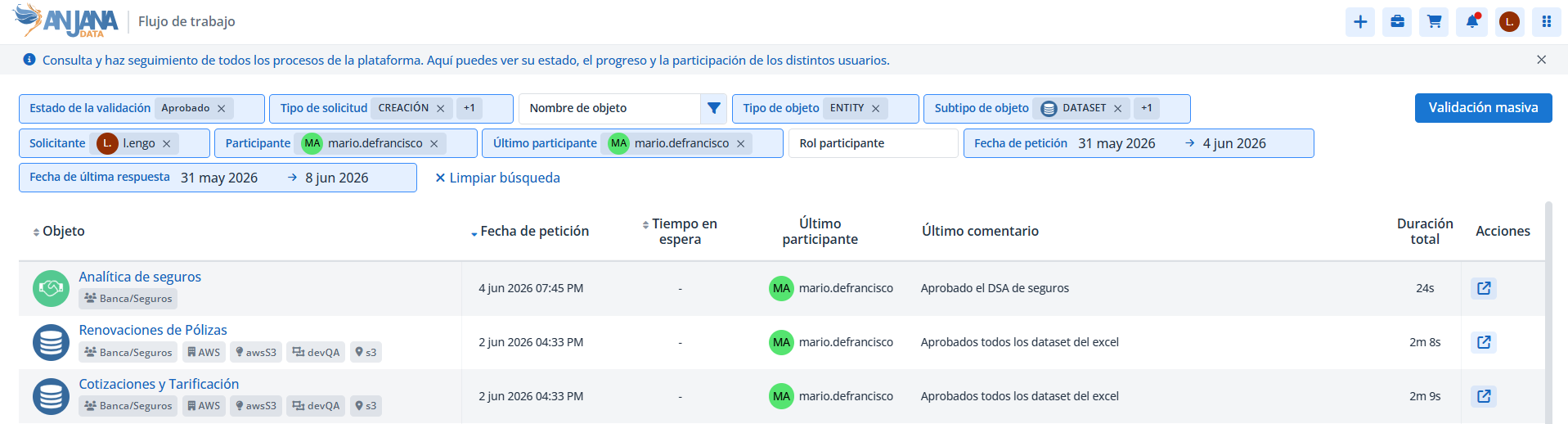
Request date.
-
Waiting time, how long a validation step has been pending a response from the validator. If the workflow has finished, this column will have no content.
-
Last participant.
-
Last comment, message left by the last participant as part of their validation.
-
Total duration, time elapsed from when the workflow started until it finished. While it remains pending, the value keeps increasing; once finished, it stays fixed.
Workflow detail
From any of the listings, clicking the Go to detail icon opens the workflow detail screen, where all configured steps are displayed.
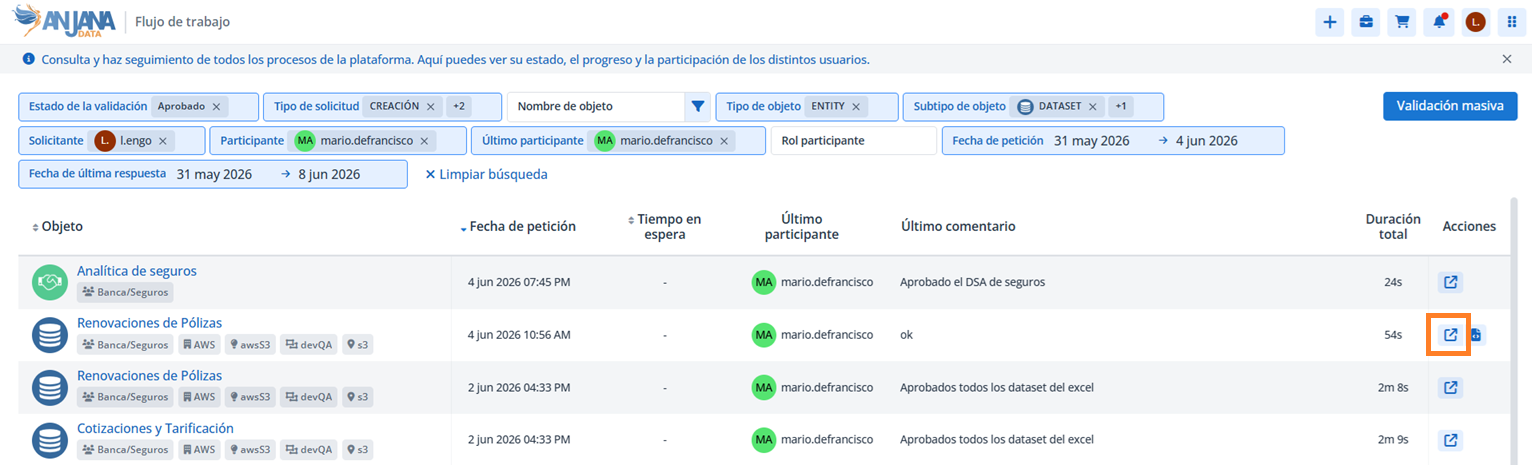
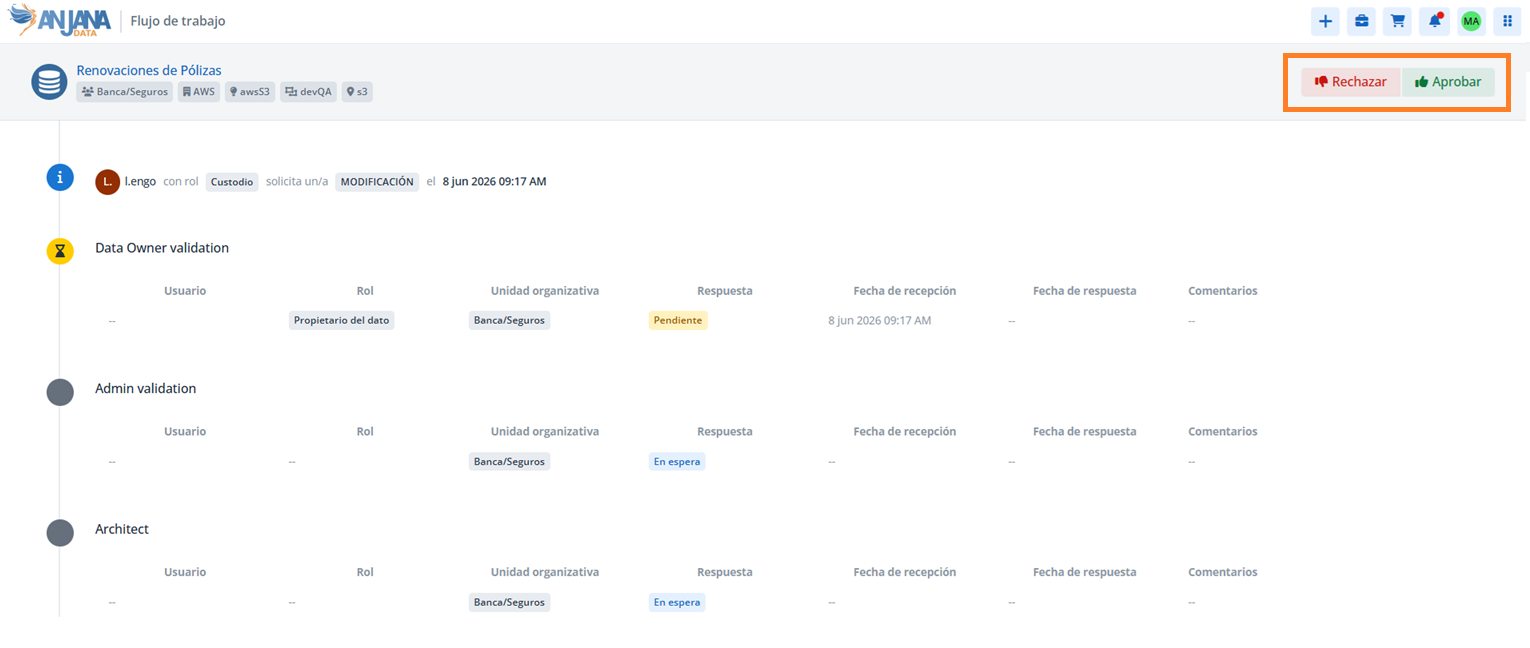
The header shows the object with its most relevant information. On the following line:
-
User who triggered the workflow.
-
Role with which it was triggered.
-
Action on the object to be validated.
-
Date the workflow was launched.
-
Old and new name of the object, in the case of a renaming workflow.
-
Old and new organizational unit, in the case of a transfer workflow.
-
Expiration date, in the case of a versioning or deprecation workflow.
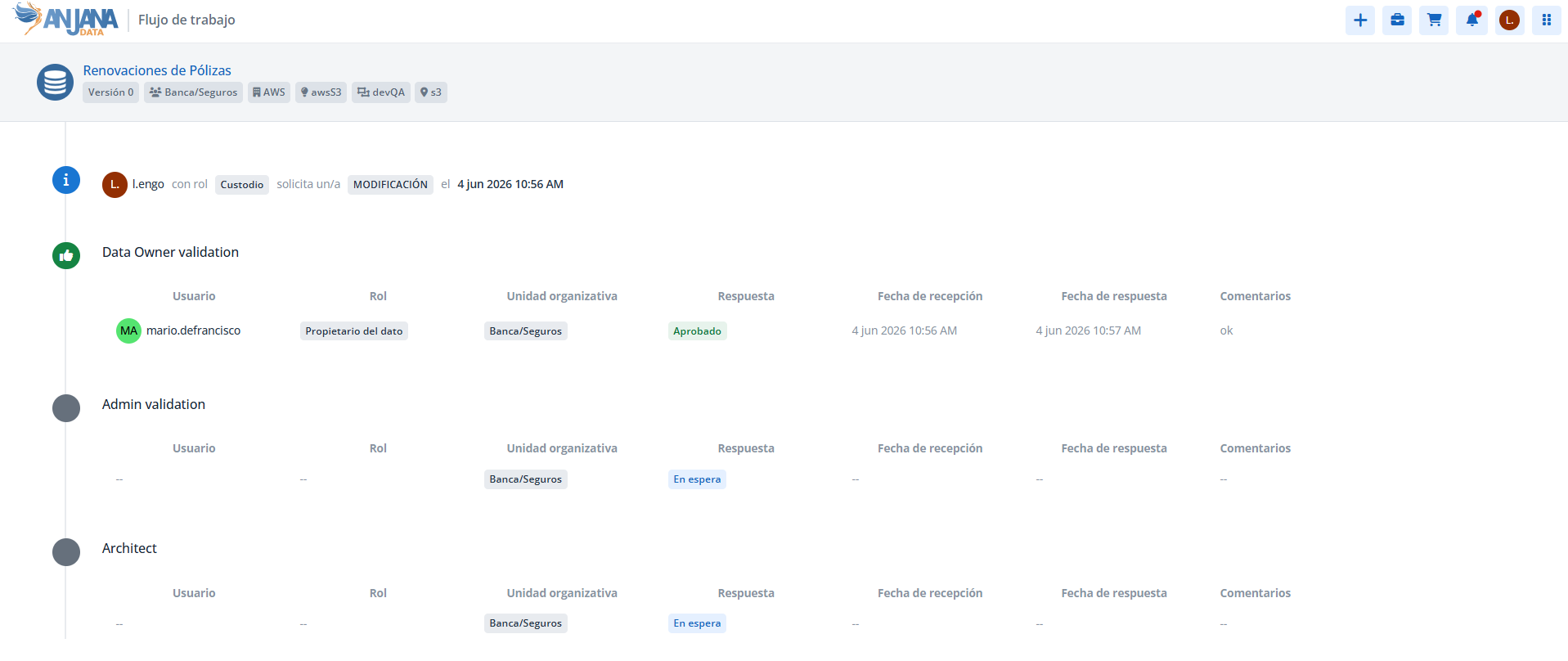
For each step of the workflow, the following is shown:
-
User who performed the validation of the step.
-
Role that validates the step.
-
Organizational unit to which the validating user belongs.
-
Response: approved (the user has accepted the workflow), rejected (the user has rejected it and the workflow is cancelled without any other role having to validate), pending (the user must respond) or on hold (the role does not have to validate, either because there are earlier pending validations, or because it is part of a workflow branch that will not be executed).
-
Date on which the validation alert is issued to the validators of the validation step.
-
Date on which the validator approves or rejects.
-
Validator's comments. They appear in the user's language or, if they have not been completed for that language, in the language configured by default in the application.
If the user has a pending validation for the workflow, the Approve and Reject buttons also appear on this screen.
View changes
When the workflow is a modification, the View changes option allows you to check the differences between the original object and the new object to be validated. Changes can be viewed in two ways:
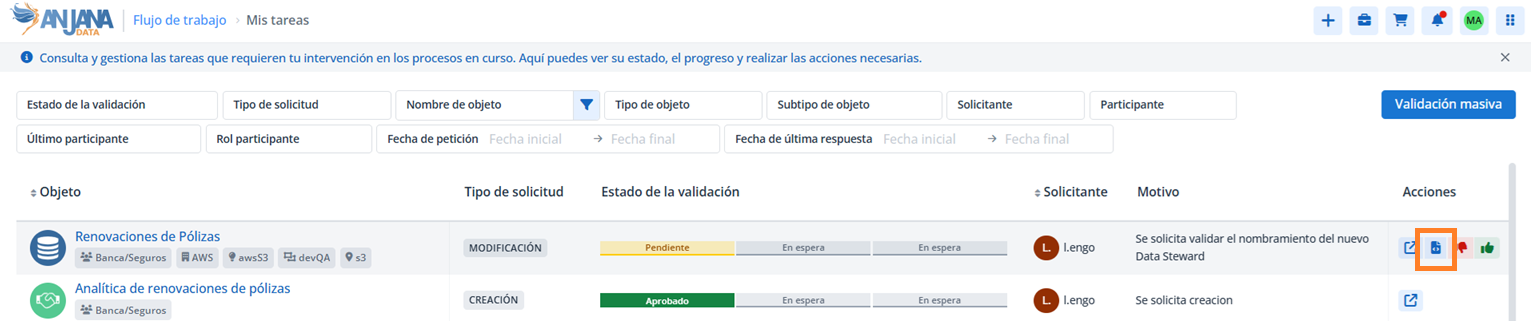
-
Table, where the added, modified or deleted property is indicated, along with its old value and its new value. The content can be filtered by type of change or by property.
-
JSON, where the object's metadata is shown in JSON format, likewise comparing the properties that have been modified.
Validating a workflow
Approving or rejecting a workflow
When the user has a pending validation, they can approve or reject the workflow by adding the reason for their decision, from two places:
-
Directly from the workflow listing.
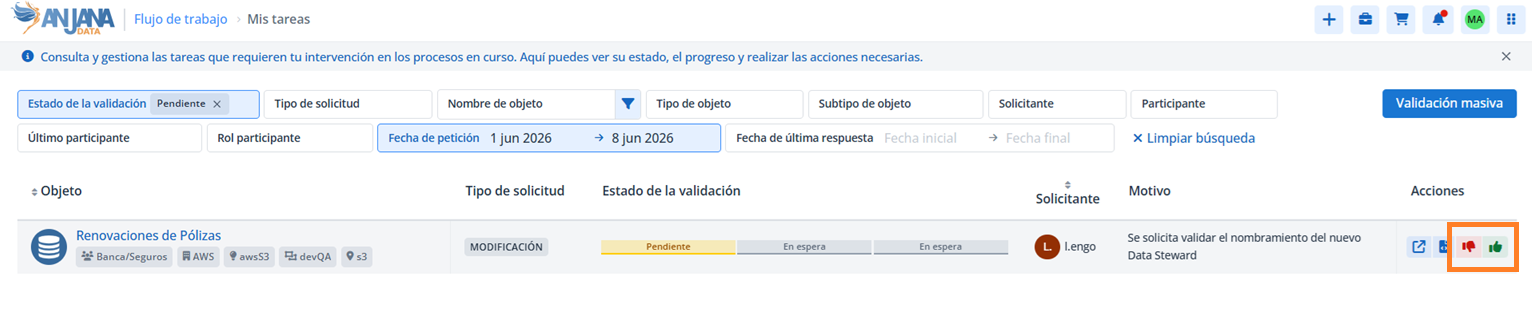
-
From the workflow's detail screen, using the Approve and Reject buttons.
Bulk validation of workflows
The listing includes the Bulk validation option, which allows a single user to validate one or more workflows at once, giving all of them the same response (approval or rejection) and the same reason.
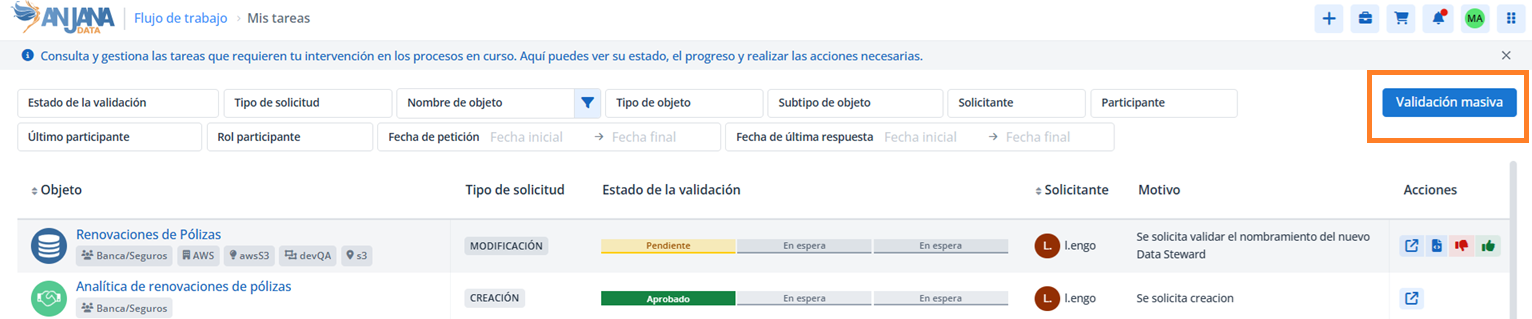
By clicking the button, Anjana Data filters the workflows with pending validations for the user and adds a checkbox to each one so they can be selected and then approved or rejected in bulk. As a result, the workflows move forward in their validation or finish with the approval of the object or its cancellation.

Bulk submissions of more than 5,000 objects are not recommended (note that, for this threshold, the set of Dataset Fields included in the Datasets should be taken into account).