
This page describes the Data Portal Home Page of Anjana Data Platform, the entry point that any user sees after authenticating and to which they can return at any time by clicking the Anjana Data Platform logo or the client's logo in the header. It details the sections that make it up, their purpose, and how they vary depending on the user's role permissions.
Overview
The Home Page (also referred to as the Home page) acts as the user's personal dashboard: it combines direct access to asset search, a quick view of the status of their requests and tasks, and the entry points to the main governance actions available based on their role.
Its content is dynamic and permission-dependent: each section is displayed only if the user's role has the corresponding permissions assigned, or if it had them in the past and left recorded activity. This ensures that each profile sees only the information that is relevant to them.
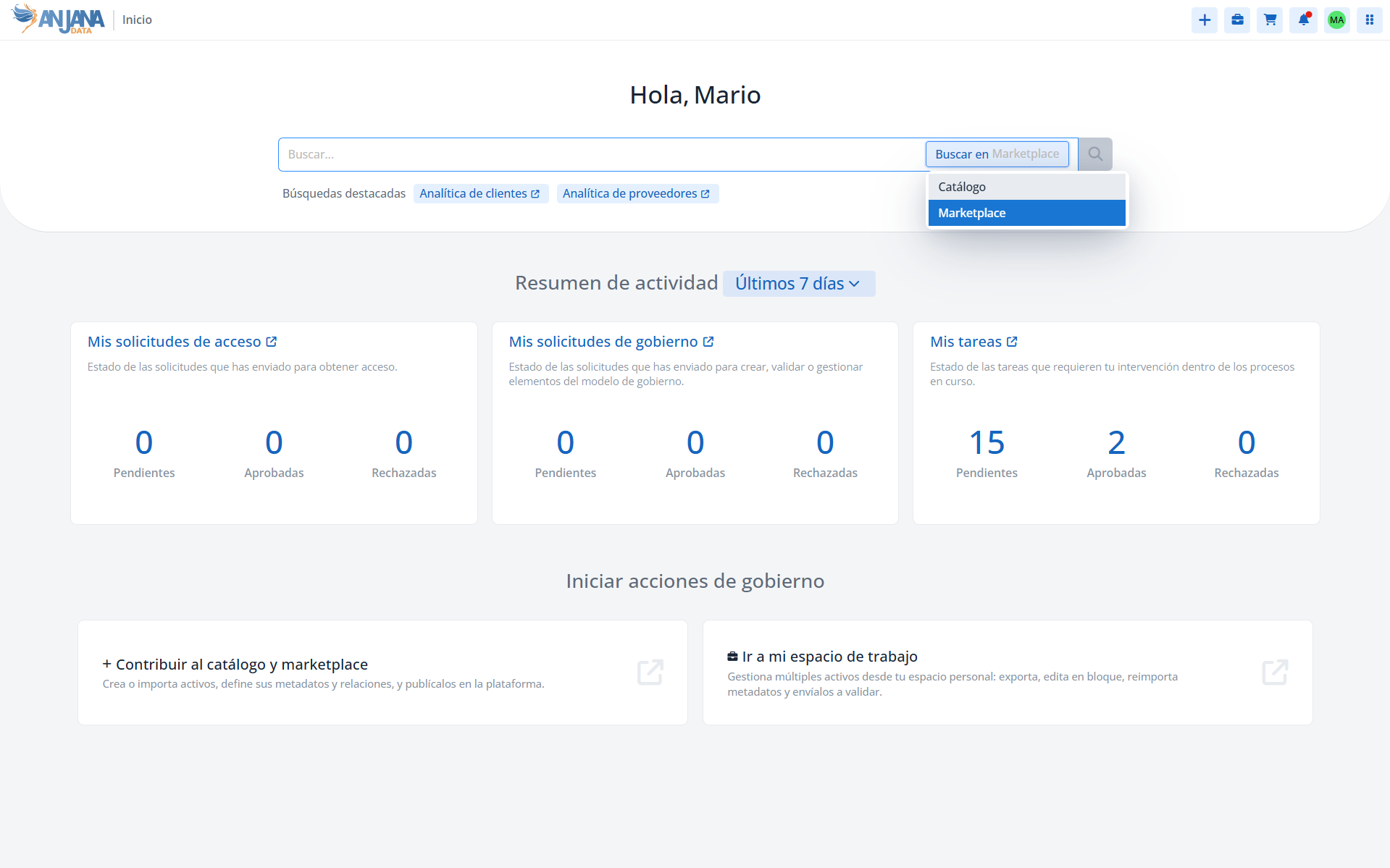
Search bar
At the top center of the screen there is a search bar that allows quick queries to be launched on the module selected in the adjacent selector. The options available in that selector are:
-
Marketplace: search across the assets published in the data Marketplace.
-
Catalog: search across the governed assets in the Catalog.
Each of these options appears only if the user's role has access permissions to the corresponding module. If a user believes they should see an option that is not appearing, they should contact the platform administrator in their organization to evaluate assigning the appropriate permissions to their role.
Featured searches
Just below the search bar, the featured searches that the user has previously saved in the selected module appear. By clicking on any of them, the user is redirected to the corresponding module with the search criteria already applied, making it easier to resume frequent queries without needing to configure them again.
If the user has no featured searches saved in the active module, this section is not shown.
Activity summary
In the middle part of the screen, a set of the user's personal activity metrics is displayed. Using a time range selector, the user can filter the metrics by the following ranges:
-
Last 7 days
-
Last 30 days
-
Last 3 months
-
Last 6 months
-
Last year
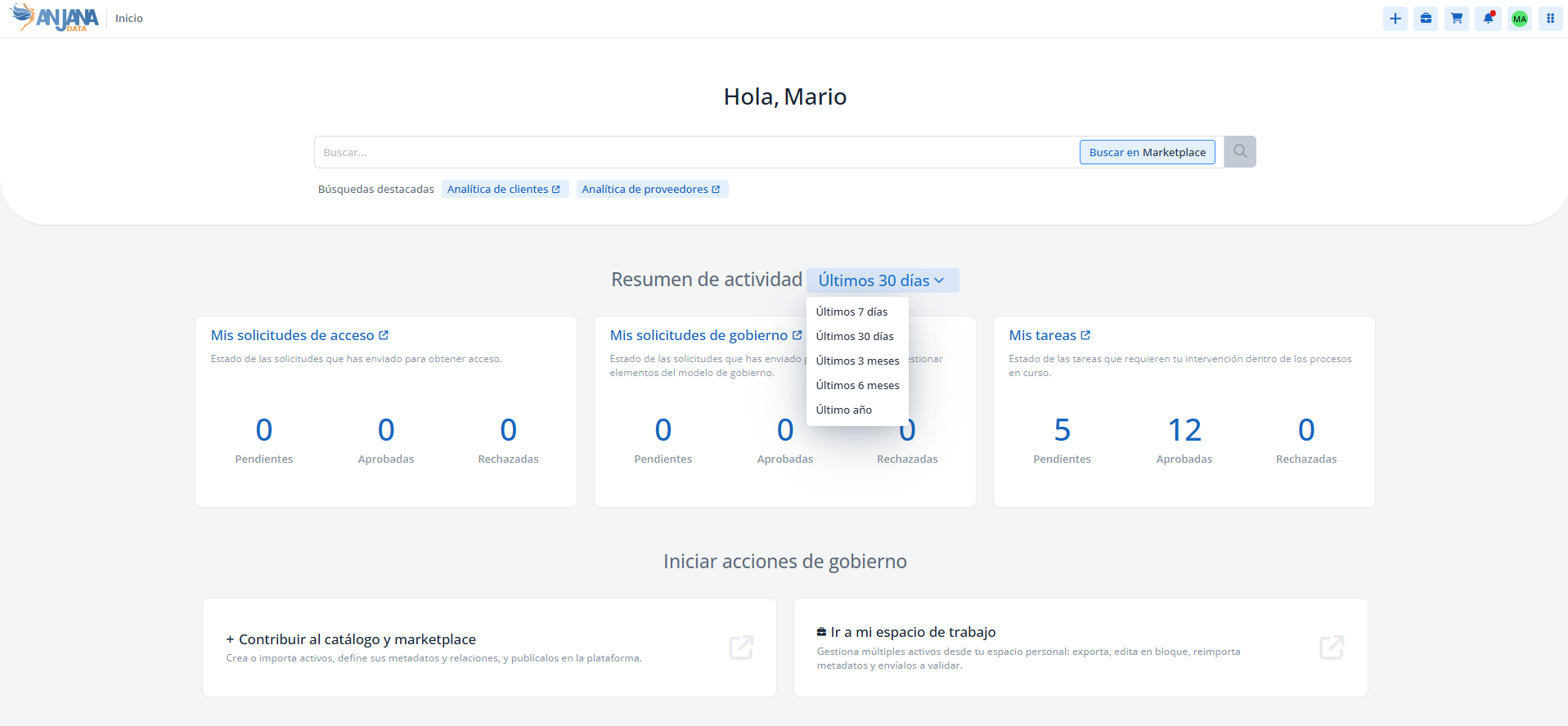
The metrics are grouped into three blocks, each with three counters (pending, approved, and rejected) for the selected time range:
My access requests
Shows the number of requests the user has sent to obtain access to assets. This block is only shown if the user has access permissions to the Marketplace or if they had them in the past and made access requests.
My governance requests
Shows the number of requests the user has sent to create, validate, or manage governance model elements. This block is only shown if the user has creation, modification, deprecation, status change, or organizational unit change permissions, or if they had them in the past and made any of those requests.
My tasks
Shows the status of tasks that require the user's intervention within ongoing processes. This block is only shown if the user has (or had in the past) a role assigned that has taken part in oversight tasks.
Start governance actions
At the bottom of the screen, quick access to the main governance actions that the user can initiate from their current role is provided:
-
Contribute to the catalog and marketplace: direct access to the Creation Wizard, from which the user can create assets for the Catalog and the Marketplace, defining their metadata and relationships, and publish them on the platform. This link is only available if the user has creation permissions on some type of entity or relationship in the governance model.
-
Go to my workspace: access to the personal Workspace, where the user can manage multiple assets simultaneously: export metadata, re-import, bulk edit, or send for validation in bulk. This link is only available if the user has permissions to access the Workspace.
Section visibility based on permissions
The following table summarizes when each section of the Home Page appears:
|
Section |
Visibility condition |
|---|---|
|
Search in Catalog |
The role has access permissions to the Catalog |
|
Search in Marketplace |
The role has access permissions to the Marketplace |
|
Featured searches |
The user has saved featured searches in the active module |
|
My access requests |
The role has (or had) access permissions to the Marketplace and requests exist |
|
My governance requests |
The role has (or had) creation, modification, deprecation, status change, or OU change permissions |
|
My tasks |
The role has (or had) participation in oversight tasks |
|
Contribute to the catalog and marketplace |
The role has creation permissions on some entity or relationship |
|
Go to my workspace |
The role has access permissions to the Workspace |
Note: If an expected section does not appear on the Home Page, the user should review the permissions assigned to their role with the platform administrator in their organization.
This section is primarily aimed at end users of the Data Portal, as well as functional administrators responsible for configuring the roles and permissions that determine what information each profile sees.