
The navigation menu, located in the header of the Data Portal, provides access to the main actions and modules of Anjana Data Platform. The available elements depend on the user's role permissions. They are described below, from left to right.
Logo
The Anjana Data Platform or client logo provides access to the Home (home page). See Data Portal Home Page (Home page).
"+" Button — Object Creation
Provides access to the Creation Wizard for entities and relationships. It is equivalent to clicking the "Contribute to catalog and marketplace" link from the Home page. It is only available to users with creation permissions for some entity or relationship subtype. See Object Creation.
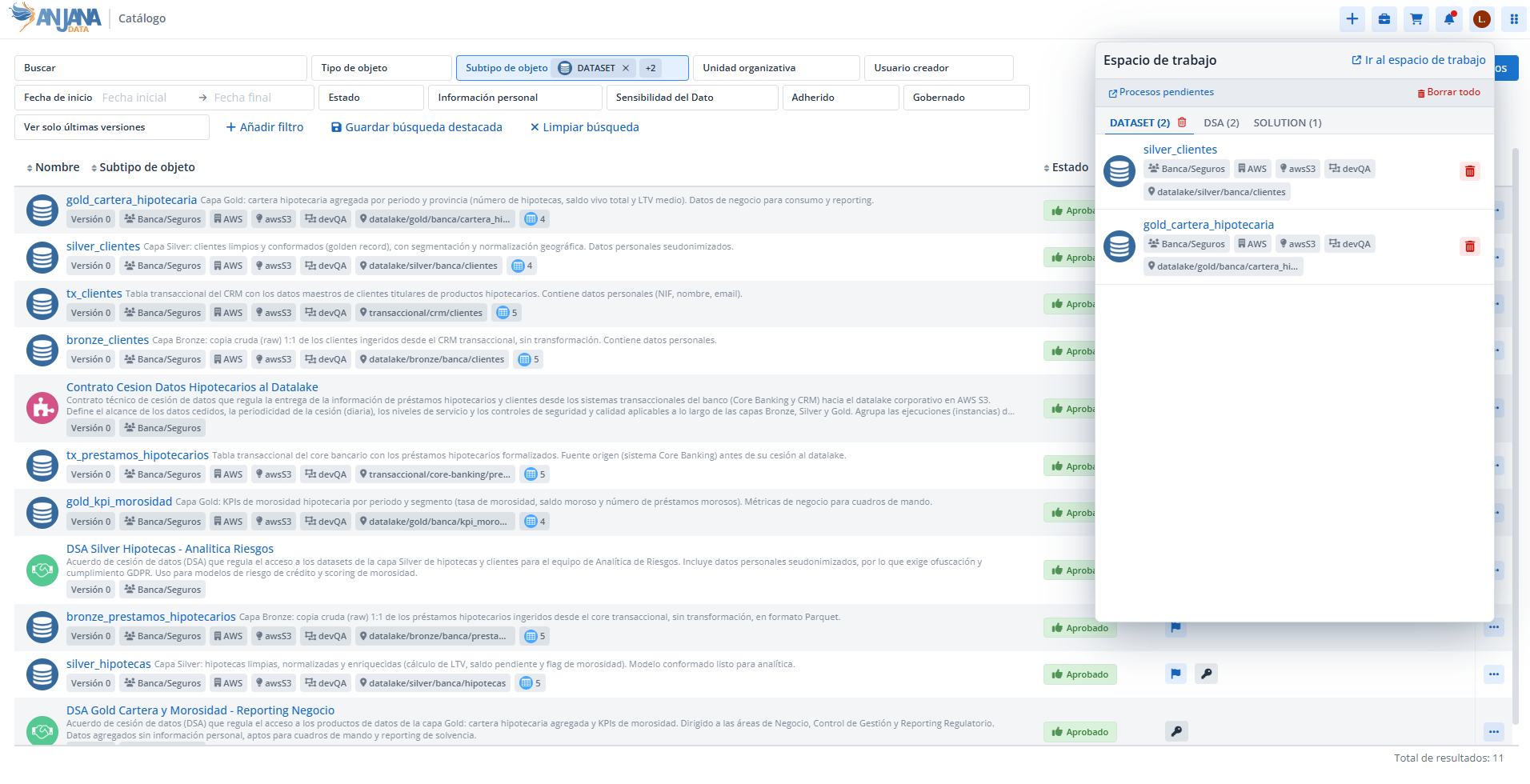
Briefcase Icon — Workspace
Clicking it opens a pop-up window from which the user can:
-
view the objects they have in the Workspace;
-
remove objects from the Workspace;
-
navigate to view their pending processes;
-
navigate to the Workspace to perform bulk actions.
It is only available to users with permission to access the Workspace. See Workspace.
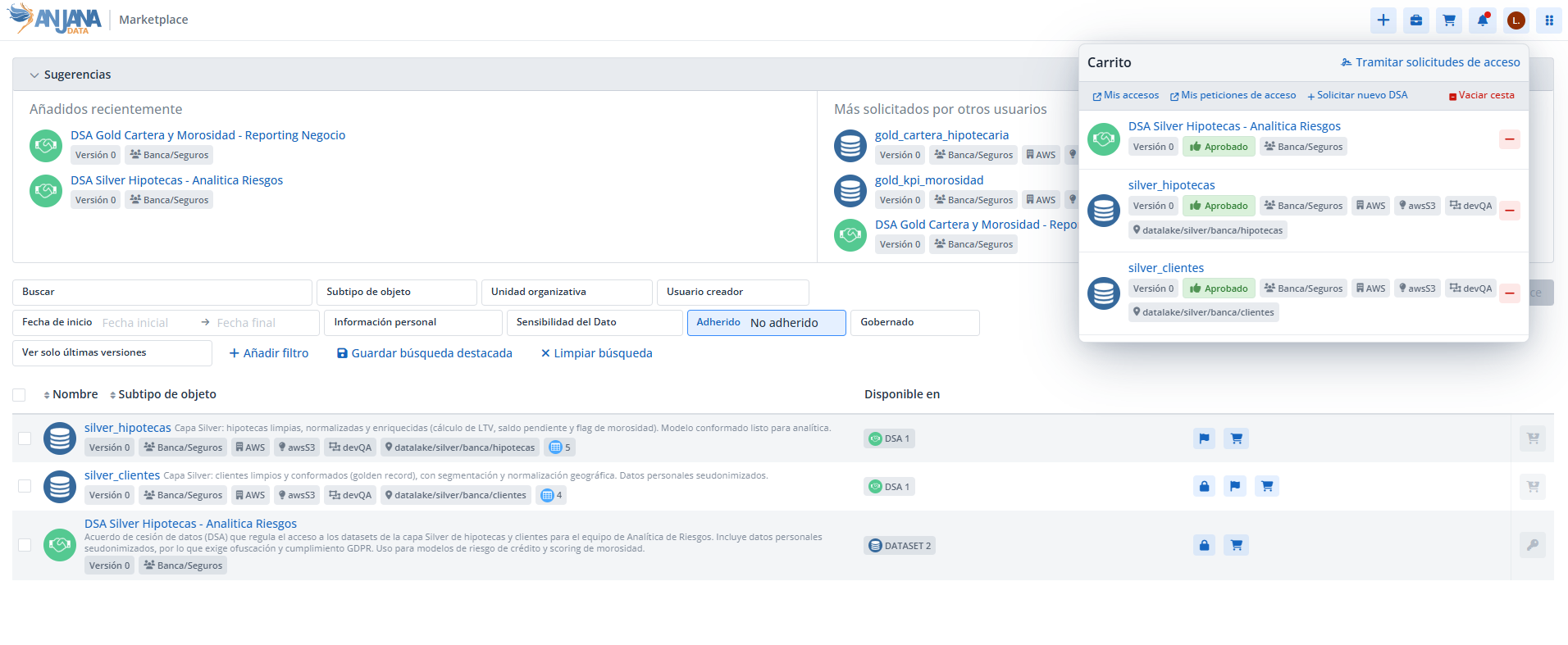
Cart Icon — Shopping Cart
Clicking it opens a pop-up window from which the user can:
-
view the objects they have in the cart;
-
remove objects or empty the cart;
-
navigate to My Access and My Access Requests;
-
process the access requests for the objects in the cart;
-
request the creation of a new DSA.
See Shopping Cart.
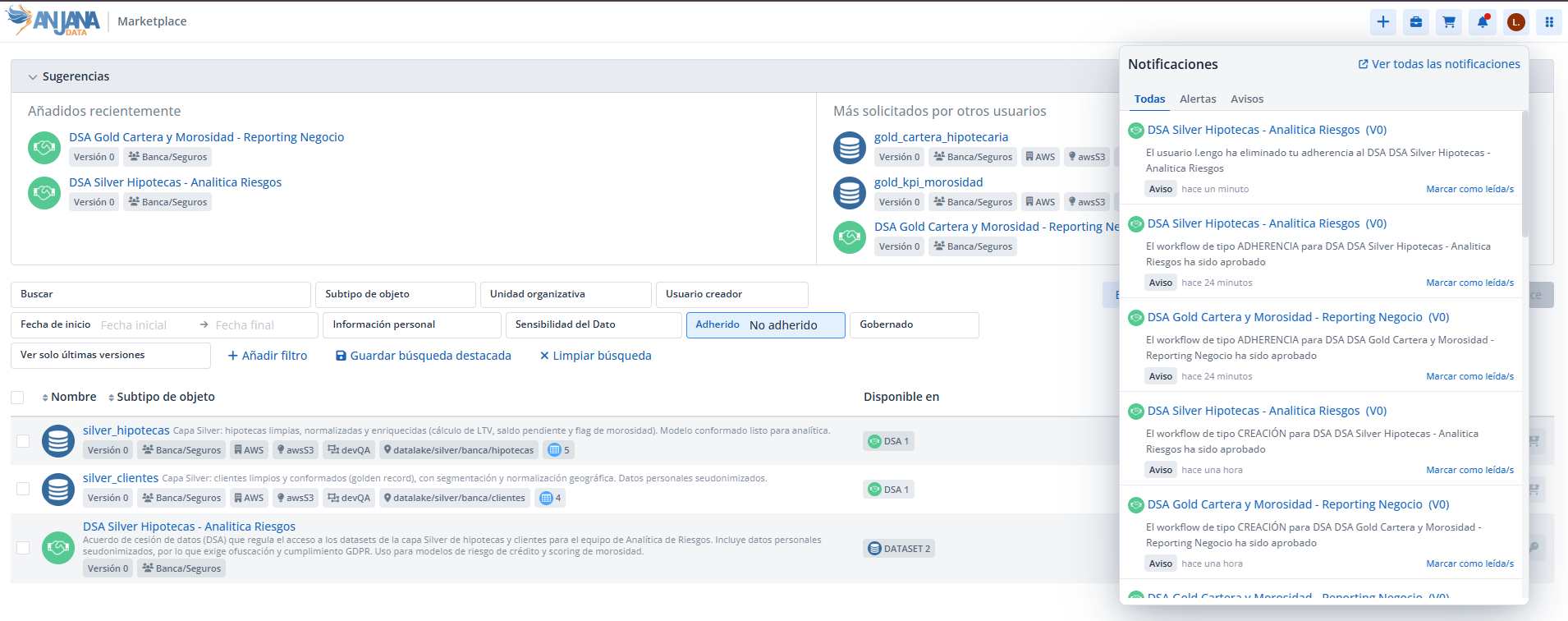
Bell Icon — Notifications
Clicking it opens a pop-up window from which the user can view their alerts and notices, navigate to the related workflows, and mark notifications as read. This icon is always available. See Notifications.
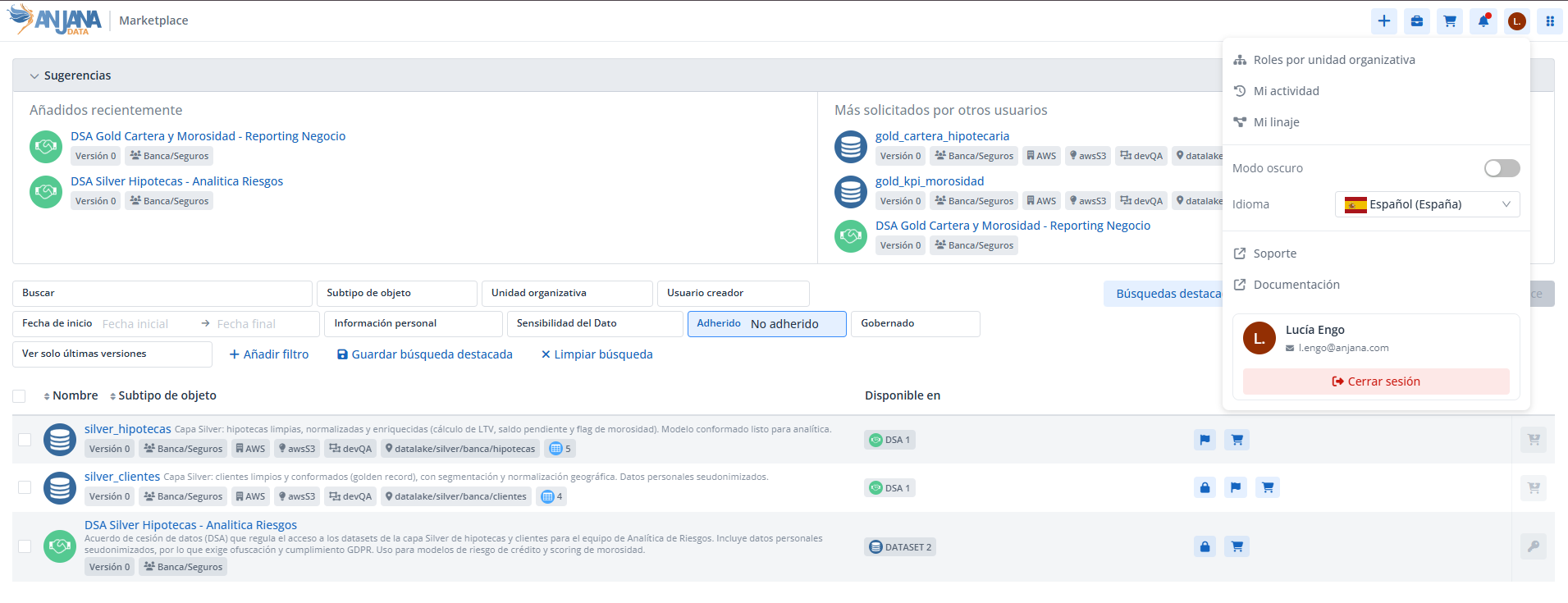
Icon with the User's Initials — User Profile
Provides access to the User Profile (name shown when hovering over the icon). From its dropdown, the user can:
-
view the roles they have in the different organizational units (authorization);
-
access their activity (audit of their user);
-
access their lineage, if they have the
LINEAGE_ACCESSpermission; -
switch between light mode and dark mode;
-
change the platform's language;
-
access relevant links (support, public documentation);
-
log out.
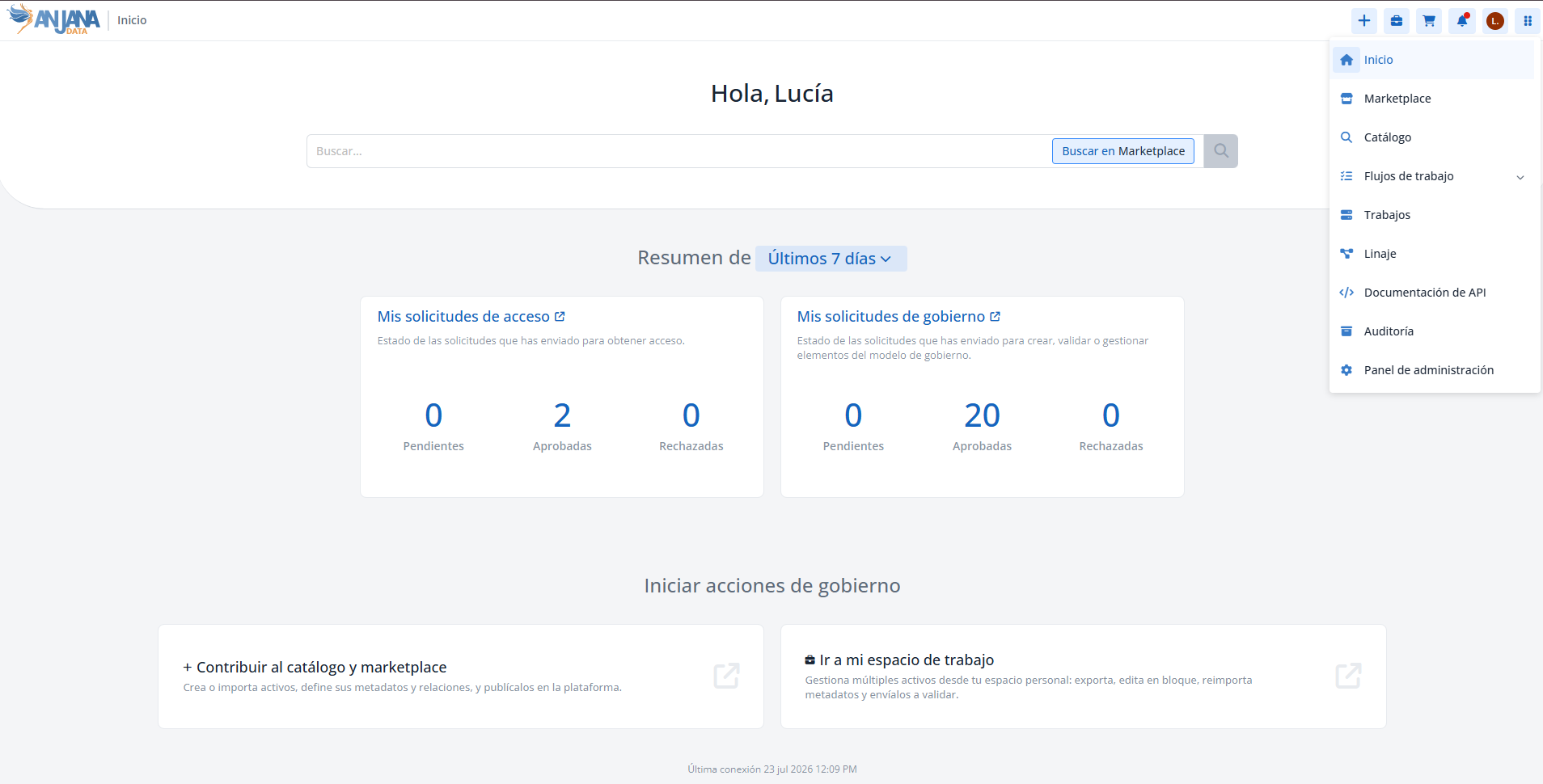
Six-Dot Icon — Modules
Opens a dropdown with access to the different modules, which are displayed according to the user's permissions:
-
Home. See Data Portal Home Page (Home page).
-
Marketplace. See Marketplace - Discovery and Access Request.
-
Catalog. See Catalog - Search and Discovery.
-
Workflows, with the submodules My Access Requests, My Governance Requests, My Tasks, and All Workflows. See Workflows (submodules and validation).
-
Jobs. See Jobs.
-
Lineage. See Lineage.
-
Audit. See Application Audit.
-
API Documentation (access to the API documentation, presented via Swagger).
-
Administration Panel, the new platform administration module. See Configuration Panel and New Administration Portal.
This section is intended for all Data Portal users, as it describes the common entry point for the actions and modules of Anjana Data Platform.