
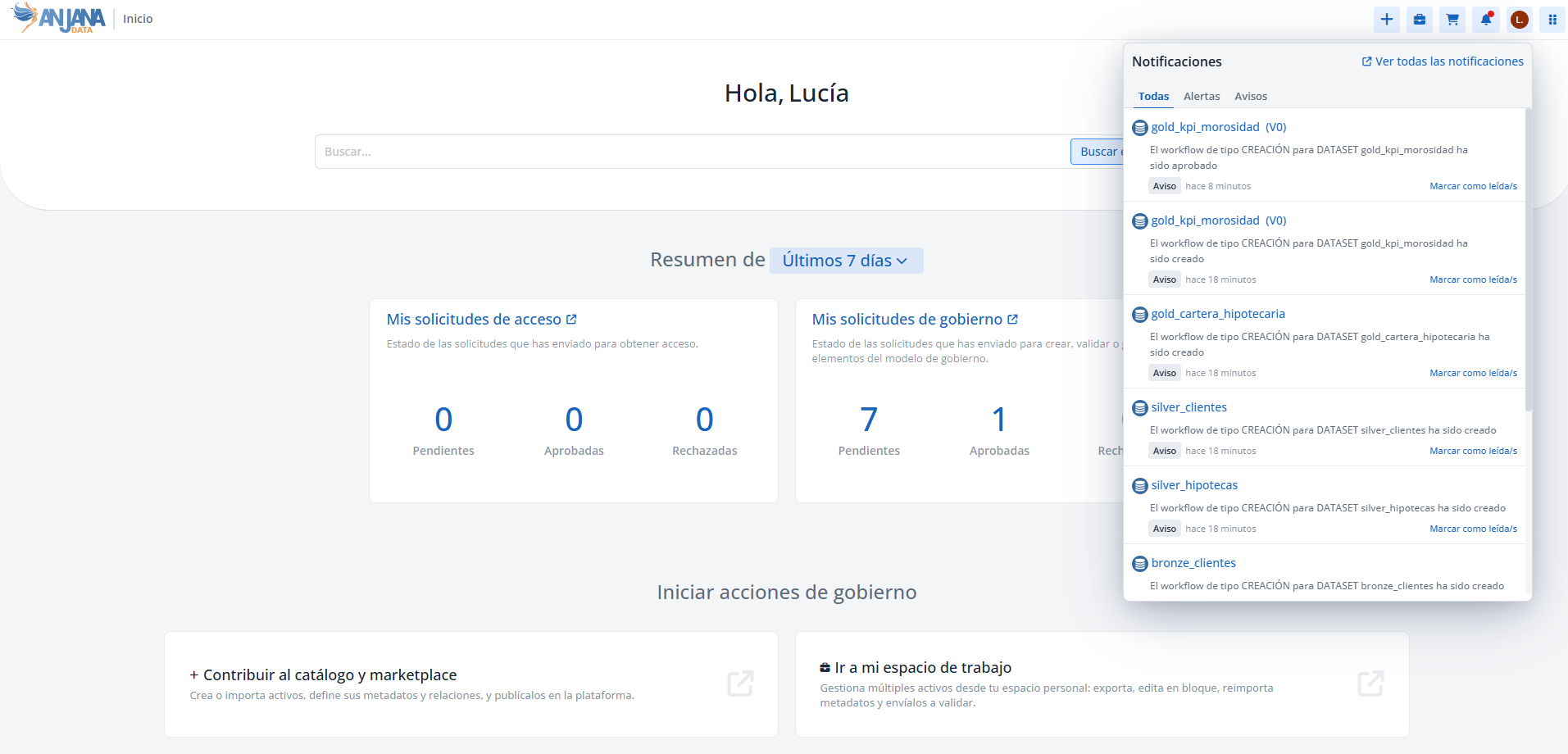
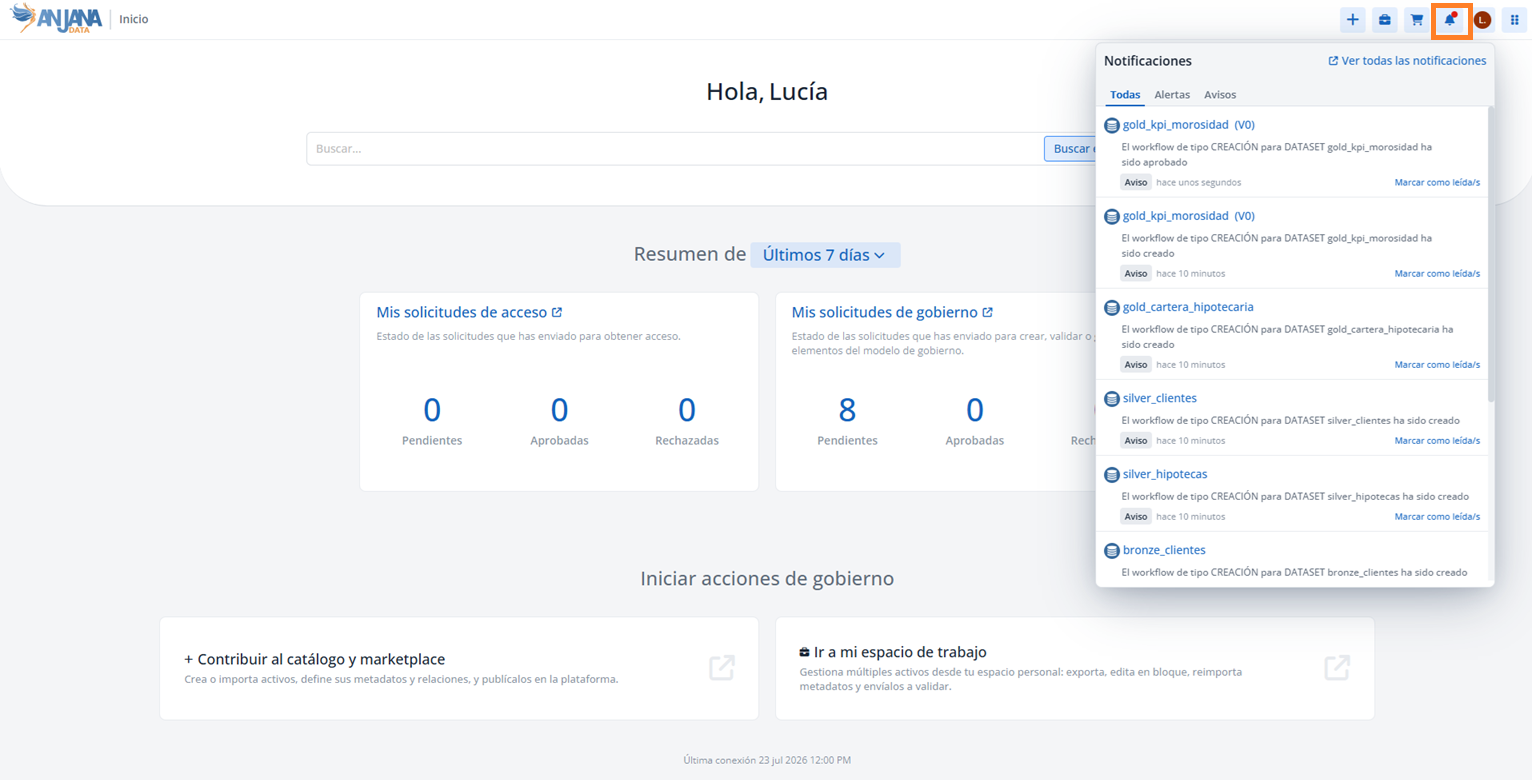
The Notifications icon in the Data Portal gives access to the quick view of unread notifications. An indicator (red dot) on the icon signals that there are notifications pending to be read or responded to.
Notification types
-
Alert: communicates the existence of a pending interaction for a user with a specific role (for example, reviewing a validation step in a workflow).
-
Administration alert: communicates an issue in Anjana Data Platform's automations with the data systems that requires manual action to keep the information consistent (for example, if a group could not be created or a permission could not be automatically assigned to a role upon completion of a DSA creation workflow, and the plugin's service account privileges, configuration, connectivity, etc. need to be reviewed).
-
Notice: informs the user of an action of interest to them that has already taken place (for example, that a workflow they launched has been approved).
Administration alerts are simply displayed as "Alerts"; they do not constitute a separate type for the purposes of the Type column and filter (which only distinguish between Notice and Alert). These are notifications designed, by their nature, to be received only by roles set up as administrators.
Notifications quick view
Clicking the icon opens the quick view, which shows unread notifications. In it:
-
In an alert, the Go to workflow detail link redirects to the approval or rejection screen. Once the workflow has been validated, the notification disappears from the view.
-
In a notice or an administration alert, the Mark as read link marks it as read and removes it from the pending list.
Access to all notifications (read and unread) is available only from the link located at the top of the notifications quick view. This access is no longer available from the user profile.
All notifications screen
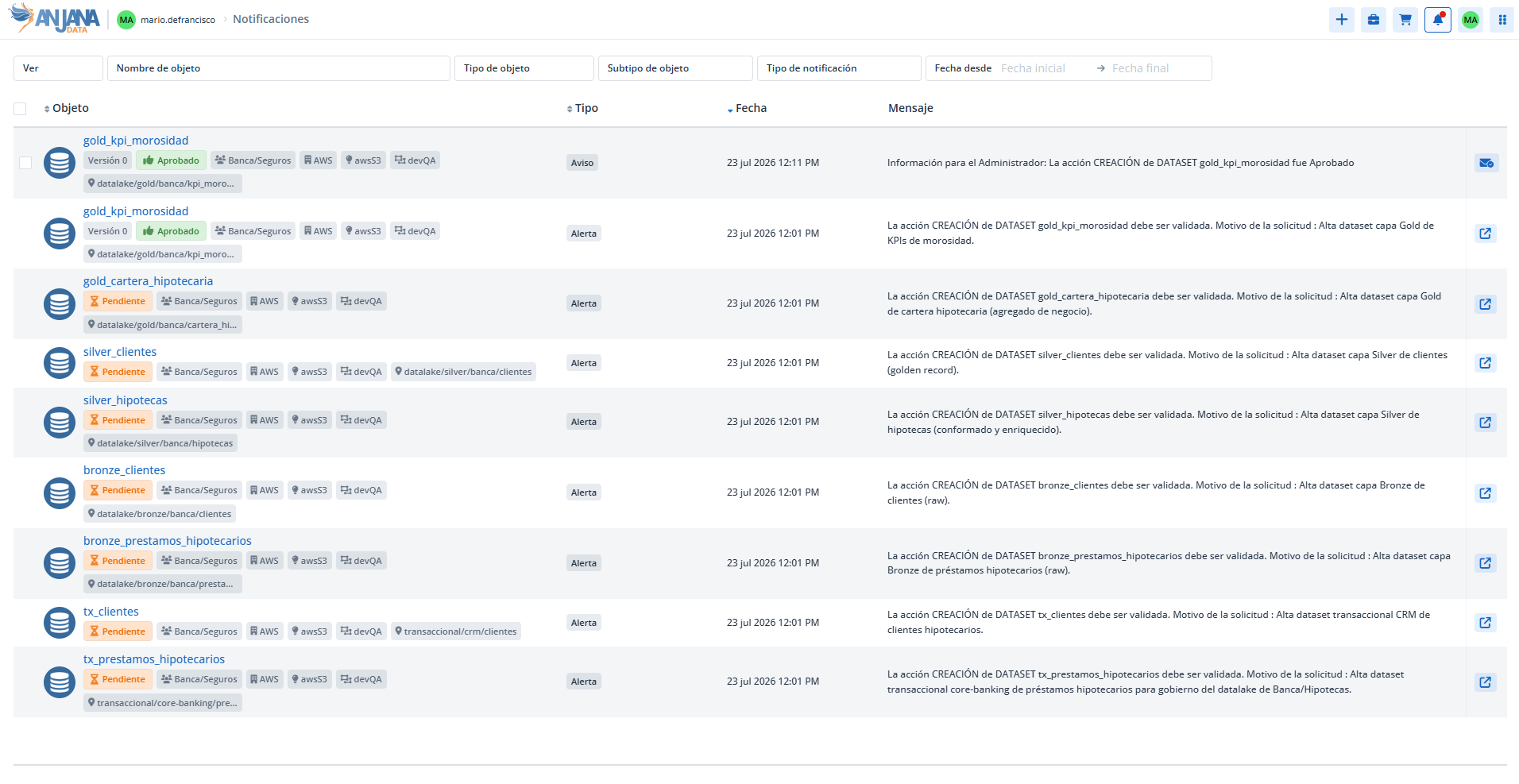
This screen shows all notifications (alerts and notices, read and unread) in a table. For each notification, the following is available:
-
Selection checkbox: selecting at least one notification activates the Mark as read button, which allows marking them in bulk.
-
Object: entity or relationship the notification relates to.
-
Type: Notice or Alert.
-
Date: date on which the notification is received.
-
Message: body of the notification. If the text is too long, a See more link appears that opens a window with the full text.
-
Mark as read: icon to mark the notification as read individually.
-
Link to workflow: icon to navigate to the workflow that triggered the notification.
Filters
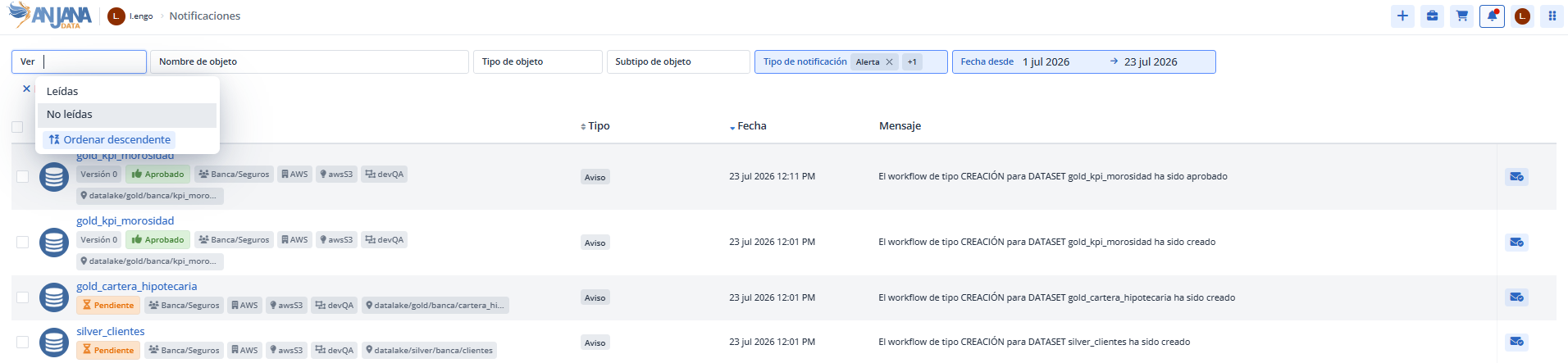
At the top of the screen, a set of filters allows narrowing down notifications by:
-
Read status: read or unread.
-
Object name.
-
Object type and subtype.
-
Notification type: alert or notice.
-
Receipt date (start and end).
This section is mainly intended for Data Portal users who participate in governance processes and receive alerts and notices derived from workflows.