
The Marketplace is the Data Portal module where users can locate data assets and request access to them in a governed way. Together with the Catalog, it replaces the former Search Portal as of version 26.1: while the Catalog provides search and discovery across the full inventory of assets, the Marketplace focuses on discovery and access requests.
The Marketplace only offers assets that have been included in a Data Sharing Agreement (DSA) and are in approved status, the only status that allows requesting access. The Catalog's search and discovery experience is described in Catalog - Search and Discovery.
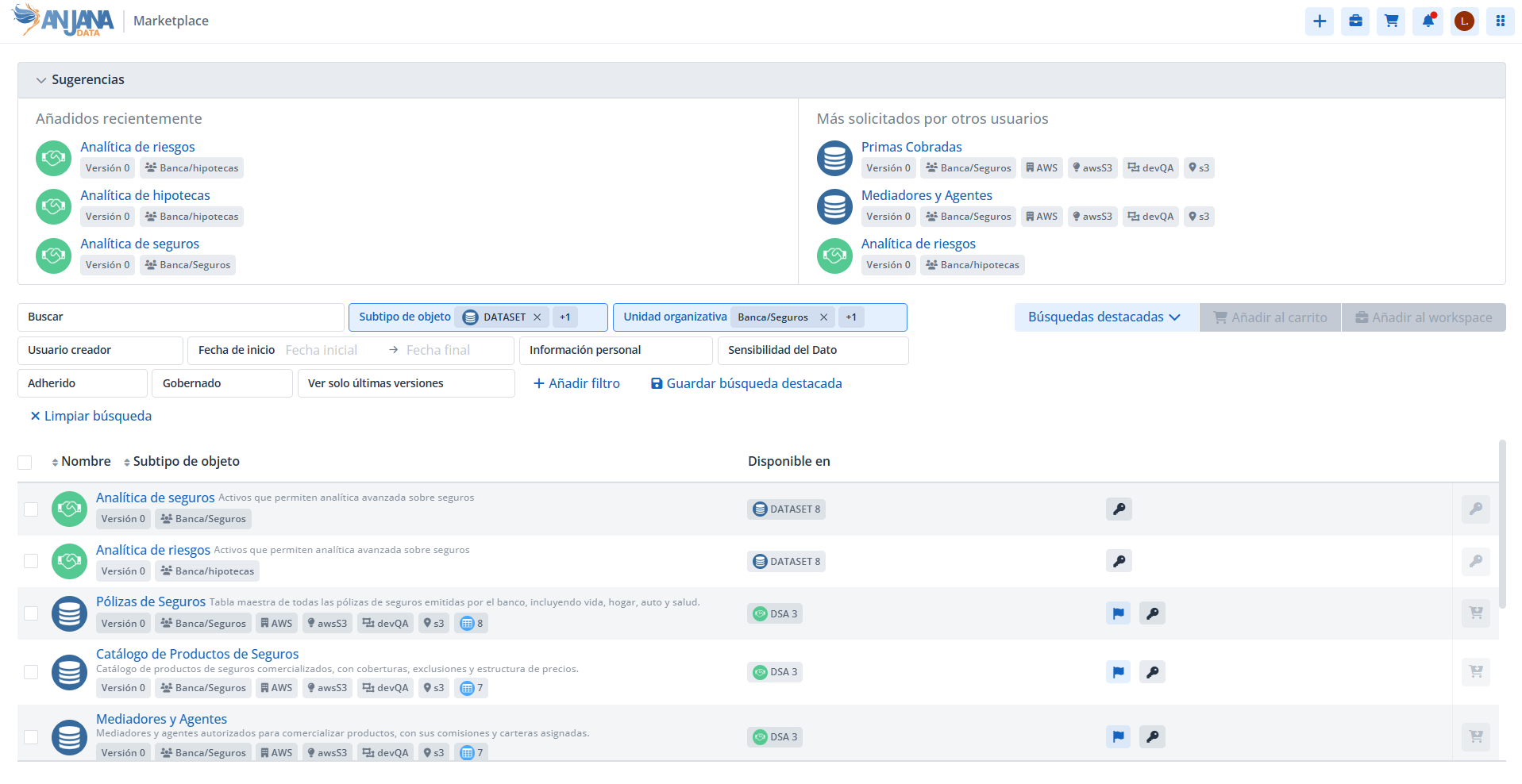
Marketplace access permissions
As in the Catalog, access to the Marketplace is subject to authorization. A user can only access the module if they have the Marketplace access permission that enables the cart (ADHERENCE_ACCESS), the feature that allows grouping assets and processing their access request. If a user believes they should have access and do not, they should contact the administrator of Anjana Data Platform to review the assigned roles and permissions.
How to access the Marketplace
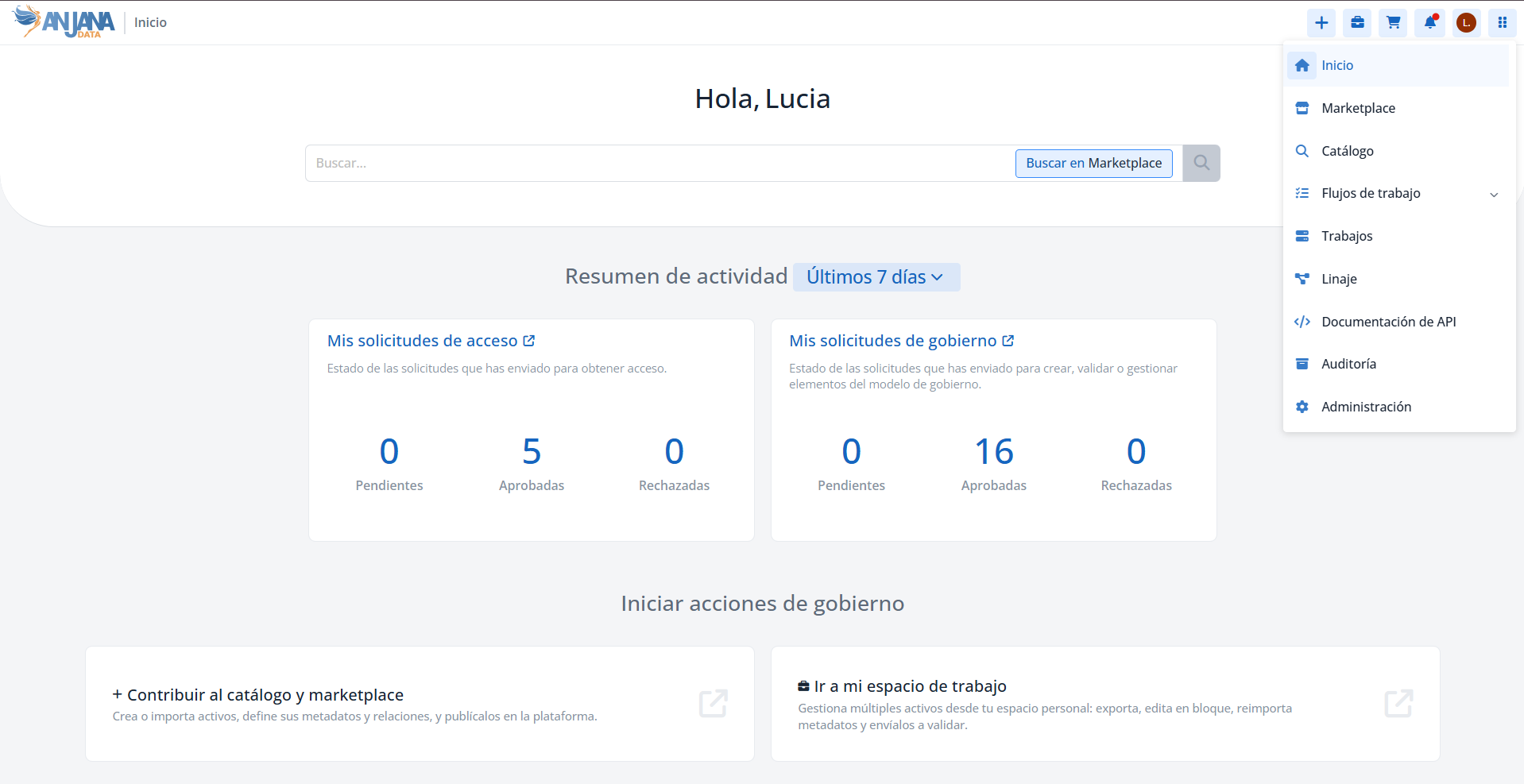
As in the Catalog, there are two access points:
-
From the Home page, using the search bar and selecting Marketplace as the scope to search within.
-
From the module navigation panel, by selecting Marketplace.
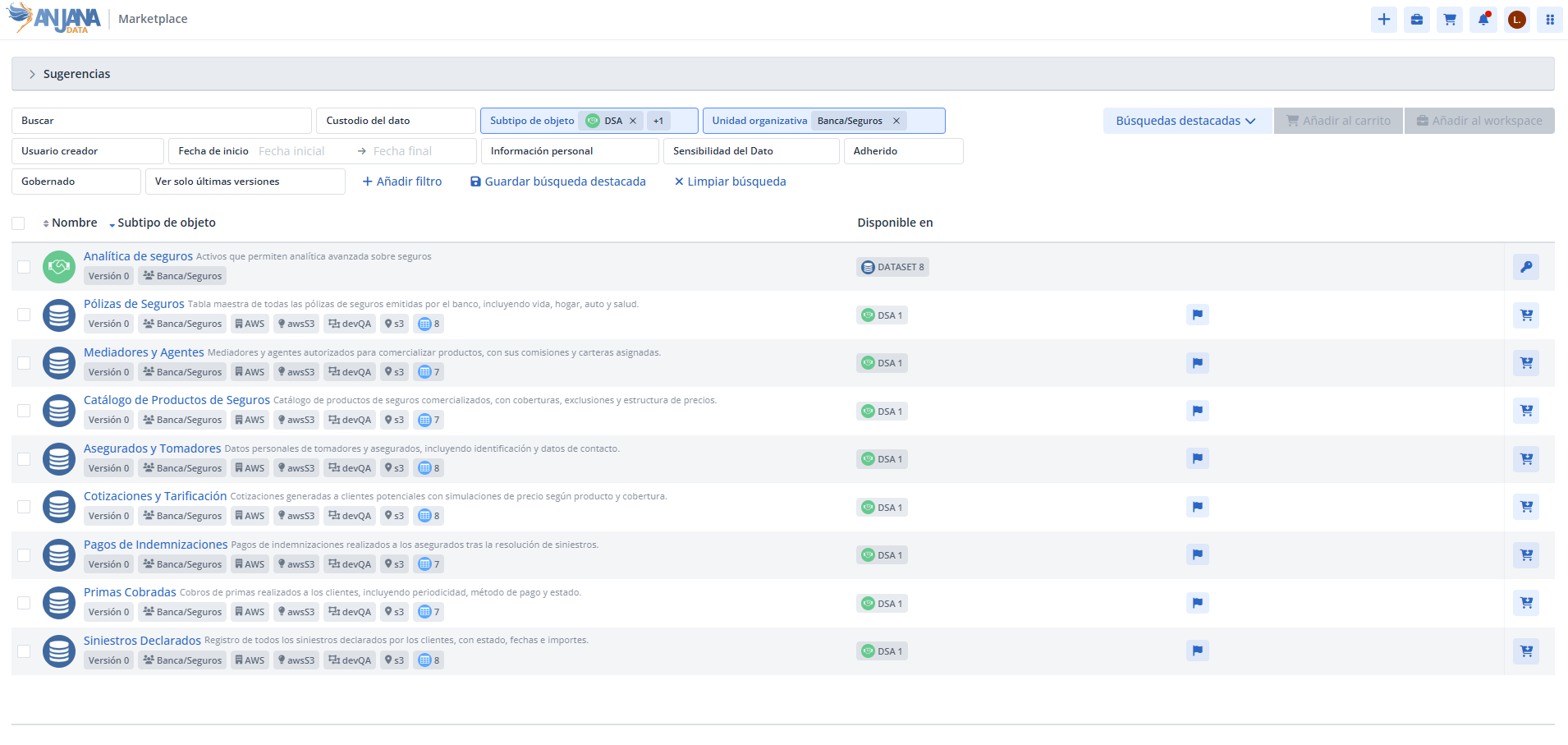
Marketplace content
Suggestions
At the top of the Marketplace, a Suggestions section is displayed, helping the user discover relevant assets without needing to perform a search. It is divided into two blocks:
-
Recently added, showing recently approved DSAs and the objects included in them.
-
Most requested by other users, showing the assets with the highest number of adherence requests.
The Suggestions section can be expanded and collapsed to gain search space.

Search area
The Marketplace provides a search area equivalent to that of the Catalog, consisting of:
-
Search bar, identical to the one in the Catalog.
-
Filters, identical to those in the Catalog, with the option to add filters.
-
Featured searches, identical to those in the Catalog.
-
Results area, for viewing the results of searches and filtering.
The detailed behavior of the search bar, filters, and featured searches is described in Catalog - Search and Discovery.
Object preview
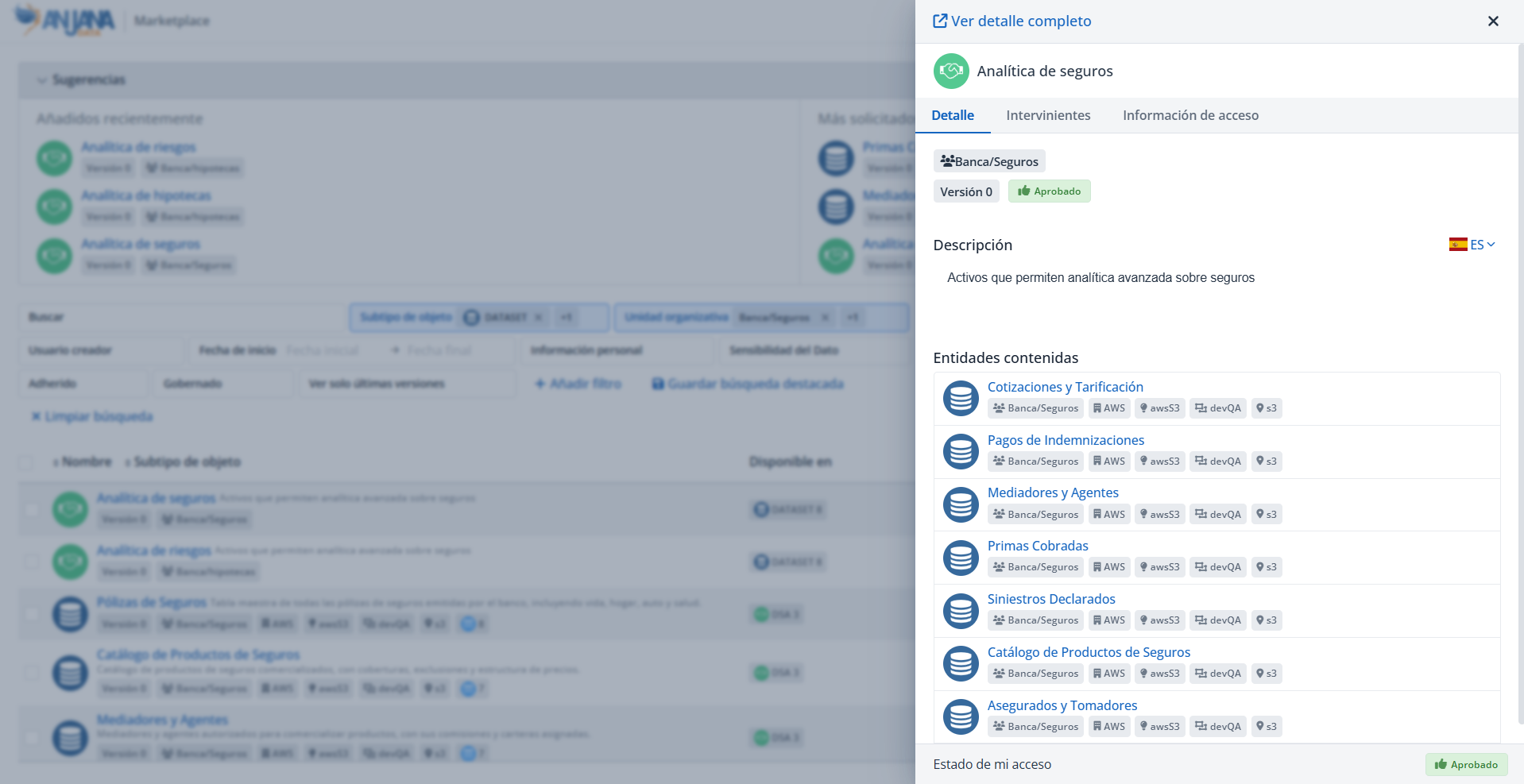
Once a search has been performed, clicking on an object displays a preview on the right with information about:
-
Link to the full detail, via the link at the top.
-
The option to add to cart. Only available if the user has not requested access.
-
Detail: Includes the following information.
-
Description, organizational unit, and version.
-
In the case of DSAs: the entities they grant access to.
-
In the case of entities contained in a DSA: information about which DSAs allow access to them.
-
In the case of datasets: the field structure (dataset fields).
-
-
Stakeholders: the asset's guarantors (people with roles such as Owner, Steward, quality officer, etc.).
-
Access information: instructions for accessing and querying the data. Only available if the adherence has been approved.
-
Access status: not requested, pending, approved, or rejected.
Requesting adherence to a DSA
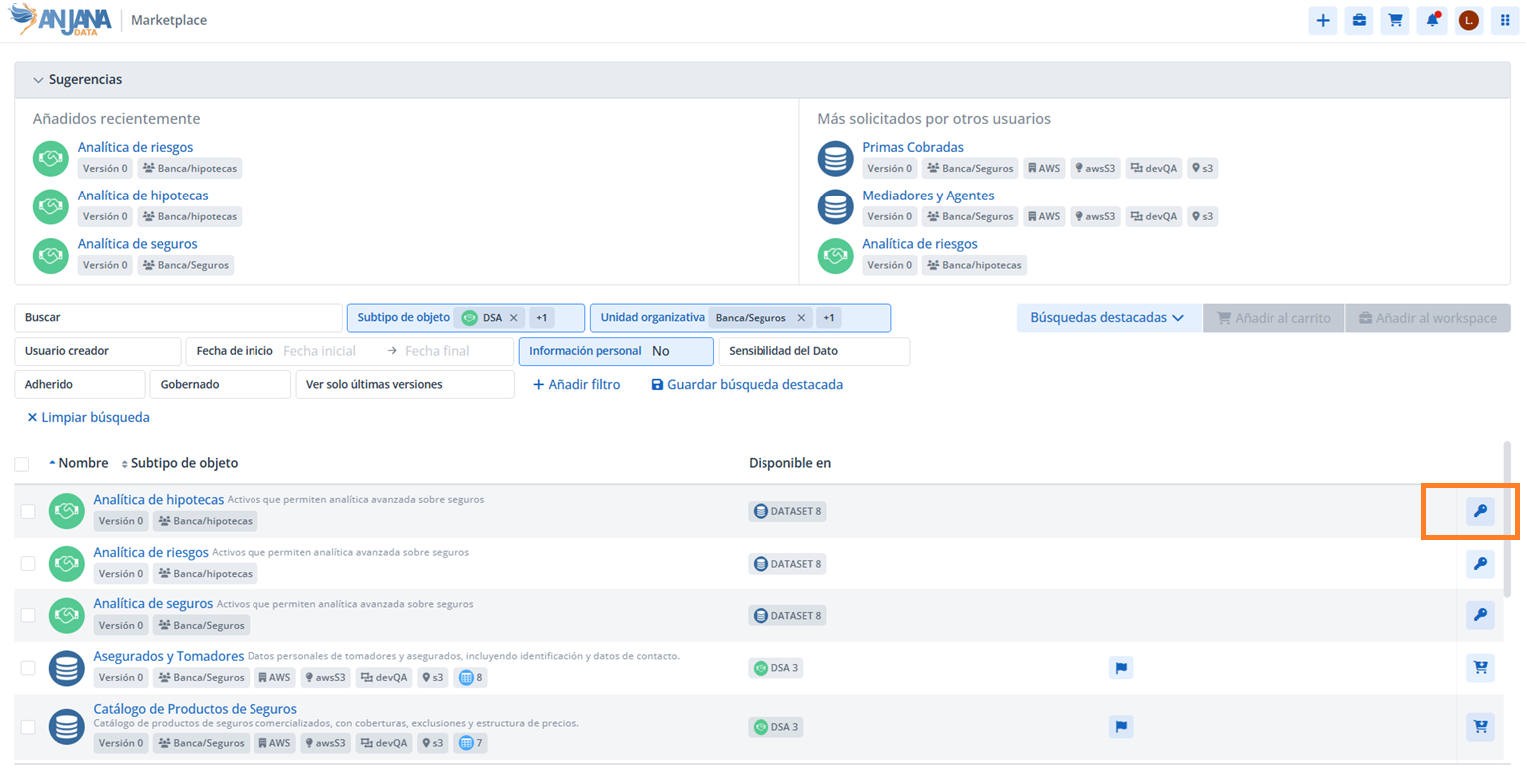
For DSAs, it is possible to request direct adherence by clicking the key icon.
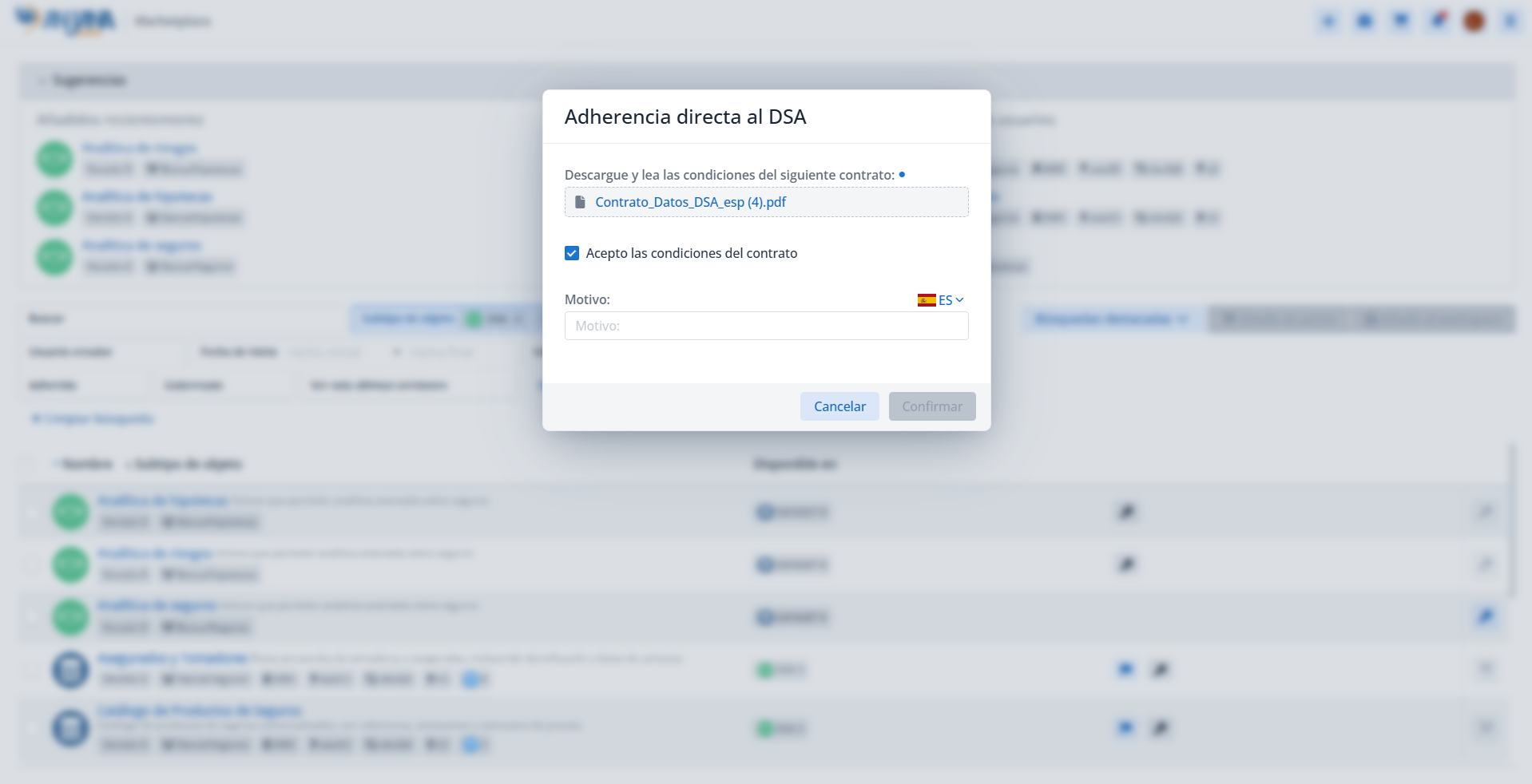
This quick access allows you to download and sign the contract without going through the cart:
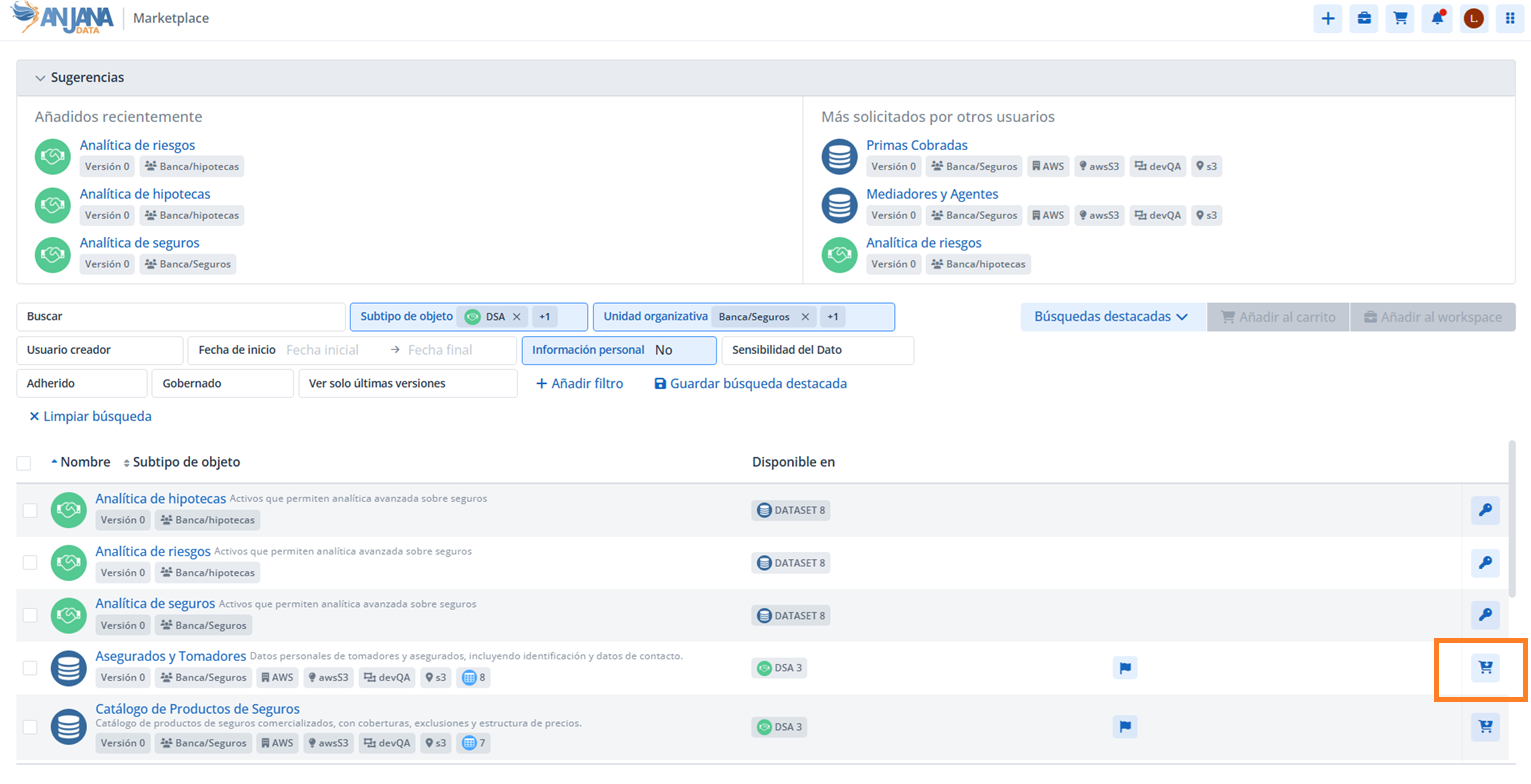
Quick access to entities contained in a DSA
For entities contained in a DSA, in addition to adding them to the cart, it is possible to start a quick “purchase”: this action adds the asset to the cart and redirects directly to it to formalize the access request.
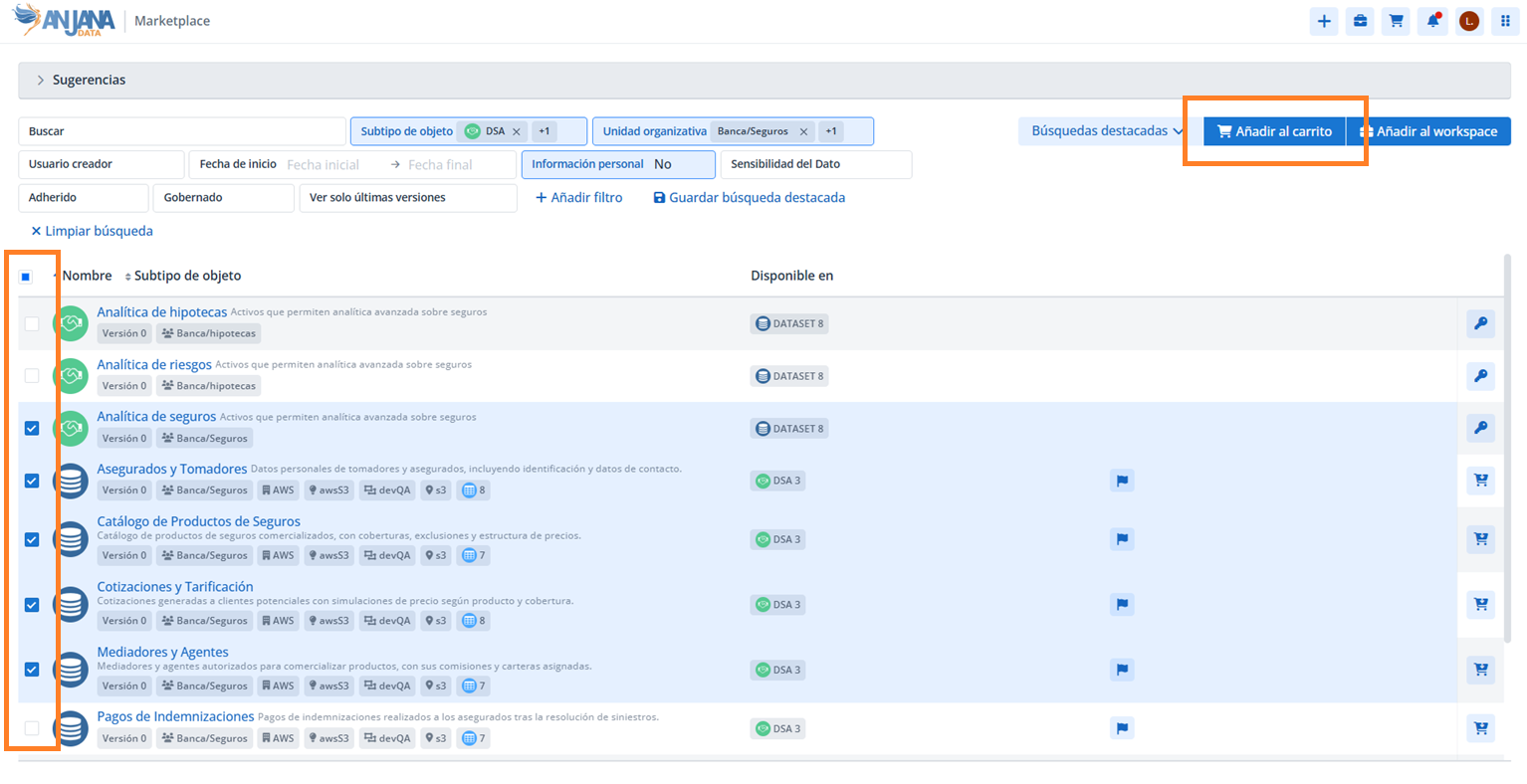
Bulk selection of assets
Users can select assets in bulk to add them to the cart all at once.
Cart links
The Marketplace shopping cart includes a series of links that make it easier to view and manage access requests. Their behavior is as follows:
-
My access, clicking it refreshes the Marketplace search to show the assets the user is adhered to and, therefore, has access to.
-
My access requests, clicking it redirects the user to the Workflows submodule called «My access requests», where they can check the status of all the adherence requests that have been made.
-
Request new DSA, clicking it opens a pop-up window where the user can select, from among the objects in their cart, those for which they want to request the creation of a new DSA tailored to their consumption needs. The message they enter is sent to the owners of the selected objects as a warning-type notification. The role that receives this notification depends on the configuration the platform administrator has defined in the notifications table for the notification with code
NEW_DSA. -
Process access requests, clicking it takes the user to the shopping cart, where they can carry out the guided adherence request process. Details of its use are described in Shopping Cart.