
Starting with version 26.1, what in previous versions was the Search Portal of the Data Portal is reorganized with the arrival of two independent modules: the Catalog and the Marketplace, each with its own search and discovery experience.
In versions prior to 26.1, the Search Portal was used both to browse the data Catalog (the inventory of all the organization's assets) and to act as a Marketplace, where users could locate assets, add them to the cart, and request access to them in a governed manner. Starting with 26.1, both experiences are separated into two distinct modules.
This document goes into detail on the Catalog's search and discovery experience.
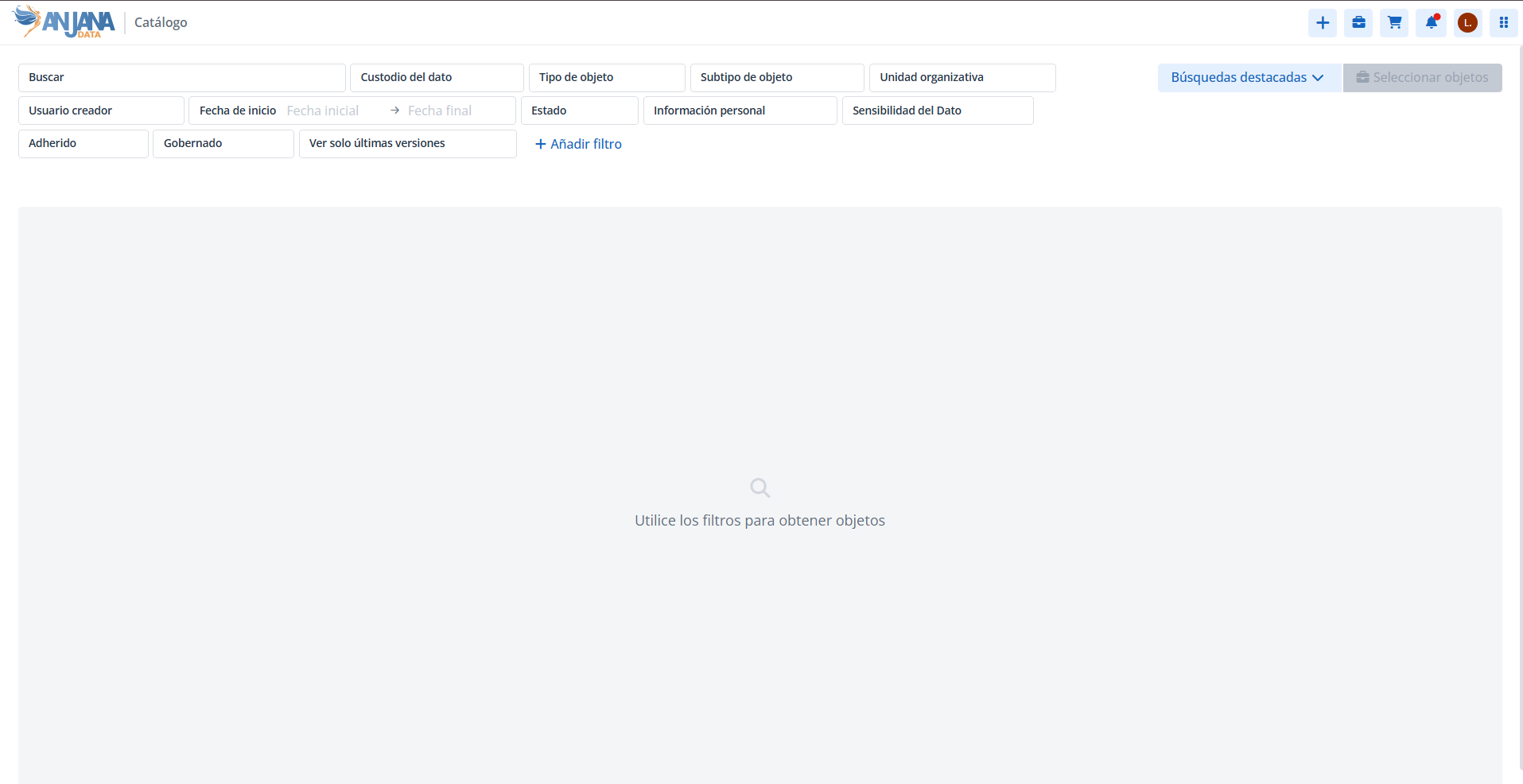
Catalog access permissions
Access to the Catalog is subject to authorization. A user can only access the module if they have been assigned at least one role with Catalog access permissions. If a user believes they should have access and do not, they should contact the administrator of Anjana Data Platform to review the assigned roles and permissions.
How the user reaches the Catalog
There are two access points to the Catalog:
-
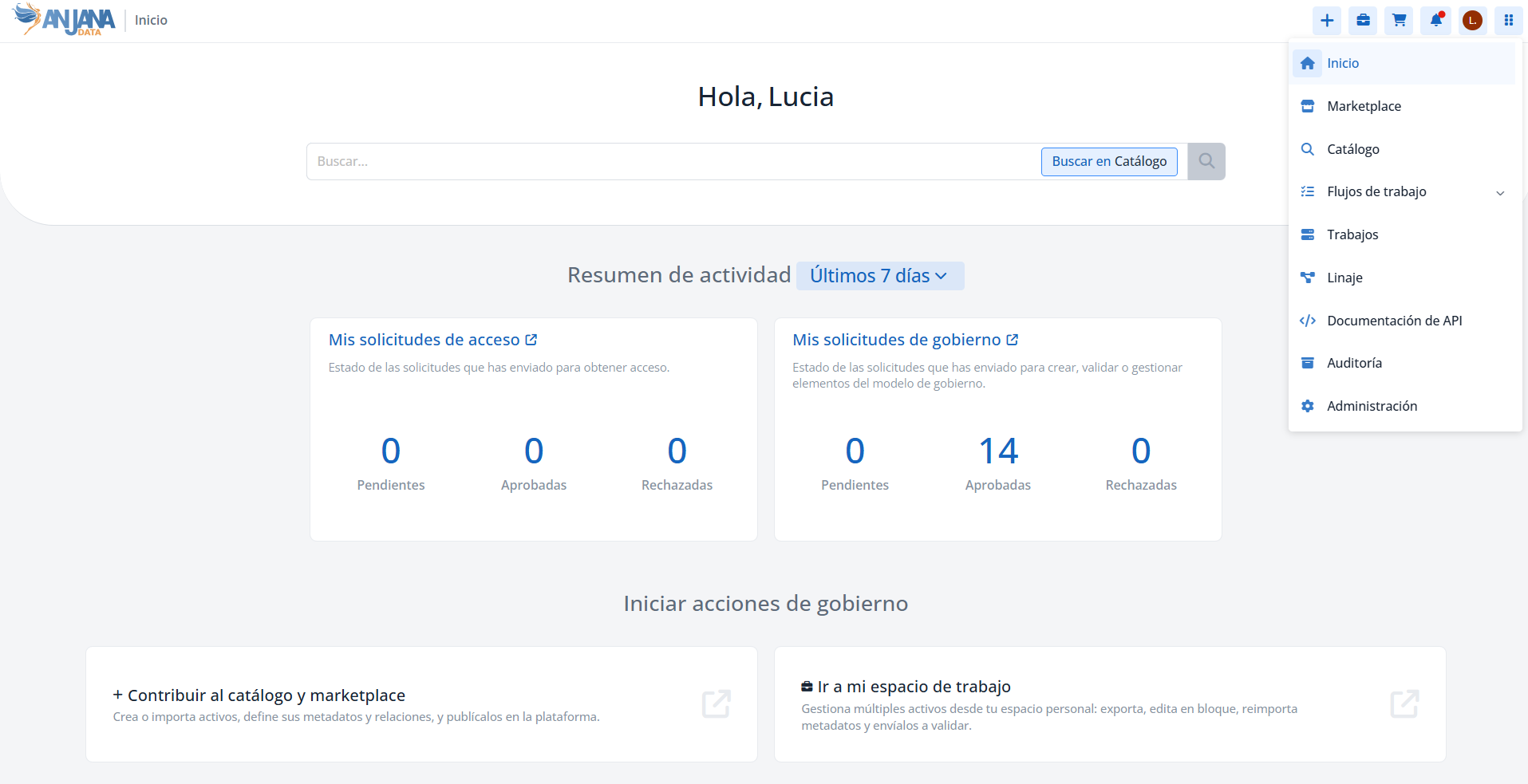
From the Home page, using the search bar and selecting the Catalog as the scope in which to perform the search.
-
From the module navigation panel, selecting the Catalog.
Initial loading of the Portal
When accessing the Data Portal, the initial load depends on the user's personal configuration:
-
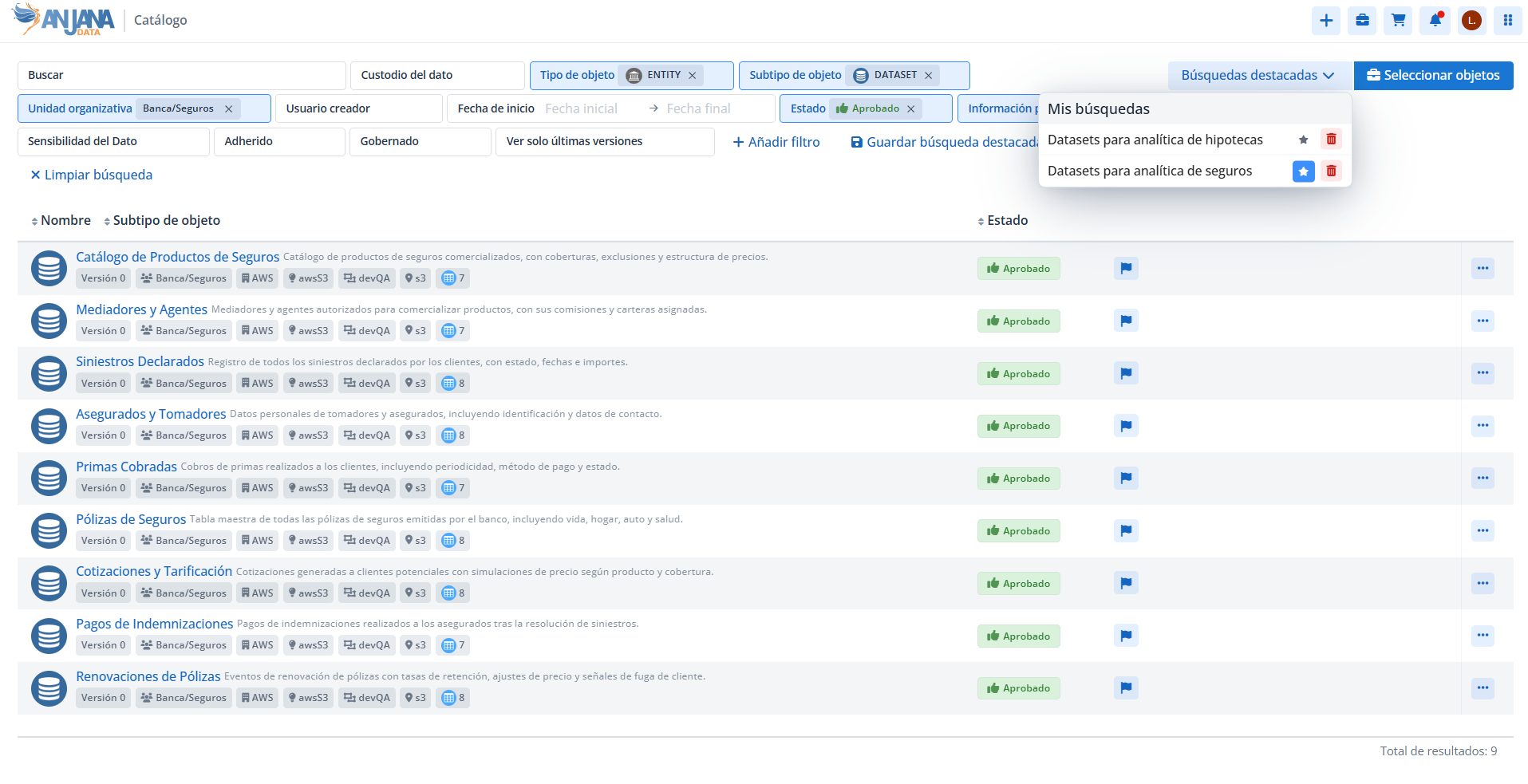
If the user has a favorite saved search applied, the Portal will be displayed directly with that filter applied and the resulting set of objects already loaded.
-
If the user has no favorite saved search defined, the Portal will initially be displayed with no results, prompting the use of the search bar and the filters located at the top to locate the catalog's objects.
Later on, it is explained in detail how to configure, save, and mark custom filters as favorites.
List of catalog objects
The Portal displays a list that combines:
-
Entities: which can be of various types:
-
Business assets (reports, AI systems, business terms, reports, metrics, etc.)
-
Technical assets (datasets, dataset fields, AI models, processes, process instances…)
-
Regulatory compliance assets (Records of Processing Activities - ROPA, AI Models or Systems…)
-
Other
-
-
Relationships between the different entities
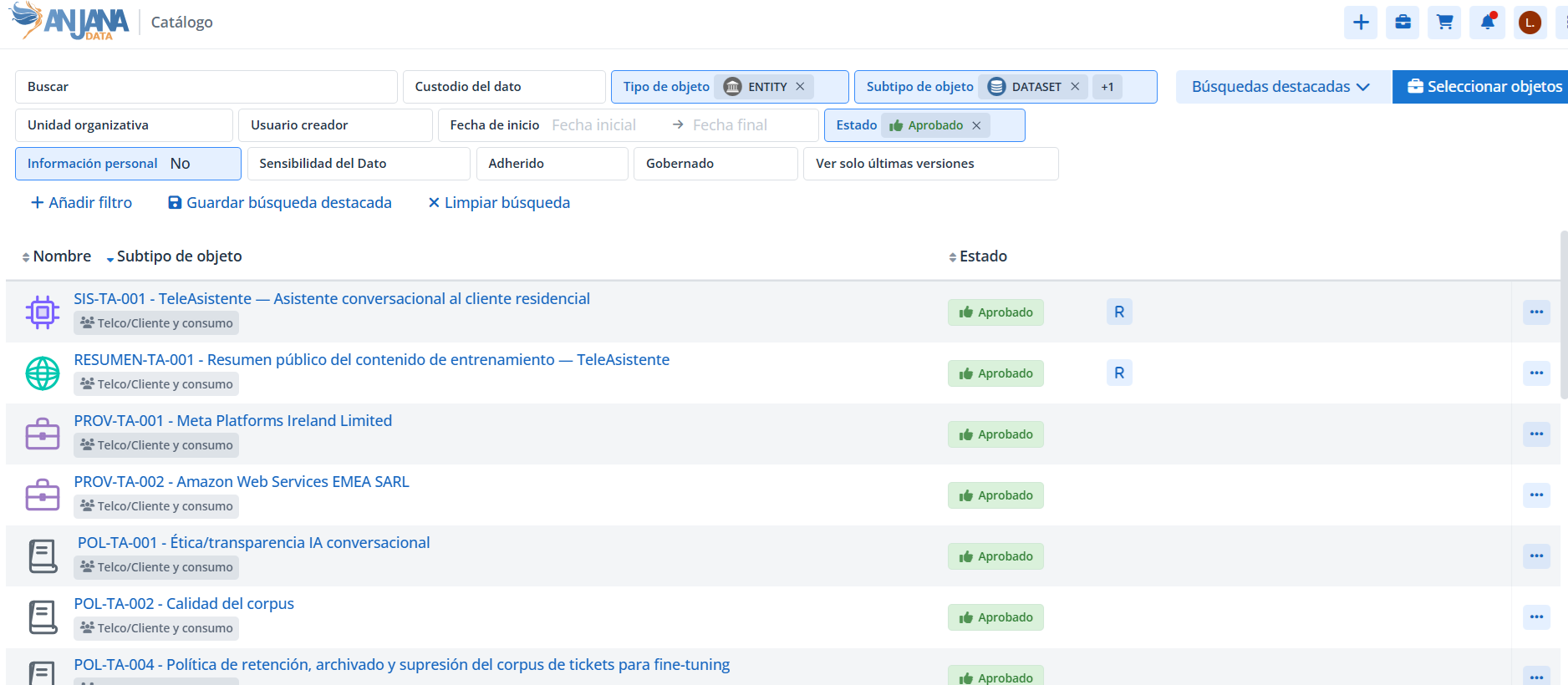
For each object, the following is displayed:
-
its essential information (description, organizational unit, version…)
-
its status (imported, draft, pending, approved, discontinued, expired, rejected, or disabled),
-
its corresponding iconography (see the relevant section), and
-
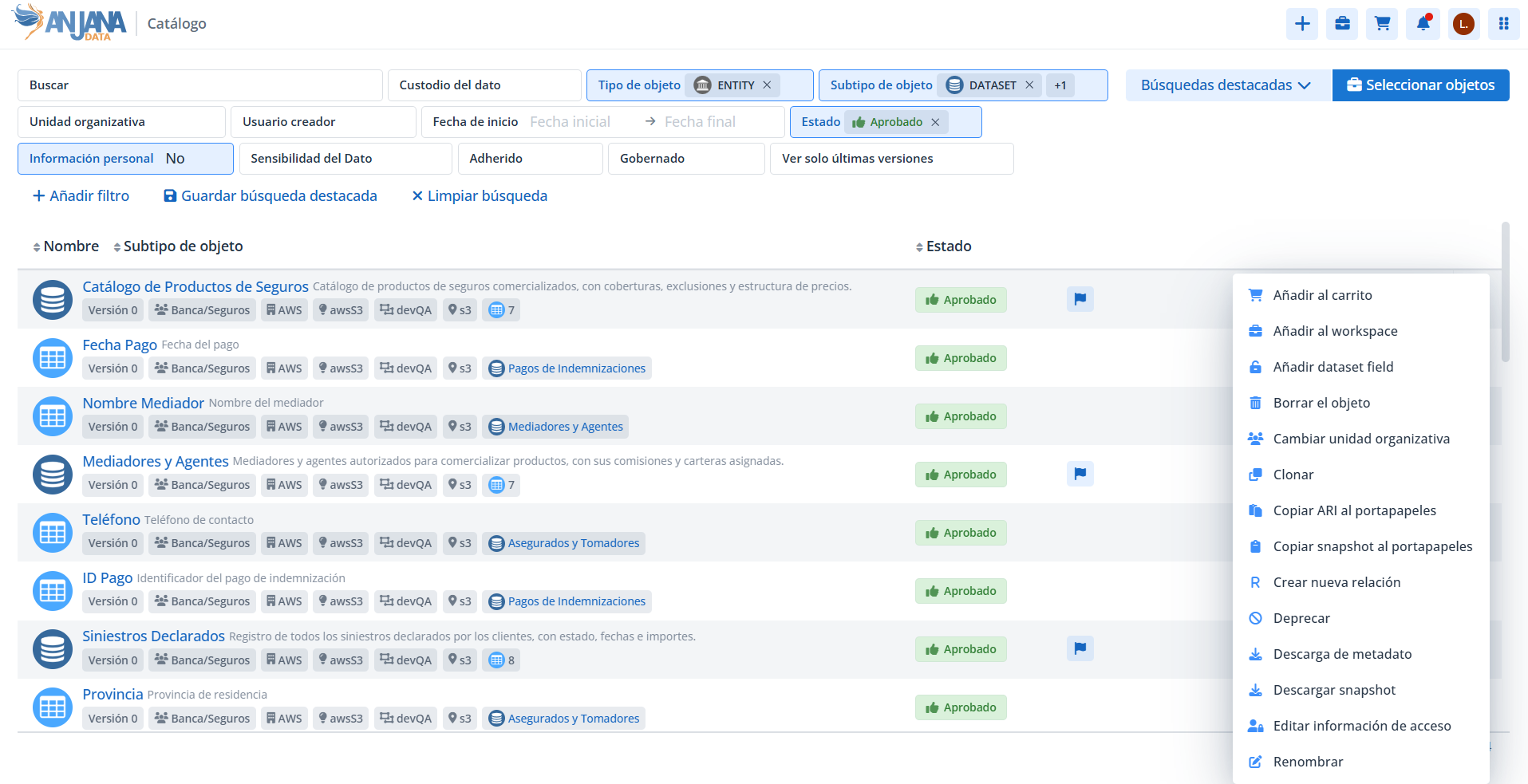
a set of quick actions (such as adding to cart, renaming, deleting, downloading metadata…)
The available actions are detailed in the corresponding section of this same guide.
This list of elements is made up of the functional entities (such as business terms, reports, metrics…), the physical assets (such as datasets, dataset fields, processes…), and the relationships. For each of these objects, it shows the most relevant information and the actions the user can perform on them as quick access, such as activation, deactivation, cloning, or the ability to add to cart. Each of these actions is specified in the Actions on Objects section of this Guide.
Iconography
In order to facilitate the visual identification of governed objects, the Portal uses specific iconography that indicates:
-
the object's type and subtype,
-
its status, and
-
relevant characteristics in relation to the logged-in user.
Object type and subtype
Anjana Data includes a set of default icons for all the platform's native entities. These icons make it possible to visually identify the type and subtype of each object within the Portal.
However, the iconography can be customized by following the instructions described in the Visual Configuration and Styles Guide of the official documentation. This makes it possible to adapt the icons to each organization's needs or add new icons for non-native entities and relationships.
|
Default iconography |
Object subtype |

|
DSA |

|
DATASET |

|
DATASET_FIELD |

|
PROCESS INSTANCE |

|
PROCESS |

|
SOLUTION |
Status
Below is the iconography for the different statuses of governed objects depending on the lifecycle phase they are in:
|
Icon |
Object status |
Description |

|
Approved |
Object that has successfully passed through the governance validation workflows. |

|
Draft |
Object that is currently being worked on by governance roles; it has not yet gone through the governance validation workflows. |

|
Discontinued |
Object that, having previously been approved, has had its expiration date set through the creation of a more recent approved version. (Only for native entities) |

|
Disabled |
Object that, having previously been approved, has been disabled through a validation workflow (Only for non-native entities and relationships) |

|
Expired |
Object that, having previously been approved, has expired once the expiration date is reached and the batch process runs (Only for native entities) |

|
Imported |
Object that has been imported through metadata extraction and only contains the metadata that has been extracted from the technology. |

|
Pending validation |
Object that is currently under validation in a governance workflow |

|
Rejected |
Object that, having been subject to validation in a governance workflow, has been rejected by one of the participants. |
Object-specific characteristics
The following shows the iconography that provides information about specific characteristics of the object.
Search bar and filters
The Data Portal incorporates an advanced search engine that makes it possible to locate governed objects using textual criteria and associated metadata. Its goal is to facilitate fast, relevant, and contextual exploration of the corporate catalog. The search bar is located at the top of the Portal and is complemented by a set of filters that allow the results obtained to be further refined.
The filters are explained in detail in the following sections.
How the search bar works
The search bar allows one or more search criteria to be entered. Based on these terms, the engine analyzes all the metadata attributes of the Portal's objects and returns those that show matches, ranking them according to a configurable weighting system.
Search across all attributes
The engine evaluates matches in:
-
textual attributes (name, description, tags, etc.),
-
classification attributes (domain, sensitivity level, taxonomies…),
-
functional or operational attributes depending on the object's template,
-
attributes specific to relationships (source entity, target entity, relationship type, associated metadata).
The match can be found in any available attribute of the object, which makes the search global, comprehensive, and sensitive to the entire metadata context.
Attribute weighting (weights)
The search bar uses a weighting system that assigns greater relevance to certain attributes over others based on the applied technical configuration. This determines the order in which the results appear.
For example:
-
Attributes such as name, description, and tags are usually configured with a higher weight.
→ If the searched text appears in any of these attributes, the object will be positioned higher in the list of results. -
Other less descriptive attributes, such as sensitivity, domain, or other secondary metadata, are usually configured with lower weights.
→ Matches in these attributes will appear lower in the results.
This logic allows the results most relevant to the user, according to the model defined by the organization, to appear in first position.
Weighting by object type
In addition to weighting attributes, the search bar can assign greater or lesser relevance to certain types of objects.
For example:
-
Datasets can have more weight than dataset fields,
-
Business terms can be prioritized over reports,
-
Processes can have more relevance than their instances.
Thanks to this configuration, if a term matches both a dataset and one of its fields, the search bar can display the dataset first and the detail objects afterward.
This behavior improves the exploration experience, by making the entities with a higher hierarchical level or greater relevance in the model appear first.
Relationships included in the search
The engine also analyzes the relationships between objects, since these contain metadata from the:
-
source object,
-
target object,
-
in the object templates through entity-type attributes.
This means that an object can appear in the results even if the match is found in:
-
an attribute of the source object in a relationship that points to it,
-
an attribute of the target object,
-
an attribute of the object itself contained within another one
This approach makes it possible to retrieve contextual results, not just literal ones, helping the user discover relevant related elements even if the match is not found directly in the object.
Filters
Filters make it possible to refine and narrow down the results obtained in the Data Portal. While the search bar offers a global search across all metadata, filters make it possible to limit the objects displayed based on specific characteristics.
A filter is, therefore, a criterion applied to one or more attributes of the governed objects (such as object type, organizational units, creation date, security level, etc.) that helps the user obtain more precise and relevant results. At the bottom of the Portal, the number of objects that meet the search and the applied filters is displayed.
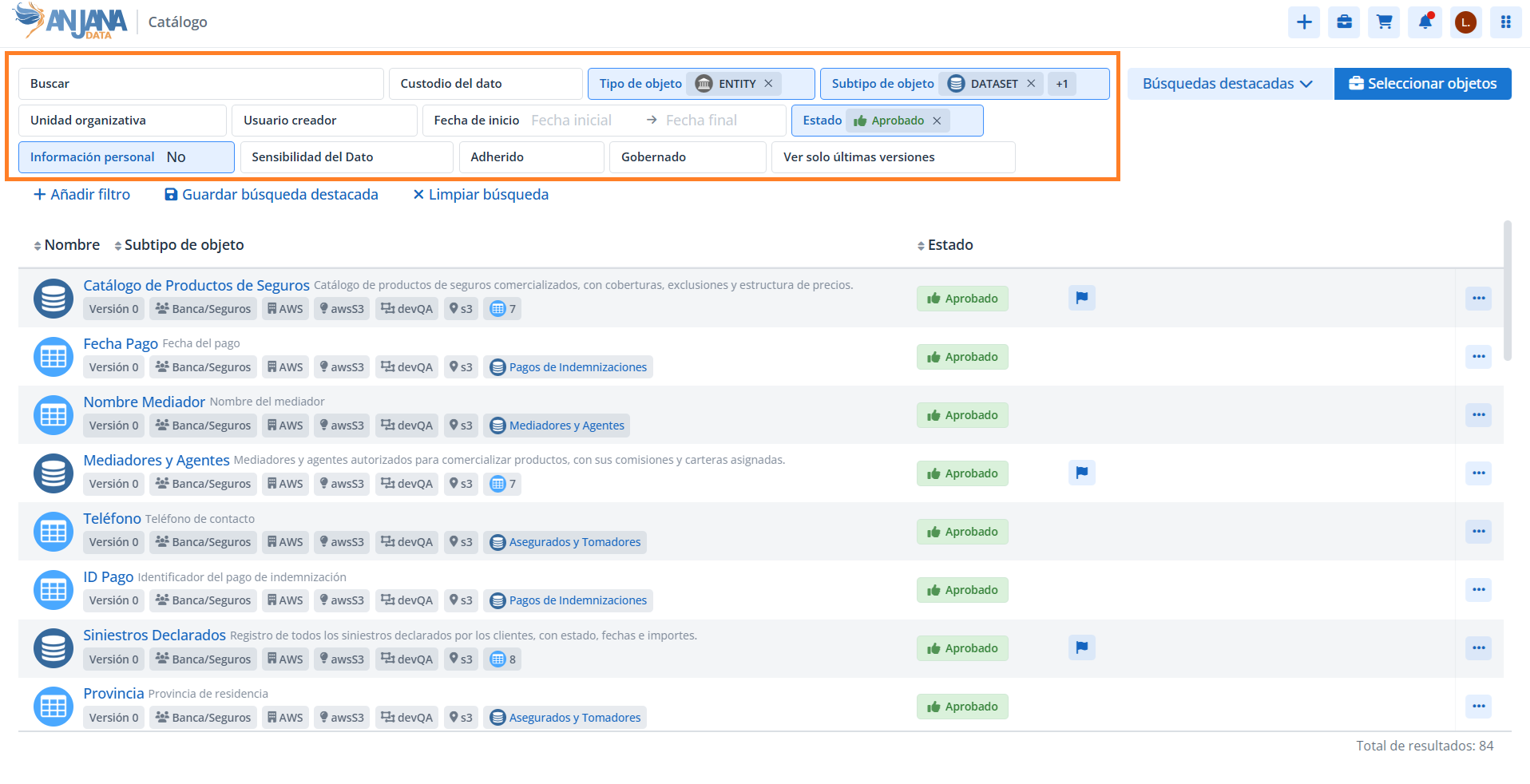
In Anjana Data Platform there are different types of filters, each designed to cover a specific need of the user or the organization:
-
Static filters → always appear in the portal header.
-
Dynamic filters → can be added on demand by the user.
-
Quick filters → provided by the platform by default without having been configured by the organization.
-
Saved searches → saved searches.
Each of these is described below.
Static filters
The static filters are those configured by the organization to always appear visible in the Portal header, next to the search bar. They usually correspond to attributes that are:
-
common to all objects, or
-
especially relevant to the organization, or
-
used very frequently in daily searches.
Common examples of static filters can be:
-
Object subtype
-
Organizational unit
-
Status
-
Creating user
-
Creation date
-
Other
These filters make up the initial set available to any user upon accessing the Portal and allow the search to be narrowed down immediately.
Dynamic filters
The dynamic filters are those that the user can add optionally and temporarily to perform more specific searches.
They are used especially when:
-
it is necessary to filter by attributes that apply only to a specific type of object,
-
a greater level of detail is required than the one offered by the static filters,
-
or the user wants to explore less common or more specialized information.
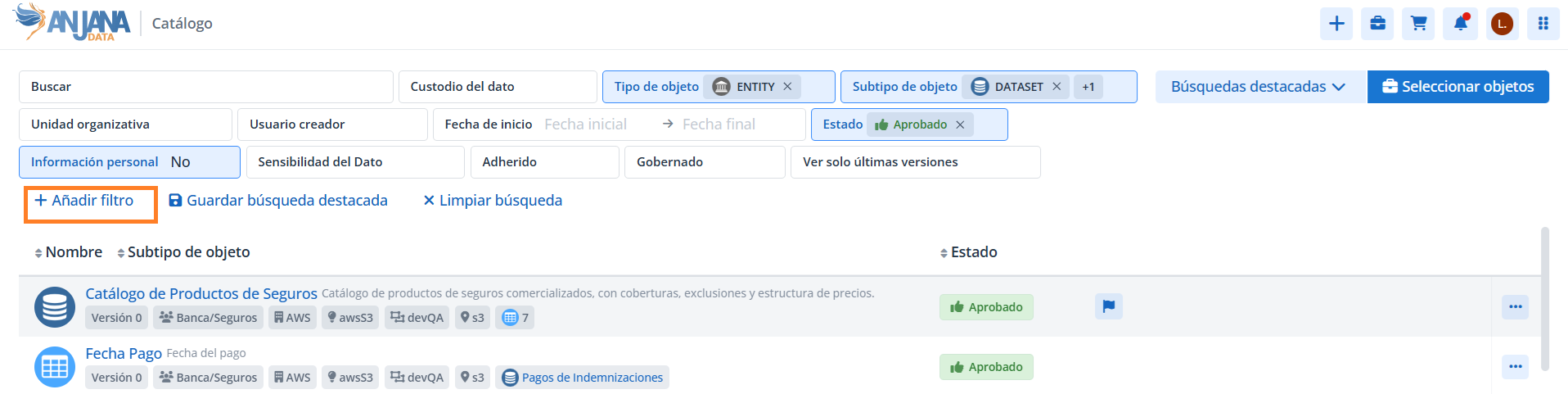
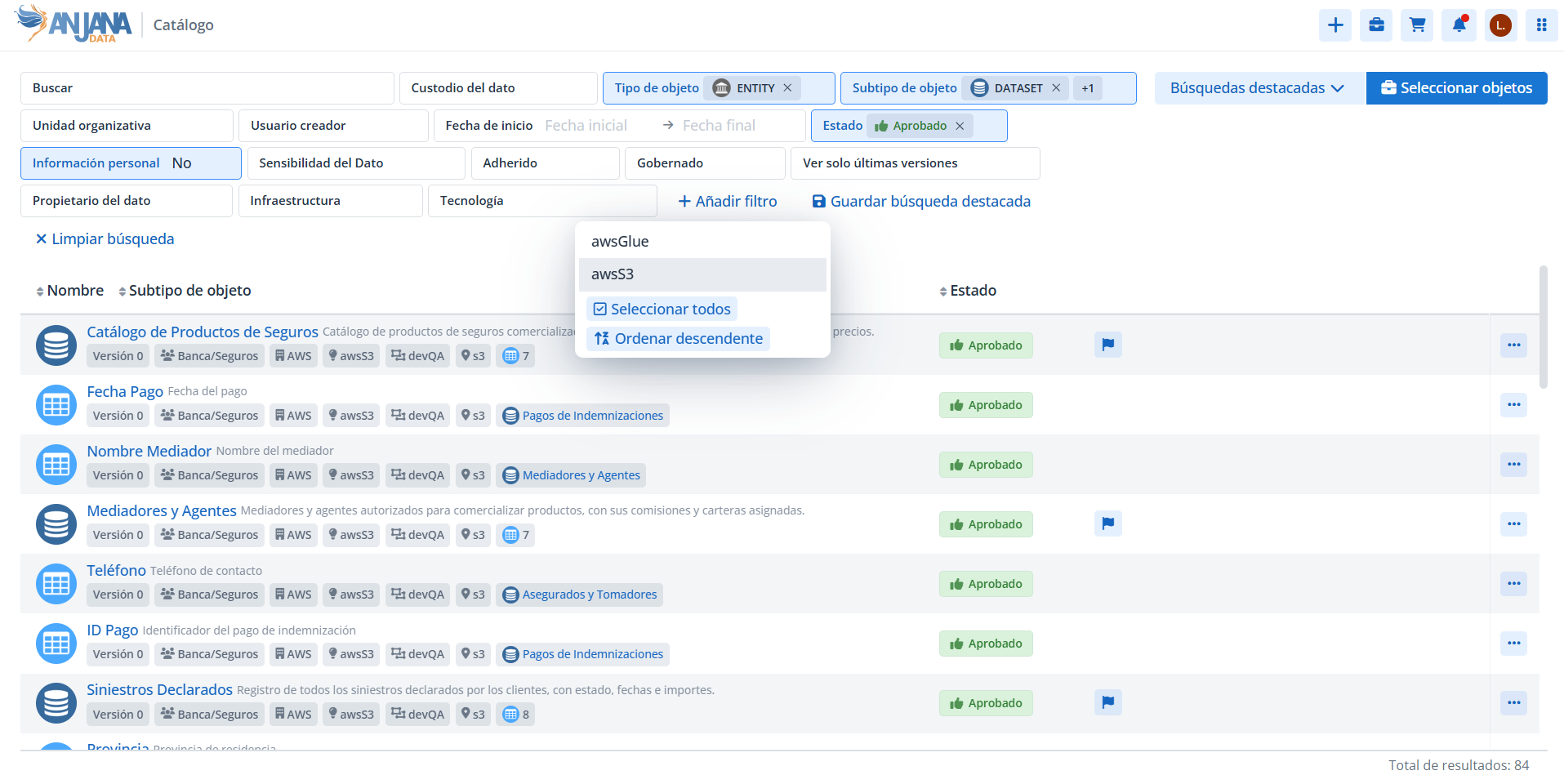
To add a dynamic filter, the user must select the "Add filter" option, which displays the full list of filters configured in the installation. Once added, the dynamic filter works the same way as any of the static filters.
These filters make it possible to adapt the search to specific needs without visually overloading the Portal header.

Changes in v26.1 compared to v25.2
Filters are no longer added from the old "Filters" button (which now houses the Saved searches). To add a filter, the user uses the "Add filter" control, which appears next to the available filters in the header. Clicking it opens a selector that allows choosing the filters to be added to the header so they can be applied.
Next to "Add filter", once a search has started, these additional options also appear:
-
Save search, which adds the current search (search bar text + applied filters) to the My searches list.
-
Clear search, which resets the search to start from scratch.
Quick filters
The quick filters are special filters provided by default by the platform. They do not require configuration by the administrator or the user and are intended to quickly narrow down results based on frequently used criteria.
The available quick filters are:
Adherence filter
It allows showing:
-
only the objects the user has access to,
-
only the objects the user does not have access to,
-
or all objects.

Filter by connected to platform (isGoverned attribute)
It allows showing:
-
objects that have the isGoverned boolean enabled, indicating a connection with the platform,
-
objects that do not have the isGoverned boolean enabled,
-
or all.

If this filter is applied, only objects that contain the isGoverned attribute in their template will be displayed. Objects that do not contain it will not be displayed.
Filter by most up-to-date version
It allows choosing between:
-
viewing all versions of each object simultaneously,
-
or displaying only the version considered most up-to-date according to the platform's rules
(approved → deprecated → expired → other statuses).
These filters are designed to speed up navigation without the need to configure additional filters.

Saved searches
Users can save their searches to reuse them later. A saved search is the combination of the text entered in the search bar and the set of criteria applied through the filters and sort order applied to that search.
By clicking the "Saved searches" button, the list of searches saved by the user is displayed under the "My searches" label.
Each search in the list includes, on its right, a star that allows it to be marked as a favorite. The search marked as a favorite is applied by default every time the user enters the Catalog. Only one search can be a favorite: when a new one is marked, the previous one is automatically unmarked.
Saving a saved search
To save a saved search, the user applies the desired combination of search text and filters and clicks "Save search" (control described in the "Dynamic filters" section), providing an identifying name. To modify a search that has already been saved, it can be saved again with the same name to overwrite it.
If the new search is marked as a favorite, it will replace the existing favorite, if there was one.

Deleting a saved search
Each search in the list includes, on its right, a trash icon that allows the search to be permanently deleted.
Appendix: Types of filters
-
Boolean: searches for objects whose boolean-type attribute or array of booleans contains the checked value (to search for all objects, no value should be chosen for this attribute)

-
Entity: searches for objects whose entity-type attribute or array of entities contains the chosen entity

-
Dates: searches for objects whose date-type attribute or its array has a value within the defined range of values

-
Numeric: searches for objects whose numeric range, integer, or decimal-type attribute or their arrays has a value within the defined range of values

-
Taxonomy: searches for objects whose single- or multiple-selection taxonomy-type attribute contains the chosen value(s) (any value from the tree can be chosen)

-
Organizational Unit: searches for objects whose single- or multiple-selection OU-type attribute contains the chosen value(s) (only leaf nodes of the OU tree can be chosen)

-
User: searches for objects whose user-type attribute or its array contains the chosen value(s)

-
Reference values: searches for objects whose attribute of type value list (with text, image, or both) or their arrays contains the chosen value(s)
