
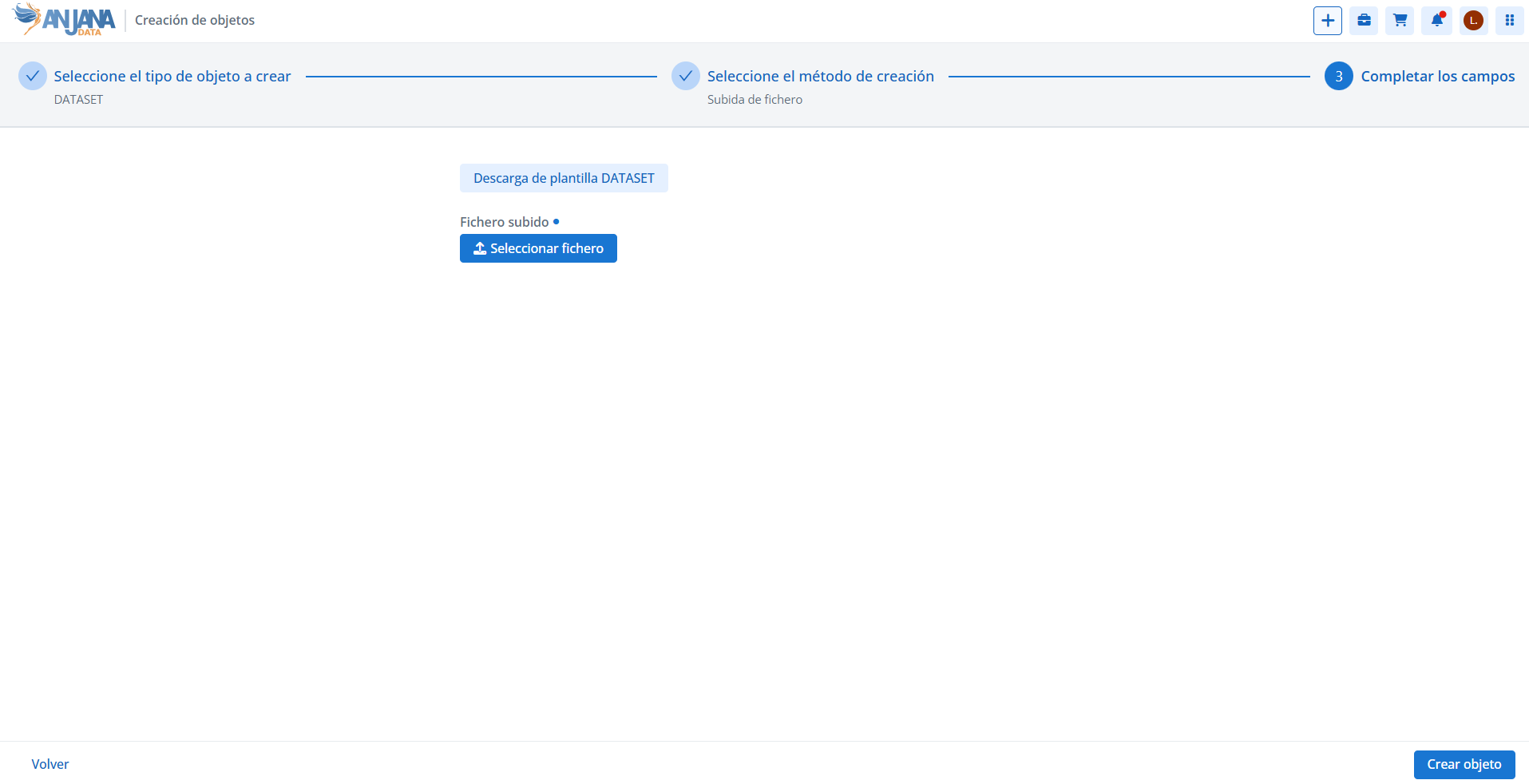
The file upload allows creating objects —Entities and Relationships— in bulk from an Excel template. The user downloads the template corresponding to the chosen subtype, fills it in with the metadata of the objects to be created, and uploads it again; optionally, the objects can be automatically sent for validation after their creation. This method is available for the subtypes on which the user has creation permissions.
File Requirements
-
The file, both downloaded and uploaded, must have the .xlsx extension. The downloaded file can be renamed.
-
When editing it, the same cell format as the downloaded template must be kept or, failing that, cells should be left as Text type, to avoid conversions to numbers in scientific format.
-
It is recommended to edit the file with Microsoft Excel; other tools (LibreOffice, Google Sheets, OneDrive Excel, etc.) may cause formatting errors (see Limitations).
Upload Process
Creation via file upload is carried out in the following steps:
-
Download the template for the selected subtype, which includes all its attributes.
-
Fill in the metadata of the objects to be created and, optionally, indicate whether to send them for validation (see The Excel Template).
-
Upload the completed file. Anjana Data Platform checks that the file corresponds to the chosen subtype and, if not, shows an error.
-
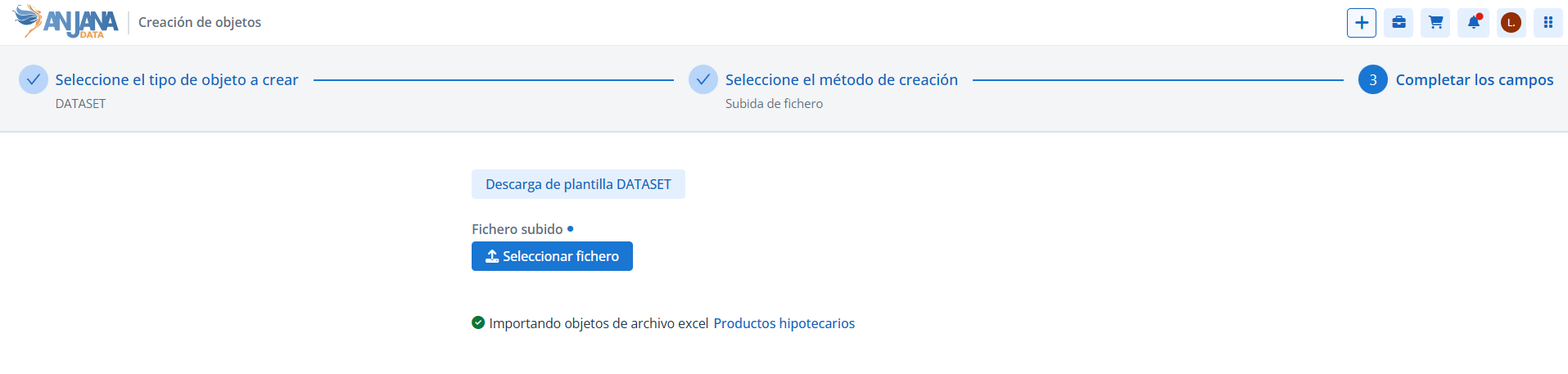
Click Create object: an import Job is generated with an auto-generated, editable name.
-
Confirm: a link to the Job details is shown, from which the status and result of each object can be tracked.
If the file does not correspond to the chosen subtype, the error is identified with the code RESPONSE.CODE.EXCEL_SUBTYPE_NOT_VALID and shows the following message, where %s is replaced by the subtype chosen by the user:
-
Spanish: «El subtipo de objeto
%sno es válido para la subida o descarga por excel». -
English: «The object subtype:
%sis not valid for excel download/upload».
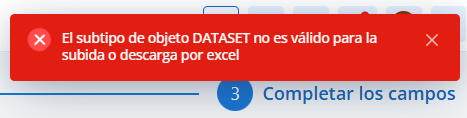
RESPONSE.CODE.EXCEL_SUBTYPE_NOT_VALID
The import can be tracked from the Jobs module, where the status and result of each object can be checked. This is detailed on the page (26.1-en) Trabajos.
The Excel Template
The downloaded template is an Excel file with several tabs:
-
Readme (or Léame): contains the instructions on how to fill in the attribute values, including the meaning of the color code used to highlight some attributes based on the template's configuration.
-
Metadata tab: where the metadata of the objects to be created is entered. In the case of datasets, an additional tab is added for the metadata of their dataset fields.
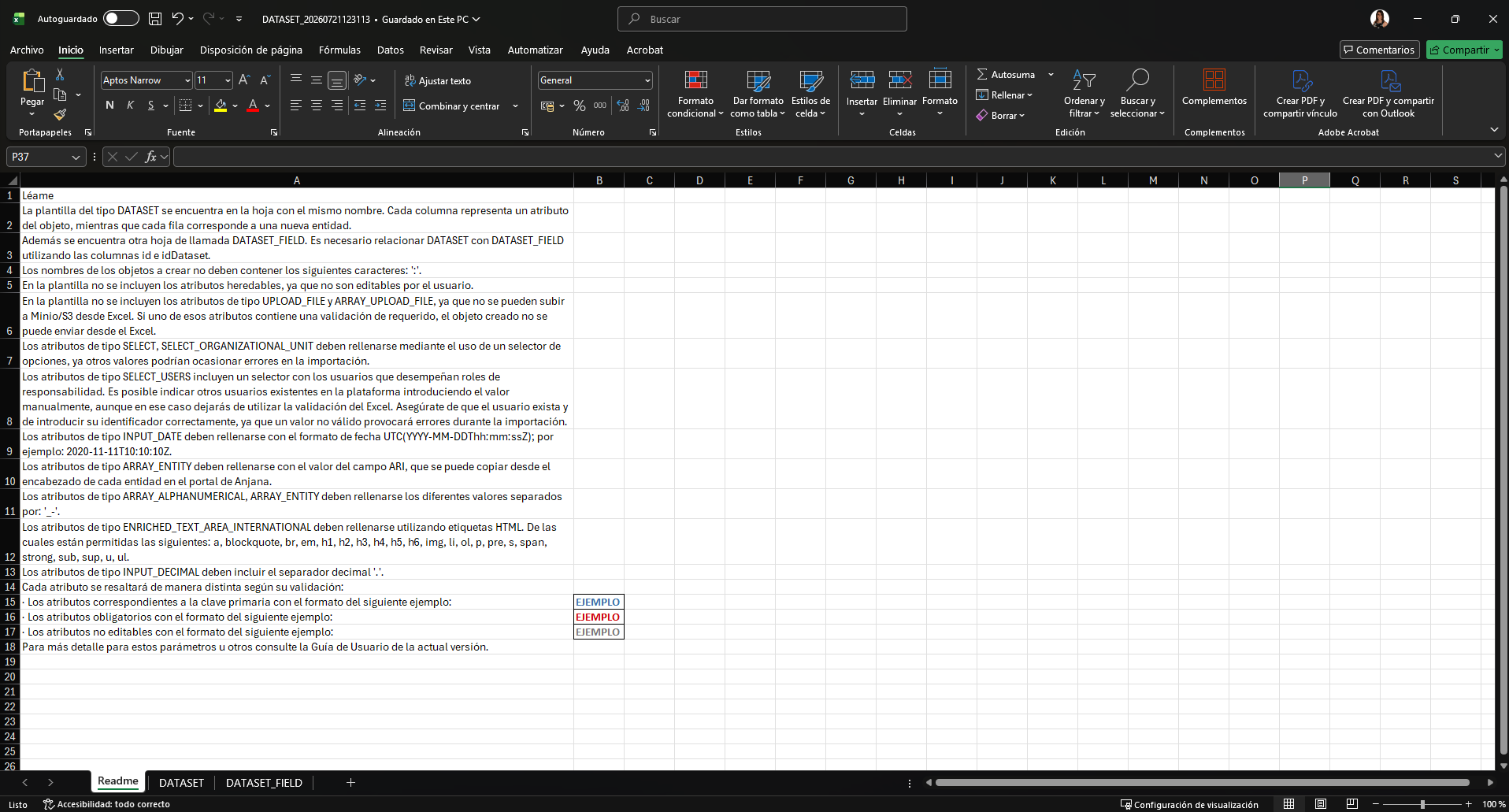
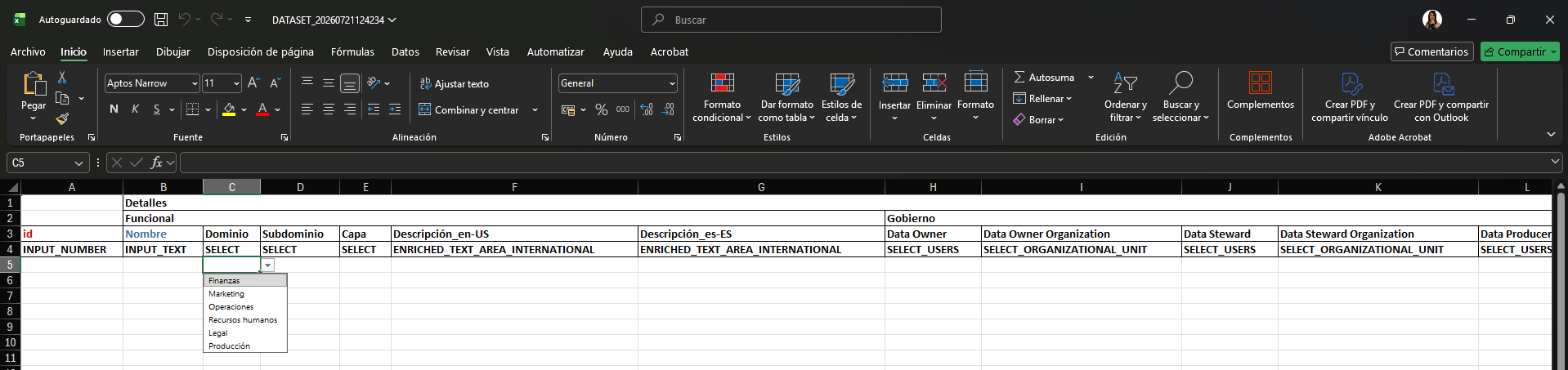
In the metadata tab, each column corresponds to a template attribute and indicates its menu, section, and type. For attributes of type Reference Metadata (text, icon, text and icon, taxonomy, user, or organizational unit) the list of possible values is included.
Sending for Validation
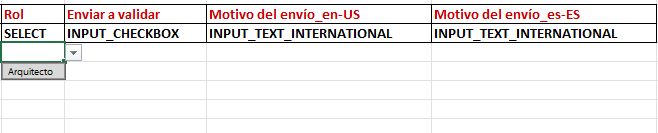
The template includes 3 additional columns that are filled in per object and determine its status after creation:
-
Send for validation: indicates whether the object is automatically sent for validation. If its value is
true, the validation workflow is launched and the object is left in Pending status; otherwise (false, empty, or any value other thantrue), the object is created in Draft status to be completed later. -
Role: when Send for validation is
true, indicates the role with which the validation workflow is launched. Otherwise, it does not apply. -
Reasons for sending for validation in the different languages: allows adding context about the submission to facilitate validation for the workflow participants.
Checks During Import
Since the same file can include objects that are created in Draft and others that are sent for validation, the checks differ in each case.
Objects Created in Draft
For an object that is created in Draft and does not launch the validation workflow (Send for validation empty or false), the following is checked:
-
that the PK attributes of its template are filled in;
-
that the attribute values are of the correct type; in particular, for attributes of type Entity or array of Entities, that the status of those entities is Approved and that their ARI is valid.
The remaining attributes will be validated later, since they can be edited afterward.
Objects Sent for Validation
For an object that, in addition to being created in Draft, is sent for validation (Send for validation = true), the following is checked:
-
that the PK attributes of its template are filled in;
-
that the attribute values are of the correct type (including, for attributes of type Entity or array of Entities, the check for Approved status and valid ARI);
-
that the required attributes of its template are filled in;
-
that the values comply with the validations configured for the attributes.
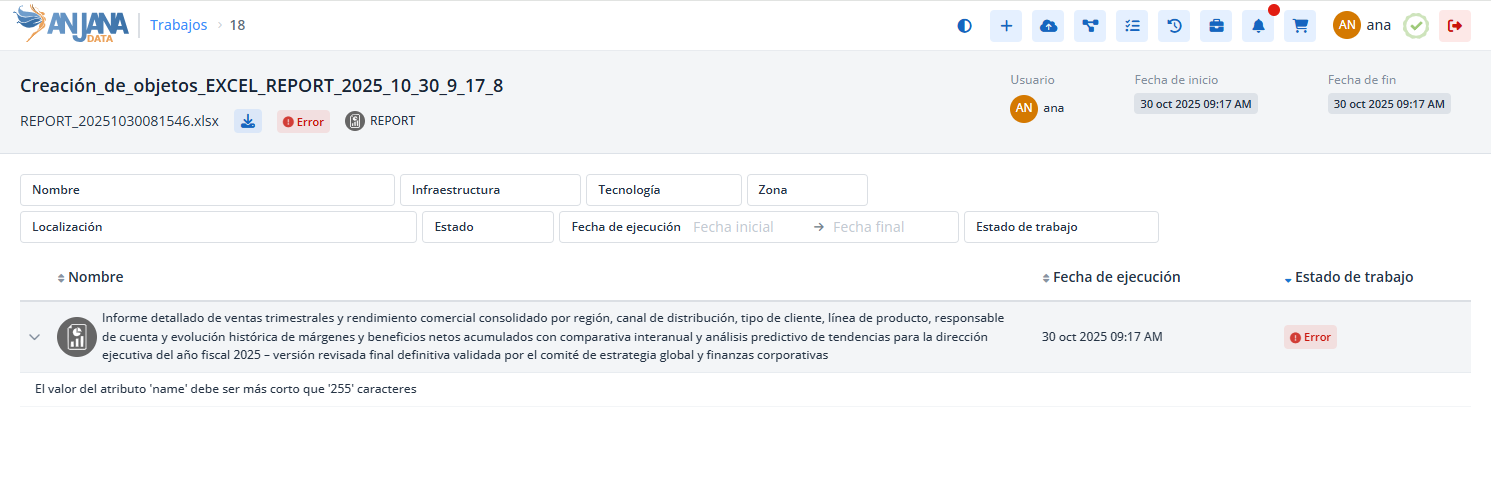
In all cases, Anjana Data Platform also checks that the name of each object does not exceed 255 characters; if exceeded, it is indicated to the user in the Jobs module.
Due to administrator configuration errors, some attributes that are required to create objects in Anjana Data Platform (for example, position in DATASET_FIELD) may appear in the excel file without the corresponding validations. Even so, Anjana Data Platform will validate these attributes for the import.
Limitations
-
To avoid penalizing processing performance, it is recommended not to upload templates with more than 5000 objects. In the case of datasets with dataset fields, this limit applies to the total (datasets plus dataset fields). To import more than 5000 entities or relationships, multiple files must be used.
-
The .xlsx format supports up to 1,048,576 rows; if exceeded, the spreadsheet itself removes the extra rows when saving.
-
The maximum allowed file size is 10 MB (configurable).
-
Using tools other than Microsoft Excel (LibreOffice, Google Sheets, OneDrive Excel, etc.) may cause formatting errors in the file.

Notes
-
Attributes of type
UPLOAD_FILEandARRAY_UPLOAD_FILEare not included in the excel file, because they require the intervention of the file system (MinIO/S3) to obtain the ARI associated with the field. Therefore, an object whose template marks these fields as mandatory cannot be submitted directly from excel: it must be edited beforehand from the portal. -
Attributes with HEREDABLE validation are not included in the downloaded template, since their value is calculated internally by Anjana Data Platform.
This section is mainly aimed at Data Portal users with creation permissions —for example, Data Stewards and Data Owners— who create assets in bulk.