
In Anjana Data, selection-type attributes (for example: dropdown lists, combos or taxonomies) require additional configuration to define the possible values the user will be able to choose.
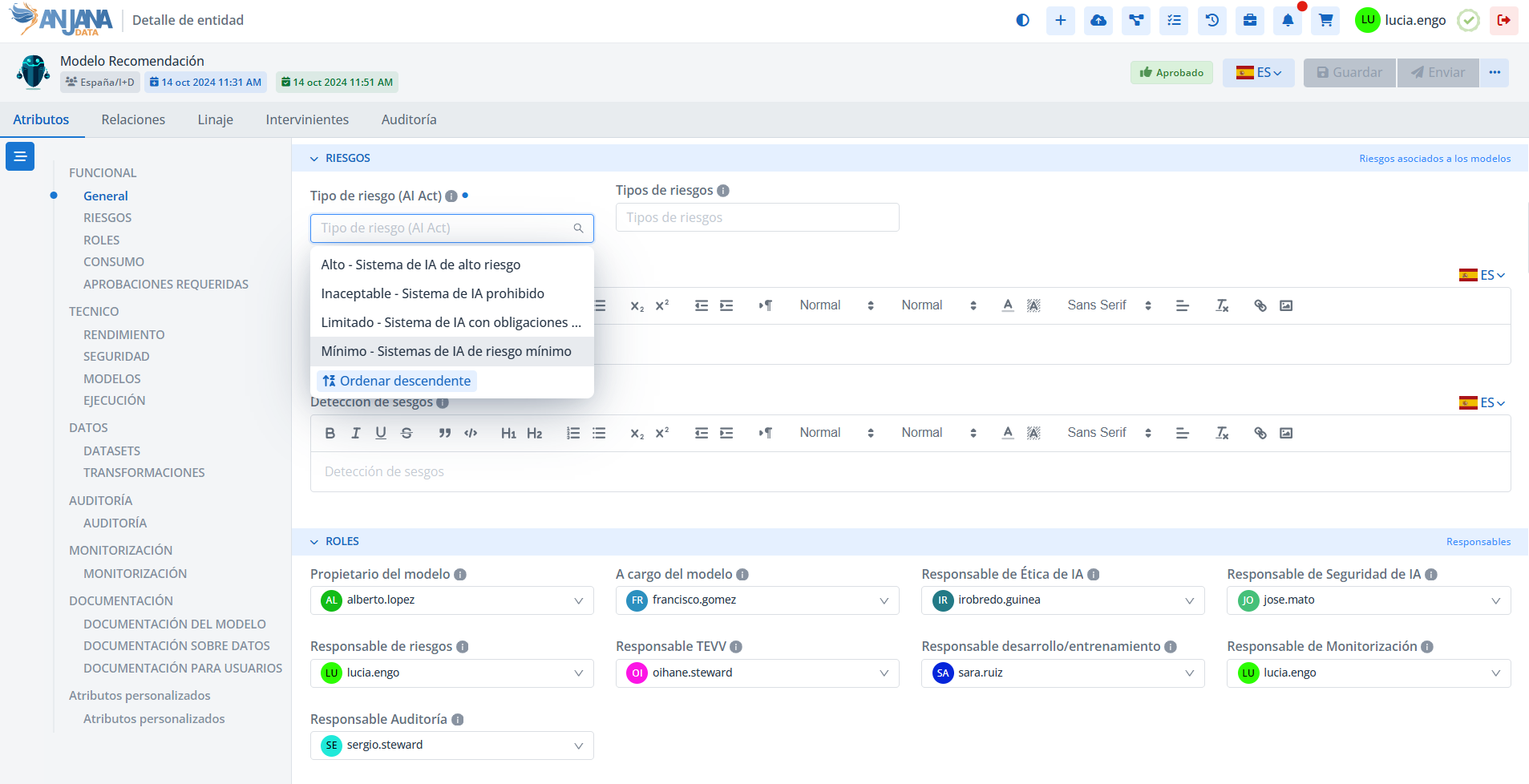
These attributes are those whose Type corresponds to:
-
SELECT
-
SELECT_IMG
-
SELECT_IMG_TXT
-
TREE_SELECT
-
MULTI_SELECT
-
MULTI_SELECT_IMG
-
MULTI_SELECT_IMG_TXT
-
TREE_MULTISELECT
Attribute Definition Values Table in the Configuration Panel (Administrator view)
The configuration of these reference values is done in the Attribute Definition Values table, where the reference metadata that will appear as selectable options in the Data Portal is stored.
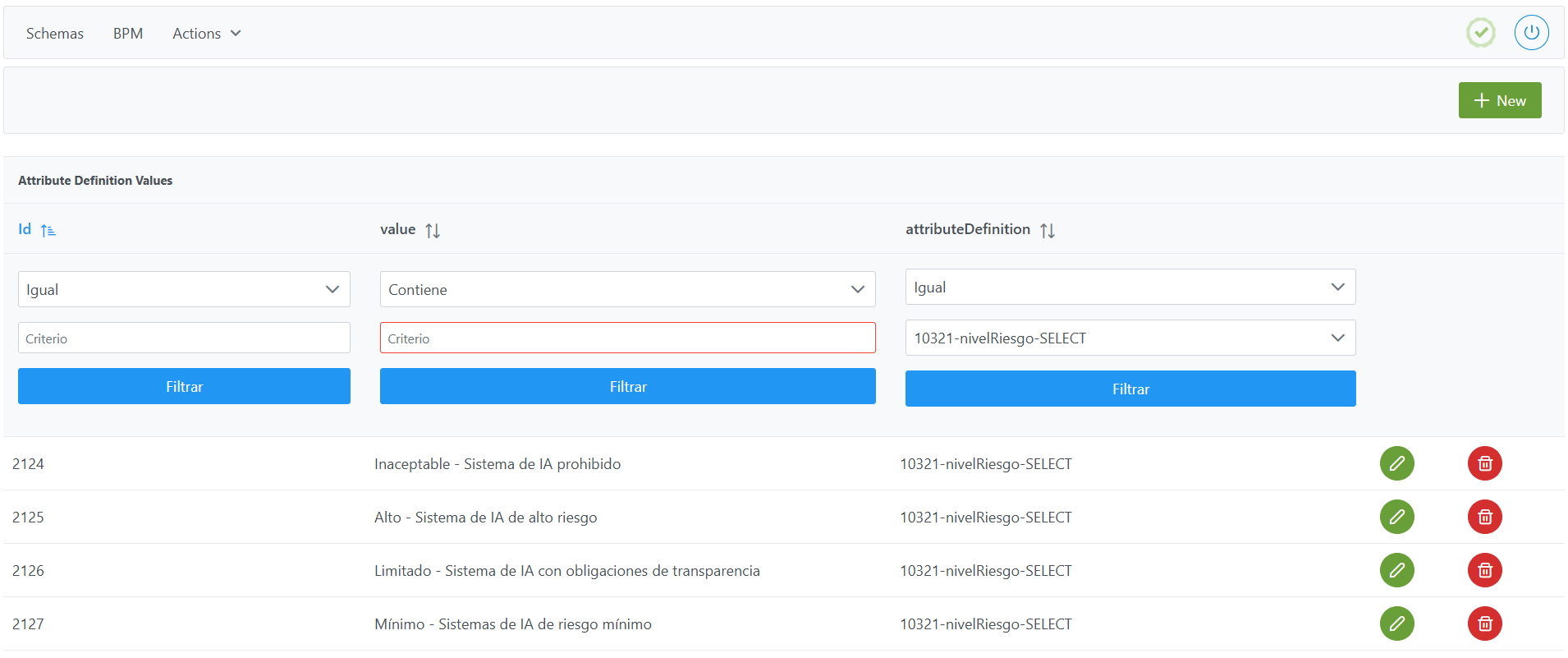
Structure of the Attribute Definition Values table
Each value recorded in this table is characterized by the following fields:
-
Id: unique identifier of the value.-
It is automatically assigned from the Configuration Panel, based on the database sequences.
-
-
value: value of the attribute that will be shown in the selection list.-
In case of internationalization, the
valueitself must be used as the translation key in thetranslationstable, generating one record for each configured language. -
For attributes of type SELECT_IMG, SELECT_IMG_TXT, MULTI_SELECT_IMG or MULTI_SELECT_IMG_TXT, the icon to be used must be stored in Minio or S3, with a name formed by the concatenation:
<name of the attribute_definition>_<value>.svg(example:
nivelGobierno_Gold.svg).
-
-
attributeDefinition: reference to the metadata attribute to which the values belong (refers to the attributes defined inAttribute Definitions).
Creating a new value for an attribute in the Attribute Definition Values table
Creating a new value involves adding a record to the Attribute Definition Values table for an attribute previously defined in Attribute Definitions.
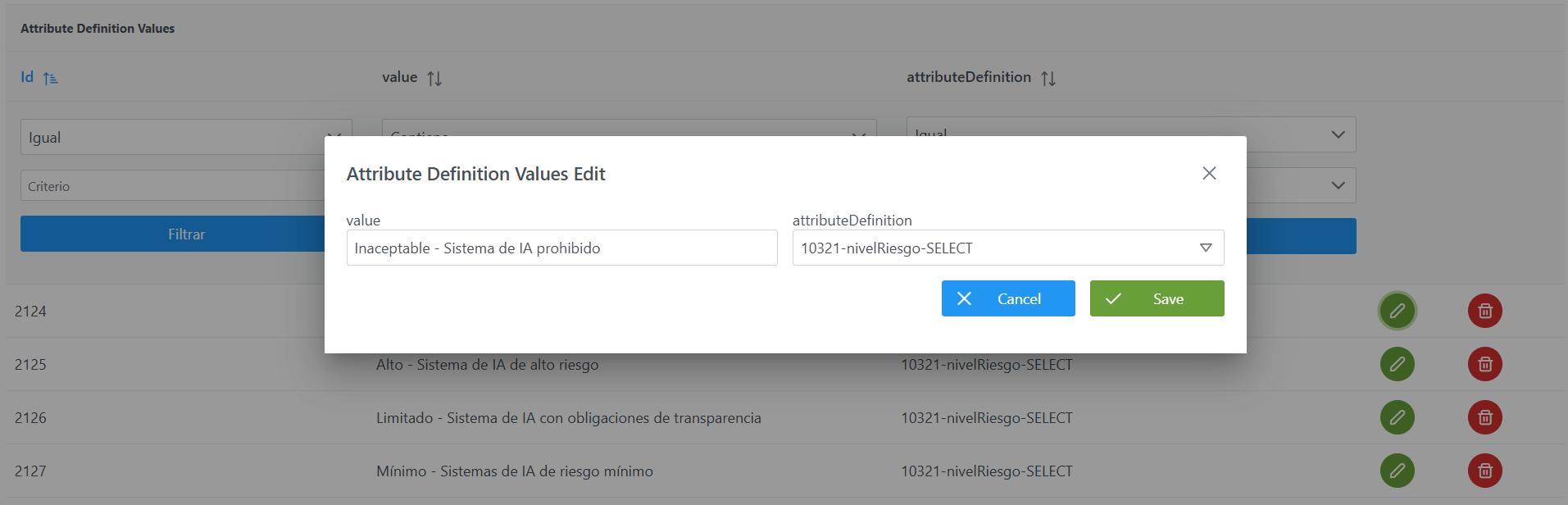
To add a new value:
-
Click the New button in the top right corner. This will open a wizard with the fields defined in the Table Structure section.
-
Complete the fields according to the structure described:
-
value: with the value or its translation key (example:Inaceptable - Sistema de IA prohibido). -
attributeDefinition: select the attribute to which the value belongs (example:10321-nivelRiesgo-SELECT).
-
-
Click Save to save or Cancel to discard.
Note: After creating values, it is necessary to run the Clear cache action from the new Configuration Panel (Home > Reset operations > Clear cache) for the changes to take effect and be visible in the Data Portal.
Modifying a value of an attribute in the Attribute Definition Values table
Modifying an existing value must be done with caution, since it can impact both the information shown in the Data Portal and the consistency of the configured metadata.
The fields of this table are sensitive and require changes to be applied in an appropriate order:
Case 1: No governed assets exist in the Data Portal:
-
Modifying the
valuefield requires performing the following steps in order:-
Modify the text directly or, if it is internationalized, also update the records in the
Translationstable. In this case, it must be decided whether it is enough to change only the translation value or whether the key (config_key) also needs to be adjusted. -
Review and, if necessary, modify the existing configurations in the
Edition Configurationtable. -
If the attribute is of type SELECT_IMG, SELECT_IMG_TXT, MULTI_SELECT_IMG or MULTI_SELECT_IMG_TXT, and the change of
valueimplies a new icon, the corresponding file must be uploaded to Minio or S3 following the established naming convention:<name of the attribute_definition><value>.svg
-
-
Modifying the
attributeDefinitionfield can be done if there are no governed assets.
If governed assets exist in the Data Portal:
-
Modifying the
valuefield requires performing the following steps in order:-
Modify the text directly or, if it is internationalized, also update the records in the
Translationstable. In this case, it must be decided whether it is enough to change only the translation value or whether the key (config_key) also needs to be adjusted. -
Review and, if necessary, modify the existing configurations in the
Edition Configurationtable. -
Run a Bulk attribute edit from the Data Portal to force the update of the values across all affected templates.
-
If the attribute is of type SELECT_IMG, SELECT_IMG_TXT, MULTI_SELECT_IMG or MULTI_SELECT_IMG_TXT, and the change of
valueimplies a new icon, the corresponding file must be uploaded to Minio or S3 following the established naming convention:<name of the attribute_definition><value>.svg
-
-
Modifying the
attributeDefinitionfield cannot be done when governed assets already exist.
Note: After the modification, it is necessary to run the Clear cache action from the new Configuration Panel (Home > Reset operations > Clear cache) for the changes to take effect and be visible in the Data Portal.
Configuring reference values via direct database access (Developer view)
The table that stores the values of selection attributes is anjana.attribute_definition_value.
|
Column |
Type |
Constraints / Notes |
|---|---|---|
|
|
|
PRIMARY KEY. Value identifier. Managed by sequences. |
|
|
|
FK → |
|
|
|
Text of the displayed value/translation key. Not null. |
Below is an example script for configuring reference values for a SELECT-type attribute to set the risk level of an AI system:
INSERT INTO anjana.attribute_definition_value
(id_attribute_definition_value, id_attribute_definition, value)
VALUES
  (2124, 10321, 'Inaceptable - Sistema de IA prohibido'),
  (2125, 10321, 'Alto - Sistema de IA de alto riesgo'),
  (2126, 10321, 'Limitado - Sistema de IA con obligaciones de transparencia'),
  (2127, 10321, 'Mínimo - Sistemas de IA de riesgo mínimo');
Important:
-
Once the insert has been executed, run the table's sequence update. (From the new Configuration Panel under
Home > Reset operations > Reset database sequences, the sequences of all tables can be updated, including this one). -
The entire weight of the configuration logic falls on the developer who executes the SQL queries directly against the tables. It is recommended to carefully review the Structure section.