
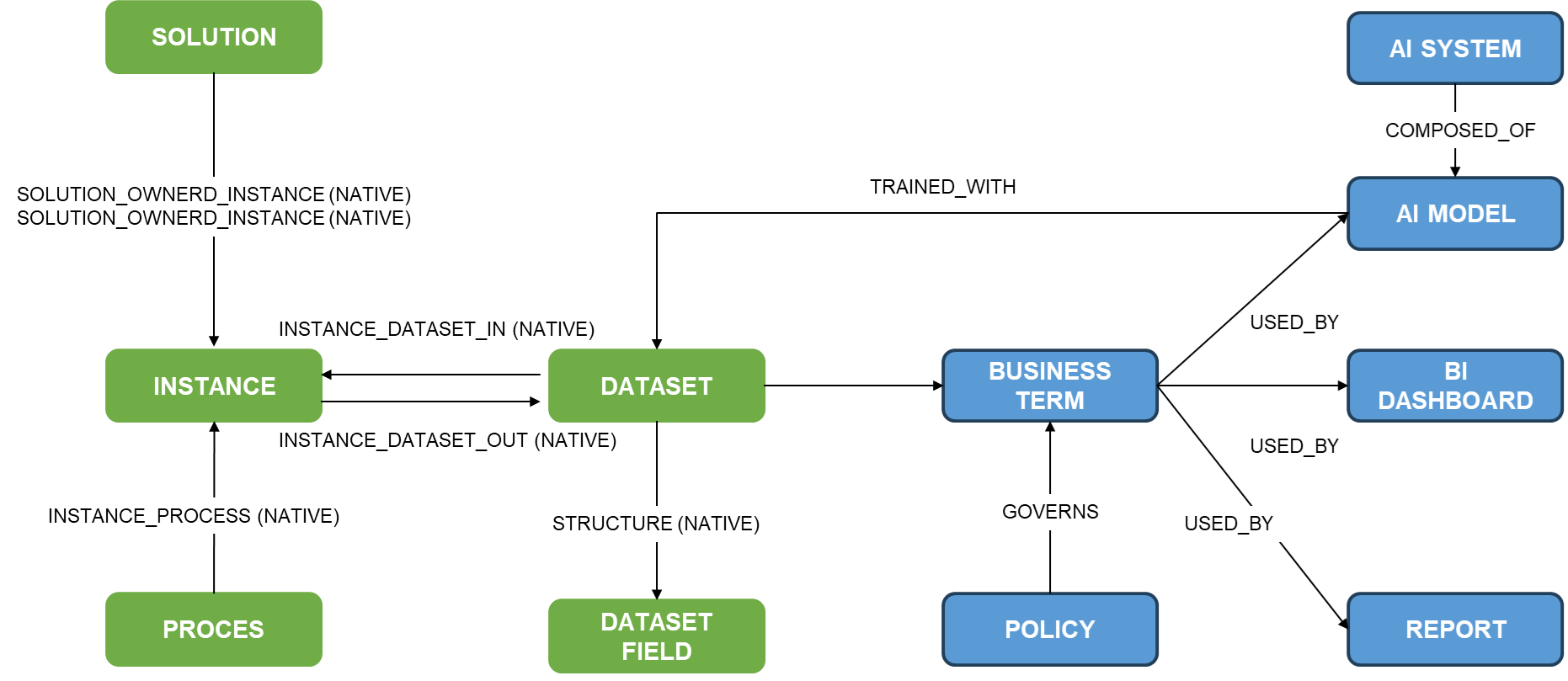
The metamodel configuration in Anjana Data allows adapting and extending the entity and relationship structure beyond the native metamodel. Through the Configuration Panel, the administrator can define new entity subtypes (for example, BUSINESS TERM, AI SYSTEM, AI MODEL) and relationship subtypes (for example, TRAINED_WITH, GOVERNS, USED_BY) that represent the reality of the organization.
The image below shows an example of an extended metamodel, in which native entities and relationships are combined with custom ones, reflecting the complexity of data assets and their links within the organization:
These entity and relationship subtypes form the basis for:
-
Consistently documenting the different data assets.
-
Establishing dependency, hierarchy, and governance relationships between them.
-
Integrating governance processes with configurable workflows for the creation, modification, transfer, deprecation, and validation of these assets.
Table Object Sub-types from the Configuration Panel (Administrator view)
The Object Sub-types table is the central point where the metamodel's entities and relationships are configured. Each registered object subtype is characterized by the following fields:
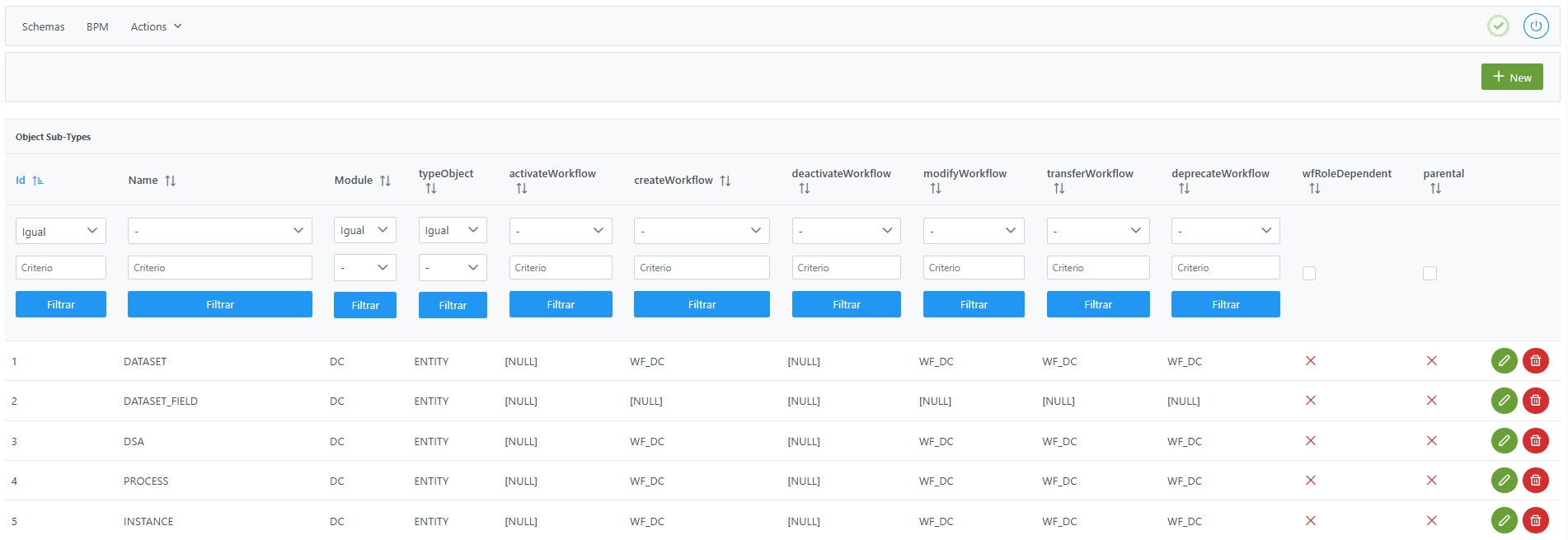
Structure of the Object Sub-types table
Each entity or relationship to be governed is characterized by the following fields:
-
id: unique identifier of the object subtype.-
It is automatically assigned from the Configuration Panel, based on database sequences.
-
-
name: name of the object subtype.-
This value must be unique within the module and cannot be repeated among existing entities or relationships.
-
Important:
-
The
nameattribute of the object subtype:-
Must not contain
:,#,(or). -
Must not contain spaces so as not to interfere with Anjana Data's internal identifiers.
-
Must be written in uppercase.
-
-
The
namecannot match the names of native relationships (STRUCTURE, DSA_CONTENT…) except for ADHERENCE, which must be declared to enable the Marketplace. -
The recommended maximum length for the
nameis 31 characters. Exceeding this length will affect the operation of Excel uploads, since the maximum number of characters allowed for a tab (sheet) name in Excel is 31.
-
module: module to which the object belongs.-
"BG"→ Business Glossary -
"DC"→ Data Catalog
-
Important:
Native entities (DATASET, DATASET_FIELD, SOLUTION, PROCESS, INSTANCE, DSA, and ADHERENCE) must have the value DC as their module
-
typeObject: indicates whether the subtype corresponds to an entity or a relationship.-
"ENTITY"→ Metamodel entity (example: DATASET, REPORT, DOCUMENT). -
"RELATIONSHIP"→ Relationship between entities (example: TRAINED_WITH, USED_BY, GOVERNS).
-
Important:
-
Native entities (DATASET, DATASET_FIELD, SOLUTION, PROCESS, INSTANCE, and DSA) must have the value
ENTITYas theirtypeObject. -
The native relationship ADHERENCE must have the value
RELATIONSHIPas itstypeObject.
-
activate_workflow: name of the identifier of the activation workflow for non-native entities or relationships. -
create_workflow: name of the identifier of the creation workflow. -
deactivate_workflow: name of the identifier of the deactivation workflow for non-native entities or relationships. -
modify_workflow: name of the identifier of the edit or modification workflow. -
transfer_workflow: name of the identifier of the workflow that manages the transfer (change of organizational unit) of entities. -
deprecate_workflow: name of the identifier of the deprecation workflow for native entities of the Data Catalog. -
wf_role_dependent: flag that defines whether there are role-differentiated workflows for the same action.-
When this flag is enabled, for each of the actions configured in the previous fields (
create_workflow,modify_workflow,transfer_workflow,deprecate_workflow, etc.) it is necessary to define a role-specific workflow that has permissions to trigger that action. -
The identifier of each role-based workflow is built from the base workflow identifier, concatenated with the role name in the Roles table using the format:
<id_workflow_base>_-<role_name> -
Example: if the identifier of the base creation workflow is
CREATE_DATASETand the role'snameisDataSteward, the identifier will beCREATE_DATASET_-DataSteward.
-
-
parental: applies only if it is a relationship.-
If the value is true, the relationship is considered parental (parent-child) and will be represented vertically (top-bottom) in the lineage.
-
If false, the relationship is considered input-output, represented horizontally (left-right).
-
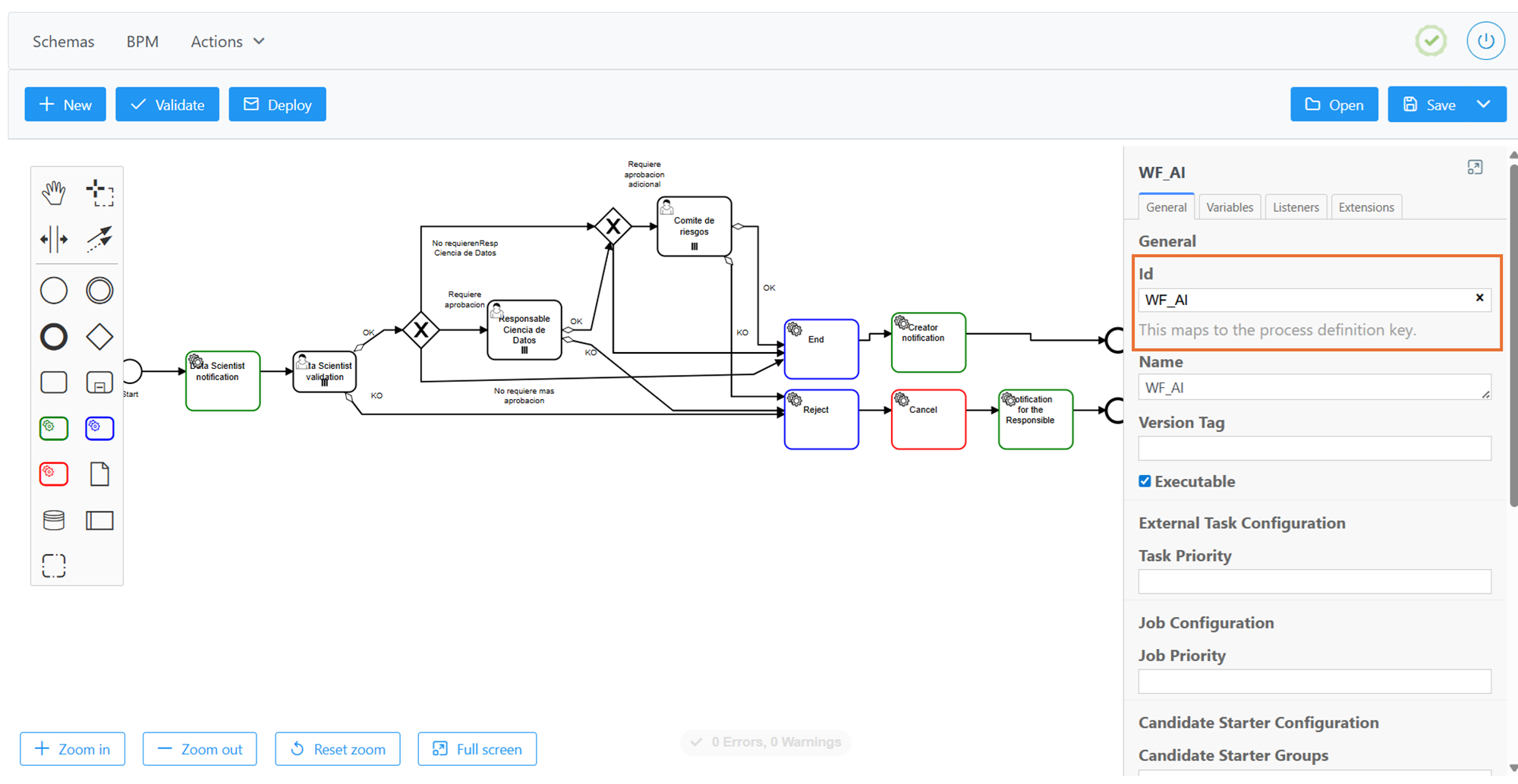
Important note: Do not confuse the workflow identifier (value shown in the Id field of the General section of the BPM editor) with the workflow name (value shown in the Name field).
Important notes:
-
To enable Marketplace capabilities, the native relationship ADHERENCE must be included in the Object Subtypes table.
-
Object subtype names do not support translation (internationalization)
Creating an entity in the Object Sub-types table
Creating a new entity in the metamodel involves registering a new record with type ENTITY in the Object Sub-types table.
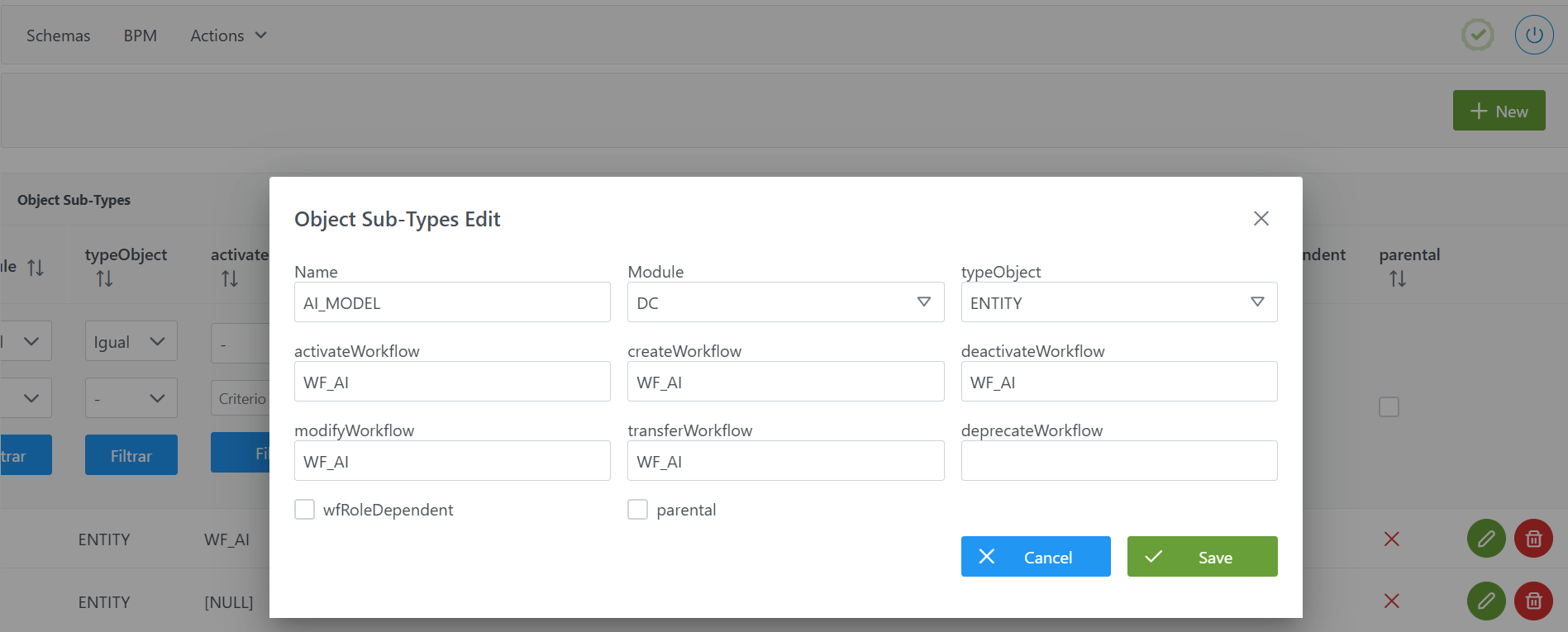
To add a new entity:
-
Click the New button in the top-right corner. This will open a wizard with the fields defined in the Object Sub-types table structure section.
-
Fill in the corresponding fields:
-
name: name of the entity (example:AI_MODEL). -
module: module in which it will be used (example:DC). -
object_type: selectENTITY. -
Define the names of the identifiers of the workflows associated with the actions:
-
create_workflow: Identifier of the creation workflow (example:WF_AI). -
modify_workflow: Identifier of the modification workflow (example:WF_AI). -
activate_workflow: Identifier of the activation workflow, does not apply to native entities (example:WF_AI). -
activate_workflow: Identifier of the activation workflow, does not apply to native entities (example:WF_AI). -
deactivate_workflow: Identifier of the deactivation workflow, does not apply to native entities (example:WF_AI). -
transfer_workflow: Identifier of the organizational unit change workflow (example:WF_AI). -
deprecate_workflow: Identifier of the deprecation workflow, does not apply to non-native entities ( example: left empty since it is a non-native entity )
-
-
wf_role_dependent: check only if you want to configure different workflows for each of the previous workflows.
-
-
Click Save to save the entity or Cancel to discard it.
Creating a relationship in the Object Sub-types table
Creating a new relationship in the metamodel involves registering a new record with type RELATIONSHIP in the Object Sub-types table.
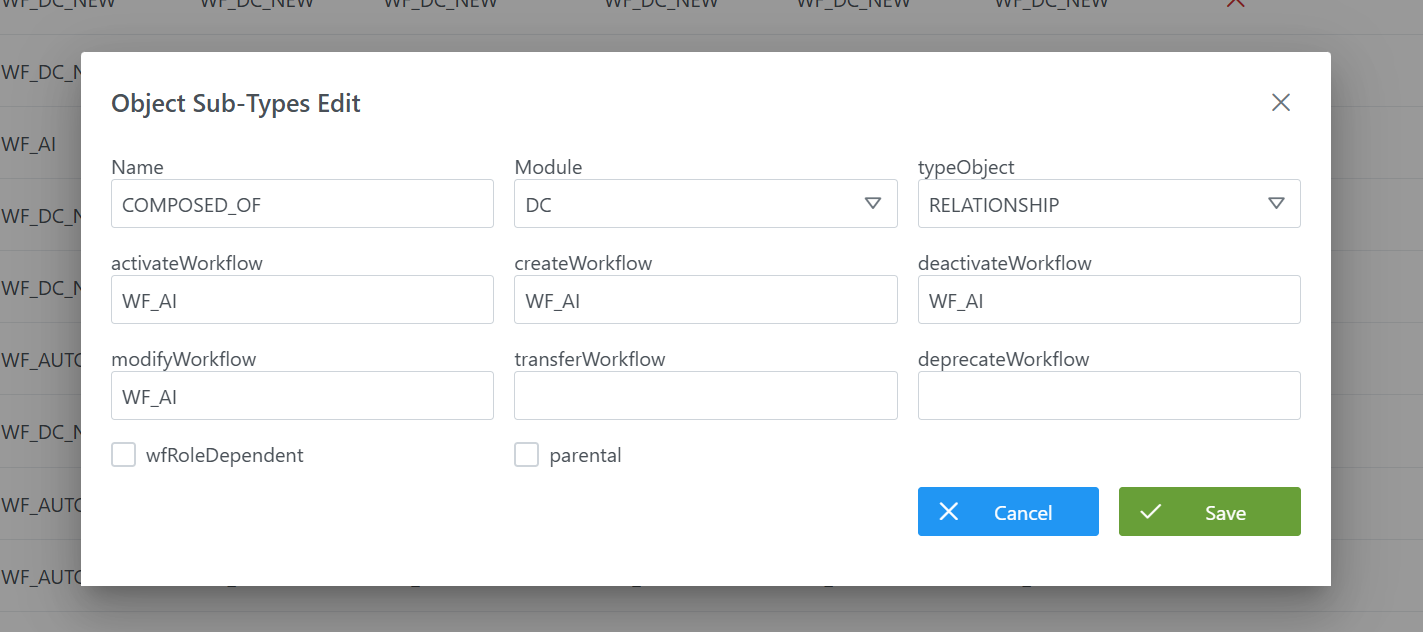
To add a new relationship:
-
Click the New button in the top-right corner. This will open a wizard with the fields defined in the Object Sub-types table structure section.
-
Fill in the corresponding fields:
-
name: name of the relationship (example:COMPOSED_OF). -
module: module in which it will be used (example:DC). -
object_type: selectRELATIONSHIP. -
Define the names of the identifiers of the workflows associated with the actions:
-
create_workflow: Identifier of the creation workflow (example:WF_AI). -
modify_workflow: Identifier of the modification workflow (example:WF_AI). -
activate_workflow: Identifier of the activation workflow, does not apply to native relationships (example:WF_AI). -
deactivate_workflow: Identifier of the deactivation workflow, does not apply to native relationships (example:WF_AI). -
transfer_workflow: Identifier of the organizational unit change workflow (example:WF_AI). -
deprecate_workflow: Identifier of the deprecation workflow, does not apply to non-native relationships (left empty in that case).
-
-
wfRoleDependent: check only if you want to configure different workflows for each of the previous workflows based on the user's role (left unchecked in this example). -
parental: check if the relationship should be represented in the lineage as a parental relationship (parent-child, vertical). Leave unchecked if the relationship is of the input-output type (horizontal). (Left unchecked in this example)
-
-
Click Save to save the relationship or Cancel to discard it.
Modifying an entity or relationship in the Object Sub-types table
Modifying an object subtype (whether an entity or a relationship) is managed directly from the Object Sub-types table in the Configuration Panel.
When editing a subtype, it is important to keep in mind the following considerations:
-
Fields that can be modified:
-
The workflow identifiers (
create_workflow,modify_workflow,transfer_workflow,deprecate_workflow, etc.). -
The
parentalandwf_role_dependentflags, which can be enabled or disabled at any time depending on lineage visualization needs or the management of role-differentiated workflows.
-
Note: any change to these identifiers means that the corresponding workflows must be updated in the BPM to maintain consistency.
-
Fields that cannot be modified once there are governed objects in the Data Portal associated with that subtype:
-
typeObject(ENTITY or RELATIONSHIP). -
nameof the subtype.
-
Procedure in case changes are needed to typeObject or name:
-
It will first be necessary to perform a Clear data operation from the new Configuration Panel
Home > Reset operations > Reset datato remove the objects already created in the portal. -
Once the deletion is done, the information must be reindexed from the
Home > System actions > Force indexingmenu to ensure data consistency.
In summary:
-
Workflow identifiers and flags can be adjusted at any time.
-
Changing
nameortypeObjectis not possible if there are governed objects in the Data Portal; it requires deleting data (Home > Reset operations > Reset data) and reindexing (Home > System actions > Force indexing) from the new Configuration Panel.
Configuring object subtypes via direct database access (Developer view)
The database (DB) table that contains the parameterization of the metamodel's entities and relationships (anjana.object_subtype) has this structure:
|
Column |
Data type |
Constraints / Notes |
|---|---|---|
|
|
|
PRIMARY KEY. Unique identifier of the object subtype. Managed via sequences. |
|
|
|
Optional. Identifier of the activation workflow (does not apply to native entities/relationships). |
|
|
|
Optional. Identifier of the creation workflow. |
|
|
|
Optional. Identifier of the deactivation workflow (does not apply to native entities/relationships). |
|
|
|
Optional. Identifier of the deprecation workflow (only applies to native entities). |
|
|
|
Optional. Identifier of the modification workflow. |
|
|
|
NOT NULL. Module in which it is used: |
|
|
|
NOT NULL. Unique name of the object subtype. UNIQUE constraint ( |
|
|
|
NOT NULL. Object type: |
|
|
|
Optional. Identifier of the transfer workflow (organizational unit change). |
|
|
|
Optional. Indicates whether the workflows depend on the role of the user who triggers the action. |
|
|
|
Optional. Default |
Below is an example script for configuring the AI_MODEL entity:
INSERT INTO anjana.object_subtype
(id_object_subtype, activate_workflow, create_workflow, deactivate_workflow, deprecate_workflow, modify_workflow, "module", "name", object_type, transfer_workflow, wf_role_dependent, is_parental)
VALUES(32, 'WF_AI', 'WF_AI', 'WF_AI', 'WF_AI', 'WF_AI', 'DC', 'AI_MODEL', 'ENTITY', 'WF_AI', false, false);
Below is an example script for configuring the COMPOSED_OF relationship:
INSERT INTO anjana.object_subtype
(id_object_subtype, module, name, object_type, create_workflow, modify_workflow, activate_workflow, deactivate_workflow, wf_role_dependent, is_parental)
VALUES
(102, 'DC', 'COMPOSED_OF', 'RELATIONSHIP', 'WF_AI', 'WF_AI', 'WF_AI', 'WF_AI', false, false);
Important:
-
Once the insert has been executed, run the table's sequence update. (From the new Configuration Panel under
Home > Reset operations > Reset database sequences, the sequences of all tables, including this one, can be updated). -
The entire responsibility for the configuration logic falls on the developer who executes the SQL queries directly on the tables. It is recommended to carefully review the Table structure section.