
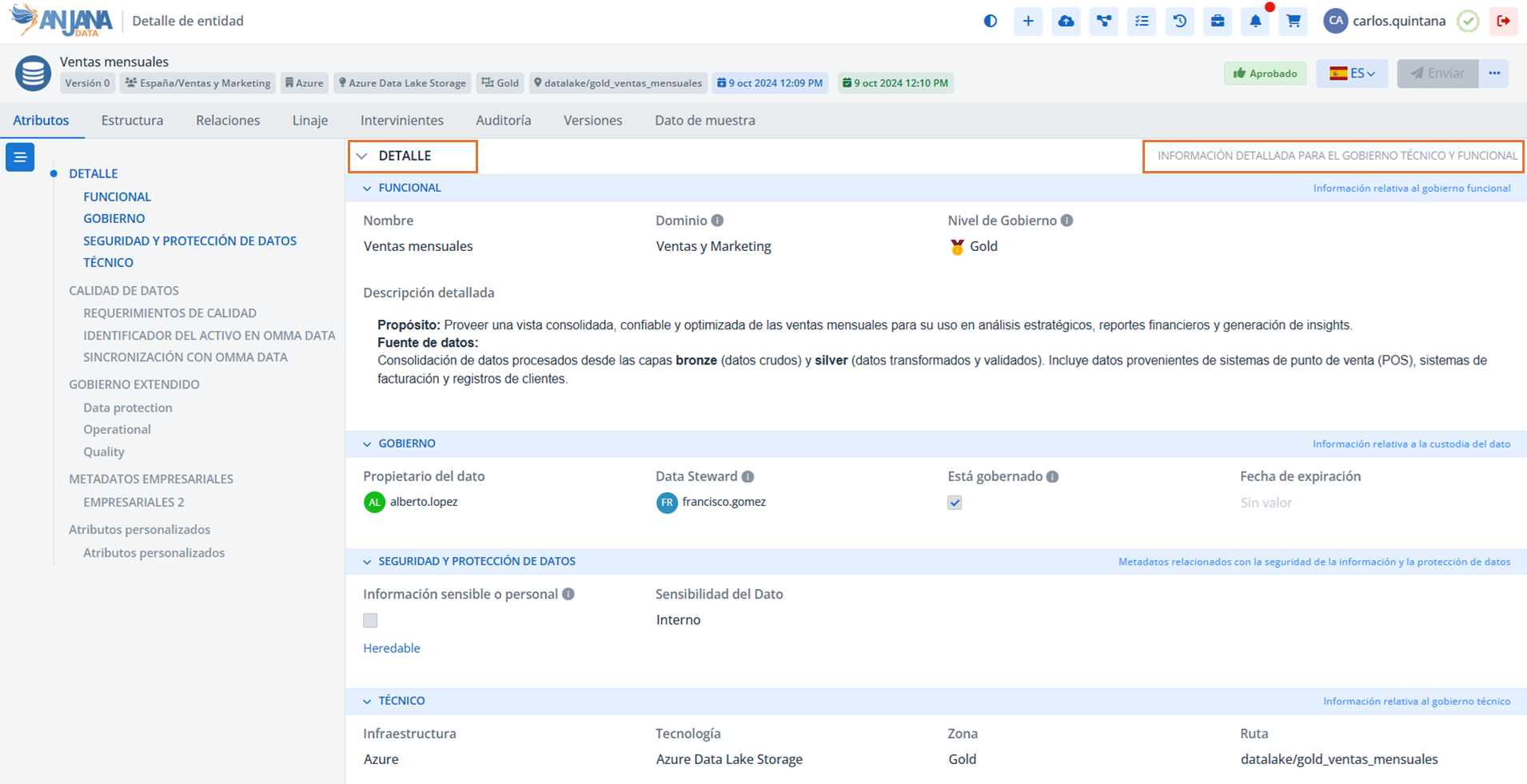
In Anjana Data, menus are top-level blocks within the dynamic forms of metadata templates. Their main function is to group and classify the information of an object (entity or relationship) into different sections, allowing metadata to be organized in a clear and navigable way.
Each menu contains at least one section, which represents the second level of classification and in which the specific attributes of the object are defined.
In this way, menus and sections structure metadata into two hierarchical levels:
-
Level 1 – Menu: Main categories that appear in the object's form (example: DETALLE, CALIDAD DE DATOS, GOBIERNO EXTENDIDO).
-
Level 2 – Section: Subsections within each menu that group related attributes (example: within the DETALLE menu, sections such as FUNCIONAL, GOBIERNO, SEGURIDAD Y PROTECCIÓN DE DATOS and TÉCNICO).
Thanks to this hierarchical organization, users can easily navigate the Data Portal forms, locate relevant information, and maintain consistency in asset documentation.
Menus Table in the Configuration Panel (Administrator View)
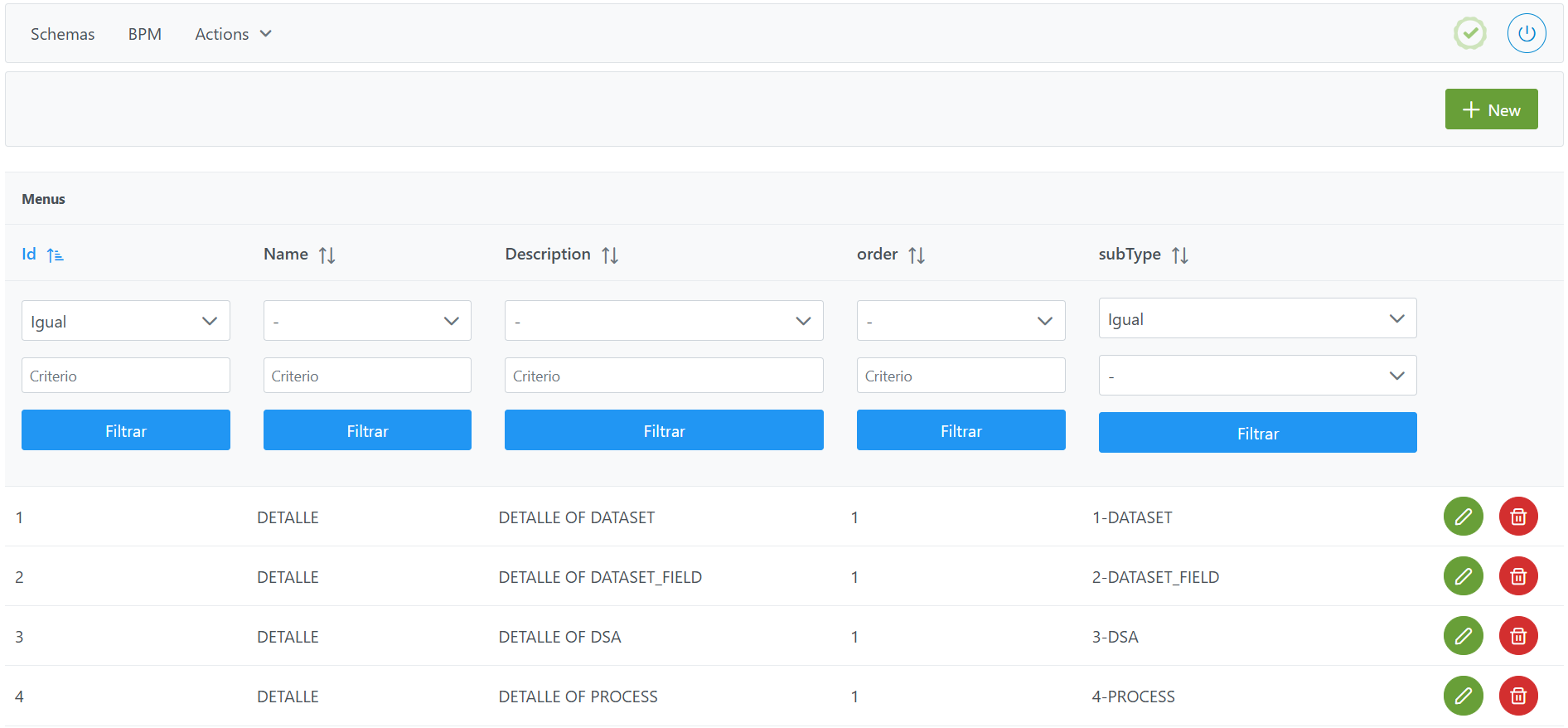
Menus are configured in the Menus table of the Configuration Panel. Defining menus is the first step in creating the metadata templates for the entities and relationships of the metamodel.
Structure of the Menus table
Each menu is characterized by the following fields:
-
Id: unique identifier of the menu.-
It is automatically assigned from the Configuration Panel.
-
-
Name: visible name of the menu within the template.-
If configuring multiple languages, the value of
Nameitself must be used as the translation key in thetranslationstable, creating one record per language.
-
-
Description: description of the menu. This description (or its translated value) is visible in the metadata template and makes it easier to understand the content of the menu.-
It can also be internationalized using the value of
Descriptionas theconfig_keyintranslations.
-
-
order: display order of the menu within the template of the samesubType(1, 2, 3, …). -
subType: object subtype to which the menu belongs.-
Corresponds to a value from the Object Sub-types table resulting from the concatenation of the
Idand thename(e.g.: 1-DATASET, 2-DATASET_FIELD, 3-DSA).
-
Notes
-
If the text of
Name/Descriptionhas no translation intranslations, the text specified in these fields will be displayed. -
The order is only compared among menus of the same
subType. -
The same
subTypemust have at least one menu and can have unlimited menus (e.g., DETALLE, GOBIERNO, CALIDAD, SEGURIDAD).
Important:
The ADHERENCE relationship requires a menu since it contains metadata corresponding to users' adherences to DSAs.
Creating a Menu in the Menus table
Creating a new menu involves adding a new record to the Menus table.
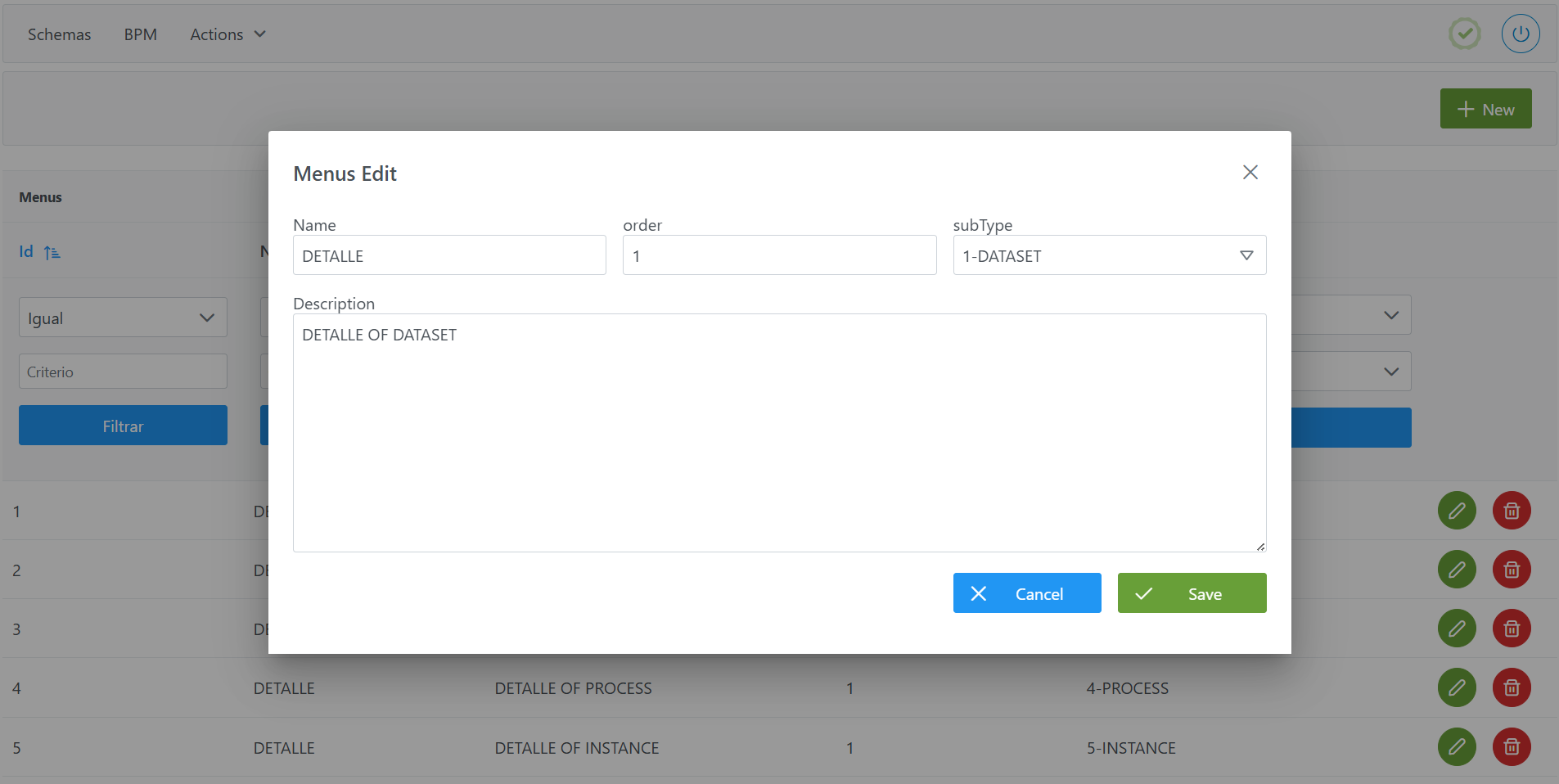
To add the record and create a new menu:
-
Click the New button in the top right corner. This will open a wizard with the fields defined in the Structure of the
Menustable section. -
Complete the role's fields according to the structure described in the previous section.
-
Name: With the name or its translation key (e.g.:DETALLE) -
Description: With the description or its translation key (e.g.:DETALLE OF DATASET) -
order: With the position that the menu being created will occupy relative to the rest of the menus to be configured for that entity or relationship (e.g.:1) -
subType: Select the entity or relationship subtype for which the menu is defined (select the subtype, e.g.:1-DATASET)
-
-
Click Save to save or Cancel to discard.
Note: After creating menus, it is necessary to run the Clear cache action from the Configuration Panel (Home > Reset operations > Clear cache) so that the changes take effect in the Data Portal.
Modifying a Menu in the Menus table
Modifying a record in the Menus table must be done with caution, since it can have different levels of impact depending on the affected field.
-
Modifying the
NameorDescriptionfields must be done with caution:-
If internationalization has not been configured, the texts can be modified without impact.
-
If internationalization has been configured, modifying these texts impacts the corresponding records in
translations(sameconfig_keyasName/Description). In this case, assess whether it is enough to modify the translation value (value) or whether the key (config_key) also needs to be modified.
-
-
Modifying the
orderfield can be done with no greater impact than repositioning it within the object's template. -
Modifying the
subTypecan have a high impact, since it directly affects the entire object's template.-
If no governed assets exist in the Data Portal, the modification is possible but implies the following:
-
All the configuration hanging from the menu (sections and attributes of each section) is transferred to the newly selected
subType. -
Before the modification, the validations on the attributes that belonged to the subtype's template must be deleted (table
templateAttributeValidations). -
Before the modification, the versioning rules on the attributes that belonged to the subtype's template must be deleted (table
Edition Configuration). -
Before the modification, the relationships between attributes on the attributes that belonged to the subtype's template must be deleted (table
Attribute Relationship).
-
-
If governed assets exist in the Data Portal, the modification cannot be performed.
-
Note: After modifying menus, it is necessary to run the Clear cache action from the Configuration Panel (Home > Reset operations > Clear cache) so that the changes take effect in the Data Portal.
Configuring Menus via direct database access (Developer View)
The database (DB) table that contains the parameterization of the menus of the metadata templates is anjana.menu and has the following structure.
|
Column |
Data type |
Constraints / Notes |
|---|---|---|
|
id_menu |
int4 (INTEGER) |
PRIMARY KEY. Unique identifier of the menu. Managed via sequences. |
|
description |
varchar(255) |
Optional. Description of the menu. Can be used as a translation key in |
|
name |
varchar(255) |
Name of the menu. Must be unique within the same |
|
order_menu |
int4 (INTEGER) |
Display order of menus within the same object subtype. UNIQUE constraint combined with |
|
id_object_subtype |
int4 (INTEGER) |
Foreign key to |
Below is an example script for configuring the DETALLE menu of DATASET:
INSERT INTO anjana.sections
(id_section, description, id_menu, "name", order_section)
VALUES(1, 'FUNCIONAL INFORMATION OF DATASET', 1, 'FUNCIONAL', 1);
Important:
-
Once the insert has been executed, run the sequence update for the table. (From the new Configuration Panel under
Home > Reset operations > Reset database sequences, the sequences of all tables, including this one, can be updated). -
The entire configuration logic burden falls on the developer who executes the SQL queries directly on the tables. It is recommended to carefully review the Table Structure section.