
In Anjana Data it is possible to configure dependencies between the values of reference attributes (selector-type attributes: SELECT, MULTI_SELECT, TREE_SELECT, etc.) so that the selection of a value in one attribute determines the values available in another.
This mechanism makes it possible to reflect logic specific to the organization's data ecosystem and ensure consistency in the choice of values during the creation or editing of governed objects.
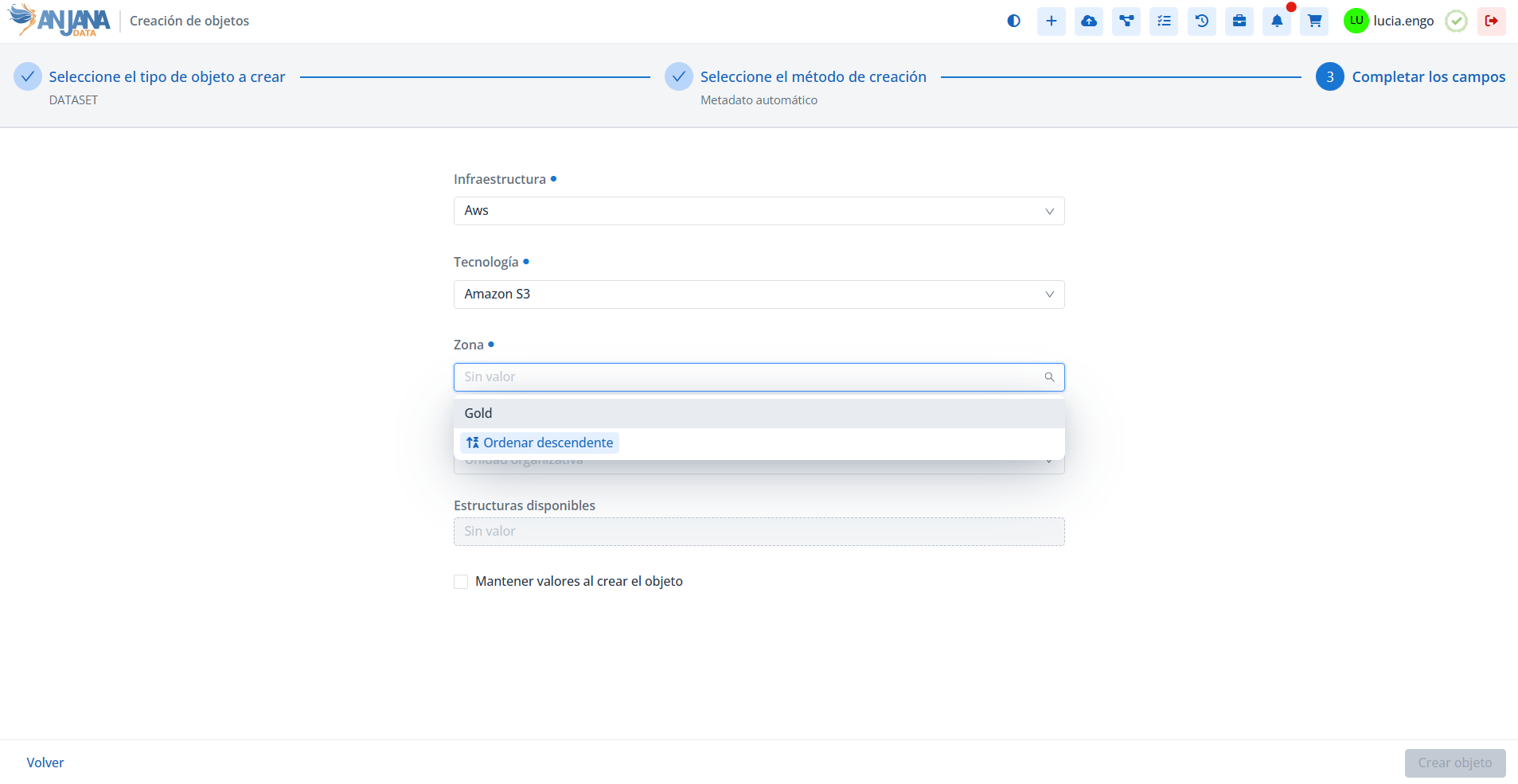
For example, if when creating a DATASET the technology selected is Amazon S3, only compatible values will be available in the zone dropdown (example: Gold).
This way, the system ensures that the infrastructure-technology-zone value combination is always valid and consistent with the reference configuration.
Attribute Relationships Table of the Configuration Panel (Administrator View)
These dependencies are configured in the Attribute Relationships table.
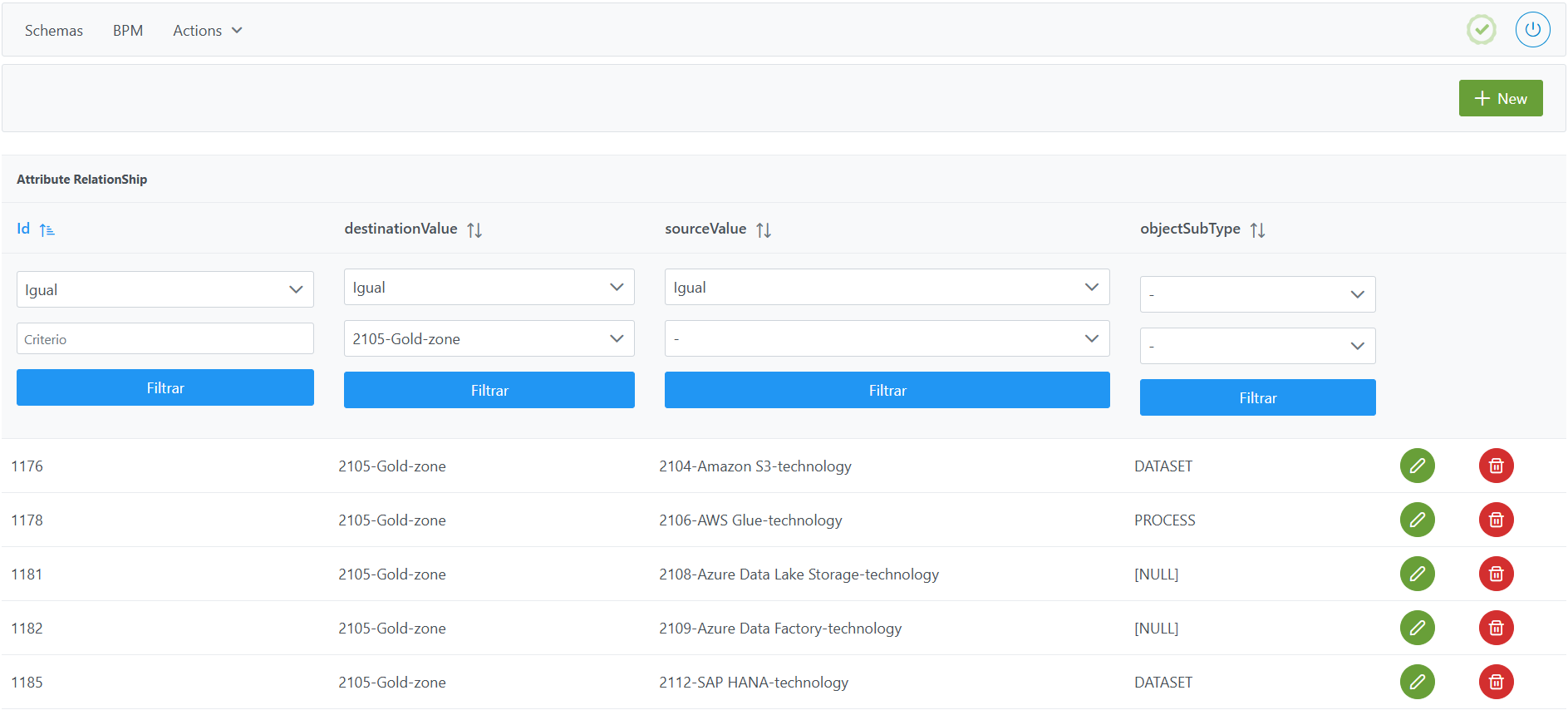
Structure of the Attribute Relationship table
Each registered relationship is characterized by the following fields:
-
Id: unique identifier of the record. It is automatically assigned from the Configuration Panel. -
destinationValue: value of the dependent attribute (the one being filtered). It corresponds to a value defined in tableAttribute Definition Value, that is, one of the options configured for a reference attribute. -
sourceValue: value of the source attribute on which the previous one depends. It also corresponds to a value defined in tableAttribute Definition Value. It is the value whose selection determines or filters thedestinationValue.
In taxonomy-type attributes (TREE_SELECT or TREE_MULTISELECT), the values must be organized in a tree structure. Reference values that act as root nodes (top level of the hierarchical tree) must have the value <null> as sourceValue, which indicates to the platform the start of a branch.
-
objectSubType: object subtype to which the relationship applies. It corresponds to a subtype configured in theObject Sub-typestable. If defined asNULL, the relationship will be global and will apply to any template where both attributes are present.
Important:
For relationships to be correctly applied between reference values of different metadata attributes, the dependency validation (DEPENDS_ON) must be configured in the Template Attribute Validations table.
Creating an attribute in the Attribute Relatioship table
Creating a new relationship between attribute values involves adding a new record to the Attribute Relationship table that defines the dependency between a source value (sourceValue) and a destination value (destinationValue).
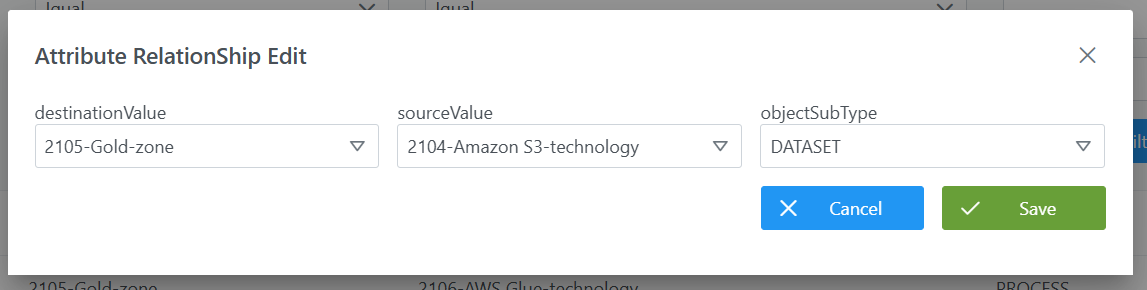
To add a new relationship:
-
Click the New button in the top right corner. This will open a wizard with the fields defined in the Structure of the Attribute Relationship table section.
-
Fill in the fields according to the structure described:
-
destinationValue: select the dependent value from the list of values defined in theAttribute Definition Valuetable (e.g.: 2105-Gold-zone). -
sourceValue: select the source value from the list of values defined in theAttribute Definition Valuetable (e.g.: 2104-Amazon S3-technology). -
objectSubType: select the object subtype to which the relationship applies, from those configured in theObject Sub-Typestable (e.g.: DATASET).
-
-
Click Save to save the relationship or Cancel to discard it.
Note
After creating new relationships, it is necessary to run the Clear cache action from the Configuration Panel (Home > Reset Operations > Clear cache) for the changes to take effect in the Data Portal.
Example of creating a taxonomy-type attribute
The following shows how to configure the hierarchy tree of a taxonomy-type attribute (TREE_SELECT or TREE_MULTISELECT) like the one shown in the following image:
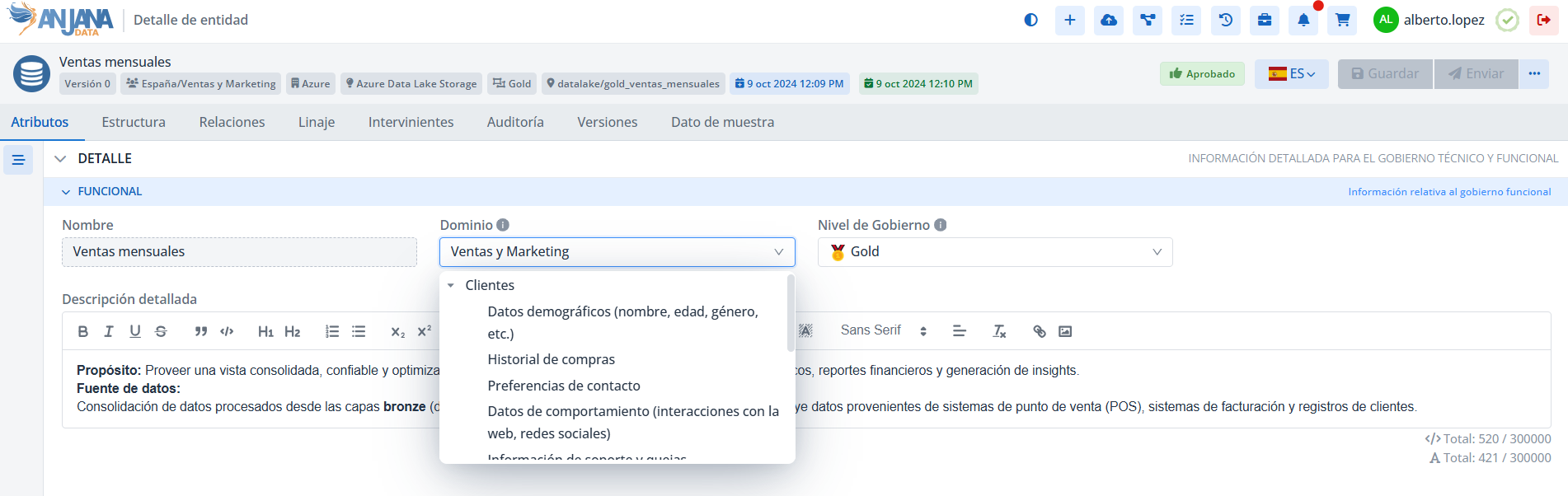
Steps to create the hierarchy tree:
-
Create the attribute in
Attribute Definitionsand the reference values inAttribute Definition Value -
In
Attribute Relationshipyou must:-
Indicate that the reference value Clientes is the first level of the tree, to do this:
-
sourceValuemust have the value<null> -
destinationValuemust reference the value Clientes -
destinationValuemust reference the object subtype DATASET
-
-
Indicate that the reference value Datos demográficos (nombre, edad, género, etc.) hangs from the value Clientes, to do this:
-
sourceValuemust have the value Clientes -
destinationValuemust reference the value Datos demográficos (nombre, edad, género, etc.) -
destinationValuemust reference the object subtype DATASET
-
-
Indicate that the reference value Historial de compras hangs from the value Clientes, to do this:
-
sourceValuemust have the value Clientes -
destinationValuemust reference the value Historial de compras -
destinationValuemust reference the object subtype DATASET
-
-
Repeat the previous step for all values that hang from Clientes
-
Modifying a relationship in the Attribute Relationship table
Modifying an existing relationship must be done with caution, as it can impact the display and consistency of reference values in the Data Portal.
-
If there are no governed objects in the Data Portal:
The three fields of the relationship can be freely modified:-
destinationValue(destination value, taken from theAttribute Definition Valuetable), -
sourceValue(source value, taken from theAttribute Definition Valuetable), -
objectSubType(subtype to which the relationship applies, configured in theObject Sub-Typetable).
-
-
If there are governed objects in the Data Portal:
Changes can only be made to the extent that they do not affect objects already created.
In particular:-
A relationship between a
destinationValueand asourceValuefor a specificobjectSubTypecannot be deleted or modified if objects of that subtype already exist that contain those values in their source and destination attributes simultaneously. -
In these cases, the only option will be to keep the current relationship, or delete it and redefine it after making a controlled adjustment to the governed objects.
-
Note
After modifying relationships, it is necessary to run the Clear cache action from the Configuration Panel (Home > Reset Operations > Clear cache) for the changes to take effect in the Data Portal.
Configuring relationships between reference values via direct database access (Developer View)
Relationships between reference values are stored in the anjana.attribute_relationships table. These relationships allow dependencies to be established between the values of two attributes configured in the anjana.attribute_definition_value table, so that the selection of a value in the source attribute filters the values available in the destination attribute.
|
Column |
Type |
Constraints / Notes |
|---|---|---|
|
id_attribute_relationships |
int4 |
PRIMARY KEY. Unique identifier of the relationship. Managed by sequence. |
|
object_sub_type |
varchar(255) |
Can be NULL. Indicates the object subtype to which the relationship applies. It must correspond to a |
|
destination_value |
int4 |
Destination value of the relationship. FK to |
|
source_value |
int4 |
Source value of the relationship. FK to |
The following example defines a relationship so that, in the DATASET subtype template, the technology value Amazon S3 (sourceValue = 2104) only allows the Gold zone to be selected (destinationValue = 2105):
INSERT INTO anjana.attribute_relationships
(id_attribute_relationships, object_sub_type, destination_value, source_value)
VALUES(1176, 'DATASET', 2105, 2104);
Important:
-
Once the insert has been executed, run the sequence update for the table. (From the new Configuration Panel under
Home > Reset Operations > Reset database sequences, the sequences of all tables, including this one, can be updated). -
The entire responsibility of the configuration logic falls on the developer who executes the SQL queries directly against the tables. It is recommended to carefully review the Structure section.