
In Anjana Data it is possible to configure which changes do not trigger the launch of modification and/or versioning workflows on governed objects when they are made by a specific role.
These rules make it possible to identify the template attributes that, when edited and submitted for validation by certain roles, do not generate an approval workflow, so the object is validated automatically.
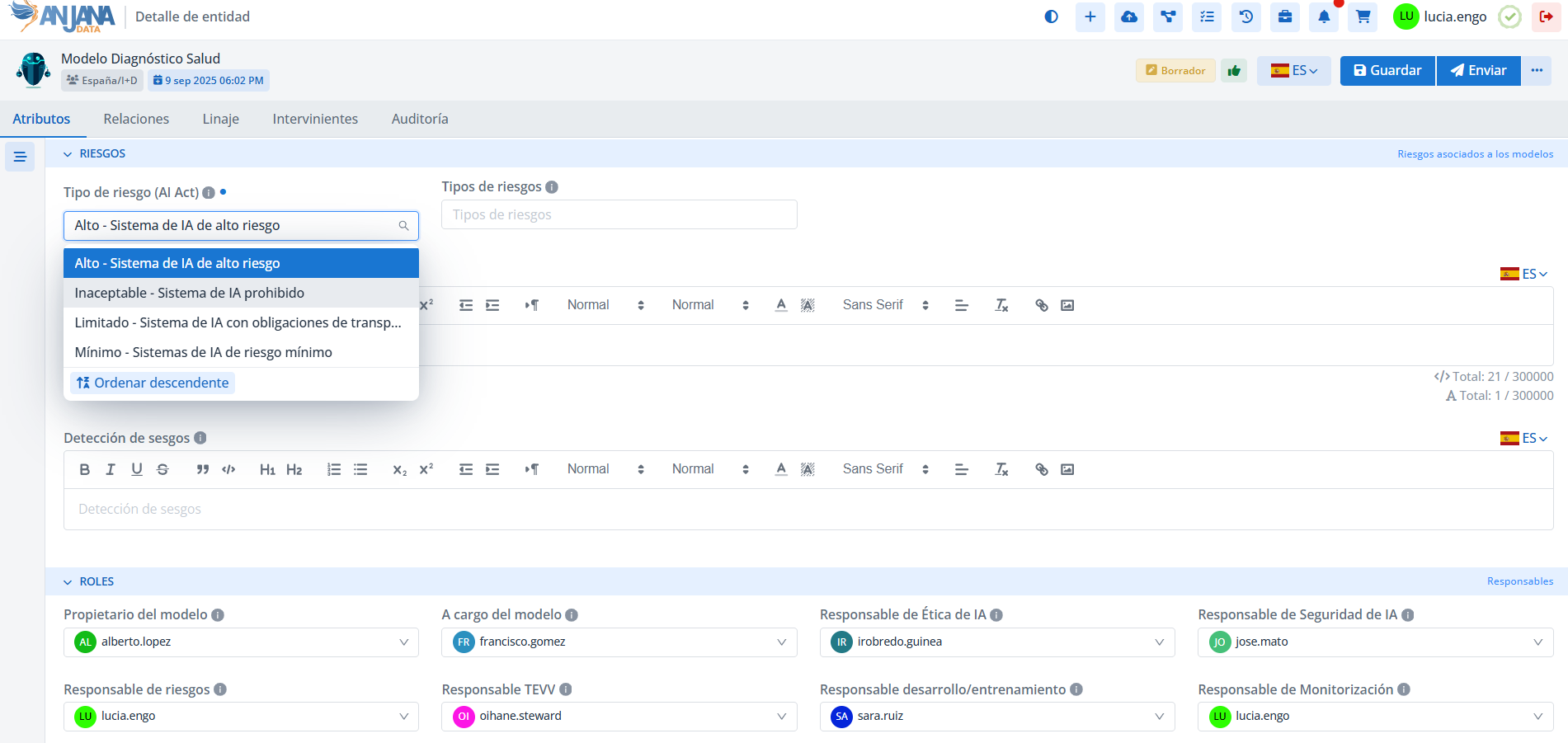
Edition Submit Rule Table in the Configuration Panel (Administrator view)
The rules that make it possible to identify the template attributes that, when edited and submitted for validation by certain roles, do not generate an approval workflow are stored in the Edition Submit Rule table.
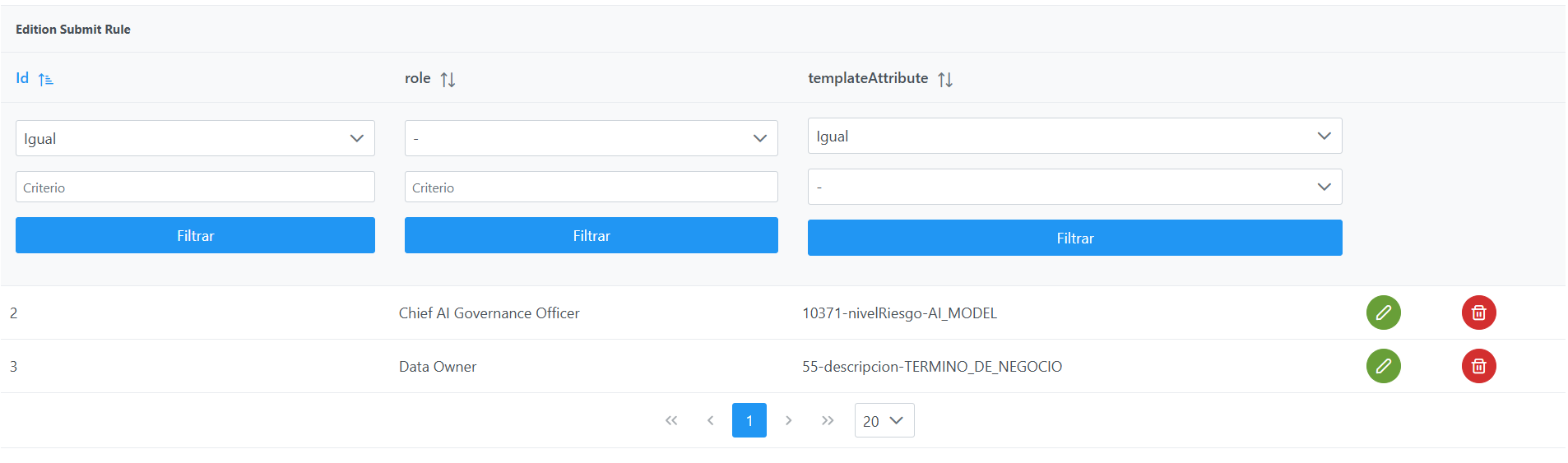
Structure of the Edition Submit Rule table
Each registered rule is characterized by the following fields:
-
Id: unique identifier of the record. It is assigned automatically from the Configuration Panel. -
role: name of the role for which, when editing the attribute indicated intemplateAttribute, the record of that change does not go through a modification workflow, but instead goes directly to APPROVED.
Note: The value must match the name field of the role table
-
templateAttribute: reference to the template attribute to which the rule applies.
If you want to prevent the launch of a validation workflow when the dataset fields of a dataset are modified, you need to configure an exception rule for the datasetFields attribute of the dataset template.
With this rule:
-
Changes made to the dataset fields will be checked.
-
If those changes match the conditions defined in the rule, the dataset's validation workflow will not be triggered.
-
In addition, the rule covers both the modification of values and the addition or removal of dataset fields in the dataset.
Creating a workflow launch exception rule in the Edition Submit Rule table
Creating a new workflow launch exception rule involves adding a new record to the Edition Submit Rule table that defines the template attribute and the role for which an approval workflow will not be triggered when that attribute is edited.
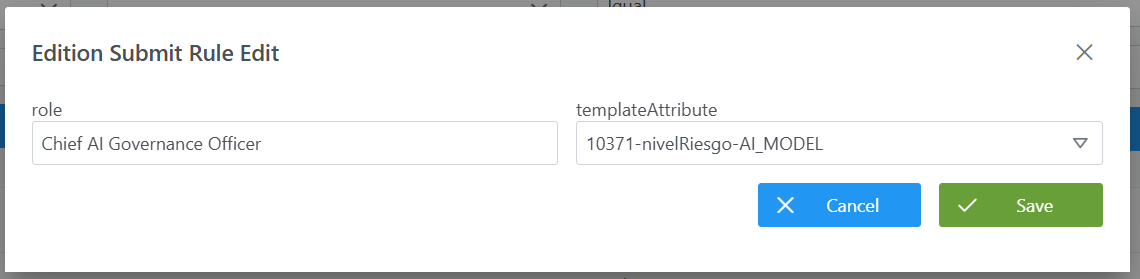
To add a new rule:
-
Click the New button in the top right corner. This will open a wizard with the fields defined in the Structure of the Edition Submit Rule table section.
-
Fill in the fields according to the structure described:
-
role: enter the name of the role that will not trigger a workflow when editing the attribute (e.g.: Chief AI Governance Officer). -
templateAttribute: select the template attribute to which the exception applies (e.g.: 10371-nivelRiesgo-AI_MODEL).
-
-
Click Save to save the rule or Cancel to discard it.
Note: After creating new rules, you must run the Clear cache action from the Configuration Panel (Home > Reset Operations > Clear cache) for the changes to take effect in the Data Portal.
Modifying a workflow launch exception rule in the Edition Submit Rule table
Modifying a rule in the Edition Submit Rule table makes it possible to adjust the workflow launch exception parameters for a specific role or template attribute.
To modify an existing rule:
-
Click the Edit button (green pencil icon) in the row corresponding to the rule you want to modify. This will open a wizard with the fields defined in the Structure of the Edition Submit Rule table section.
-
Fill in the fields according to the structure described:
-
role: update the role that will not trigger a workflow when editing the attribute, always consistent with thenamefield of theRolestable (e.g.: change from Chief AI Governance Officer to AI Risk Officer). -
templateAttribute: update the template attribute to which the exception applies (e.g.: change from 10371-nivelRiesgo-AI_MODEL to another template attribute).
-
-
Click Save to save the changes or Cancel to discard them.
Important considerations
-
Rules can be modified at any time, regardless of whether governed objects exist or not.
-
If you want to modify both the role and the attribute, but maintain the consistency of previous configurations, it is recommended to consider whether it is more appropriate to delete the existing rule and create a new one.
-
After modifying rules, you must run the Clear cache action from the Configuration Panel (
Home > Reset Operations > Clear cache) for the changes to take effect in the Data Portal.
Configuring workflow launch exception rules via direct database access (Developer view)
Workflow launch exception rules are stored in the anjana.edition_submit_rule table.
These rules make it possible to identify the template attributes (configured in anjana.template_attribute) that, when edited and submitted for validation by certain roles (configured in zeus.role), do not generate an approval workflow, so the object is validated automatically.
|
Column |
Type |
Constraints / Notes |
|---|---|---|
|
id_edition_submit_rule |
int4 |
PRIMARY KEY. Unique identifier of the rule. Managed manually or via sequence. |
|
role |
varchar(255) |
NOT NULL. Name of the role to which the responsibility is assigned. |
|
id_template_attribute |
int4 |
FOREIGN KEY to |
The following example defines a rule that assigns the Chief AI Governance Officer role authority over the template attribute with identifier 10371- nivelRiesgo of the AI_MODEL template:
INSERT INTO anjana.edition_submit_rule
(id_edition_submit_rule, "role", id_template_attribute)
VALUES (2, 'Chief AI Governance Officer', 10371);
Important:
-
Once the insert has been executed, run the sequence update for the table. (From the new Configuration Panel, under
Home > Reset Operations > Reset database sequences, you can update the sequences of all tables, including this one). -
The full weight of the configuration logic falls on the developer who runs the SQL queries directly against the tables. It is recommended to carefully review the Structure section.