
Workflow
A workflow is the validation flow that every Anjana entity or relationship must follow so that the changes end up applied in Anjana according to the action that triggered it, and so that it can be used by other structures. These actions can be object creation, a status change, a request to adhere to a DSA, a modification of some attribute…
To complete a workflow in Anjana, it is possible to include tasks for sending notifications, validations, or object evaluation to allow branching into different paths within the same workflow.
Variables to evaluate
In the workflows configured in Anjana, it is possible to check the value of certain parameters in order to configure branches in them.
These parameters are:
-
Any attribute of the template of the object being validated. There are two ways to make this comparison:
-
Comparison of the boolean attribute with name=’pi’, ${pi == 'true'}
-
Comparison of the reference metadata attribute with name=’data_sensitivity’, ${execution.getVariable('data_sensitivity') != 'Confidential' || execution.getVariable('data_sensitivity') == null}
-
IS_VERSION: whether the workflow is a versioning workflow (a string, so it is ‘true’ for versioning and ‘false’ for modification). An example comparison is: ${ IS_VERSION == 'true'}
ORIGINAL_OBJECT_ID: internal identifier of the original object when the workflow is a versioning workflow (an integer). An example comparison is: ${ ORIGINAL_OBJECT_ID >= 10} and ${ORIGINAL_OBJECT_ID < 10}
OBJECT_ID: Anjana's internal identifier for the object (an integer). An example comparison is: ${ OBJECT_ID >= 1}
OBJECT_NAME: name of the object (a string). An example comparison is: ${ OBJECT_NAME == "Customers"} and ${ OBJECT_NAME != "Customers"}
OBJECT_SUB_TYPE: name of the object's subtype (a string). An example comparison is: ${OBJECT_SUB_TYPE == 'DATASET'} and ${OBJECT_SUB_TYPE != 'DATASET'}
OBJECT_TYPE: ENTITY or RELATIONSHIP (a string). An example comparison is: ${OBJECT_TYPE == 'ENTITY'} and ${OBJECT_TYPE != 'ENTITY'}
SOURCE_TYPE and DESTINATION_TYPE: name of the subtype of the source entity or the destination of a relationship (a string). An example comparison is: ${SOURCE_TYPE == 'DATASET'} and ${DESTINATION != 'DATASET'}
ORGANIZATIONAL_UNIT: one or two organizational units to which the object belongs (one for an entity and two for a relationship, for its two ends) (a list of values). An example comparison is: ${execution.getVariable("ORGANIZATIONAL_UNIT").contains("HQ/Legal")} and ${!execution.getVariable("ORGANIZATIONAL_UNIT").contains("HQ/Legal")}
ROLE_NAME: role of the user who launches the workflow (a string). An example comparison is: ${ROLE_NAME== 'data_owner'} and ${ROLE_NAME != 'data_owner'}
SENDER_USER: named user who launches the workflow (a string). An example comparison is: ${ SENDER_USER == 'maria.gonzalez'} and ${ SENDER_USER != 'maria.gonzalez'}
ACCEPTED: the user's approval of the validation (a string, so it is ‘true’ for approval and ‘false’ for rejection). An example comparison is: ${ACCEPTED == 'true'} and ${ACCEPTED == 'false'}
WORKFLOW_TYPE: type of workflow to execute (possible values: ‘CREATE’, 'MODIFY’, ‘ACTIVATE’, ‘DEACTIVATE’, ‘TRANSFER’, ‘DEPRECATE’, ‘ADHERENCE’, ‘DISADHERENCE’, ‘RENAME’). An example comparison is: ${WORKFLOW_TYPE == 'CREATE'} and ${WORKFLOW_TYPE != 'CREATE'}
Options for configuring a workflow
It is possible to configure workflows in Anjana in two ways:
From the administration panel, in the BPM section, from where the workflow editor is accessed: http://{{hostname}}/configpanel/bpmn-manager/edit
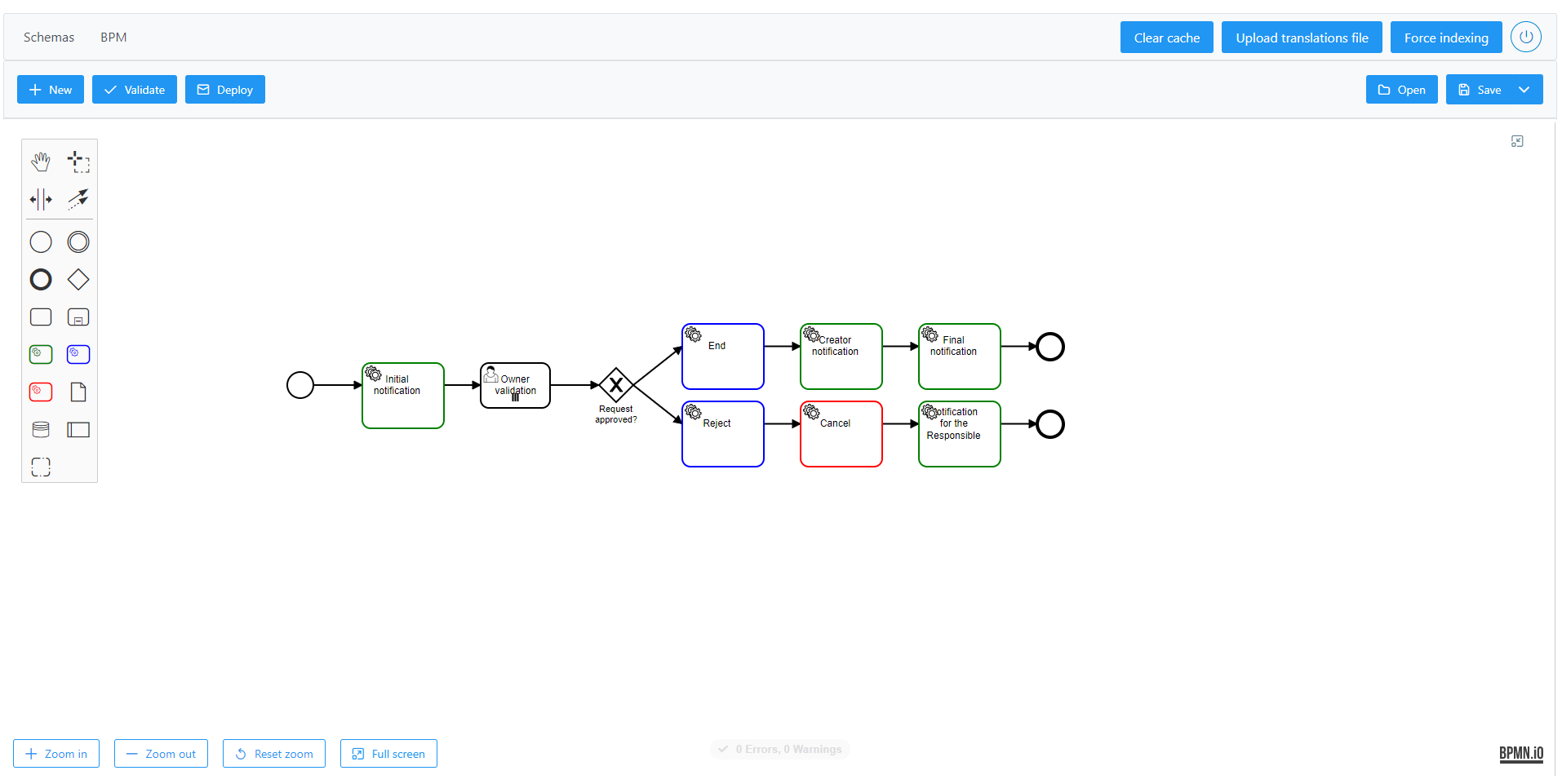
Creating the XML directly for Activiti.
Both options are described below.
Administration panel
Functions
The following options are available in the administration front end:
-
Open → Allows importing a previously created workflow via its XML.
-
Save as → Saves the workflow configured from the workflow editor. This option allows saving the XML or image to the Filesystem or deploying it in Anjana so it can be used. The extension of the file to be saved must be “.bpmn20.xml”.
-
When creating a folder, Amazon's conventions must be taken into account (Buckets naming rules), the most important being that names of fewer than 3 characters are not allowed
-
It is recommended that the id and the name used for the workflow be the same, to avoid configuration errors
-
The workflow key must be unique
-
-
New → Opens a canvas from which a new workflow can be configured
-
Validate → Validates the correctness of the configured workflow. This will only appear once the workflow has been saved through the API.
-
Deploy → Deploys the workflow so it can be launched from Anjana. This will only appear once the workflow has been saved through the API.
Workflow editor
This will be the working environment where a workflow is created, containing the tools needed to include the actions and flows that make up the workflow's structure.
Introduction
The simplest way to start a workflow is to include on the canvas the start and end of the workflow so that, from there, you can go on including the elements needed to form the workflow.
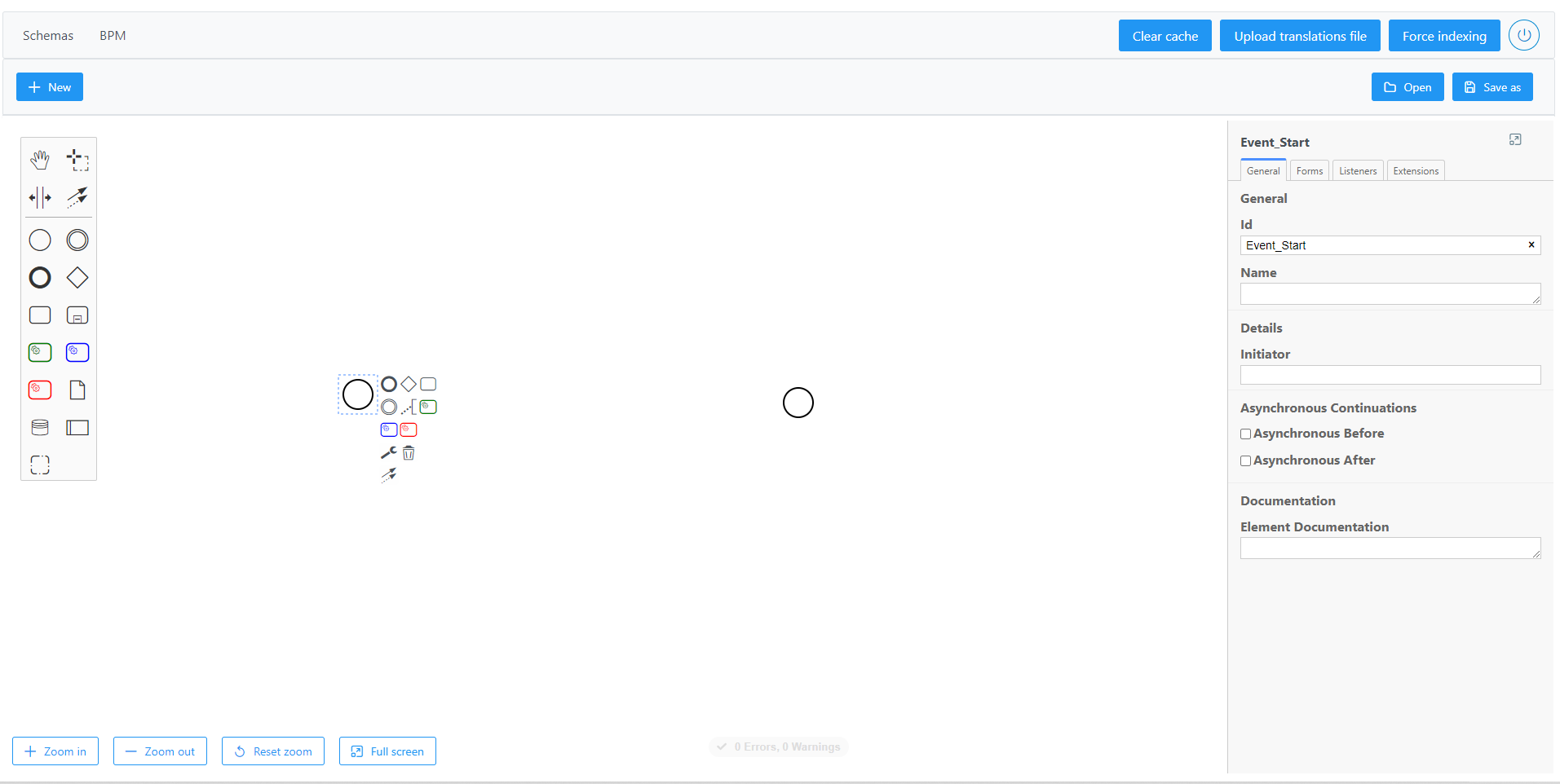
Elements
The elements that can be added to a workflow, between the start and the end, appear on the left of the workflow canvas.
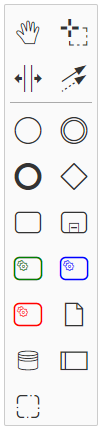
These elements are:
StartEvent
Start of the workflow, necessary for the workflow to function correctly.

Intermediate/Boundary Event
These perform ‘listener’ functions; they are events that cannot be launched, and they activate automatically when they detect a certain type of trigger, so that the workflow is interrupted and the sequence flow leaving the event is followed.
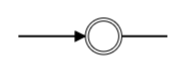
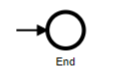
EndEvent
End of the workflow, necessary for the workflow to function correctly.
Sequence Flow
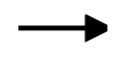
These are the lines that connect the different elements; they can be of two types:
Conditional → A condition must be met for the execution flow to pass to the next element, for example, the user validating the task as OK.
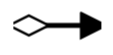
Unconditional → These always pass to the next element of the execution flow.
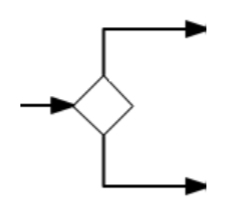
Gateway
Used to diversify the workflow's execution flow; it allows tasks to be performed in parallel.
Task
An individual task within the workflow; these can be classified into different types depending on:
Its function:
-
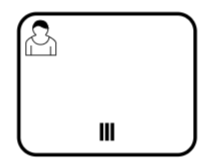
User → A user action is required to continue the flow.
-
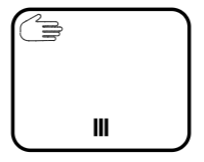
Manual → This is a task external to the internal flow of the BPM engine; therefore, the process it performs internally is not known, only its status is monitored to know whether it has finished.
-
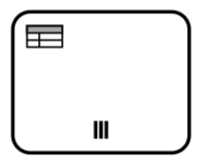
Business Rule → Used to synchronously execute one or more rules defined by the client. Activiti currently uses .drl files to include these rules.
-
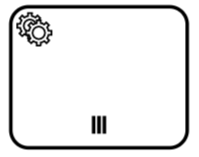
Service → These launch the execution of a Java class; that class can perform various functions. For Anjana, the following have been created:
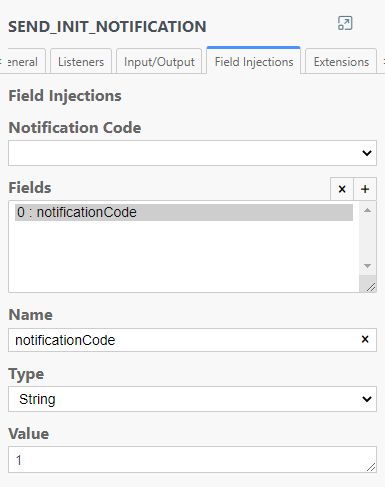
SendNotificationJavaDelegate → Sends a notification that must have previously been created in the Notifications table of the Configuration panel. To configure this task, it is only necessary to include the code of the notification to be sent in the ‘Field Injections’ section. This component is not the only option for sending notifications, since these can also be embedded in User Tasks.
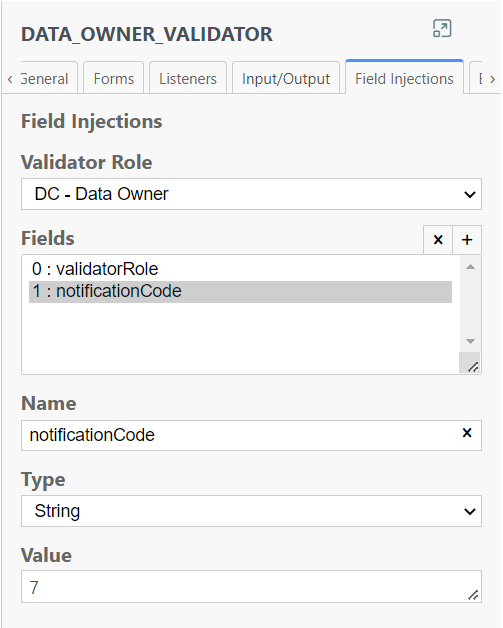
When notifications are related to user tasks, it is recommended to merge them with role validation in a user task, configured as follows.
LastExecutionJavaDelegate → Used so that Anjana performs the final processes when a workflow finishes. It is necessary to always call this task before ending the workflow, whether the result is OK or KO.
CancelTaskWorkflowJavaDelegate → When one of the validators does not approve the workflow, the flow must pass through this task to indicate to Activiti that the process has been cancelled.
-
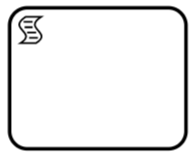
Script → When the workflow's flow reaches this task, the script is executed.
-
Expanded SubProcess → Used to group different tasks; it is usually used when the result is meant to depend on all the tasks grouped within the subprocess.
-
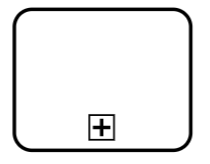
Call Activity → This is a type of subprocess that groups several tasks, but this type of subprocess can be called from different parts of the workflow's flow.
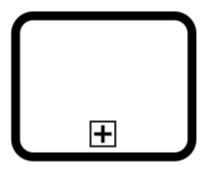
Its execution:
-
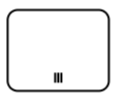
In parallel → The processing of several tasks can be performed in parallel.
-
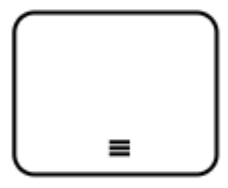
Sequential → The flow cannot advance until the task has been performed.
-
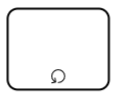
Loop → The task will be executed n times.
DataObjectReference → Activiti allows defining a data object as part of a process or subprocess. In this way, complex XML structures can be included, which can be imported from XSD.

DataStorage Reference → References to a database can be included within the workflow's flow.

Pool/Participant → Allows creating another workflow canvas.
Group → Allows grouping different workflow canvases.
Actions
Change Type → Allows changing the type of the element.

Delete → Deletes the element.

Connect using Sequence/MessageFlow or Association → Allows connecting elements to each other.

Append Text Annotation → Used to add notes to an element.
