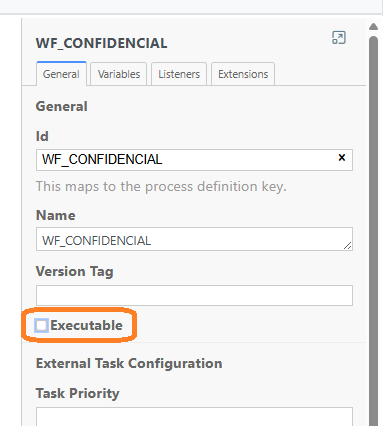
The changes I applied to a workflow are not executed, and the behavior of a previous version is maintained. How can I fix this?
If, after applying changes in the BPM (adding/modifying a Notification Task, adding/modifying a User Task, creating/modifying a Gateway, creating/modifying a Flow, etc.), these changes are not reflected in the behavior of the workflows (validation flows) of the Data Portal, it is advisable to check the following:
-
Check that the workflow being worked on in the BPM is the same one being launched in the Portal, that is, verify that the workflow ID in the BPM matches the ID configured for the object subtype and action being performed (Object Sub-types table in the configuration panel)
-
Verify in the BPM editor that the workflow has been validated (Validate) and deployed (Deploy)
-
Verify in the Activiti database tables that the deployed version corresponds to the workflow version
Sometimes Activiti does not manage versioning correctly and does not take the latest version of the workflow. In this case, Anjana Data's recommendation is as follows (Important: the steps must be followed in the order indicated):
-
Modify the ID and Name of the workflow, using a completely new name (Important: do not reuse old values)
-
Perform a Save As and save it with the new name in the desired folder
-
Validate and deploy the workflow
-
Modify the Object Sub-types table in the configuration panel for the records to which the workflow is to be applied, using the new ID
-
Clear caches from the configuration panel (Actions-> Clear caches)
How to configure a Workflow with automatic validation steps?
In many cases it can be very useful to configure automatic validations when certain conditions occur, for example, to manage automatic approvals in the case of a request for access to public data. Even though the validation is automatic, it is necessary to configure a workflow (approval flow); the difference with respect to others will be that one or more validation steps will be automatic, that is, they will not require participation from a validator.
To configure automatic validation steps, the following must be configured:
-
Add a task (Create task) and configure it as a User Task
-
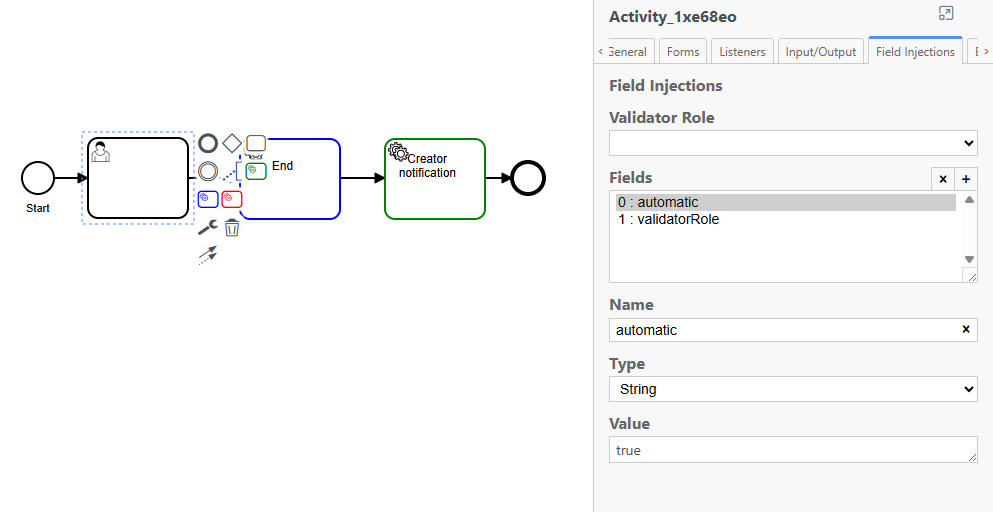
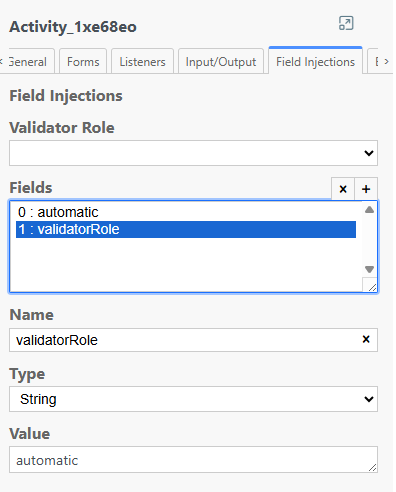
In the Field Injections tab of the created task, 2 fields must be added:
-
In the first position, the "automatic" field with the properties "Name", "Type" and "Value" with the respective values "automatic", "String" and "true", as shown in the following screenshot:
-
b. In the second position, the "validatorRole" field with the properties "Name", "Type" and "Value" with the respective values "validatorRole", "String" and "automatic", as shown in the following screenshot:
How to configure more than 2 parallel flows within a Workflow?
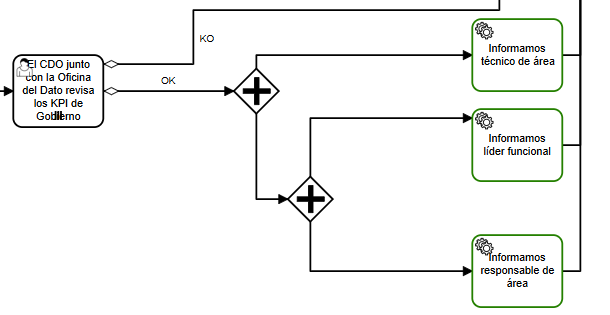
Currently, BPMN does not support logic gates with more than 2 parallel paths. To achieve the execution of more than 2 parallel flows, we must rely on the elements that currently exist and combine them appropriately. To do this, we will use a logic gate of the "Parallel Gateway" type

This logic gate allows us to produce 2 parallel flows. To achieve the desired effect, we only need to combine several Parallel Gateways until we complete the number of paths we are aiming for. In the following image you can see how the flow issues 3 notifications in parallel, through the combination of 2 Parallel Gateways
When trying to validate a workflow, I get an error indicating that it must be executable. What should I check in the configuration?
If, when validating a workflow, this error appears
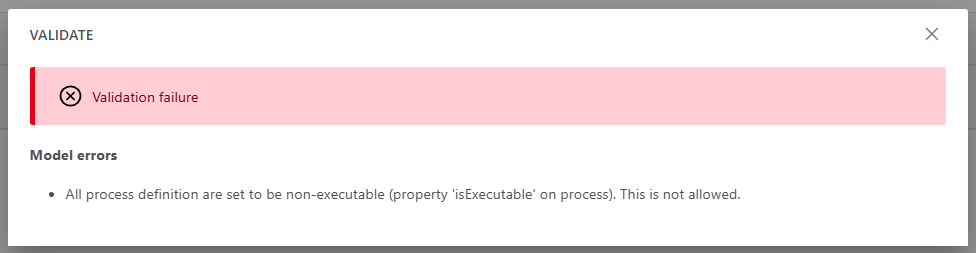
It is necessary to check the workflow configuration to confirm that the Executable flag is checked: