
Configuring the metadata templates involves defining in which menu and section the metadata attributes previously defined in the Attribute Definitions table will be displayed.
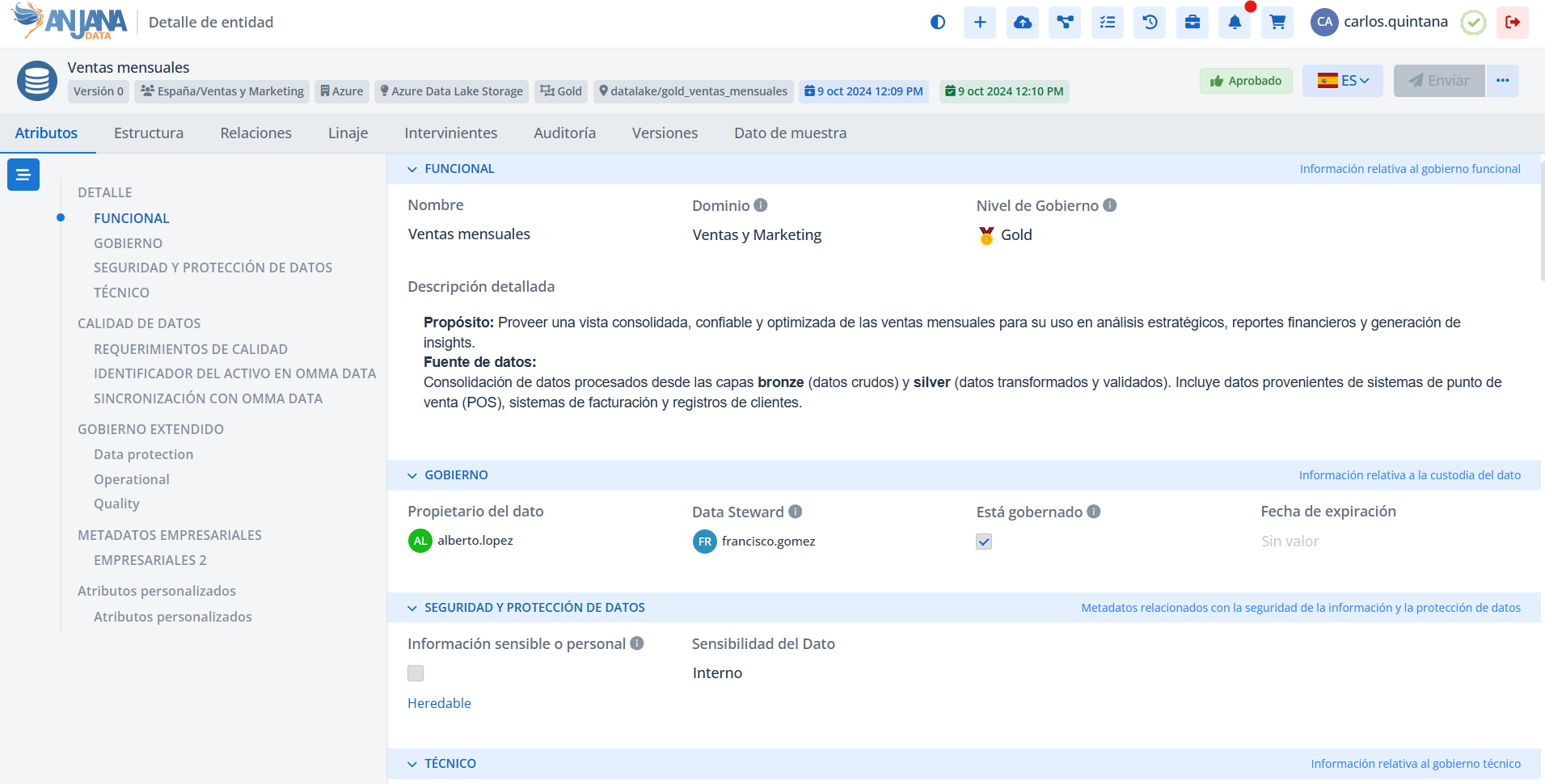
Template Attribute Table in the Configuration Panel (Administrator view)
The association of metadata to sections is managed in the Template Attribute table and allows building the dynamic forms for each entity or relationship subtype of the metamodel.
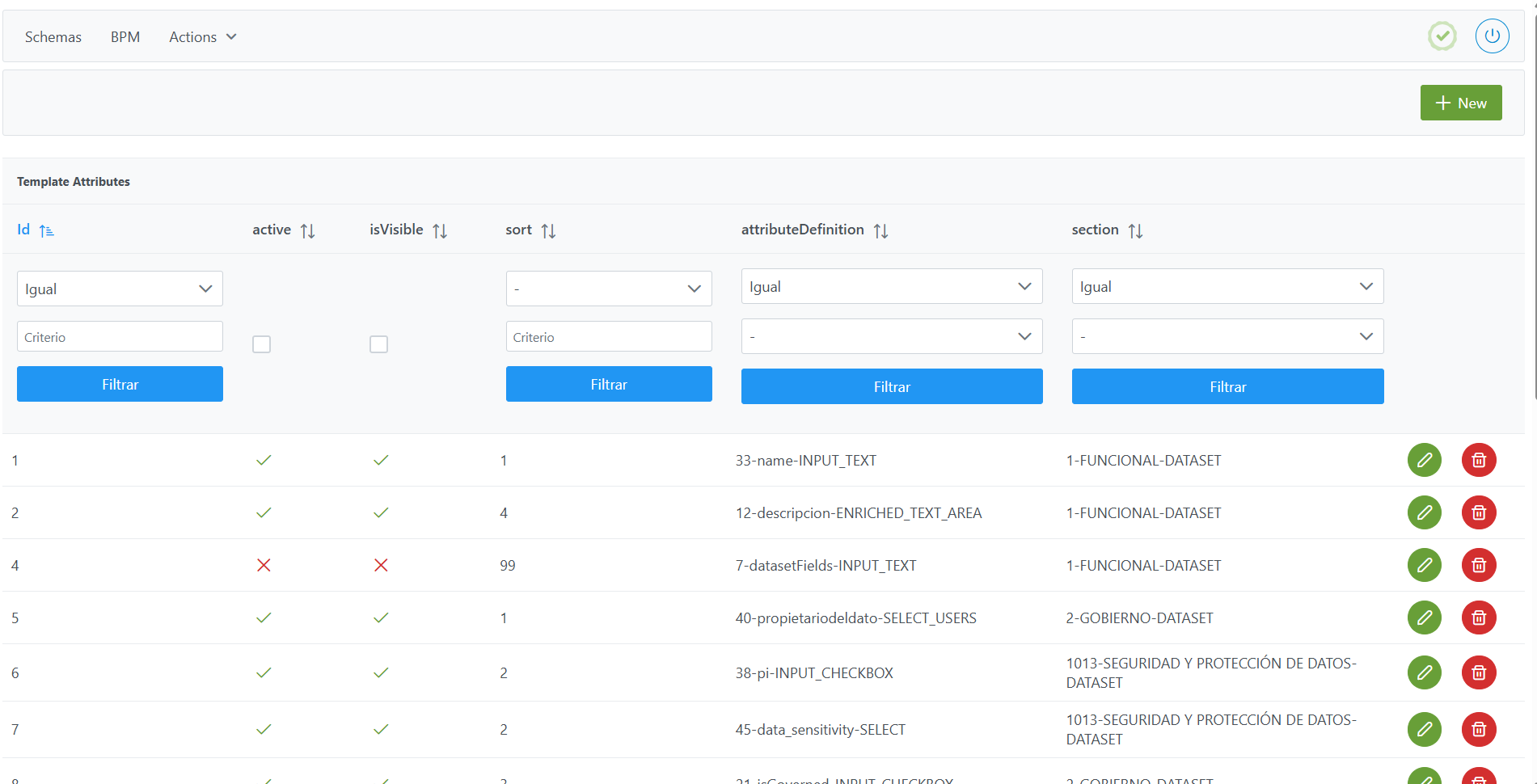
Structure of the Template Attribute table
Each template attribute record is characterized by the following fields:
-
Id: unique identifier of the template attribute.-
It is automatically assigned from the Configuration Panel.
-
-
active: flag indicating whether the attribute is active in the object's template.-
If active = true, the attribute is displayed and editable (if the user has permissions).
-
If active = false, the attribute is no longer available in the Data Portal. Objects that previously had it populated will retain the value, but it will be invisible and non-editable.
-
If it is subsequently reactivated, it will reappear in the form with the previously saved value.
-
⚠️ Exception: in the ADHERENCE template, metadata attributes must always be false because this object's template is not visible.
-
Note: The active = false flag is the soft delete mechanism for attributes within templates, which must be implemented when there are governed objects.
-
isVisible: flag indicating whether the attribute is shown in the Structure table of the dataset screen. (Only applies to the DATASET FIELD template). It does not affect visibility in the metadata template.-
For attributes of the DATASET_FIELD template → apply true (to make it visible) or false (to hide it) as needed.
-
For ADHERENCE attributes → always false.
-
For any other template → always true.
-
-
sort: display order of the attribute within the section it belongs to (1, 2, 3, …). -
attributeDefinitions: reference to the attribute defined in theattribute Definitionstable to be included in the template. -
section: section in which the attribute is grouped within the form.-
Corresponds to a value from the
Sectionstable.
-
Important notes:
-
The same attribute cannot appear more than once in the same template.
-
Attributes marked as Mandatory Attributes must be configured in the templates of the corresponding entities and relationships (including the ADHERENCE relationship).
Adding an attribute to an object's template using the Template Attributes table
New attributes are added to a template from the Configuration Panel, in the Template Attributes table.
-
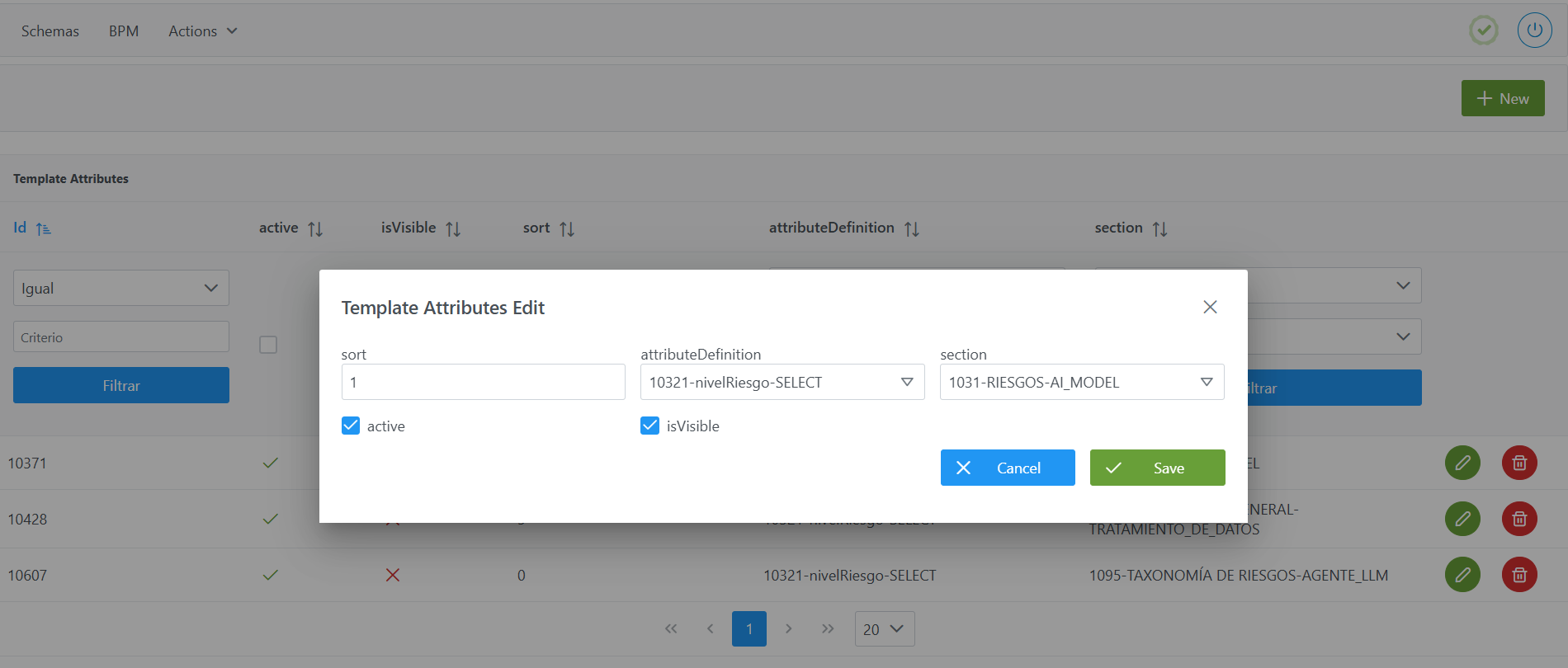
Click the New button in the upper right corner. This will open a wizard with the fields defined in the Structure of the
Template Attributestable section. -
Fill in the fields according to the structure described:
-
sort: position the attribute will occupy within the section (e.g.,1). -
atributeDefinition: select the attribute you want to add to the template (e.g.,10321-nivelRiesgo-SELECT). -
section: select the section in which the attribute will be displayed (e.g.,1031-RIESGOS-AI_MODEL). -
active: check if you want the attribute to be enabled in the template. -
isVisible: check as appropriate (see rules above).
-
-
Click Save to save or Cancel to discard.
Note: After adding attributes, it is necessary to run the Clear cache action from the Configuration Panel (Home > Reset operations > Clear cache) for the changes to take effect in the Data Portal.
Modifying an attribute in an object's template using the Template Attributes table
Modifying an attribute already assigned to a template is managed from the Template Attributes table in the Configuration Panel. This operation must be performed with caution, as it can impact the display and editing of metadata in the Data Portal.
Fields that can be modified:
-
sort: allows changing the display order of the attribute within the section. -
active: allows activating or deactivating (soft delete) a template attribute at any time.-
If deactivated (
false), the attribute is no longer available in the template, although its previously assigned value is retained in the database. -
If activated (
true), the attribute will show the value it had assigned prior to deactivation.
-
-
isVisible: can be modified freely.-
If checked in the DATASET_FIELDS template, the attribute will be visible in the Structure tab of the Data Portal. In any other template, this would be a configuration error.
-
If unchecked in the DATASET_FIELDS template, the attribute will no longer be visible in the Structure tab of the Data Portal.
-
-
section: can be modified as long as it is a section belonging to the same object subtype. It must never be changed between sections of different objects.
Fields that cannot be modified if governed assets exist:
-
atributeDefinition: once the record is created, it cannot be replaced by another attribute.
Modification procedure:
-
Click the edit button on the row of the attribute you want to modify.
-
Adjust the allowed fields (
sort,active,isVisibleorsection). -
Click Save to save the changes or Cancel to discard them.
Notes:
-
After modifying attributes in a template, it is necessary to run the Clear cache action from the Configuration Panel (
Home > Reset operations > Clear cache) for the changes to take effect in the Data Portal. -
If the attribute is to be used as a filter, it is essential to initialize the attribute before creating the filter, for example through a bulk edit on all objects that include it in their template, assigning an empty or null value as appropriate. Otherwise, the filter will cause an error.
Assigning attributes to templates via direct database access (Developer view)
The assignment of attributes to templates is stored in the anjana.template_attribute table.
|
Column |
Type |
Constraints / Notes |
|---|---|---|
|
|
|
PRIMARY KEY. Record identifier (managed by sequence). |
|
|
|
NOT NULL. If |
|
|
|
Can be |
|
|
|
Display order of the attribute within the section (1, 2, 3, …). |
|
|
|
NOT NULL. FK to |
|
|
|
NOT NULL. FK to |
Below is a sample script to add the risk level to an AI System's template:
INSERT INTO anjana.template_attribute
(id_template_attribute, active, is_visible, sort, id_attribute_definition, id_section)
VALUES(10371, true, true, 1, 10321, 1031);
Important:
-
Once the insert has been executed, run the table's sequence update. (From the new Configuration Panel under
Home > Reset operations > Reset database sequences, the sequences of all tables can be updated, including this one). -
The entire responsibility for the configuration logic falls on the developer who runs the SQL queries directly against the tables. It is recommended to carefully review the Structure section.