
This page describes how Anjana Data Platform manages user authentication and authorization through the Users table in the Configuration Panel, with particular focus on the internal Database provider.
-
Authentication (who are you?): verifies the user's identity when they log in.
-
Authorization (what can you do?): determines the user's permissions based on the roles assigned to them. Authorization management (assigning roles to users in organizational units) is described on the page https://wiki.anjanadata.com/es/configuracion/26.1/autorizacion .
Important: the Users table always contains the users who can authenticate on the platform, regardless of the configured authentication provider (Database, LDAP/AD, Azure EntraID, Google, AWS, etc.). If a user does not exist in the Users table, they will not be able to authenticate, not even with the default role.
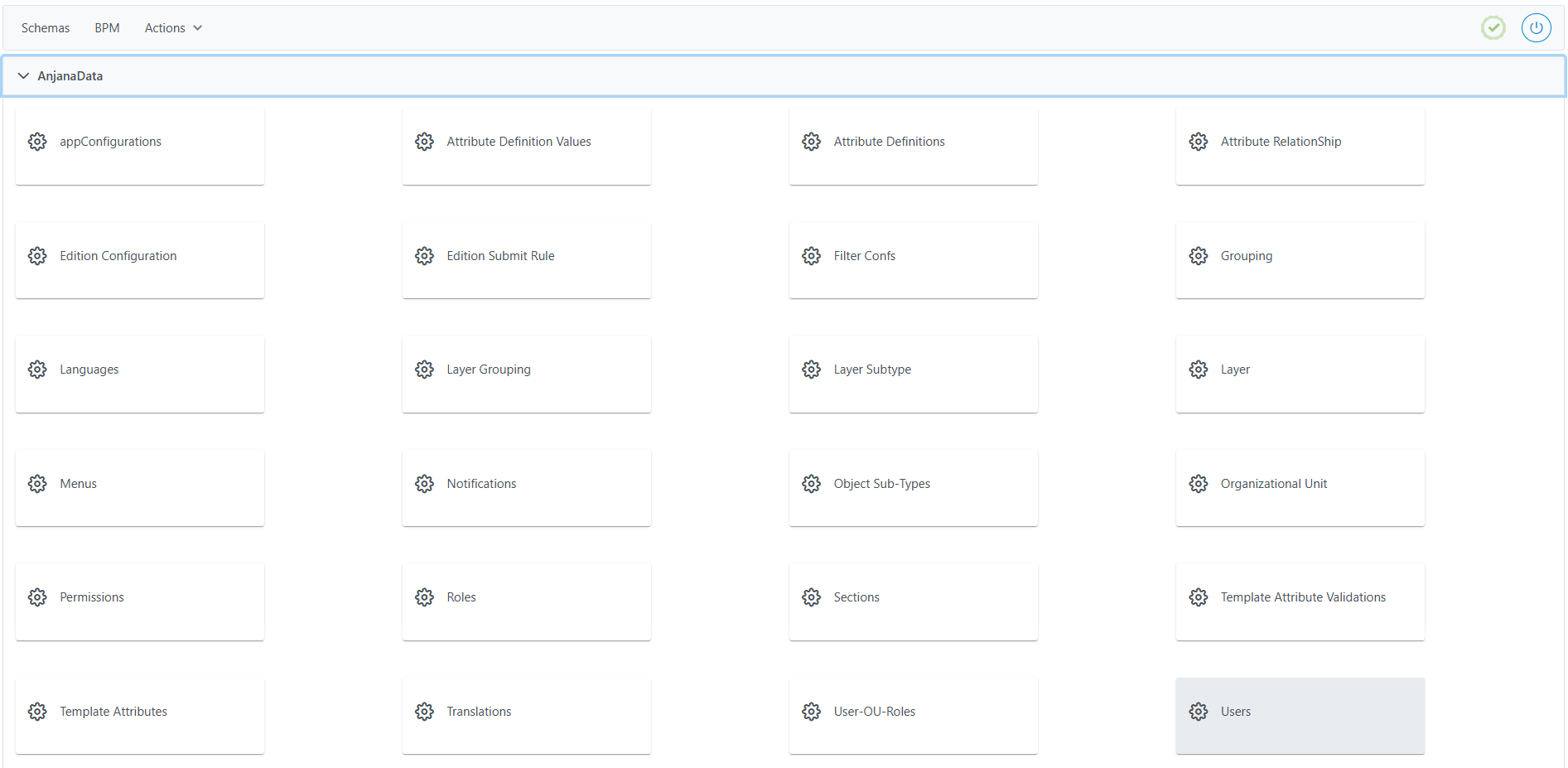
Structure of the Users table
The Users table stores the information of each user who can authenticate and be authorized on the platform.
To view and access the Users table within the Configuration Panel, the user must have a role with permissions for the CREDENTIAL_ADMIN action on the ANJANA subtype.
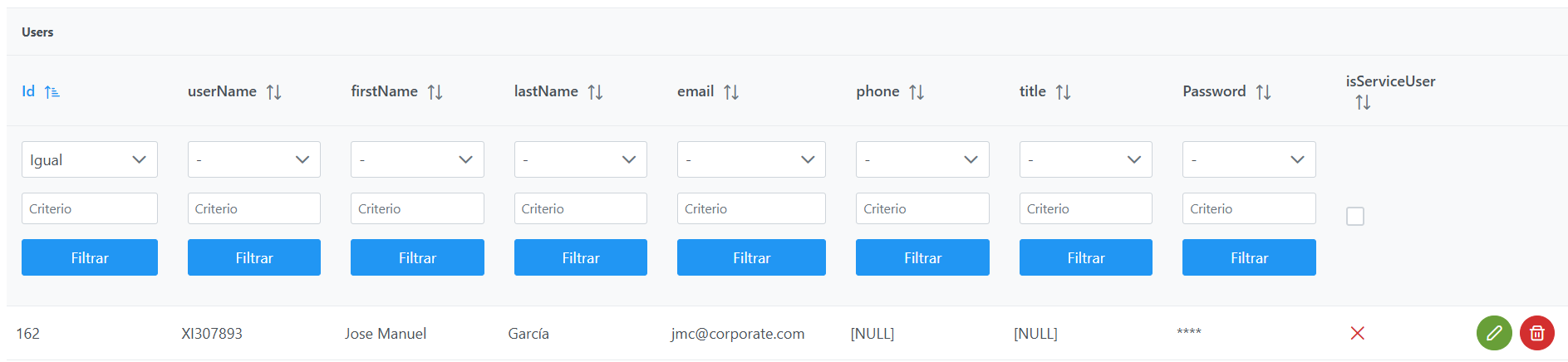
Each user is defined by the following fields:
-
id: unique identifier of the user in the table. -
userName: login identifier of the user in the application or in the integrated identity provider. It is a unique-value field in the table (see User identification and authorization). TheuserNameis also the identifier with which Anjana Data Platform records the audit trail: when the platform indicates, for example, that the user who modified a business term islucia.gomez, that value is theuserName. -
firstName: user's first name. -
lastName: user's last name. -
email: user's email address. It can also be used as an access identifier (see User identification and authorization). -
phone: user's phone number. -
title: user's job title (informational field, not mandatory). -
Password: hash of the user's password in BCrypt format. The hash is unique per user, even for identical passwords, and can be generated with any standard BCrypt tool (see Behavior of thePasswordfield). -
isServiceUser: boolean indicating whether it is a service user (true) or a named user (false).
The attributes of the Users table can be populated through different mechanisms, described in the User creation section: synchronization with the corporate directory, manual creation from the Configuration Panel, or creation via API.
User identification and authorization
A user's access to the platform is resolved in two phases:
-
Identification (authentication): the identifier returned by the authentication mechanism is compared indistinctly against the
userNameandemailvalues in theUserstable. The comparison is case-insensitive: for example,JGarciaandjgarciaare considered the same value. Therefore, a user can be identified either by theiruserNameor by theiremail. -
Authorization: once identified, the user obtains the permissions of the roles assigned to them. These roles are resolved based on the user's record in the
Userstable (by theirId), not by theiruserNameoremail.
Authorization —assigning roles to users within organizational units via the User-Ou-Roles table— is managed and documented on its own page: Authorization. This page (Users) focuses on user authentication and identification; it does not detail the role-assignment mechanism, to avoid duplicating content.
Although userName is a unique-value field in the table (with a uniqueness constraint, even case-insensitive), it is not the only valid access identifier: the email serves the same purpose for identification. In both cases, identification is case-insensitive.
Behavior of the Password field
The Password field stores the BCrypt hash of the password and behaves as follows in the Configuration Panel:
-
On creation and modification, the value entered by the user in the
Passwordfield (the hash) is shown in plain text, unmasked. -
On query, the hash value is not shown: it appears masked for security.
-
Modification does not allow clearing the password content, only modifying it.
-
It is not populated during user synchronization.
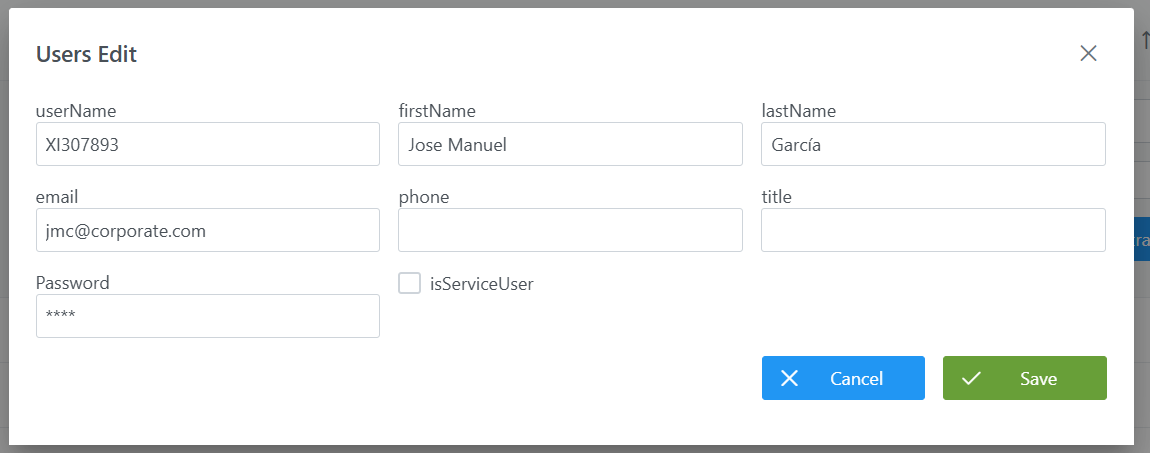
Users coming from external providers —that is, those who authenticate through their own provider rather than through Database— should not have the password field populated. The Password field is only relevant for authentication via Database, where the user enters the plain-text password that is validated against this hash.
User creation
Users can be added to the Users table through three mechanisms:
Manual creation from the Configuration Panel
Recommended method for creating users individually (path Schemas → Users → New):
-
Click New.
-
Fill in the fields described in Structure of the
Userstable in the creation wizard. -
Click Save to save the user or Cancel to discard it.
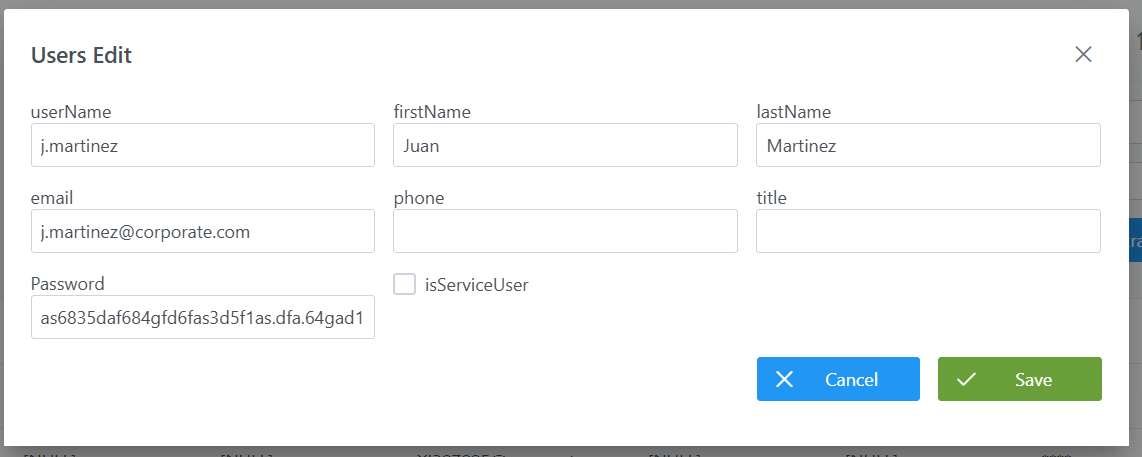
For authentication via Database, the user will use as their password the value (before the hash conversion in BCrypt format), which is validated against the Password field. Upon creation, the hash entered is shown in plain text (see Behavior of the Password field).
Creation via API
Allows automating user provisioning from external processes. See the Zeus users API documentation for more detail.
User synchronization
Retrieves and updates user information from the corporate directory. It is run from Home > Actions > Synchronize users in the Configuration Panel and is detailed on the page https://wiki.anjanadata.com/es/integraciones/26.1/aprovisionamiento-de-usuarios .
Synchronization populates the userName, email, firstName, lastName, phone, and title fields. It does not populate the Password field, since these users authenticate through their external provider rather than through Database.
Modifying users
Modifying a user's attributes should be done with caution.
-
Go to Schemas → Users in the Configuration Panel; the list of existing users will be displayed.
-
Locate the user you want to modify; you can filter by
userName,email, or other fields in the table. -
Click the pencil icon to open the edit panel.
-
Modify the necessary fields:
firstName,lastName,email,phone,title, andPassword(only if you want to change the password). Keep in mind the behavior of the Password field described in previous sections. -
Save the changes with Save.
Important:
-
For the changes to take effect immediately, it is recommended to clear the caches from
Home > Reset operations > Clear cache. -
It is not recommended to modify values populated through synchronization with the corporate identity management system, unless they are not populated in that system.
Important considerations
-
userName: this is a unique-value field (uniqueness constraint, even case-insensitive) and is used as the login identifier. It is not recommended to modify it unless exceptionally necessary, since it may be referenced in permissions/roles or in user-type attributes of templates. If modified: perform a bulk edit to remove the references in user-type attributes; comply with all field constraints (uniqueness, length, valid characters); the user will need to log in with the new value. Remember that identification also accepts theemail(see User identification and authorization).
Impact of changing the userName on the audit trail.
Since the userName is the identifier recorded in the audit trail, changing the userName causes subsequent actions to be audited with the new value, while earlier audit records retain the old userName: the historical audit trail is not rewritten.
-
Password change: modify the
Passwordfield with a valid BCrypt hash; the user will use the plain-text password corresponding to that hash at login. On modification, the hash value appears masked. It is not possible to delete a password once created, only to modify it. -
isServiceUser: informational field. It should not be modified manually unless the platform team indicates so.
Database query and exploitation — Developer view
In addition to being managed from the Configuration Panel, the information of internal users (authentication via Database) is stored in the zeus.users table and can be queried in read-only mode for analytical purposes. For example, it allows the client to build their own data mart, dashboards, or reports on the users of their platform (registrations, service users versus named users, users by domain and role, etc.).
This section is oriented toward querying (read-only) the information. User creation and modification should always be performed from the Configuration Panel (administrator view) or via the Zeus users API, as described in previous sections; writing directly to the tables is not recommended.
Sensitive data: this table contains credentials and personal data.
-
The
password_hashfield is an encrypted credential: it must not be included in exploitation queries or exposed in a data mart, report, or view. -
The
email,phone,first_name, andlast_namefields are personal data; their processing must comply with the data protection regulations applicable to the organization.
The zeus.users table
The information of internal users is stored in the zeus.users table. Its columns, available for querying, are:
|
Column |
Data type |
Description |
|---|---|---|
|
|
|
Unique internal identifier of the user (primary key). |
|
|
|
User's email address (unique if provided). Personal data. |
|
|
|
User's first name (optional). Personal data. |
|
|
|
User's last name (optional). Personal data. |
|
|
|
Encrypted credential (BCrypt hash). Must not be queried or exposed in exploitation tasks. |
|
|
|
Contact phone number (optional). Personal data. |
|
|
|
User's job title/position (optional). |
|
|
|
Username for internal login (unique). |
|
|
|
Indicates whether it is a service user (default value |
|
|
|
Date of the user's last login. |
|
|
|
Indicates whether the user has signed the privacy agreement. |
Relevant constraints and indexes
-
Primary key:
users_pkey (id_user) -
Email uniqueness:
UNIQUE (email) -
Username uniqueness:
UNIQUE (user_name) -
Case-insensitive username uniqueness:
CREATE UNIQUE INDEX unique_lower_username ON zeus.users (lower(user_name::text));
This prevents duplicates due to case differences (for example,jgarciaandJGarcia).
Related tables for enriching queries
For a more complete view, the users table can be joined with other tables in the model:
-
zeus.user_ou_role: role assignments to users by organizational unit; allows knowing the authorization of each user (linking
id_userwithuser_id). -
Through
user_ou_role, the tables zeus."role" (role) and zeus.organizational_unit (data domain) complete the view of who can do what and where.
Query examples
List of users without the credential (password_hash):
SELECT id_user,
       user_name,
       first_name,
       last_name,
       email,
       title,
       is_service_user
FROM zeus.users
ORDER BY user_name;
Count of service users versus named users (useful as a metric for a data mart):
SELECT is_service_user,
       COUNT(*) AS total
FROM zeus.users
GROUP BY is_service_user;
Users with their roles and data domains (effective authorization):
SELECT u.user_name,
       ou.alias    AS unidad_organizativa,
       r.role_name AS rol
FROM zeus.users u
JOIN zeus.user_ou_role uor        ON u.id_user = uor.user_id
JOIN zeus.organizational_unit ou  ON uor.ou_id = ou.id_organizational_unit
JOIN zeus."role" r               ON uor.rol_id = r.id_role
ORDER BY u.user_name;
Important:
-
Use a database user with read-only permissions and, preferably, on a view that excludes
password_hashand limits personal data to what is strictly necessary. -
User creation and modification should always be performed from the Configuration Panel or the Zeus users API, to maintain integrity (password hashing, uniqueness, caches).
-
Schema, table, and column names may evolve between versions of Anjana Data; it is advisable to validate them before building a data mart or reports on this information.