
The texts visible in the different modules of the Data Portal, as well as the application messages, can be customized by configuring translations for each language available in Anjana Data Platform. Whenever new texts are added or a new language is incorporated, the corresponding translations must be registered in the platform.
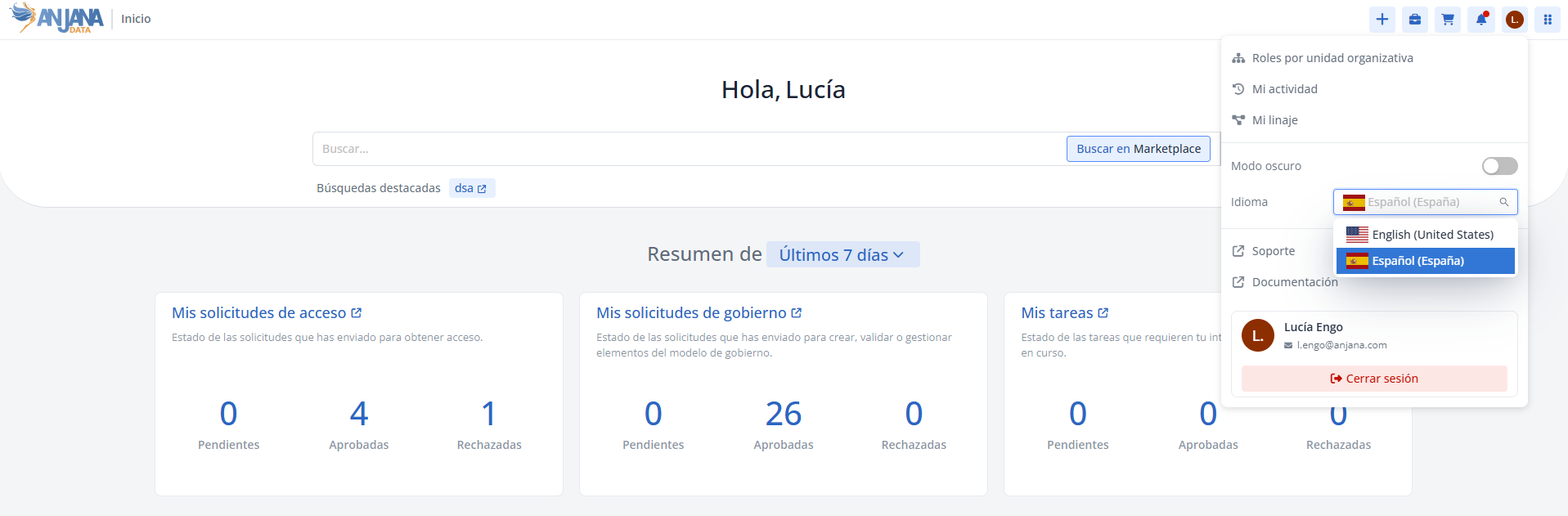
Internationalization table structure
Each record in the Internationalization table represents a translation key for a language and consists of the following fields:
-
Internal: indicates whether the translation is internal text introduced by Anjana Data Platform (true) or text from the organization's own configuration —attributes, menus, roles, etc.— (false). Internal translations cannot be deleted. -
Usage: descriptive field that allows classifying translations into functional groups. It can be left empty. -
Key: key of the translation.-
This is the value shown to the user when there is no translation configured for the selected language.
-
It is not recommended to use the names of metamodel objects as the key (the
namefield ofObject Sub-Types).
-
-
List of languages with their translation text:
-
Each text is the translation the user will see if they select the language indicated in the column header.
-
Two keys representing attribute names or reference metadata values cannot share the same translation value.
-
Notes:
-
The same translation key cannot have different values for the same language.
-
As of version 26.1, the name of each language is stored in its own language, so it is not necessary to register its translation.
-
The names of metamodel objects do not support translations.
-
If the translation value for a key is missing, the platform displays the key itself instead of the translated text; this does not prevent normal use of the application.
Creating translations
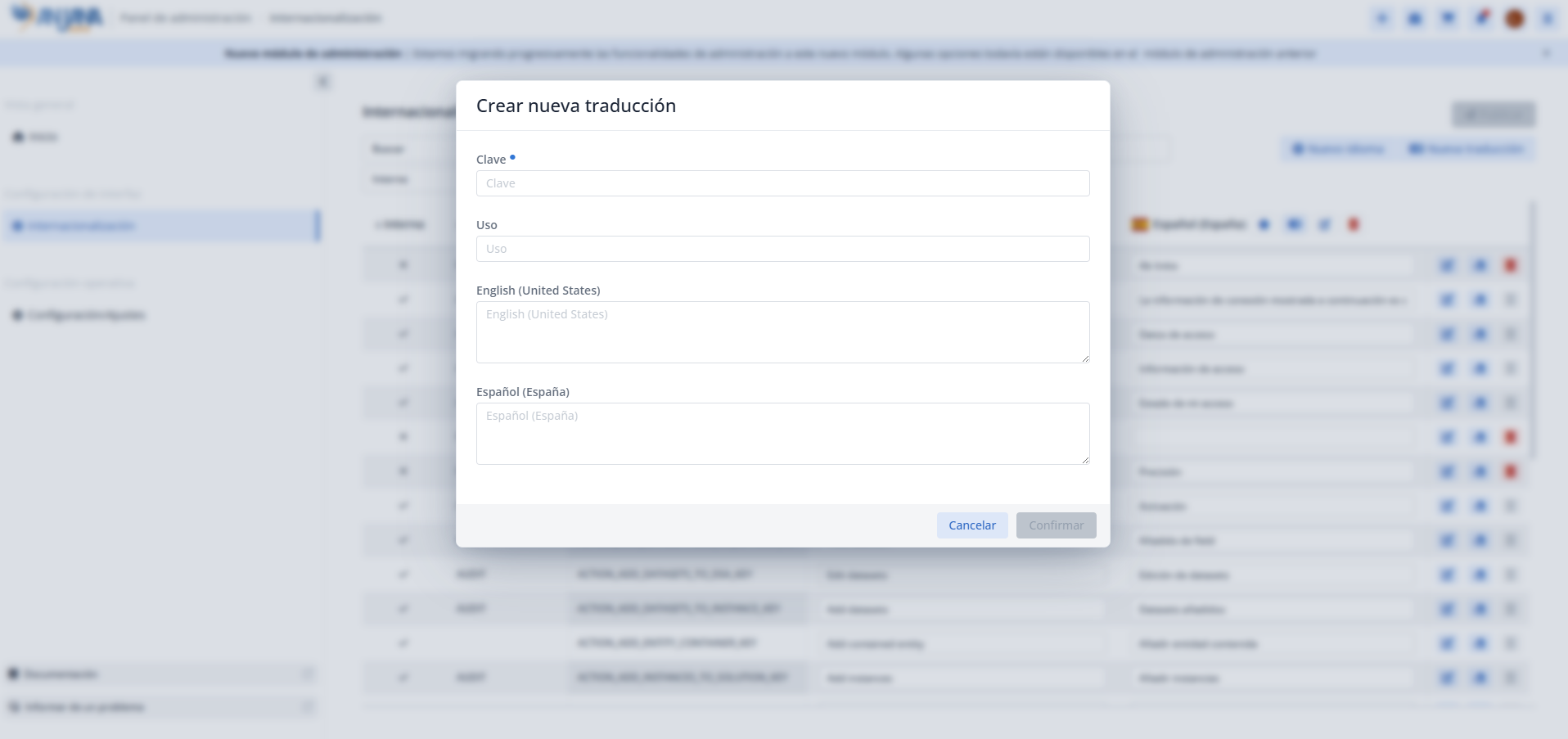
The translations for each key are configured in the Internationalization section of the Administration Panel. To create a new translation:
-
Click the New translation button to open the wizard.
-
Fill in the wizard fields:
-
Key (required): the key for which the translation is being configured. It can correspond to internal platform keys or to values configured for menus, sections, attributes, filters, etc.
-
Usage: descriptive field for classifying translations into functional groups. It is recommended to define a standard that makes searching and filtering easier and maintains a common reference vocabulary.
-
Language (English and the rest of the configured languages): the text the user will receive for that key according to the language set in their Personal Area.
-
-
Click Confirm to save the translation or Cancel to discard it.
-
After confirming, the Publish button is enabled, which is required to make the changes effective. If the Administration Panel is left without publishing, the changes will be lost.
Note:
-
After creating it, you must click Publish in the Administration Panel for the changes to take effect and be visible in the Data Portal.
-
Without publishing, the search box and filters will allow you to locate the translations
Modifying a translation
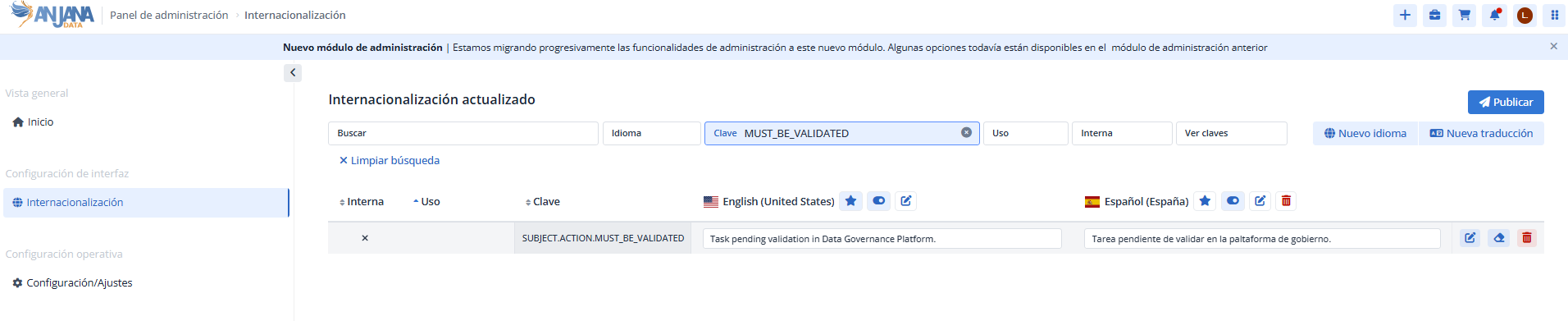
Modifying translations is a common operation when the text shown to the user needs to be adjusted or existing terminology needs to be updated. It is enough to update the text of the corresponding language from the Internationalization section of the Administration Panel, using one of these two options:
-
Direct editing: modifying the text in the editable field.
-
Editing via wizard: clicking the pencil icon opens a wizard that allows editing the texts in the different languages.
Note:
-
After the modification, you must click Publish in the Administration Panel for the changes to take effect and be visible in the Data Portal.
-
Without publishing, the search box and filters will allow you to locate the translations
Special considerations for translation keys
Some elements of the Anjana Data Platform configuration require a specific criterion when defining their translation keys.
Infrastructure, Technology and Zone (triplets)
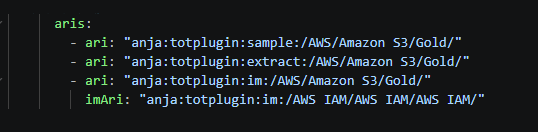
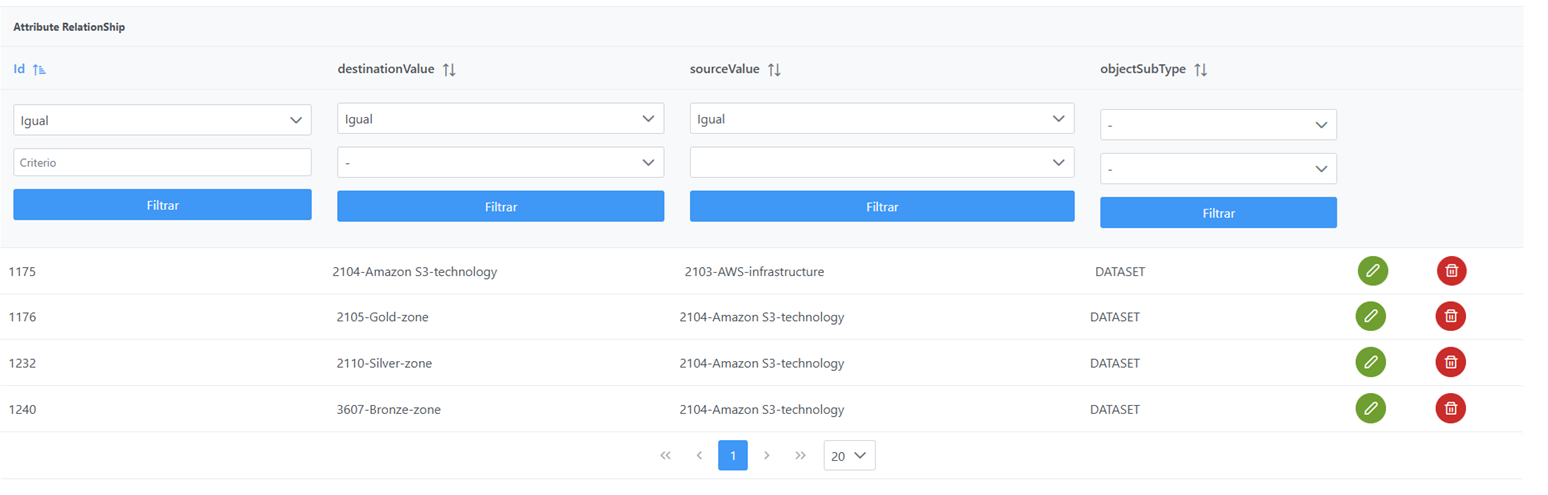
The translation keys (Key) for the possible values of these attributes must correspond exactly to the parts of the triplet configured in the Tot plugins, which in turn must match the name values of the Attribute Definition Values table set in the Configuration Portal.
For example, if a Tot plugin defines the triplet AWS / Amazon S3/ Gold, the translation keys (Key) must be the following, regardless of the translation value:
-
infrastructure: AWS -
technology: Amazon S3 -
zone: Gold
Note: the values of these attributes must not contain the characters :, #, ( or ), to avoid interference with Anjana Data Platform's internal identifiers.
Important: if, during metadata import in the creation wizard, selecting a triplet produces the error "No plugin exists for extract", the triplet values defined in the plugin's YAML probably do not match the selected translations. Check that:

-
The keys (
Key) corresponding to the translations selected in the wizard (value) match thenamevalues of theAttribute Definition Valuetable. -
The
namevalues of theAttribute Definition Valuetable match those configured in the plugin's YAML ari.
Roles
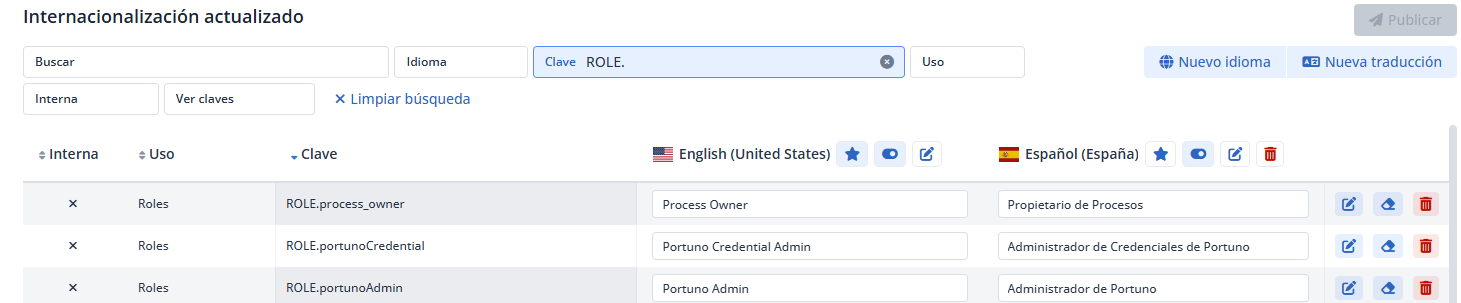
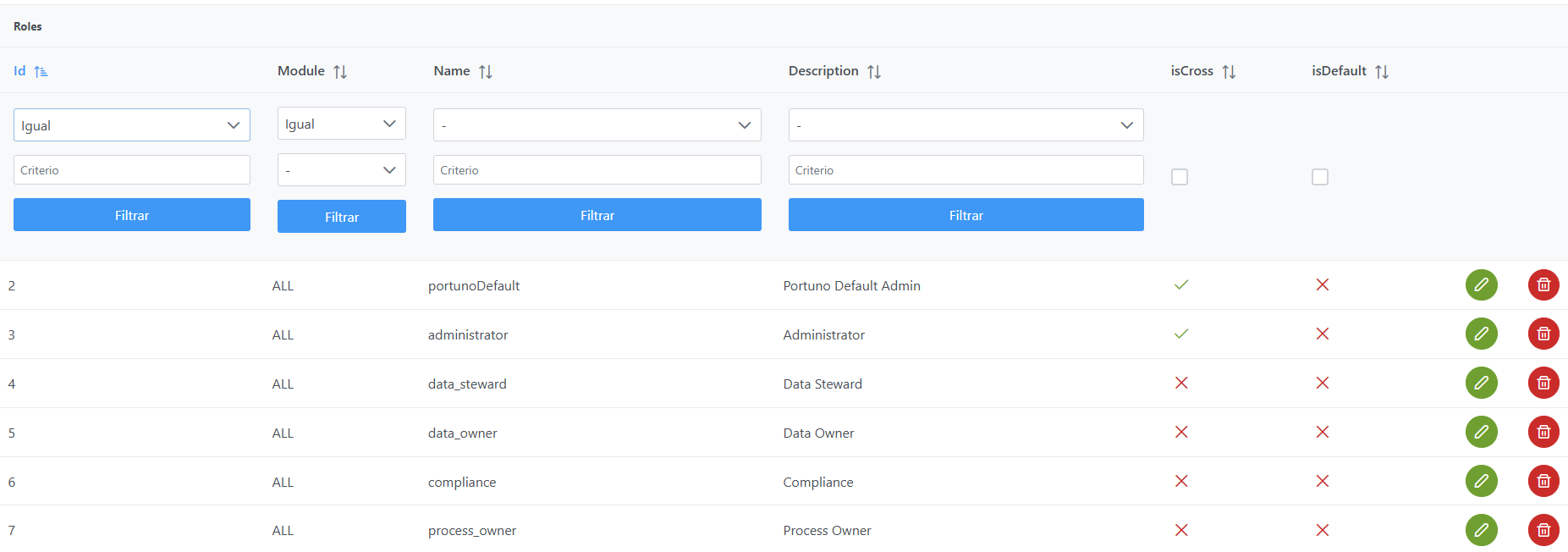
To translate role names, the translation key is formed by concatenating the prefix ROLE. with the value of the name column of the Roles table.
Querying translations via direct database access — Developer view
Translations are stored in two MongoDB collections, depending on whether they are internal platform translations or the organization's own translations:
-
anjana.InternalTranslation: Anjana Data Platform's internal translations. -
anjana.ExternalTranslation: translations from the organization's own configuration.
Internal translations (anjana.InternalTranslation)
|
Field |
Type |
Description / Constraints |
|---|---|---|
|
|
UUID |
Unique identifier. |
|
|
String |
Translation key. |
|
|
String |
Optional. Functional label (e.g. |
|
|
Object |
Map with the default values. Example: |
|
|
Object |
Map with the translated texts by language. Example: |
|
|
Date |
Creation date. |
|
|
Date |
Update date. |
Example query for a translation whose key contains COMMON.WELCOME:
use anjana
db.InternalTranslation.find({ configKey: RegExp("COMMON.WELCOME") })
External translations (anjana.ExternalTranslation)
|
Field |
Type |
Description / Constraints |
|---|---|---|
|
|
UUID |
Unique identifier. |
|
|
String |
Translation key. |
|
|
Object |
Map with the translated texts by language. Example: |
|
|
Date |
Creation date. |
|
|
Date |
Update date. |
Example query for a translation whose key contains ROLE.apiAdmin:
use anjana
db.ExternalTranslation.find({ configKey: RegExp("ROLE.apiAdmin") })