This page describes the Dataset object of Anjana Data Platform. It covers, on one hand, the attributes that make up its primary key (PK) - and that form its ARI, the identifier that uniquely represents each object in Anjana - and, on the other hand, the tabs that display the object's information in its detail view.
Primary Key (PK) and ARI
Each object in Anjana Data Platform is uniquely identified by its ARI (Anjana Resource Identifier), which is built from the attributes that make up its primary key (PK). For the dataset, these attributes - with their internal naming in parentheses - are:
-
name
-
infrastructure
-
technology
-
zone
-
location or plugin logical path (
path)
The ARI also includes the object's organizational unit (organizationalUnit). For example, for a dataset with ID 54:
ANJA:OBJECT:ENTITY:DATASET:54:Clientes:Europe/SPA/Finance:AWS:awsS3:devQA:/data/clientes
where the structure is:
ANJA:OBJECT:ENTITY:DATASET:<datasetId>:<name>:<organizational unit>:<infrastructure>:<technology>:<zone>:<path>
NOTES:
-
The name attribute (
name) must not contain the ':' character, since it is the separator of the ARI components and would interfere with the application's internal logic. -
To ensure that the fields that make up the ARI cannot be edited, it is the administrator's responsibility to configure these attributes in the templates with the "non-editable" validations. Any manual intervention to modify these values will break the object's referential integrity.
-
If the object needs to have a different PK, the object must be cloned with different values in its PK; the original will continue to exist.
-
The values of infrastructure, technology, zone, and organizationalUnit that appear in the ARI do not necessarily match what the user sees in the template. If multi-language has been configured, the translation key is the one that forms part of the ARI, while the user sees in the template the translation value of that key for the language selected in their profile.
Detail Tabs
A dataset's detail view is organized into several tabs, each containing a type of object information. When accessing the detail view, the screen displayed by default is Attributes.
The availability of the "Relationships", "Lineage", "Stakeholders", "Audit", and "Versions" tabs depends on the permissions assigned to the user's role. When access to a tab is disabled, it is displayed in gray and the user cannot navigate to it. If a user believes they should have access but do not, they should contact the Anjana Data Platform administrator.
Attributes
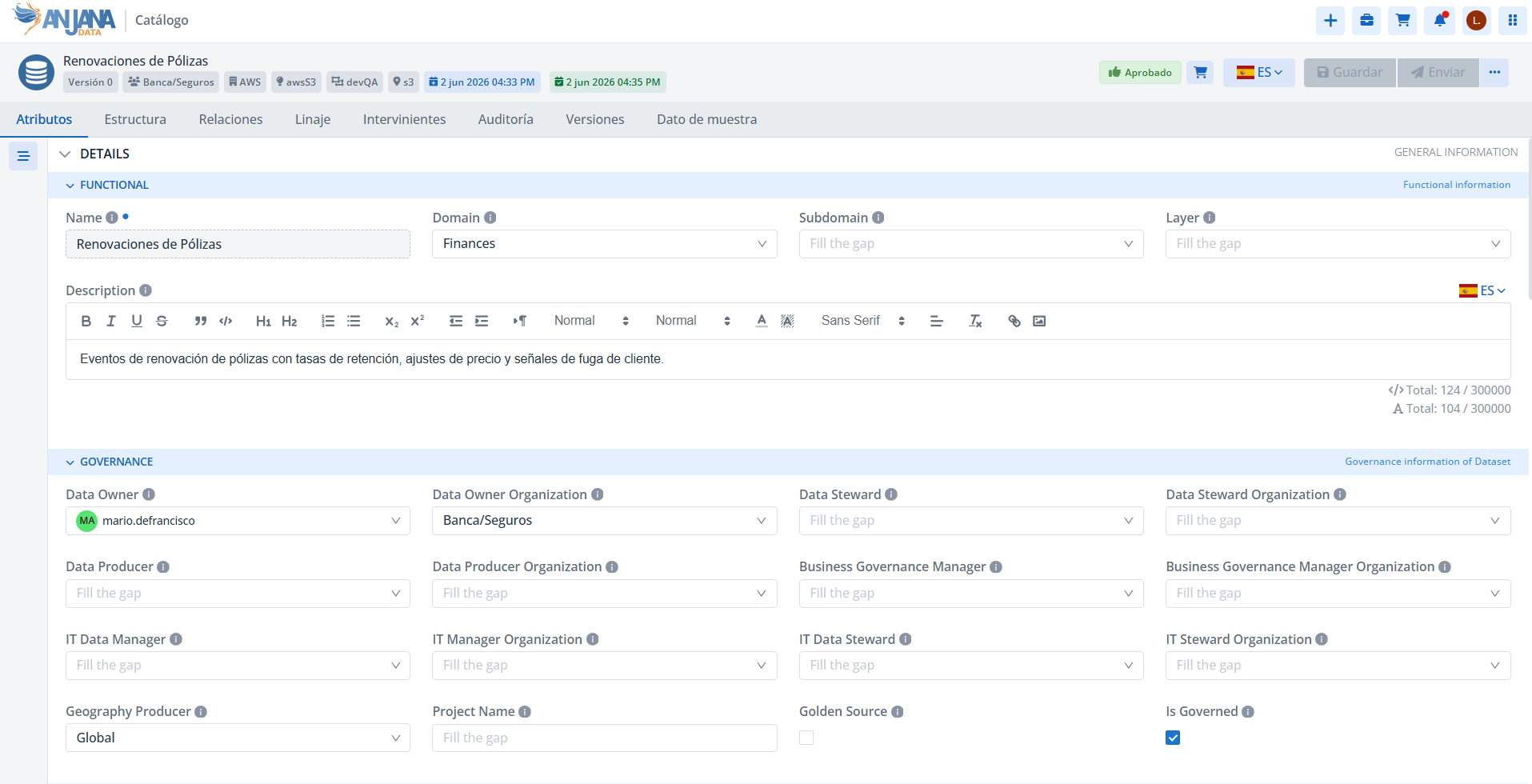
When a user accesses a dataset's detail view, the screen displayed is Attributes, where the user can access the different functional, technical, operational, etc. attributes that have been defined in the template, within the corresponding menus and sections, as well as the specific attributes that are not part of the template but have been included in that particular dataset.
NOTES:
-
The attribute corresponding to the dataset's physical data path in Anjana Data must not contain ':' so as not to interfere with the application's internal logic. This attribute's internal name in Anjana is "path".
If Anjana Data is connected to a technology whose plugin allows the creation of structures in the system, when a governed dataset is approved, it will use the "path" attribute to determine where the object will be created.
Structure
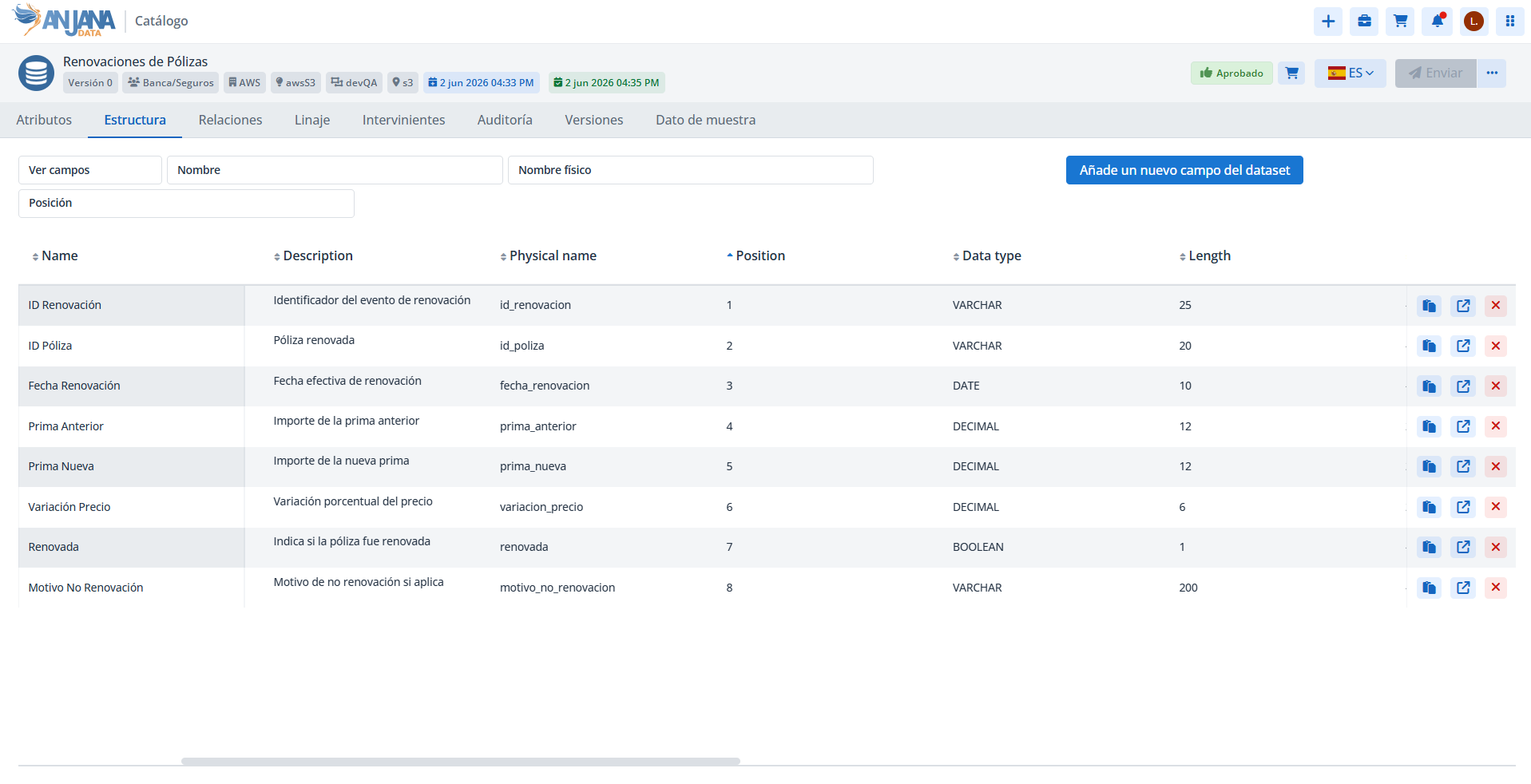
If the dataset is structured, the Structure screen allows you to view the dataset's schema as well as the metadata corresponding to each of its fields.
From this screen, the user can add or remove dataset_fields to the dataset, copy the ARI, or access the view of each of them. It also displays some attributes of each dataset_field, allowing the screen to be scrolled horizontally since the first column (with the name) remains fixed.
Clicking on "Add a new dataset field" opens a window where the fields that identify each of the dataset's fields are entered.
If the dataset is in draft status, the values entered can be reused for consecutive creations by clicking "Keep values when creating the object". If the dataset's status is approved, when a new field is added, a new draft is generated, and from that draft's screen, new fields can be created at the same time.

This screen also provides filters to search for fields in datasets by name, physical name, and position, making it easier to check fields with valid or invalid attributes.

Relationships
On the relationships screen, the user can view the relationships that exist between the dataset and other entities in the Anjana repository. This way, the user can find out, for example, in which dataset a given business term is stored, or which datasets are involved in the creation of a given report.
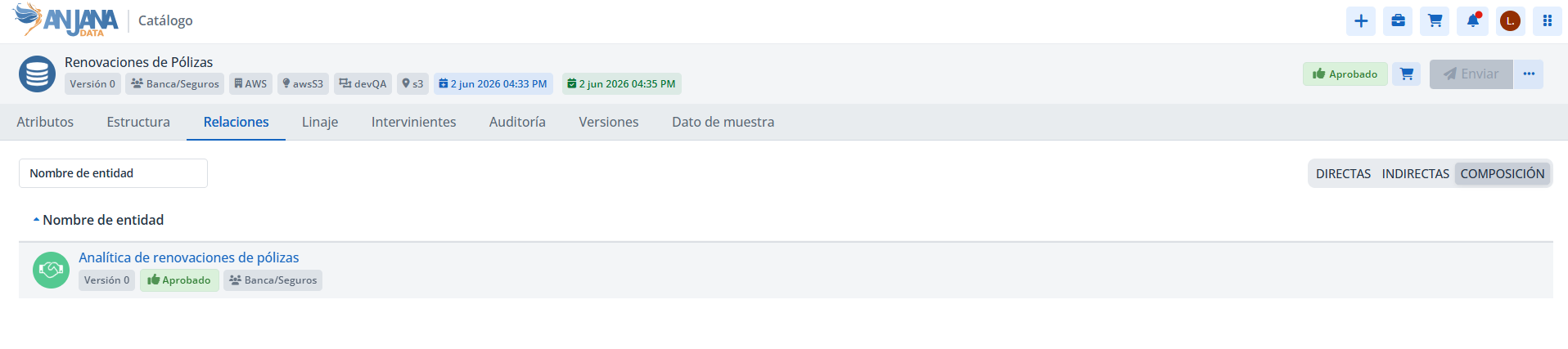
Relationships can be:
-
Direct: Relationships in which the dataset is the source or target, including relationships in which the dataset is part of an instance through the input or output dataset fields
-
Indirect: Relationships of the dataset's dataset_fields with other entities
-
Composition: Native relationships created by being part of another object, that is, when it is included in a DSA through the contained entities field
Relationships can also be filtered by the name and subtype of the related entity, the relationship type (source or target), and the name and subtype of the relationship.

Lineage
On this screen, the user can view the dataset's lineage, and can expand the dataset to see, for example, the organizational unit it belongs to, the DSAs it is contained in, the instances it is an input or output of, the users who have access to its data through adherences...
The objects shown in this graph depend on the chosen lineage layer and its relationship with the dataset (whether it is a source or target, and the type of relationship). You can filter which entity types, relationships, and statuses you want to display.
More detail about the graph is included in the Lineage section of this Guide.


Stakeholders
On the Stakeholders screen, the user can view all the users who are interested parties in the dataset.
Users appear typed as:
-
Adhered: user who has adherence to a DSA that contains the dataset
-
Primary: user who created or owns the dataset
-
Secondary: user assigned in some template attribute (in case the object has an attribute of type Named user)

Stakeholders can also be filtered by stakeholder type, role, or name.

Audit
On the Audit screen, the user can view all of Anjana's audit information, both the internal audit generated by users through the use of the application (such as creation, workflow validations, modifications made, use in the creation of DSAs...) and the external audit or dynamic lineage, which traces what happens in the systems with respect to the dataset being viewed (such as access to the dataset's data by command, queries that read from or write to the dataset, processes that use the dataset's data...)

It is possible to filter according to whether it is a search action or not, and what, who, and when an action was performed on that dataset.
The origin allows distinguishing between the different sources that generate audit records: "anjana" in the case of internal audit, and the system name in the case of external audit.

Versions
On the Versions screen, the user can view the list of the dataset's versions, from which the detail of each of them can be accessed.

In this window, the user can:
-
Navigate to each of the dataset's versions
-
Download the snapshot of each dataset version
-
If there is a version pending approval, navigate to its validation workflow
Sample Data
On the Sample Data screen, the user can preview a random sample of data, provided that when the dataset was created it was indicated to be governed and that this functionality is enabled, and that the dataset is approved. If so, this screen will display a limited (configurable) number of dataset records. Otherwise, this screen is not available.
Fields whose metadata indicates that they contain confidential information (or PI) will appear obfuscated in that data sample so that no user can view the data in plain or raw form.

Access Information
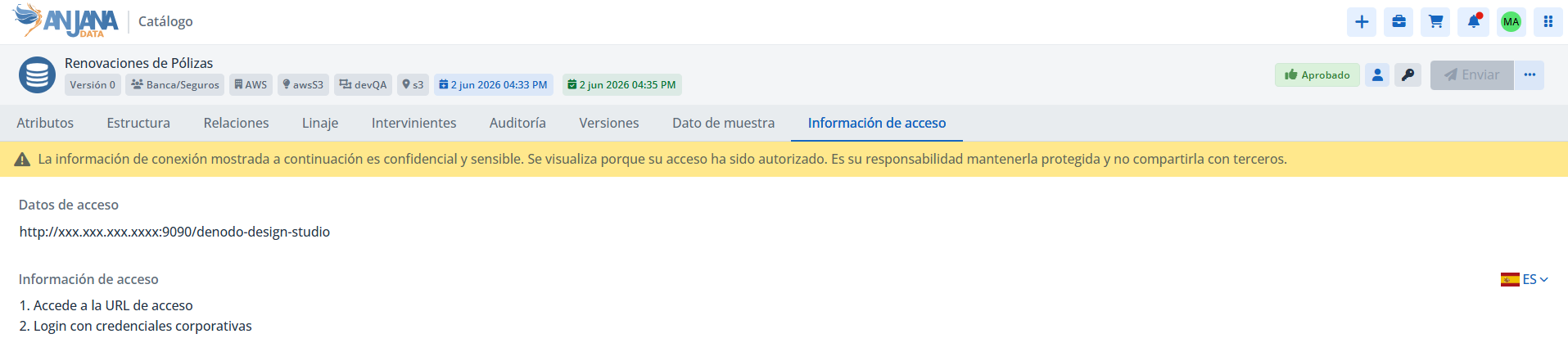
The Access Information tab is available only to users who have physical access to the dataset, obtained through an adherence to a Data Sharing Agreement (DSA) that contains it. In it, these users will find the information that has been filled in through the Edit access information action:
-
Access data, the URL (for example, the link to a Power BI report) or the connection string (for example, a JDBC string to access an Oracle database) needed to access the data.
-
Access information, the informative text - in the user's language, among those configured - that describes, for example, the steps to follow to access the dataset's information.
If the user is not adhered to a DSA that contains the dataset, this tab will not be available.