
Users can interact with governed assets in Anjana Data Platform to update their metadata, request access to data, or create new objects and relationships.
The availability of each action always depends on three factors:
-
Object type (dataset, process, business term, relationship, etc.).
-
Object status (draft, pending, approved, deprecated, expired, etc.).
-
Permissions of the user's role in the corresponding organizational unit.
Main lifecycle actions
Edit
Editing an asset means modifying its metadata, that is, changing values in its attributes. In the case of a dataset, it also includes the option to add or adjust its dataset fields.
An asset can only be edited if it is in one of the following statuses:
-
Imported
-
Draft
-
Rejected
-
Approved, provided there is no more recent draft or pending version. To find this out, the header has version indicators. See the Header section within this guide.
-
Deprecated, if it has no more current approved, draft, pending, or deprecated versions
-
Expired, if it has no more current approved/draft/pending/deprecated/expired versions
To find out whether other versions of an asset exist, the header has version indicators. For more details, see the Header section within this guide.
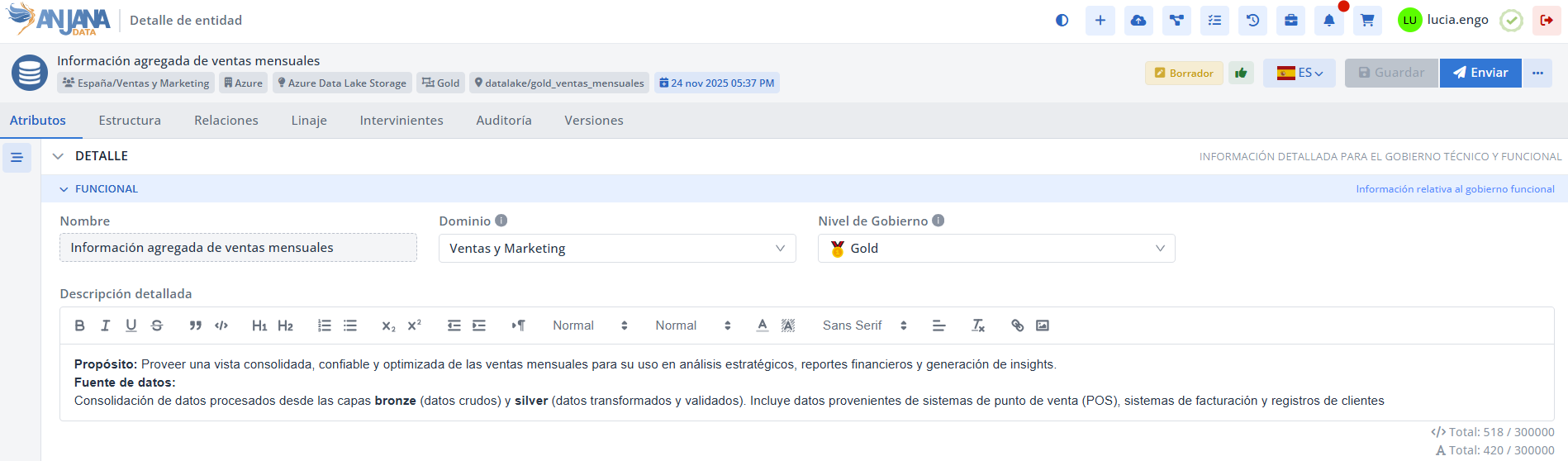
When the object is editable, the Save button appears in the header (initially disabled).
Editing is done directly on the form fields by clicking the corresponding attribute.


Save
The Save action persists the changes made to the asset's form. This operation:
-
records the change in the audit log, and
-
generates a snapshot of the object.
Save behavior depending on status:
-
If the asset was in imported or rejected status, saving changes its status to draft with the changes made.
-
If the asset was in approved, deprecated, or expired status, saving generates a new version in draft status, a copy of the original version with the changes made. The approved, deprecated, or expired version is kept.
-
If the asset was already in draft status, the changes are applied to that same version without a status change.
Validations before saving:
When saving, Anjana Data Platform checks that the configured validations are met (required attributes, value format, specific rules, etc.).
If they are not met, the user is notified and the save is not completed until the errors are corrected. Only after a valid save is the Submit action enabled.

Unsaved changes:
If the user switches tabs or leaves the detail view without saving, Anjana Data Platform shows a notice to confirm whether they want to persist the changes. If not saved, they are lost.

Large datasets:
For approved datasets with a large number of fields, saving may take several seconds. To avoid unnecessary waiting, Anjana Data Platform automatically redirects the user to the search Portal, showing a notice that a process is in progress.

Submit
Submit starts the validation process for the changes in a governance flow (workflow). Depending on the environment configuration, this action can:
-
trigger a validation workflow, changing the object to Pending status, or
-
apply an automatic validation, leaving the object directly in Approved status.

In both cases:
-
the process is audited,
-
snapshots are saved for each milestone of the workflow (start, approvals/rejections, end).
The Submit button is only available from the Attributes view and is enabled when:
-
there are changes saved correctly, or
-
the object already meets all requirements since its creation.
Modification vs. versioning
For native entities with versioning, Anjana Data Platform allows configuring attributes that, when modified, generate:
-
a new version (based on versioning rules), or
-
a modification of the current version,
Key rules:
-
Versioning only applies to native entities.
-
Non-native entities and relationships are never versioned: they are always modified.

If attributes are edited according to the versioning rules on an approved version, Anjana Data Platform informs the user that a new version will be created. At that point it may request:
-
confirmation of the operation, and
-
an expiration date for the previous version (if not already defined), which will become deprecated.

If the object was deprecated or expired, any edit generates a new version, and it is reported that the versioning is due to the status change.
If the object being versioned is a dataset with a large number of dataset fields, it may take time to be submitted for validation. To avoid unnecessary waiting, Anjana Data Platform redirects the user to the portal, notifying them that the action will take time to complete.
Workflow triggering vs. automatic validation
Exception rules for workflow triggering can be configured, meaning that for certain attributes, changes are validated automatically without a workflow if performed by certain roles.
So:
-
If the user edits only attributes covered by self-approval rules, upon submission it is approved directly.
-
If they edit other attributes outside those rules, or do not have a role with self-approval, a workflow is always triggered.
For example, if the Data Owner modifies the description of a business term, since they are the person ultimately responsible, the change is approved automatically without triggering a validation flow.
Actions menu
The actions menu is accessible from different areas of the platform and shows additional operational actions:
-
the three-dot (“…”) button in the object's header, or
-
the same button available next to the Portal results,
Not all actions always appear: they depend on the asset type, its status, and the permissions of the user's role.
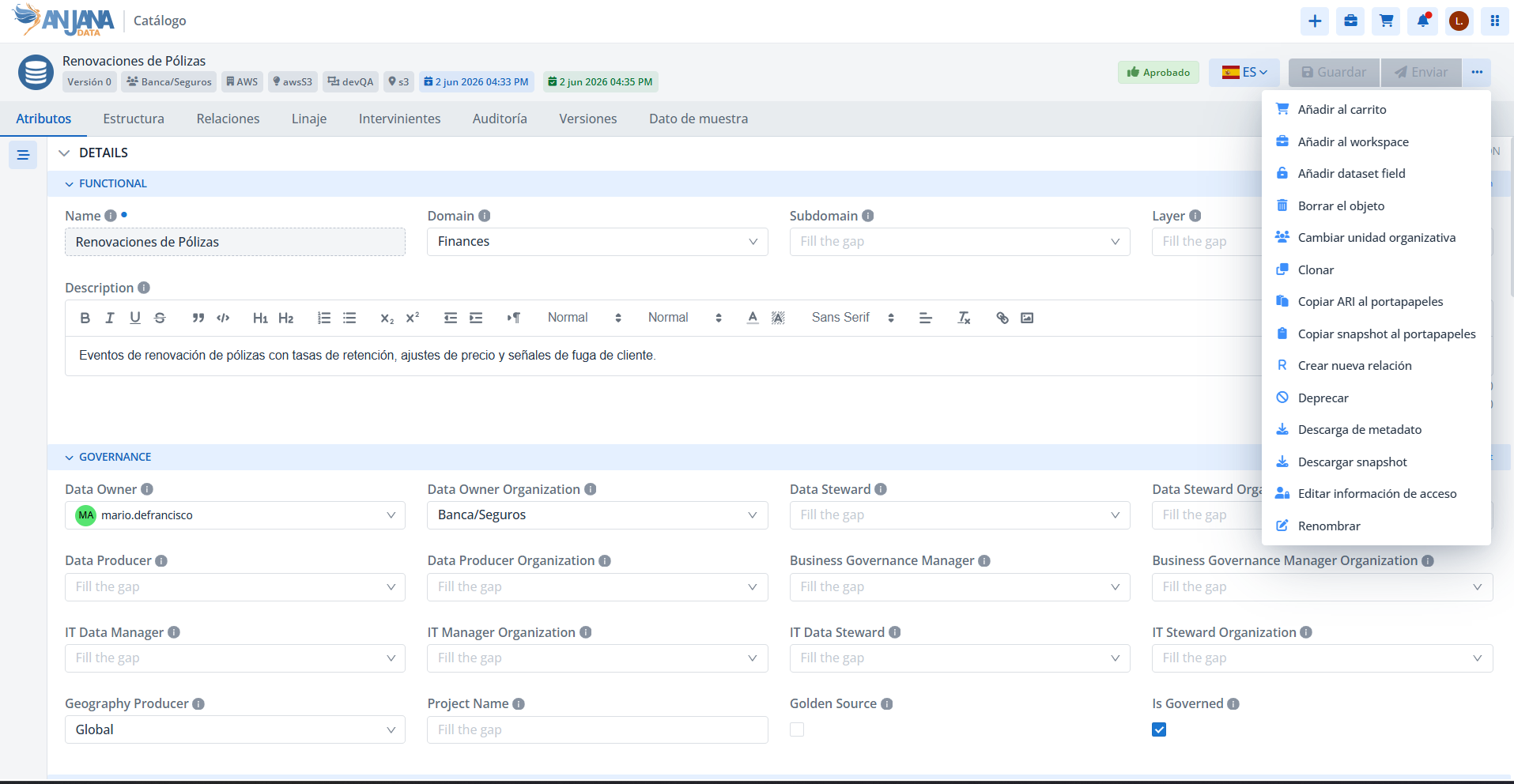
The most common possible actions are described below (the details of applicability by object type are documented in Functional Configuration):
|
Action |
Dataset |
DSA |
Process |
Instance |
Solution |
Non-native entity |
Non-native relationship |
|---|---|---|---|---|---|---|---|
|
Activate |
|
|
|
|
|
X |
X |
|
Direct adherence |
|
X |
|
|
|
|
|
|
Add to cart |
X |
X |
|
|
|
X |
|
|
Add to workspace |
X |
X |
X |
X |
X |
X |
X |
|
Add dataset_field |
X |
|
|
|
|
|
|
|
Delete the object |
X |
X |
X |
X |
X |
X |
X |
|
Change organizational unit |
X |
X |
X |
|
X |
X |
|
|
Clone |
X |
X |
X |
X |
X |
X |
X |
|
Copy ARI to clipboard |
X |
X |
X |
X |
X |
X |
X |
|
Copy snapshot to clipboard |
X |
X |
X |
X |
X |
X |
X |
|
Create new relationship |
X |
X |
X |
X |
X |
X |
|
|
Deprecate |
X |
X |
X |
X |
X |
|
|
|
Deactivate |
|
|
|
|
|
X |
X |
|
Withdraw |
|
X |
|
|
|
|
|
|
Bulk withdrawal of users |
|
X |
|
|
|
|
|
|
Download metadata |
X |
X |
X |
X |
X |
X |
X |
|
Download snapshot |
X |
X |
X |
X |
X |
X |
X |
|
Edit access information |
X |
X |
X |
X |
X |
X |
|
|
Rename |
X |
X |
X |
X |
X |
X |
X |
Some actions require validation. After confirming an action, Anjana Data Platform evaluates which role assigned to the user can execute it, based on that role's permissions:
-
If the user has a single role with permissions, the corresponding workflow is triggered automatically.
-
If the user has several roles with permissions, they will be asked to select which one to start it with.
-
If the user has no role with permissions, a lack-of-permissions notice will be shown.

Description of specific actions
The main actions of the contextual menu are consolidated below:
Activate
Changes the status of a non-native entity or relationship from Disabled → Approved, going through validation according to the established workflow beforehand. The steps are:
-
The user selects the Activate option
-
the user receives a message to confirm the action
-
the established activation flow is triggered to request validation from the participants
-
if the workflow is approved, the object changes to Approved status; otherwise, it remains Disabled


All actions are audited and generate the corresponding snapshots (activation request, validation flow launch, approvals/rejections from participants…)
Activating entities contained in a DSA involves regenerating the access permissions granted by the DSAs in which it is contained.
Direct adherence
Direct adherence allows requesting access to the data contained in a DSA without needing to add it to the cart first. This option speeds up the request when the user already knows they want to adhere to a specific agreement.
Direct adherence is only available for DSAs in Approved status.
Request process
-
Reading/downloading the contract
When starting the adherence process, the form shows the acceptance checkbox and the reason field as disabled.
These elements are enabled only when the user:-
downloads the contract, or
-
accesses the associated URL to review it.
-

-
Acceptance and reason
Once the contract has been read/downloaded, the user can:-
mark acceptance of the agreement, and
-
fill in the reason for the request (if applicable).
Doing so enables the confirmation button.
-
-
Submission for validation
After confirming the request, Anjana Data triggers a validation workflow so that the DSA owners can approve or reject the adherence.
-
Result
If the adherence is approved, the user becomes adhered to the DSA, obtaining the corresponding access to the data defined in the agreement.
The entire process (workflow start, approvals/rejections, and adherence) is audited in the DSA's audit log and generates the corresponding snapshots of the DSA.
Add to cart
To request access to data or information, the user must first add the corresponding assets to the cart.
Any type of entity (native or not) can be added to the cart, provided it is in Approved status.
The full operation of the cart and the details of the request process are described in the Shopping cart section of this User Guide.
When the user adds an object to the cart, the platform:
-
shows a confirmation message indicating that the action was completed successfully, and

-
adds the object to the cart panel, where it becomes available for later management.

Add to workspace
This action allows adding an asset to the user's personal workspace to work with it later from that space. The workspace serves as a work area where relevant objects can be grouped and where individual or bulk operations can be performed on them (metadata download, bulk edits, or submissions for validation).
When the user adds an object to the workspace:
-
the platform confirms the operation with a success message, and

-
the asset becomes available in the user's workspace.
If many objects are added simultaneously, Anjana Data will show a progress indicator until the operation is complete.

For more information about workspace management and its features, see the Workspace section of this User Guide.
Add dataset field
This action allows creating new fields (dataset fields) within a dataset in a guided and quick way. It is available for datasets in the following statuses:
-
Imported
-
Draft
-
Approved
-
Rejected
-
Deprecated, provided there is no other more up-to-date version of the dataset.
When selecting “Add dataset field”, Anjana Data Platform:
-
automatically redirects to the dataset's Structure tab, and

-
opens the creation form so the user can enter the new field's information.
Once confirmed, the new dataset field is added to the dataset.
The operation is audited and generates the corresponding snapshots for both the dataset and the created field.
Delete the object
The Delete action permanently removes an object from the Anjana Data Platform Portal. In the case of a DSA or entities contained in a DSA, deletion also involves revoking the access permissions associated with the entities governed by that agreement.
Once deleted, the object is no longer navigable in the Portal, since it no longer exists in active storage.
Deletion process
When the user selects the “Delete the object” option (entity or relationship), the platform:
-
requests explicit confirmation of the operation, and

-
once confirmed, shows a message indicating that the deletion was completed successfully.
Restrictions for entities
If the object to be deleted is an entity, the following conditions must be met:
-
It cannot have active relationships with other entities.
If relationships exist, they must be deleted beforehand. Only then will it be possible to delete the entity.

-
Removal of references in other objects.
If the entity was included as a value in entity-type attributes on other objects (whether as a single entity, contained entities, or arrays of entities), the reference will also be automatically removed from those attributes.
The deletion is audited, and the object's historical snapshots are preserved.
Change organizational unit
This action allows transferring an entity to another Organizational Unit (OU). Changing the OU involves updating the parties responsible for the asset (ownership, stewardship, and validation) according to the organizational structure defined in Anjana Data Platform.
Changing the organizational unit is only available for entities in Approved status.
To transfer stewardship, the user must have OU-change permissions in both the source unit (current OU) and the destination unit (new OU)
Change process
-
Selecting the new OU
The user must select the destination organizational unit (new OU).
Only OUs where the user has permissions to create objects of the same subtype are shown as options.

-
Selection validation
If the user selects the same OU where the entity is already located, Anjana Data Platform will show a notice asking them to select a different unit. -
Submission for validation
After confirming the change, a transfer workflow is triggered, which must be approved or rejected by the corresponding owners.
-
Applying the change
Once the transfer is approved, the entity belongs to the new Organizational Unit and its owners are updated according to the destination OU.In the case of a DSA, this change also involves:
-
removing the previous owners from the groups created by the DSA in integrated systems, and
-
automatically adding the new owners associated with the destination OU.
-
Relevant information:
-
Any relationships the object may have are preserved. However, the workflow participants may change from that point on, according to the change of stewardship made during the OU change.
-
The entire process (workflow launch, approvals/rejections, and closure) is audited and generates the corresponding snapshots of the entity.
Clone
The Clone action allows creating a new object (entity or relationship) as a copy of the original, always generating it in Draft status and with a different unique object identifier (ARI).
Only the object itself is replicated; that is, any relationships the original may have are not replicated with the copy.
This action is available for any object, regardless of its status, provided the user has permissions to create objects of that subtype.
Cloning behavior
-
When cloning, Anjana Data Platform requests the data needed to identify the new object and generate its object identifier (ARI) .
-
In the case of a dataset, for example, a form opens where the user must provide values such as:
-
new name,
-
infrastructure,
-
technology/zone,
-
location
-
organizational unit (OU)
-

The resulting dataset keeps the same dataset fields as the original, since these are also cloned automatically.
Once the process is complete, if the cloning is successful, the platform redirects the user directly to the newly created object.
The operation is audited (both the cloning of the original object and the creation of the new one), and the corresponding snapshot of the cloned object is generated.
Copy ARI to clipboard
This action allows copying the asset's ARI (Anjana Resource Identifier) to the clipboard. The ARI is the unique internal identifier that Anjana Data Platform uses to reference each object within the Portal.
Copying the ARI is especially useful for:
-
including it in Entity-type attributes during bulk creation or editing processes via Excel,
-
sharing an unambiguous identifier for the object with other users or teams.
When the action is executed, the platform shows a confirmation message indicating that the ARI was copied successfully.

Copy or download snapshot
These actions allow obtaining the current snapshot of an asset (entity or relationship) in JSON format. The snapshot is a complete “picture” of the object at the time of download and contains all its metadata, making it easier to query, trace, or reuse it technically.
There are two options:
-
Copy snapshot to clipboard: places the JSON on the clipboard so it can be pasted directly into another tool.
-
Download snapshot: generates a downloadable
.jsonfile with the snapshot's content.
This feature is available for any object, regardless of its status.
Snapshot content
The snapshot includes:
-
all attributes defined in the object's template, with their current values,
-
the asset's internal identifier (ARI),
-
and the associated native relationships.
In addition, if the entity is the source or target of approved relationships, the snapshot also includes the ARIs of the related entities, making it possible to fully reconstruct the object's relational context.
When the copy or download action is executed, the platform shows a confirmation message indicating that the operation was completed successfully.

Create new relationship
This action allows creating a relationship directly from an entity's detail view, using it as the source or target of that relationship. It facilitates guided creation of links between assets without needing to leave the starting object.
Creation process
When selecting “Create new relationship”, Anjana Data Platform opens an assisted creation window where the user must:

-
Select the relationship type
The dropdown only shows:-
relationship types compatible with the subtype of the entity from which the action is started, and
-
those for which the user has creation permissions.
-
-
Define the relationship name
The user enters the relationship's logical identifier according to the operating model's rules. -
Fill in source and target
-
If the entity's subtype is compatible as the source, the Source field appears pre-filled with that entity.
-
If not, the Target field appears pre-filled instead.
In both cases, the other field is left empty for the user to fill in, and entity selection filters can be used.
-
-
Swap source/target (if applicable)
Whenever the relationship type's validations allow it, it is possible to swap the source and target values directly from the window by clicking the swap button.
During the process, notices may be shown indicating compatibility restrictions (for example, that the relationship type only allows certain entity subtypes as source or target).

Completion
Once all the data has been filled in and the creation confirmed:
-
the relationship is registered in the catalog,
-
a direct link is shown to navigate to the new relationship,
-
and, if the “Keep values when creating object” option is enabled, the window retains the entered information to make it easier to create similar relationships consecutively.

The creation of the relationship is audited, including the linking of the source and target entities, and the corresponding snapshot of the new relationship is generated.
Deprecate/Discontinue
The Deprecate/Discontinue action allows starting the status change of a native entity from Approved to Deprecated/Discontinued. This change always requires validation in an expiration workflow.
When selecting this action, Anjana Data Platform:
-
Requests the expiration date
A window opens to define the expiration date of the current version when it becomes deprecated.
If the object already had an expiration date set, the user can confirm or modify it. -
Triggers the deprecation workflow
After confirming, the platform starts a validation workflow so the corresponding owners can approve or reject the deprecation. -
Applies the status change
If the deprecation is approved, the entity changes to Deprecated status.
The entire process (workflow launch, approvals/rejections, and closure) is audited and generates the corresponding snapshot of the object.
Deactivate
The Deactivate action allows changing the status of a non-native entity or relationship from Approved to Disabled. This change always requires validation in a deactivation workflow.
When selecting “Deactivate”, Anjana Data Platform:
-
Requests confirmation
The user must explicitly confirm the operation before it is executed. -
Triggers the deactivation workflow
After confirmation, a validation workflow starts so the corresponding owners can approve or reject the deactivation. -
Applies the status change
If the deactivation is approved, the object changes to Disabled status.
In the case of a non-native entity included in a DSA, deactivation also involves removing the permissions granted by the DSAs in which it was contained.
The entire process (workflow launch, approvals/rejections, and closure) is audited and generates the corresponding snapshot of the object.
Withdraw
The Withdraw action allows the user to revoke their adherence to a DSA and, in doing so, lose access to the data associated with that agreement.
This operation:
-
does not require a validation workflow,
-
is audited, and
-
generates a DSA snapshot to reflect the update to the list of adhered users.
To execute this action, the user must already be adhered to the DSA.
When selected, Anjana Data Platform requests explicit confirmation. Once confirmed:

-
the withdrawal is executed,
-
the user's adherence to the DSA is removed, and
-
a message is shown indicating that the operation was completed successfully.
Bulk withdrawal of users
The Bulk withdrawal of users action allows the owner of a DSA (a role with ORGANIZATIONAL_UNIT_OWNER permissions over DSA in the DSA's OU) to revoke the adherence, and therefore the data access, of several users simultaneously.
This operation:
-
does not require a validation workflow,
-
is audited, and
-
generates a DSA snapshot to reflect the update to the list of adhered users.
Bulk withdrawal process
-
Accessing the list of adhered users
When the action is executed, Anjana Data redirects to the DSA's Participants tab, showing only the currently adhered users. -
Selecting users
The owner can select one or more users to withdraw.
For security reasons, it is not possible to select users who are also owners of the DSA. -
Confirmation
After clicking “Withdraw”, a review window opens showing the list of selected users to confirm that the withdrawal is correct.

-
Execution and notification
Once the operation is confirmed, the platform executes the withdrawal and the owner receives a notification when the process has finished successfully.

Metadata download
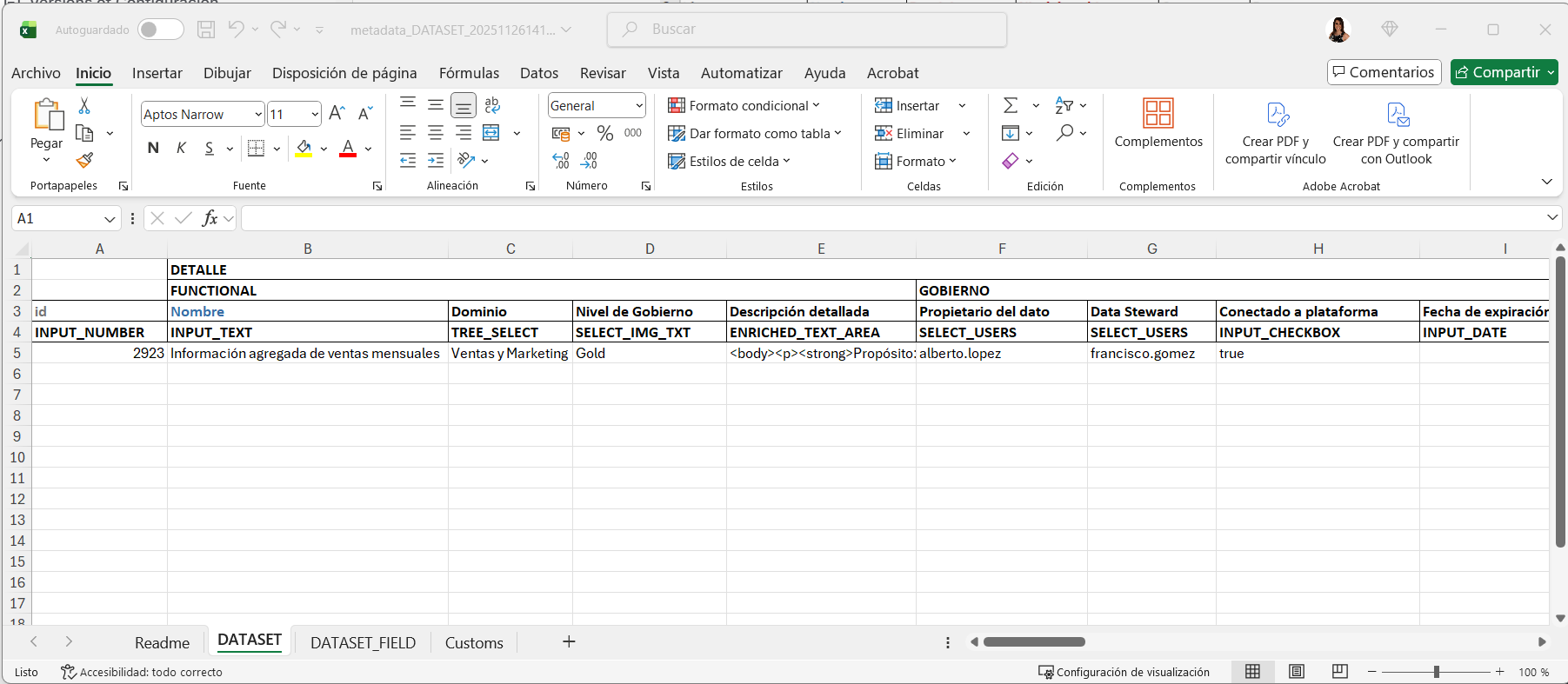
The Download metadata action generates an Excel file with the complete metadata of the selected object, including both standard attributes and custom attributes defined in the operating model.
The downloaded Excel file follows the same structure as the files used by Anjana Data Platform for bulk creation or editing of objects, so it can also be used as a basis to update information and reimport it later.
Excel content
The file includes the following sheets:
-
Help sheet (Readme)
Contains information for interpreting the Excel file, including an explanation of the structure and the color codes used for attributes. -
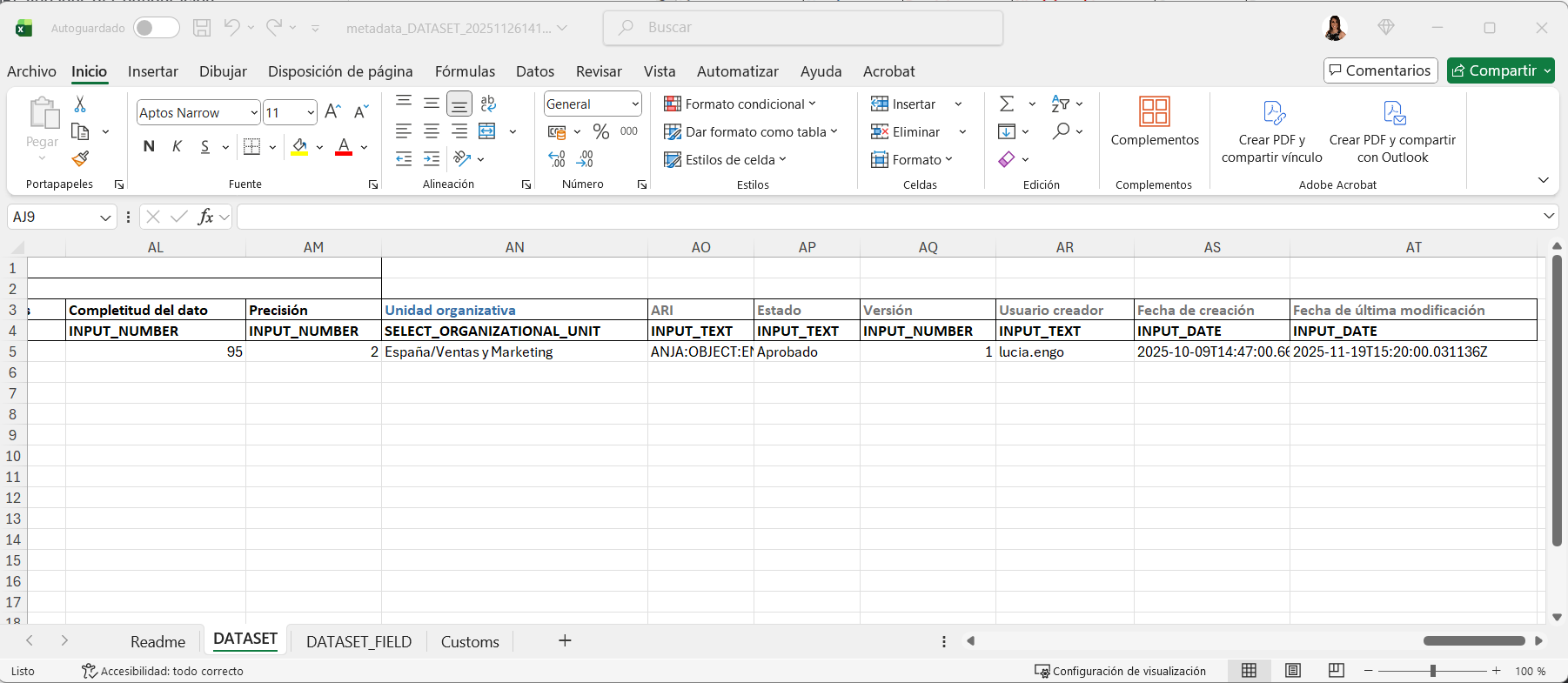
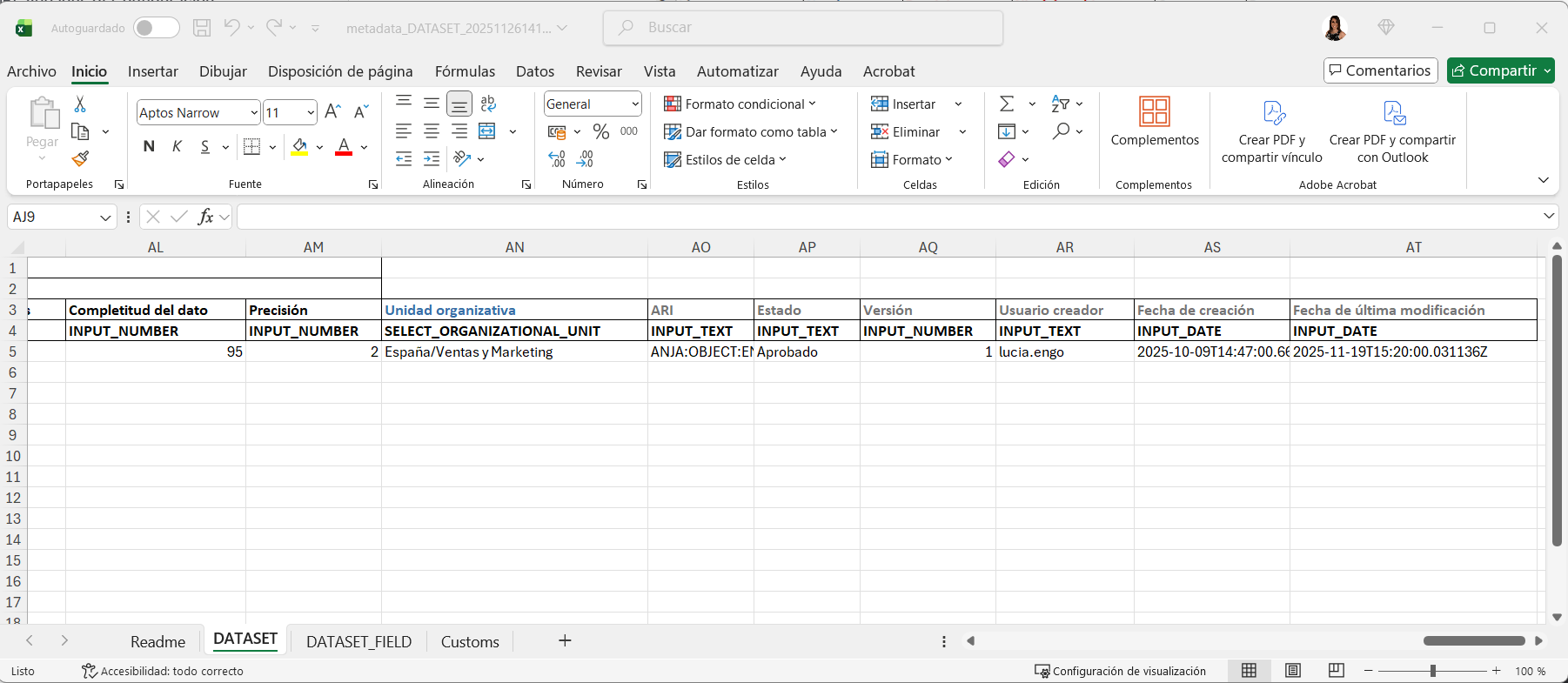
Object metadata
Includes all the main information about the asset, such as:-
The object's internal ID in Anjana Data Platform.
-
Template attributes, with their type, organized by menus and sections.
-
Organizational unit (OU).
-
ARI (unique internal identifier of the asset).
-
The object's status.
-
Version (when applicable).
-
Creating user.
-
Creation date.
-
Last modification date.
-
-
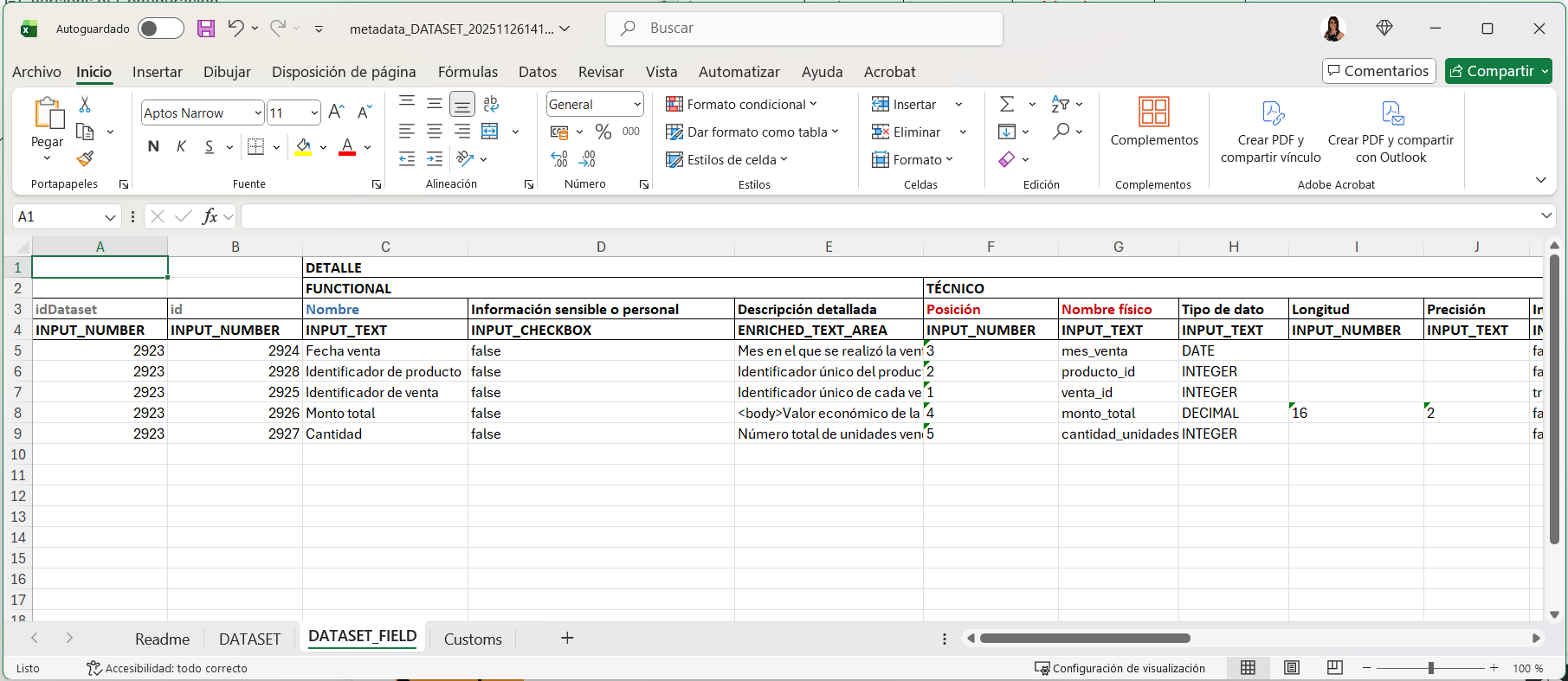
Dataset fields metadata (datasets only)
When the downloaded object is a dataset, an additional sheet is included with the details of all its dataset fields.
-
Custom attributes
Contains an inventory of the object's extended attributes, indicating for each one:-
reference to the object it belongs to,
-
attribute name,
-
attribute type,
-
value or values (including multi-language, if applicable).
-

Edit access information
The Edit access information action allows documenting how an asset's information is physically accessed. It is only available to users who have the access information edit permission, and only for entities belonging to the Organizational Units (OUs) where the user has been assigned a role with that permission.
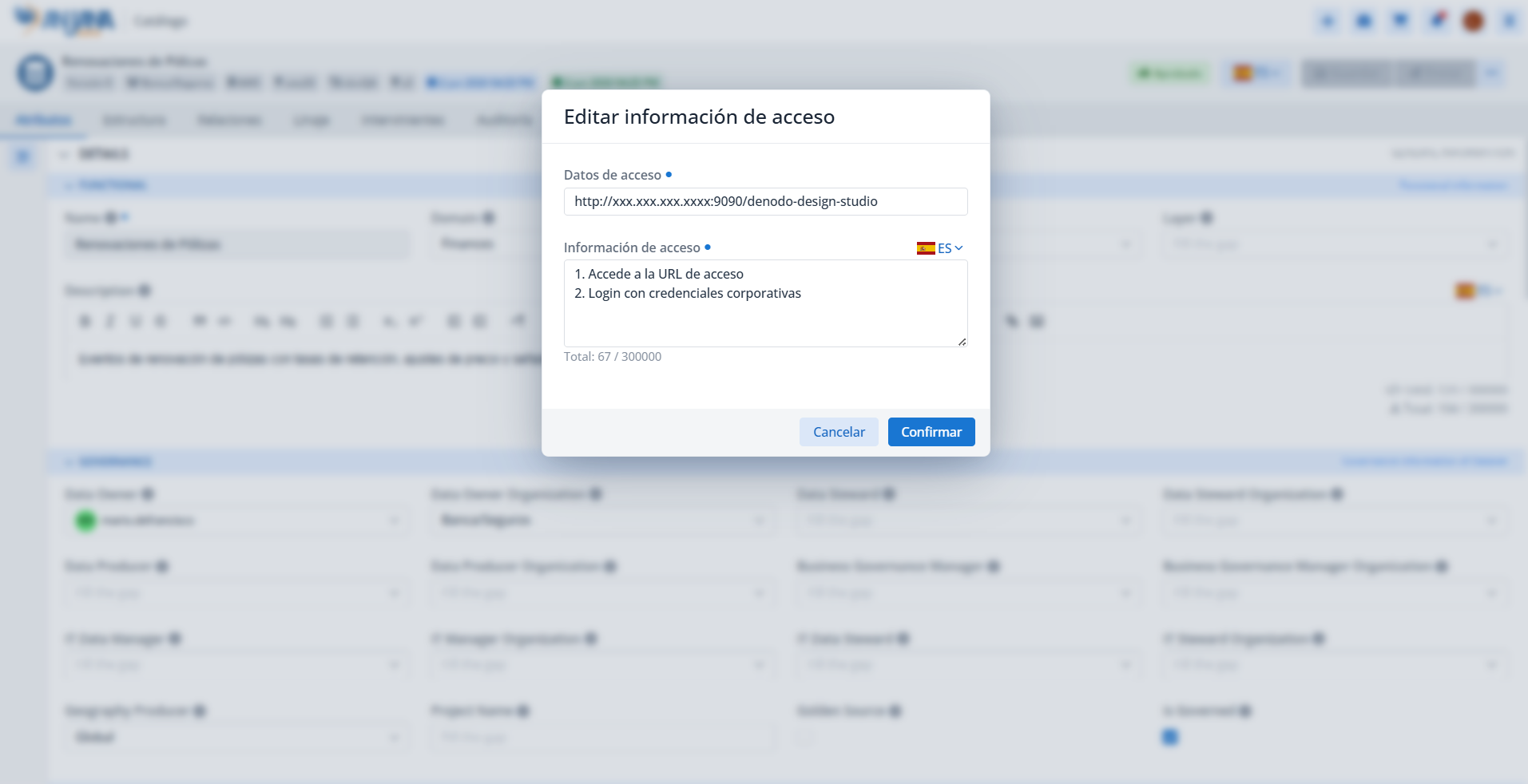
When this option is selected, a wizard opens in which the user must fill in two fields, both mandatory:
-
Access data, where a URL is provided (for example, a link to a Power BI report) or a connection string (for example, a JDBC string to access an Oracle database).
-
Access information, a free-text box where the user describes any information they consider necessary; for example, the steps a user must follow to access the asset's information.
The Access information must be filled in for all languages configured in the platform.
Who can view the access information
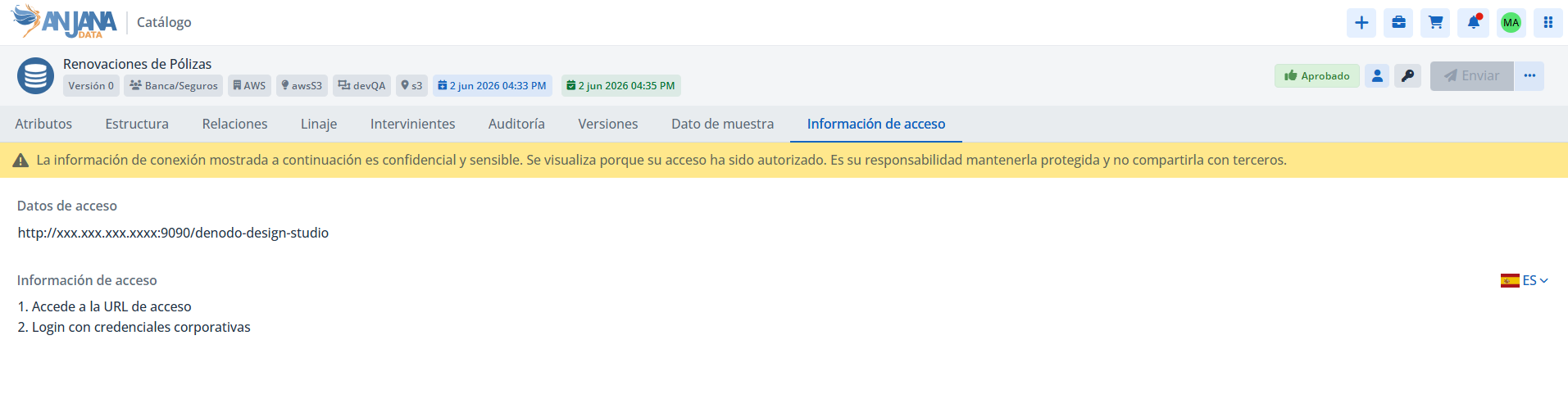
The access information can only be viewed by users with physical access to the asset, which is obtained through adherence to a Data Sharing Agreement (DSA) that contains that object. For these users, the information will be available:
-
in a tab within the object's detail view, and
-
from the object's preview in the Marketplace.
Rename
The Rename action allows modifying an asset's logical name. Because the name is part of the object's unique identifier (ARI), this operation is subject to status and versioning conditions.
When renaming is possible
Renaming can be performed in the following scenarios:
-
Objects in Imported, Rejected, or Draft status
-
Only if no other version of the same object exists.
-
In this case, renaming does not trigger a validation workflow.
-
-
Objects in Approved, Deprecated, or Expired status
-
Only if no other version of the same object exists.
-
In this case, renaming triggers the validation workflow associated with editing the object.
-
-
Administrator users via the Admin API
-
If the user performs the rename with administrator permissions via the API, the operation does not trigger a workflow, since it is an administrative action.
-
Renaming process
When selecting “Rename”, Anjana Data opens a window where the user must:
-
enter the new name, and
-
confirm the change.

If the user has rename permissions through different roles (for example, one functional and one administrator role), the platform will ask them to choose the type of rename:
-
Regular, that is, triggering the modification workflow, or
-
Administrator, that is, without a workflow,
applying the rules described above.

Effects of renaming
When renaming requires a workflow, the changes are applied only after approval. Once approved, the rename affects various elements of the system:
-
The object's name (
nameattribute). -
The object's ARI (internal identifier).
-
Historical records associated with the object.
-
Workflows affecting the object.
-
Notifications issued (both the object and the associated text).
-
Node or relationship in lineage.
In addition, if the asset is an entity, renaming also updates:
-
all its occurrences as the source or target of relationships,
-
the name of the internal relationships it participates in,
-
the ARIs of the relationships that contain it,
-
any reference to the entity in Entity-type attributes of other objects,
-
and its occurrences within entity arrays.
The entire process (workflow launch, approvals/rejections, and closure) is audited and generates the corresponding snapshot of the object.
Actions on datasets with a large number of fields
In datasets containing a large number of dataset fields, certain actions may require intensive processing due to the volume of internal operations involved. To avoid long waiting times in the detail view, Anjana Data Platform manages these actions in the background.
When the user performs an action that causes significant changes to a large dataset, for example a status change or the generation of a new version, the application:
-
starts processing the action,
-
automatically redirects the user to the Data Portal, and
-
shows a notice informing that the operation may take time to complete.

Actions that can trigger this behavior include:
-
Saving changes to the template of an approved dataset.
-
Adding or removing dataset fields in an approved dataset.
-
Submitting a dataset for validation.
-
Cloning a dataset.
-
Deleting a dataset.
In these cases, Anjana Data will show a notification message indicating that the operation is running and will finish in the background.

The number of dataset fields from which a dataset is considered “large” is configurable in the App Configuration table of the Configuration Panel.