
In Anjana Data, filters allow users to refine searches and view relevant information in different contexts of the Data Portal (search engine and audit screens).
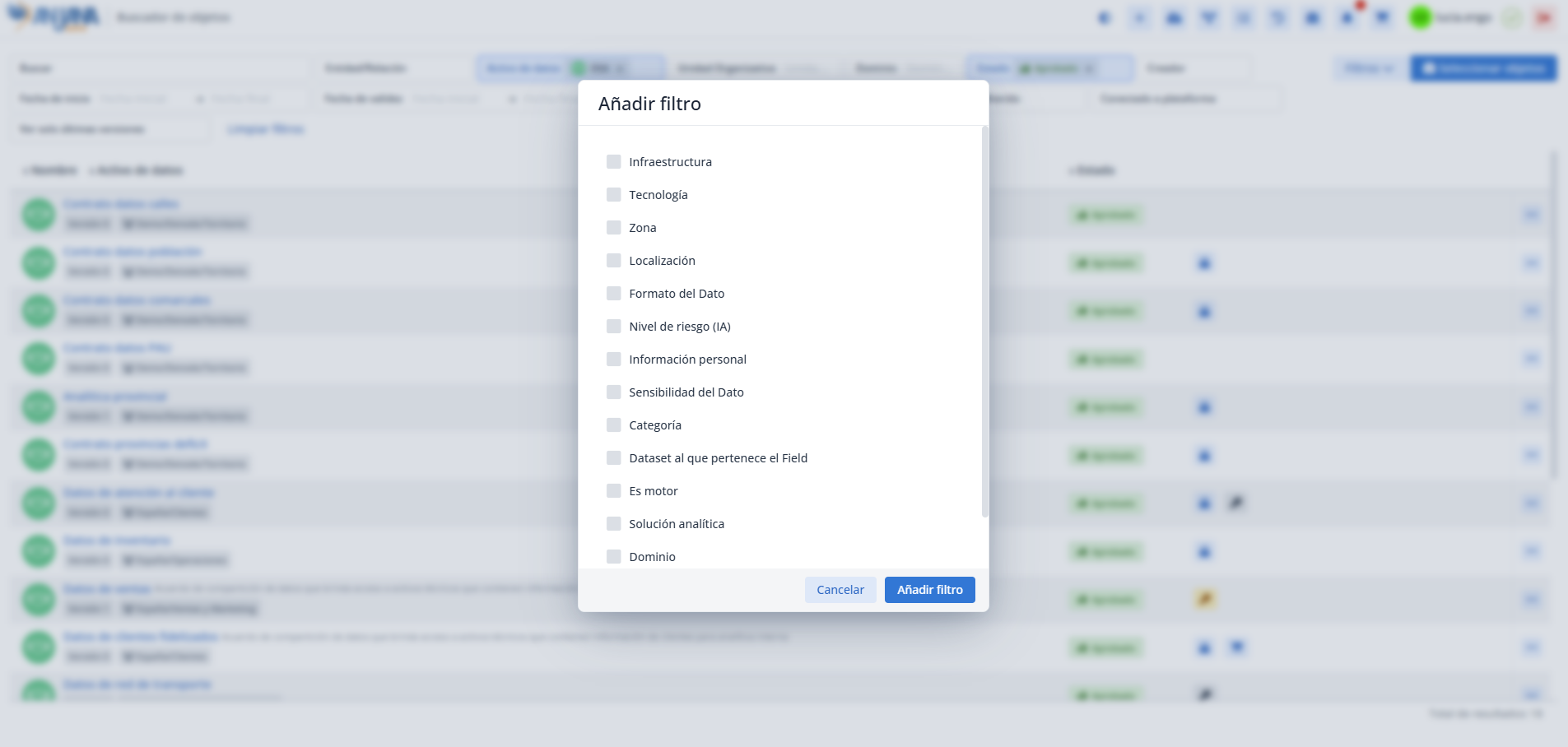
Screens of the Data Portal with configurable filters
There are different screens in the Data Portal that allow customizing the filters offered to users:
Search Portal filters
The Search Portal has some filters configured by default, meaning they appear statically at the top. Additionally, the user can add more filters by selecting from the filters configured by the organization, using the Filters > Add filter option.

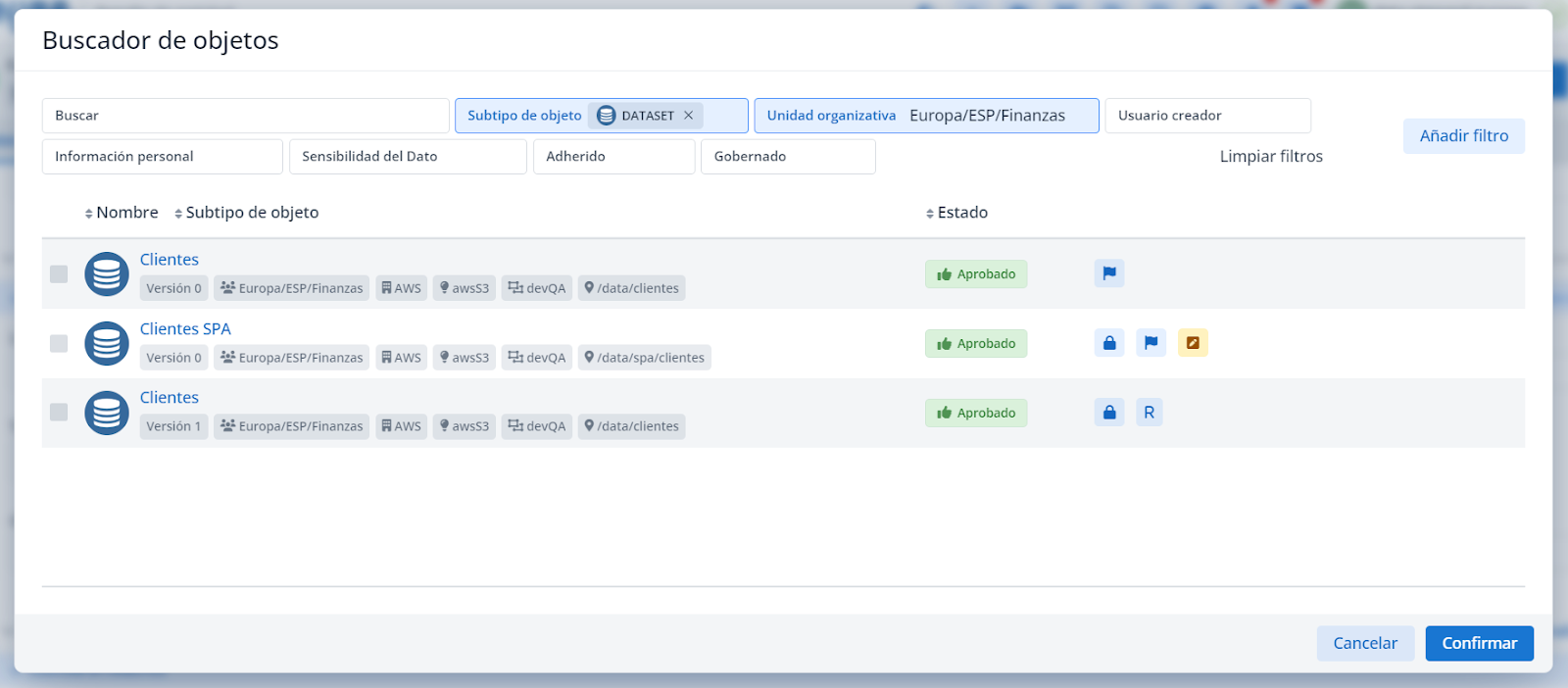
Filters for entity-type attributes
Entity-type attributes have a filter that makes it easier to search for and locate entities. They display the same default filters and on-demand filters as the Search Portal.
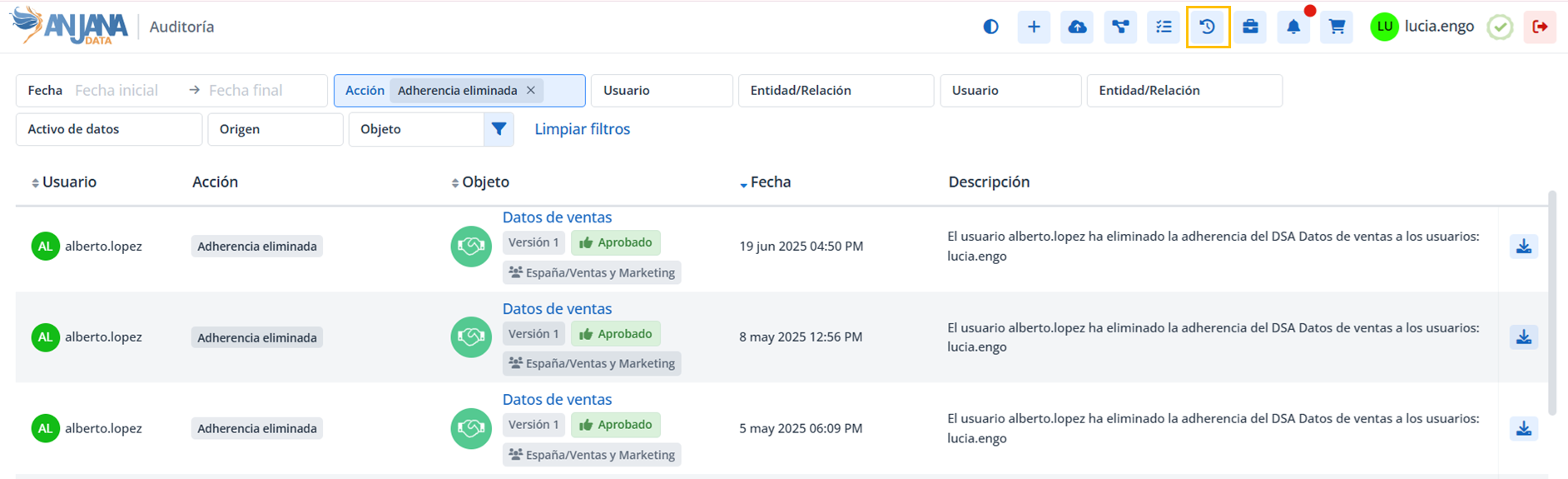
Audit module filters
The global audit module has filters for certain types of metadata that allow a certain degree of configuration.
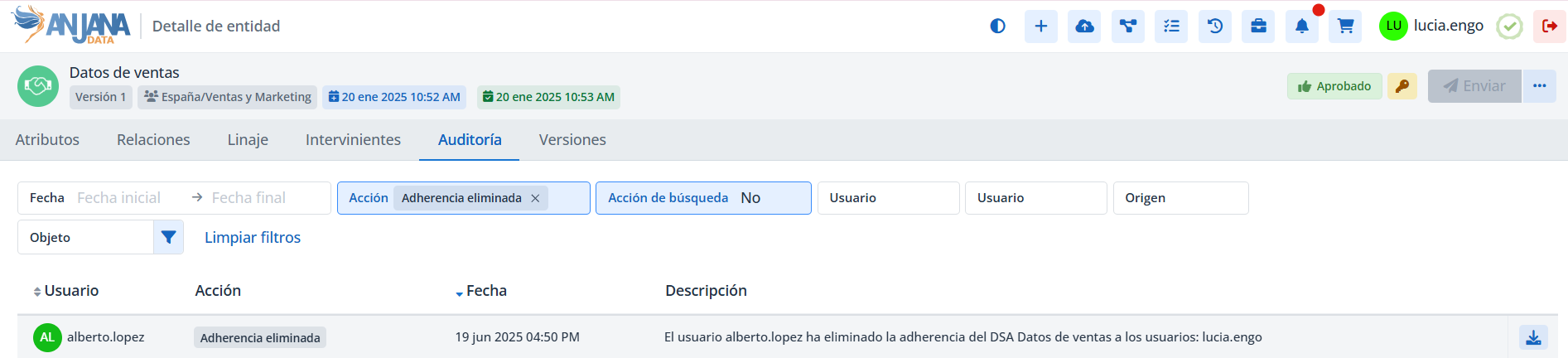
Object audit module filters
The audit module for an object (entity or relationship) has filters for certain types of metadata that allow a certain degree of configuration.
User audit module filters
Each user can view their own audit in their profile, where they have filters that make it easier to locate the corresponding records. These filters allow some customization by certain metadata.
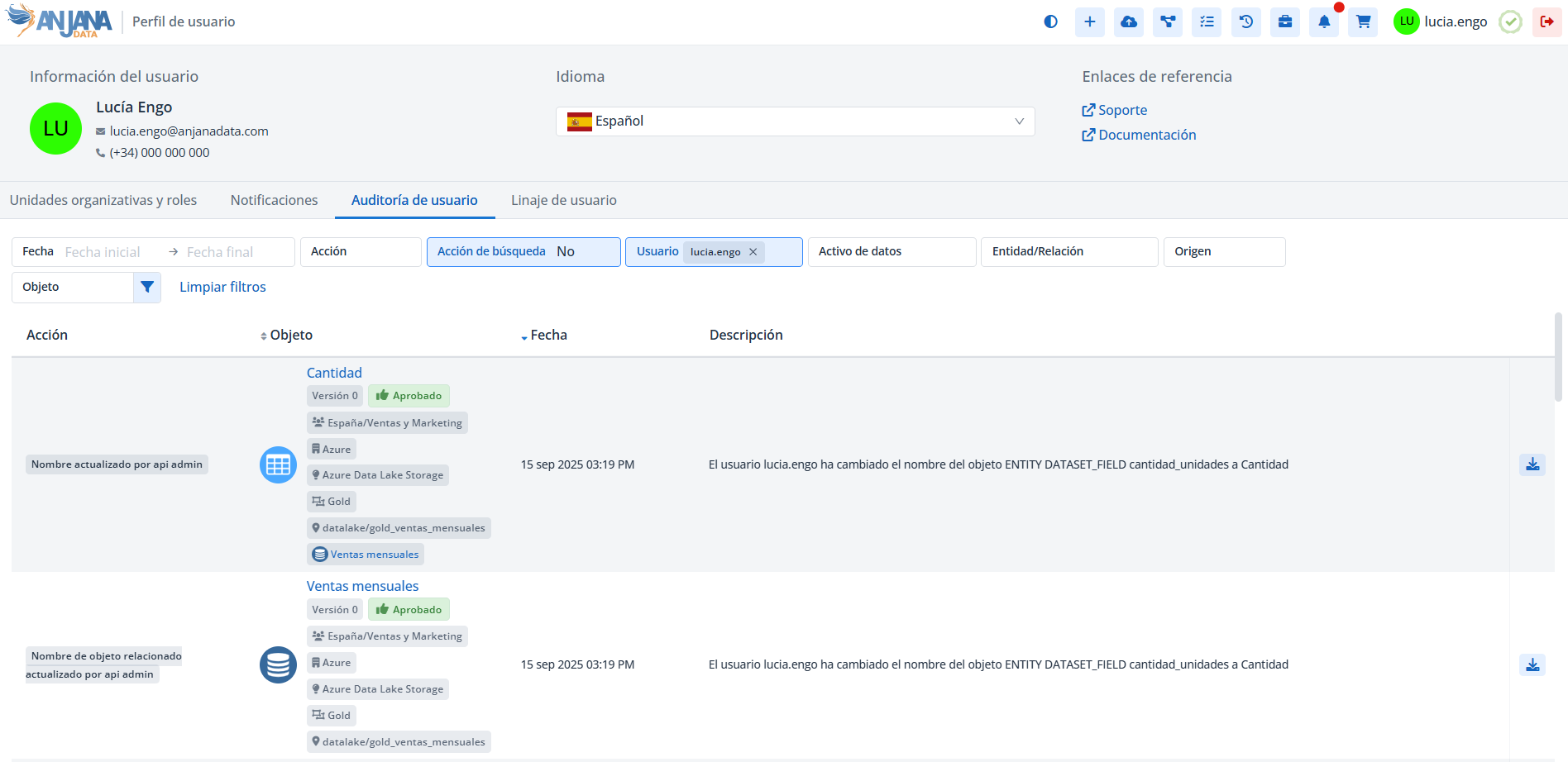
Filter Conf Table in the Configuration Panel (Administrator view)
These filters are defined in the Filter Conf table of the Configuration Portal and determine which metadata can be used as a search criterion, its typology, etc.
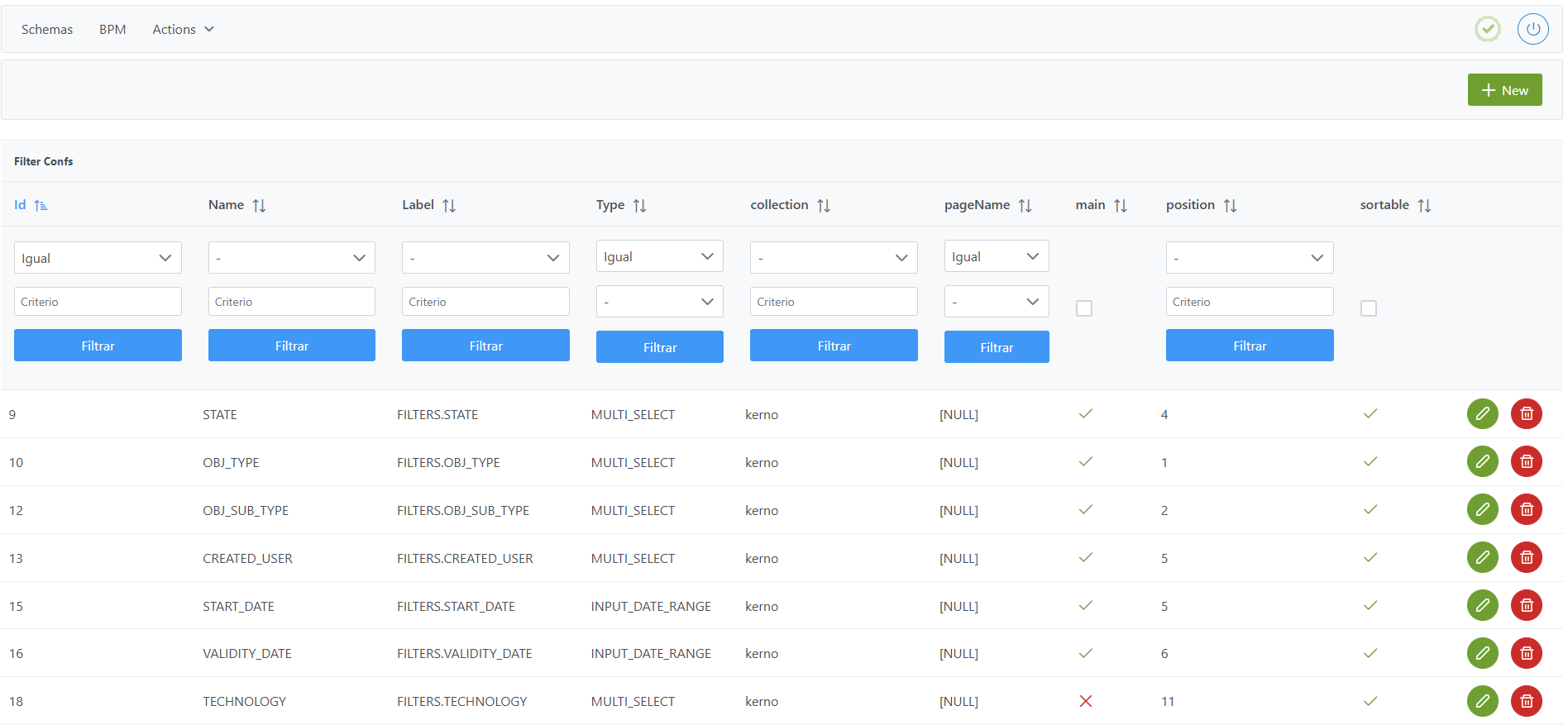
Structure of the Filter Conf table
Each registered filter is characterized by the following fields:
-
Id: unique identifier of the filter. It is automatically assigned from the Configuration Panel. -
Name: field used to indicate which metadata attribute the filtering applies to.-
When the filter corresponds to a metadata attribute defined in the
Attribute Definitiontable, the value of Name must be set in uppercase based on thenamefield of that table.-
Example: if
Attribute Definitionhas an attribute withname = dominio, the filter must be configured withName = DOMINIO.
-
-
When the filter corresponds to fields related to the system's Audit, the value of
namerefers to the fields of theminerva.audit_logtable (internal data model table), which stores Anjana Data's internal and external audit. Possible values for the audit:-
action: allows filtering by the different governance actions (e.g.: Creation, Modification, Adherence…). The filter'sTypemust be of typeMULTI_SELECTand theLabelmust have the valueFILTERS.ACTION. -
logOrigin: allows filtering by the audit's origin. Anjana Data's internal audit (e.g.: the Creation, Modification, Adherence… actions) has "anjana" aslogOrigin, while external audit injected via API will have the value defined by the organization. This filter'sTypemust be of typeMULTI_SELECTand theLabelmust have the valueFILTERS.LOG_ORIGIN. -
objectName: indicates the logical name of the Data Portal asset for which the audit is recorded (e.g.: the "Product codes" dataset). This filter'sTypemust be of typeENTITYand theLabelmust have the valueFILTERS.OBJ_NAME. -
objectType: allows filtering by object type, i.e., by ENTITY or RELATIONSHIP. This filter'sTypemust be of typeMULTI_SELECTand theLabelmust have the valueFILTERS.OBJ_TYPE. -
objectSubtype: allows filtering by object subtype, i.e., by the different entity and relationship types configured in the metamodel. This filter'sTypemust be of typeMULTI_SELECTand theLabelmust have the valueFILTERS.OBJ_SUB_TYPE. -
startTime: allows filtering audit records within a date range (start and end). This filter'sTypemust be of typeINPUT_DATE_RANGEand theLabelmust have the valueCOMMON.DATE. -
userName: allows filtering audit records by the user who generated them. This filter'sTypemust be of typeSELECT_USERSand theLabelmust have the valueFILTERS.USER.
-
-
-
Label: this is the translation key for the filter's visible name in the Data Portal. The label must be structured as follows:FILTERS.<name in Attribute Definitions> -
Type: allows selecting the filter type from the available types. It must match the type of the attribute it applies to (see the table available in the next section). -
collection: refers to the data collection the filter applies to in the indexer technology. The user must choose between the following values depending on the module for which the filter is configured:-
Kerno→ Used to configure filters in the Search Portal of the Data Portal. These filters allow searching within the inventory of data and information assets. -
Audit Logs→ Used to configure filters in the Audit module. These filters allow searching through the history of governance actions and external audit.
-
-
pageName: used to indicate the page the filter applies to. The possible values are the following:-
empty→ Applies only to Search Portal filters (collection=kerno) or to all audit modules (Global audit, object audit or user audit) -
AUDIT_ALL→ Applies only to the Global audit module. -
AUDIT_USER→ Applies only to the User audit module. -
AUDIT_OBJECT→ Applies only to the Object audit module.
-
-
main: boolean field that only applies to Search Portal filters:-
true→ Check this so the filter appears by default in the filter bar of the Search Portal and in ENTITY-type attribute filters. In Audit filters,mainmust always be set totrue. -
false→ Uncheck so the user has the option to add the filter in the Search Portal if desired, using theFilters > Add filteroption (false).
-
-
position: used to set the order in which filters are displayed in the interface. -
sortable: currently not used (legacy field). Can be left asfalse.
Notes:
-
In the Audit modules, filters cannot be configured by metadata attributes.
-
There are filters whose values are not translated: object type, object subtype, and usernames or SELECT_USERS type.
Important:
Any error in the configuration of Search Portal filters can trigger the message "Solr: undefined field", preventing the portal from functioning normally.

The most common causes are:
-
Creating a filter on an attribute that is not assigned to any template.
Solr cannot index attributes that are not part of the effective metamodel of the objects. Since the attribute does not exist in SOLR, it cannot be used as a filter. -
Creating a filter on an uninitialized attribute.
That is, the attribute exists in the template of some object subtype, but no portal asset has a value for it.
In these cases, Solr does not generate the field in its index and the filter causes the error.To avoid this, it is recommended to initialize the attribute before creating the filter, for example through a bulk edit of all objects that include it in their template, assigning an empty or null value as appropriate.
-
Filter configuration error.
If the filter is configured with an attribute that does not exist, i.e., thenamedoes not match any attribute in theAttribute Definitiontable, the filter causes the error.
Filter types
Below are the different types of filters that can be configured depending on the typology of the metadata the filter is configured on:
|
Attribute type |
Filter type |
|
Array of Date |
INPUT_DATE_RANGE |
|
Date |
|
|
Array of Decimal |
INPUT_NUMBER_RANGE |
|
Decimal |
|
|
Array of Number |
|
|
Number |
|
|
Number range |
|
|
Array of Entity |
ENTITY |
|
Entity Search |
|
|
Entity Container |
|
|
Array of Users |
SELECT_USERS |
|
User |
|
|
Single taxonomy |
MULTI_SELECT_TREE |
|
Multiple-selection taxonomy |
|
|
Array of Organizational Unit |
MULTI_SELECT_TREE_OU |
|
Organizational Unit |
|
|
Boolean |
BOOLEAN |
|
Array of Boolean |
MULTI_SELECT |
|
MultiSelect |
|
|
MultiSelect with icons |
|
|
MultiSelect with icons and text |
|
|
Reference Metadata |
|
|
Selector with icon |
|
|
Selector with icon and text |
Creating a Filter in the Filter Conf table
Creating a new filter is done in the Configuration Panel
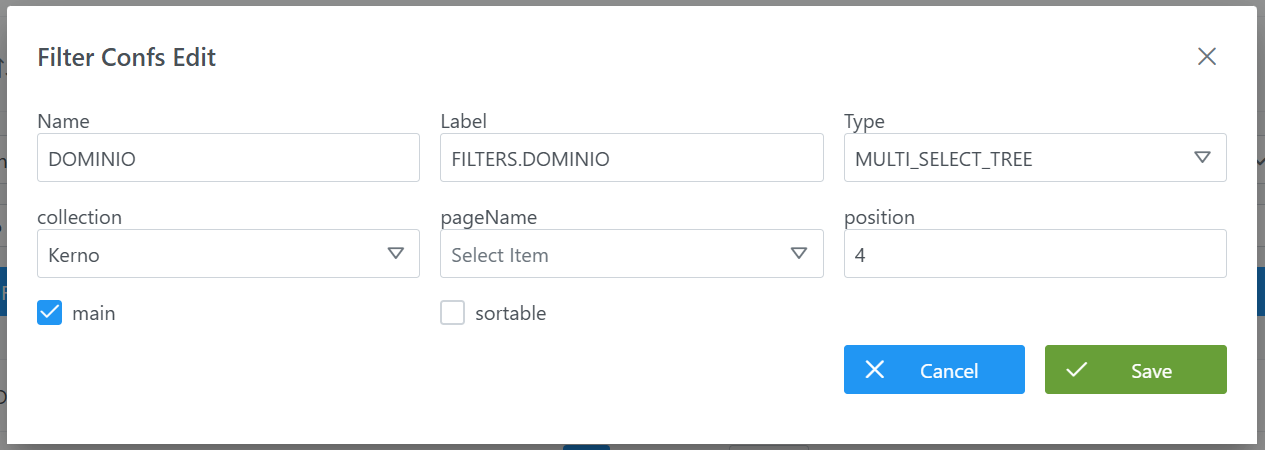
Steps to create a filter in the Search Portal:
-
Click the New button in the top right corner.
-
Fill in the fields according to the table structure:
-
name: filter identifier in uppercase (e.g.:DOMINIO). -
Label: associated translation key (e.g.:FILTERS.DOMINIO). -
Collection: choose the collection corresponding to the Search Portal (kerno). -
pageName: since it is a search portal filter, this field is left empty. -
Type: select the filter type (e.g.:MULTI_SELECT_TREEsince it is a taxonomy tree-type attribute). -
main: check whether the filter should appear by default in the filter bar (e.g.:true). -
position: indicate the display order in the filter bar (e.g.:4) -
sortable: leave asfalse.
-
-
Click Save to save the filter or Cancel to discard it.
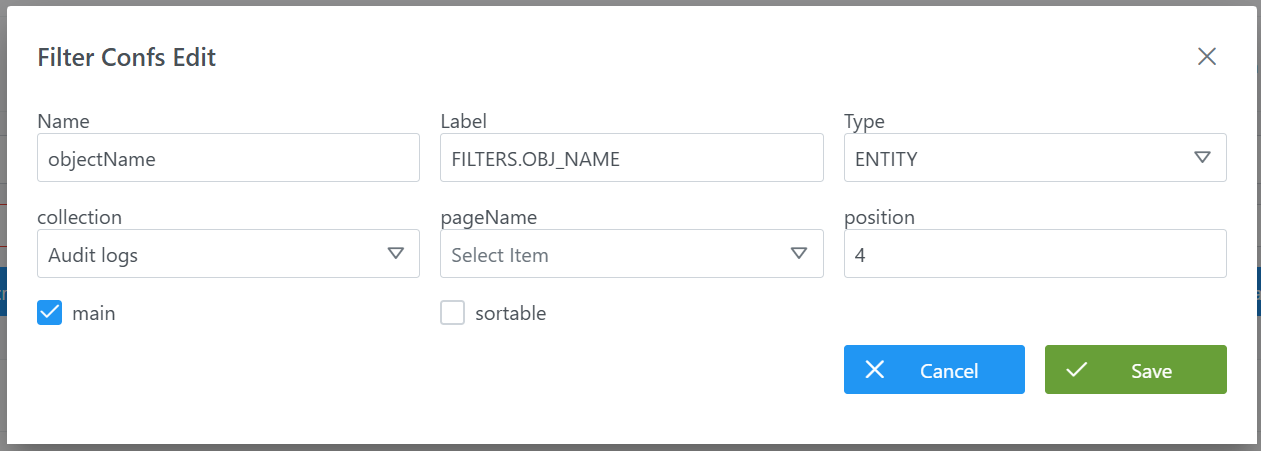
Steps to create a filter in all audit modules (global, object, and user):
-
Click the New button in the top right corner.
-
Fill in the fields according to the table structure:
-
Name: filter identifier in uppercase (e.g.:objectName). -
Label: associated translation key (e.g.:FILTERS.OBJ_NAME). -
Collection: choose the collection corresponding to the Search Portal (Audit Logs). -
pageName: indicate the page. In this case, since it applies to all audit modules (global, object, and user), it is left empty. -
Type: select the filter type (e.g.:ENTITYsince it is an entity-type filter). -
main: since it is an audit filter, it must betrue. -
position: indicate the display order in the filter bar (e.g.:4) -
sortable: leave asfalse.
-
-
Click Save to save the filter or Cancel to discard it.
Modifying a Filter in the Filter Conf table
An existing filter can be modified at any time, since it only affects the display and behavior of the modules where the filter is used (search engine or audit).
The following fields can be freely modified, always respecting the restrictions on possible values:
-
main: to indicate whether the filter should appear as static or configurable by the user. -
position: to adjust the order in which filters are displayed in the interface. -
Type: to change the filter type, always selecting a valid one based on the type of attribute it applies to. -
pageName: to redefine the screens or sections of the application where the filter will be available.
The rest of the fields (Name, Collection andLabel ) should not be modified, except to fix configuration errors made during initial creation.
At any time it is possible to add new filters or remove existing filters, depending on display needs or the modules enabled in the Data Portal.
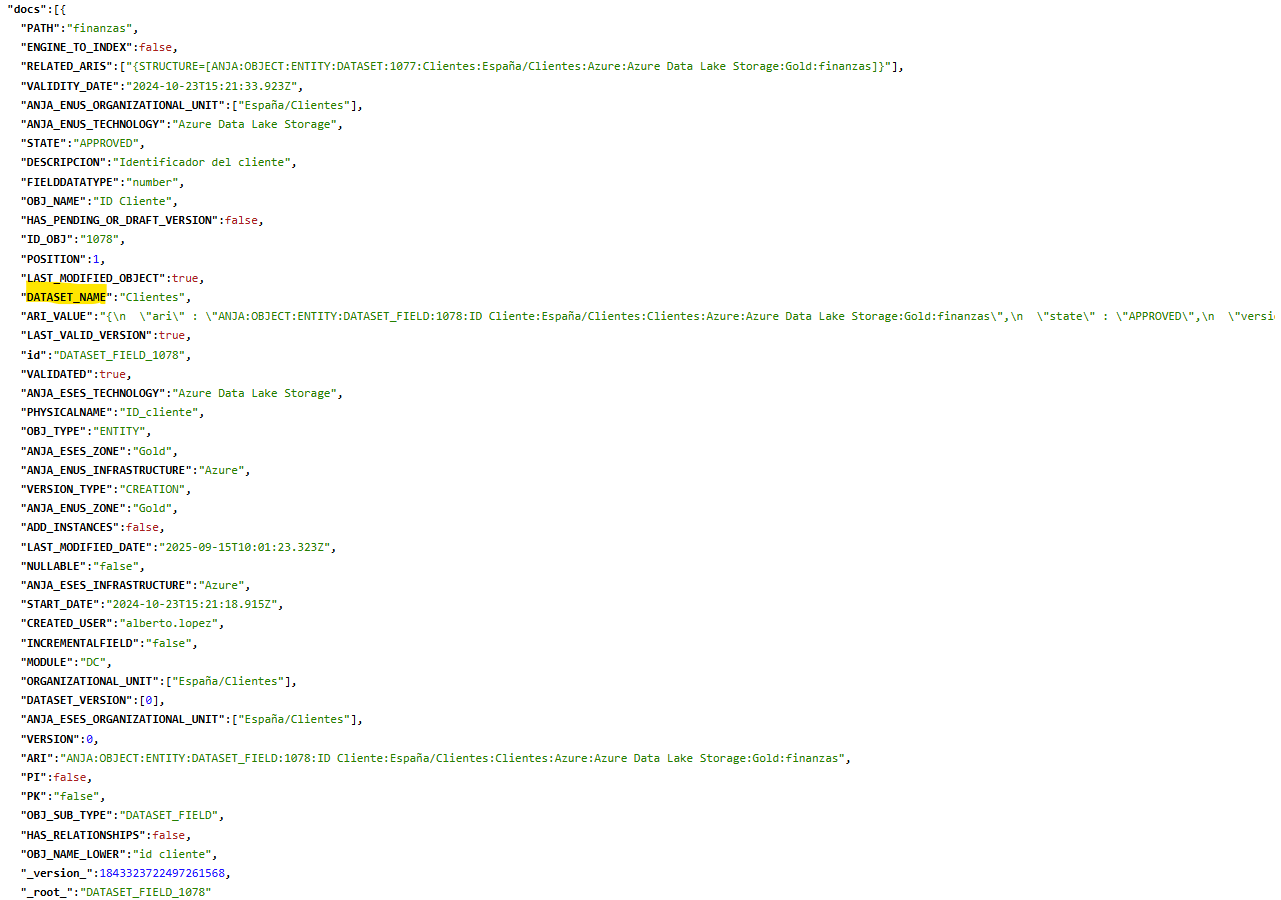
* Advanced filters
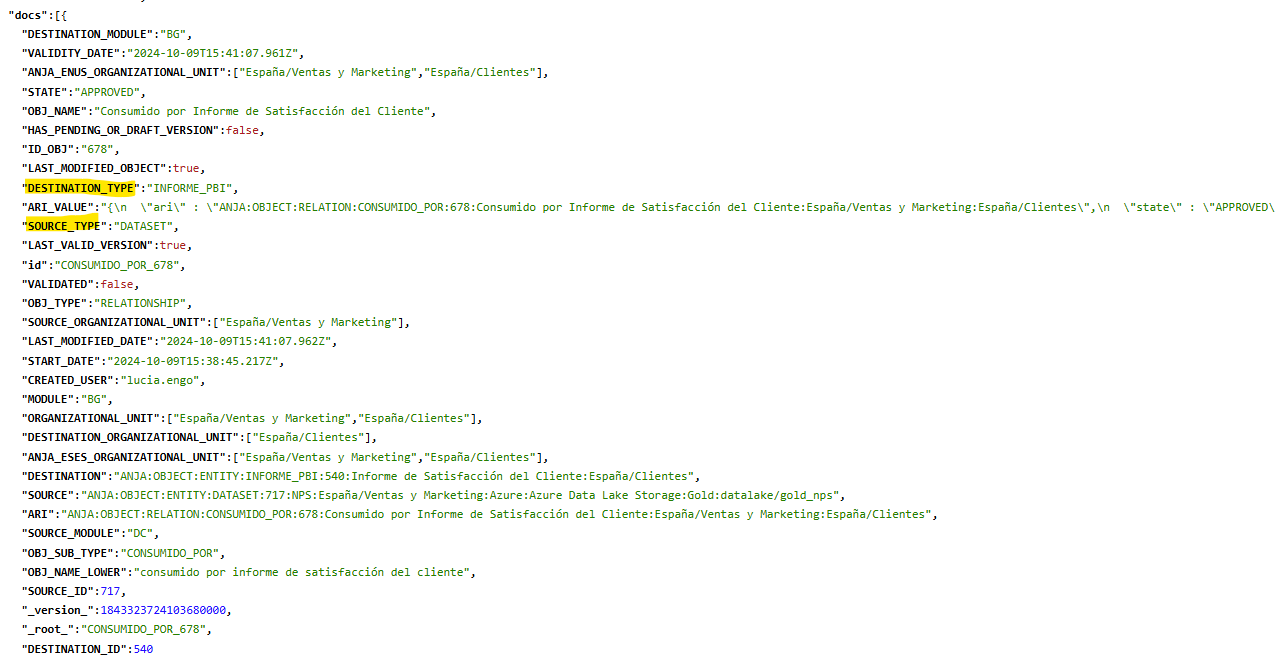
Indexed documents contain internal metadata that can sometimes be very useful; some common use cases can be:
-
Searching dataset fields by filtering on the dataset name (
Name= DATASET_NAME ,Label= FILTERS.DATASET_NAME) -
Searching relationships by filtering on the source entity subtype (
Name= SOURCE_TYPE,Label= FILTERS.SOURCE_TYPE) -
Searching relationships by filtering on the destination entity subtype (
Name= DESTINATION_TYPE,Label= FILTERS.DESTINATION_TYPE)
These metadata are indexed and can be configured as filters:
Configuring Filters via direct database access (Developer view)
Filters are stored in the minerva.filter_conf table.
|
Column |
Data type |
Restrictions / Notes |
|---|---|---|
|
id |
int4 |
PRIMARY KEY. Unique identifier of the filter. |
|
collection |
varchar(100) |
|
|
label |
varchar(100) |
Translation key. |
|
main |
bool |
|
|
filter_name |
varchar(100) |
Name of the Solr or |
|
position |
int4 |
Display order. |
|
sortable |
bool |
Not used (recommended |
|
type |
varchar(100) |
Filter type (e.g.: |
|
page_name |
varchar(255) |
Audit screen where it applies ( |
Definition of several filters in the different modules of the Data Portal:
INSERT INTO minerva.filter_conf
(id, collection, "label", main, filter_name, "position", sortable, "type", page_name)
VALUES
(69, 'kerno', 'FILTERS.DOMINIO', true, 'DOMINIO', 4, false, 'MULTI_SELECT_TREE', NULL),
(64, 'kerno', 'FILTERS.NIVELRIESGO', false, 'NIVELRIESGO', 15, false, 'MULTI_SELECT', NULL),
(62, 'kerno', 'FILTERS.NIVELGOBIERNO', true, 'NIVELGOBIERNO', 8, false, 'MULTI_SELECT', NULL),
(49, 'audit_logs', 'FILTERS.OBJ_SUB_TYPE', true, 'objectSubType', 3, true, 'MULTI_SELECT', 'AUDIT_USER'),
(48, 'audit_logs', 'FILTERS.USER', true, 'userName', 2, true, 'MULTI_SELECT', 'AUDIT_USER'),
(40, 'audit_logs', 'FILTERS.OBJ_SUB_TYPE', true, 'objectSubType', 4, true, 'MULTI_SELECT', 'AUDIT_ALL'),
(39, 'audit_logs', 'FILTERS.OBJ_TYPE', true, 'objectType', 3, true, 'MULTI_SELECT', 'AUDIT_ALL');
Important:
-
Once the insert has been executed, run the table's sequence update. (From the Configuration Panel under
Actions > Reset DQ sequences, you can update the sequences of all tables, including this one). -
The entire responsibility for the configuration logic falls on the developer who executes the SQL queries directly on the tables. It is recommended to carefully review the Table structure section.