
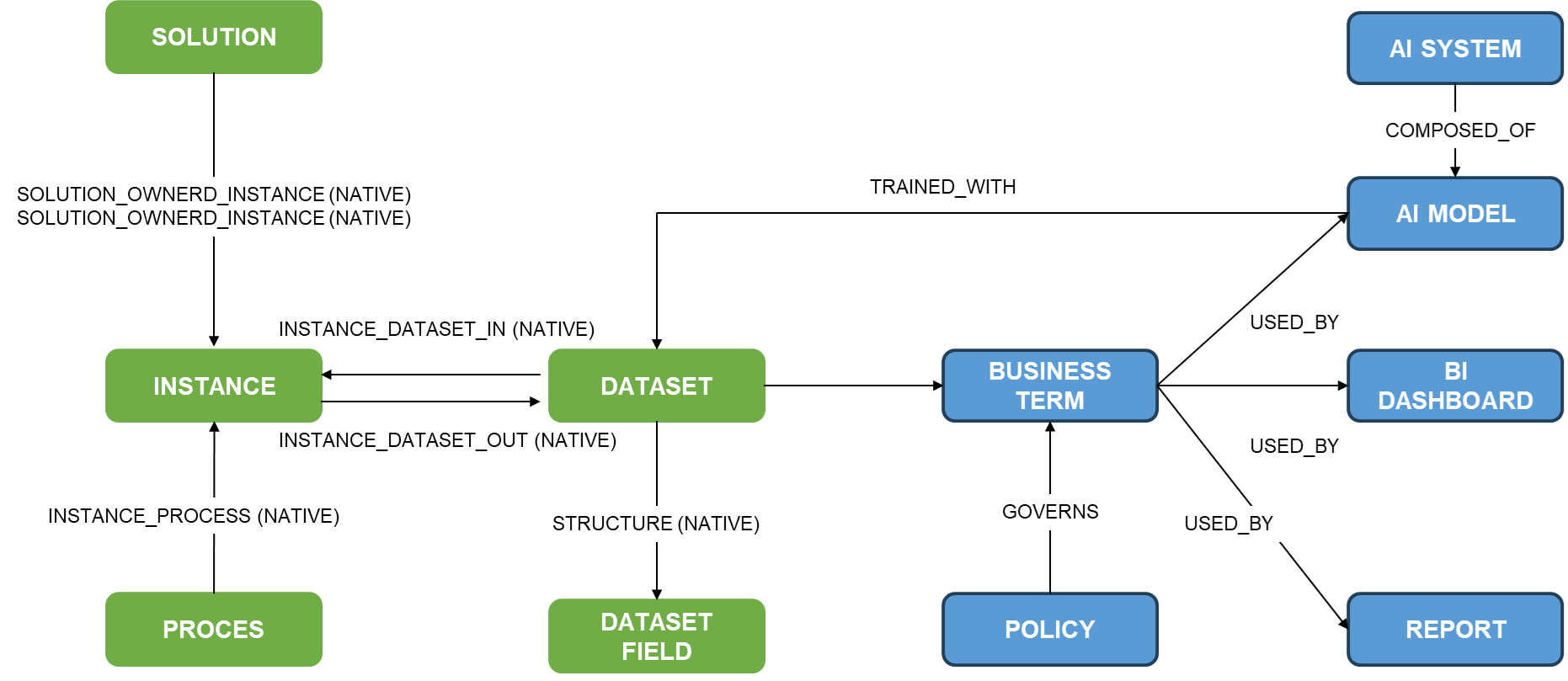
The metamodel configuration in Anjana Data allows adapting and extending the structure of entities and relationships beyond the native metamodel. Through the Configuration Panel, the administrator can define new entity subtypes (for example, BUSINESS TERM, AI SYSTEM, AI MODEL) and relationship subtypes (for example, TRAINED_WITH, GOVERNS, USED_BY) that represent the reality of the organization.
The following image shows an example of an extended metamodel, in which native entities and relationships are combined with customized ones, reflecting the complexity of data assets and their links within the organization:
These entity and relationship subtypes form the basis for:
-
Consistently documenting the different data assets.
-
Establishing dependency, hierarchy and governance relationships between them.
-
Integrating governance processes with configurable workflows for creation, modification, transfer, deprecation and validation of such assets.
Table Object Sub-types in the Configuration Panel (Administrator view)
The Object Sub-types table is the central point where the entities and relationships of the metamodel are configured. Each registered object subtype is characterized by the following fields:
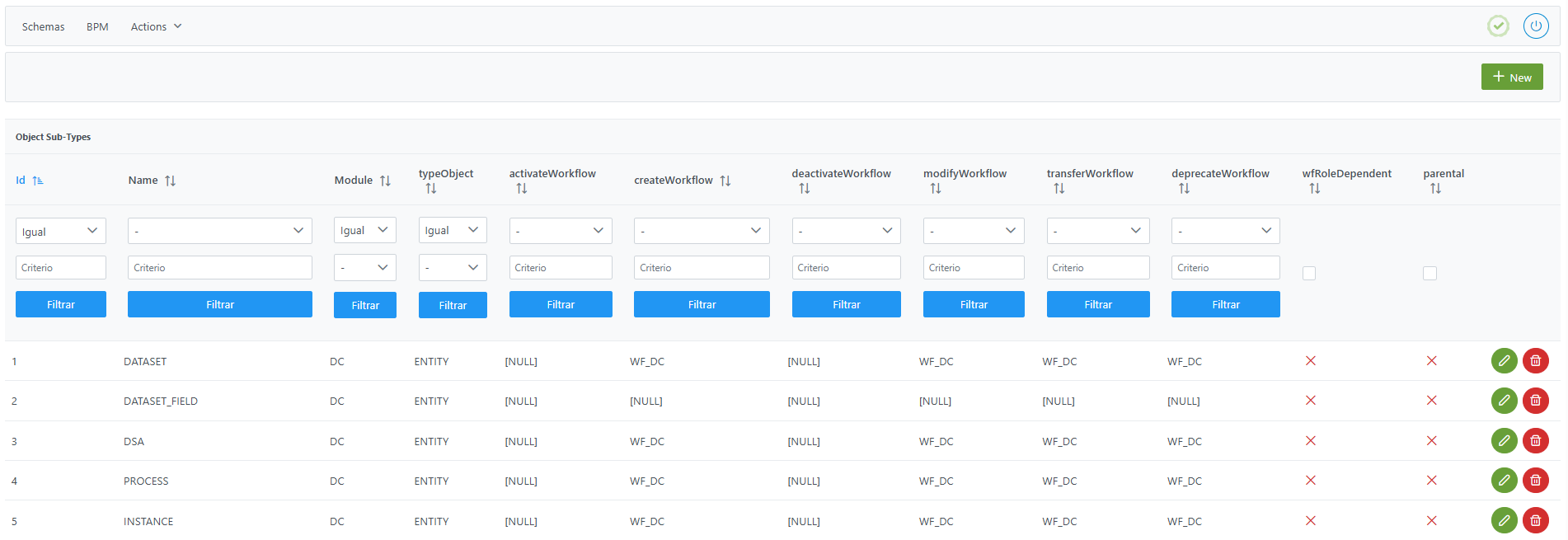
Structure of the Object Sub-types table
Each entity or relationship to be governed is characterized by the following fields:
-
id: unique identifier of the object subtype.-
It is assigned automatically from the Configuration Panel, based on database sequences.
-
-
name: name of the object subtype.-
This value must be unique within the module and cannot be repeated among existing entities or relationships.
-
Important:
-
The
nameattribute of the object subtype:-
Must not contain
:,#,(or). -
Must not contain spaces so as not to interfere with the internal identifiers of Anjana Data.
-
Must be written in uppercase.
-
-
The
namecannot match the names of the native relationships (STRUCTURE, DSA_CONTENT…) except for ADHERENCE, which must be declared to enable the Marketplace. -
The maximum recommended size for the name field is 31 characters. Exceeding this size will affect the functionality of uploads in Excel because the maximum number of characters allowed for a tab (sheet) name in Excel is 31.
-
module: module to which the object belongs.-
"BG"→ Business Glossary -
"DC"→ Data Catalog
-
Important:
Native entities (DATASET, DATASET_FIELD, SOLUTION, PROCESS, INSTANCE, DSA and ADHERENCE) must have DC as their module value
-
typeObject: indicates whether the subtype corresponds to an entity or a relationship.-
"ENTITY"→ Metamodel entity (example: DATASET, REPORT, DOCUMENT). -
"RELATIONSHIP"→ Relationship between entities (example: TRAINED_WITH, USED_BY, GOVERNS).
-
Important:
-
Native entities (DATASET, DATASET_FIELD, SOLUTION, PROCESS, INSTANCE and DSA) must have
ENTITYas theirtypeObjectvalue -
The native relationship ADHERENCE must have
RELATIONSHIPas itstypeObjectvalue
-
activate_workflow: name of the identifier of the activation workflow for non-native entities or relationships. -
create_workflow: name of the identifier of the creation workflow. -
deactivate_workflow: name of the identifier of the deactivation workflow for non-native entities or relationships. -
modify_workflow: name of the identifier of the editing or modification workflow. -
transfer_workflow: name of the identifier of the workflow that manages the transfer (change of organizational unit) of entities. -
deprecate_workflow: name of the identifier of the deprecation workflow for native Data Catalog entities. -
wf_role_dependent: indicator that defines whether differentiated workflows by role exist for the same action.-
When this flag is enabled, for each of the actions configured in the previous fields (
create_workflow,modify_workflow,transfer_workflow,deprecate_workflow, etc.) it is necessary to define a role-specific workflow that has permissions to trigger that action. -
The identifier of each role-specific workflow is constructed from the base workflow identifier, concatenated with the role name in the Roles table using the format:
<id_workflow_base>_-<role_name> -
Example: if the base creation workflow identifier is
CREATE_DATASETand the rolenameisDataSteward, the identifier will beCREATE_DATASET_-DataSteward.
-
-
parental: applies only in case of a relationship.-
If the value is true, the relationship is considered a parent-child relationship and will be represented vertically (top-bottom) in the lineage.
-
If false, the relationship is considered an input-output relationship, represented horizontally (left-right).
-
Important note: Do not confuse the workflow identifier (value indicated in the Id field of the General section of the BPM editor) with the workflow name (value indicated in the Name field).
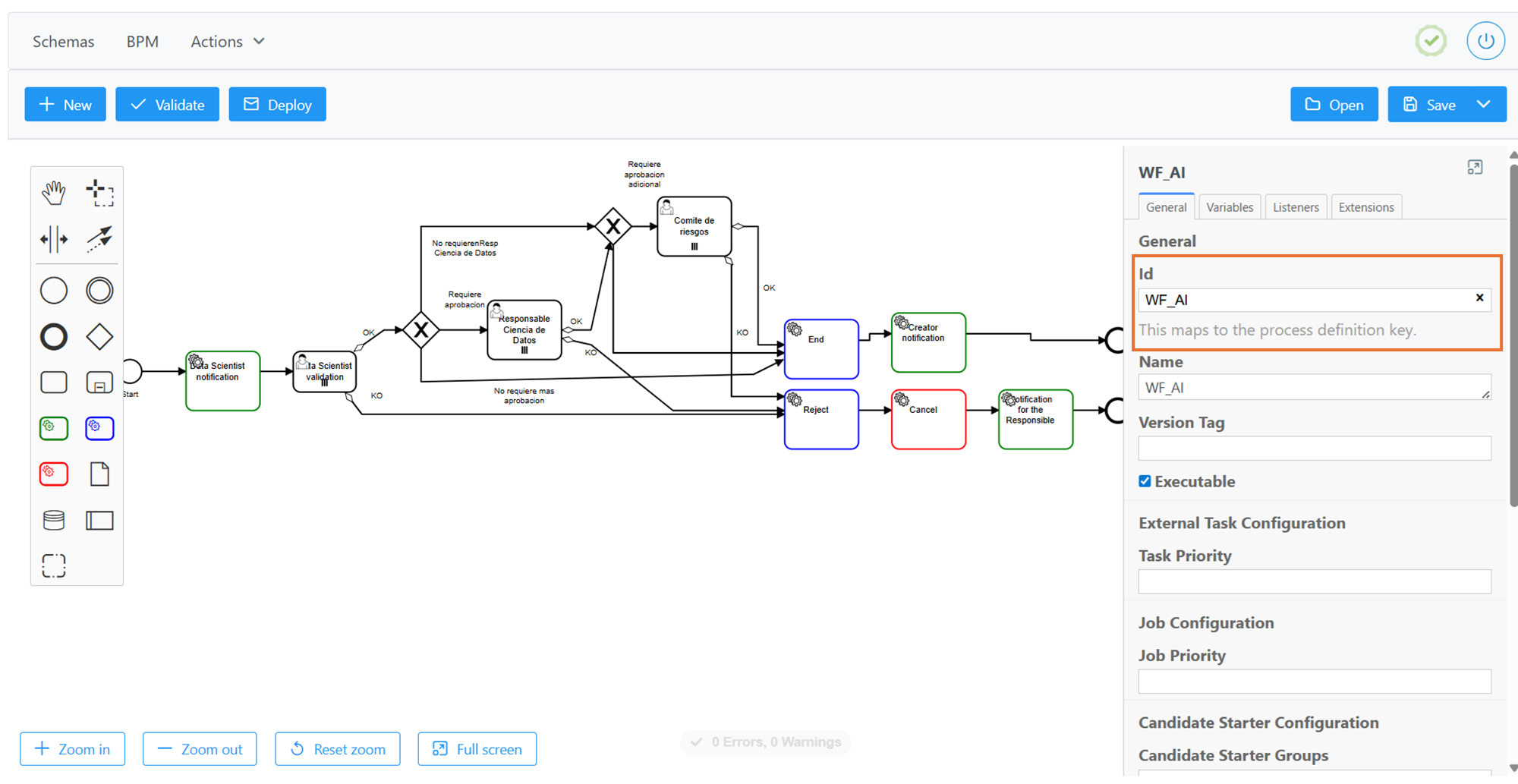
Important notes:
-
To enable Marketplace capabilities, the native ADHERENCE relationship must be included in the Object Subtypes table.
-
Object subtype names do not support translation (internationalization)
Adding an entity to the Object Sub-types table
Adding a new entity to the metamodel involves registering a new record in the Object Sub-types table with type ENTITY.
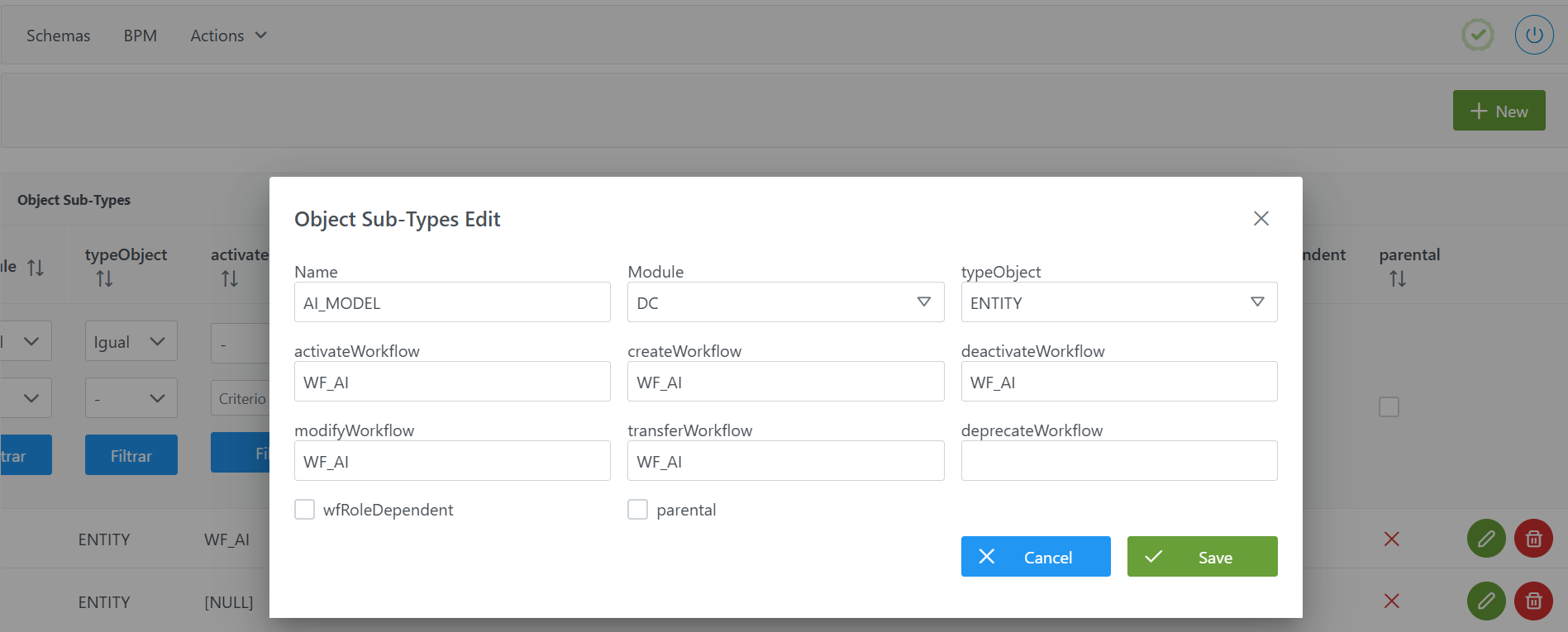
To add a new entity:
-
Click the New button in the top right corner. This will open a wizard with the fields defined in the Structure of the Object Sub-types table section.
-
Fill in the corresponding fields:
-
name: name of the entity (example:AI_MODEL). -
module: module in which it will be used (example:DC). -
object_type: selectENTITY. -
Define the identifier names of the workflows associated with the actions:
-
create_workflow: Identifier of the creation workflow (example:WF_AI). -
modify_workflow: Identifier of the modification workflow (example:WF_AI). -
activate_workflow: Identifier of the activation workflow, does not apply to native entities (example:WF_AI). -
activate_workflow: Identifier of the activation workflow, does not apply to native entities (example:WF_AI). -
deactivate_workflow: Identifier of the deactivation workflow, does not apply to native entities (example:WF_AI). -
transfer_workflow: Identifier of the organizational unit change workflow (example:WF_AI). -
deprecate_workflow: Identifier of the deprecation workflow, does not apply to non-native entities (example: left empty as it is a non-native entity)
-
-
wf_role_dependent: check only if you want to configure different workflows for each of the above workflows.
-
-
Click Save to save the entity or Cancel to discard it.
Adding a relationship to the Object Sub-types table
Adding a new relationship to the metamodel involves registering a new record in the Object Sub-types table with type RELATIONSHIP.
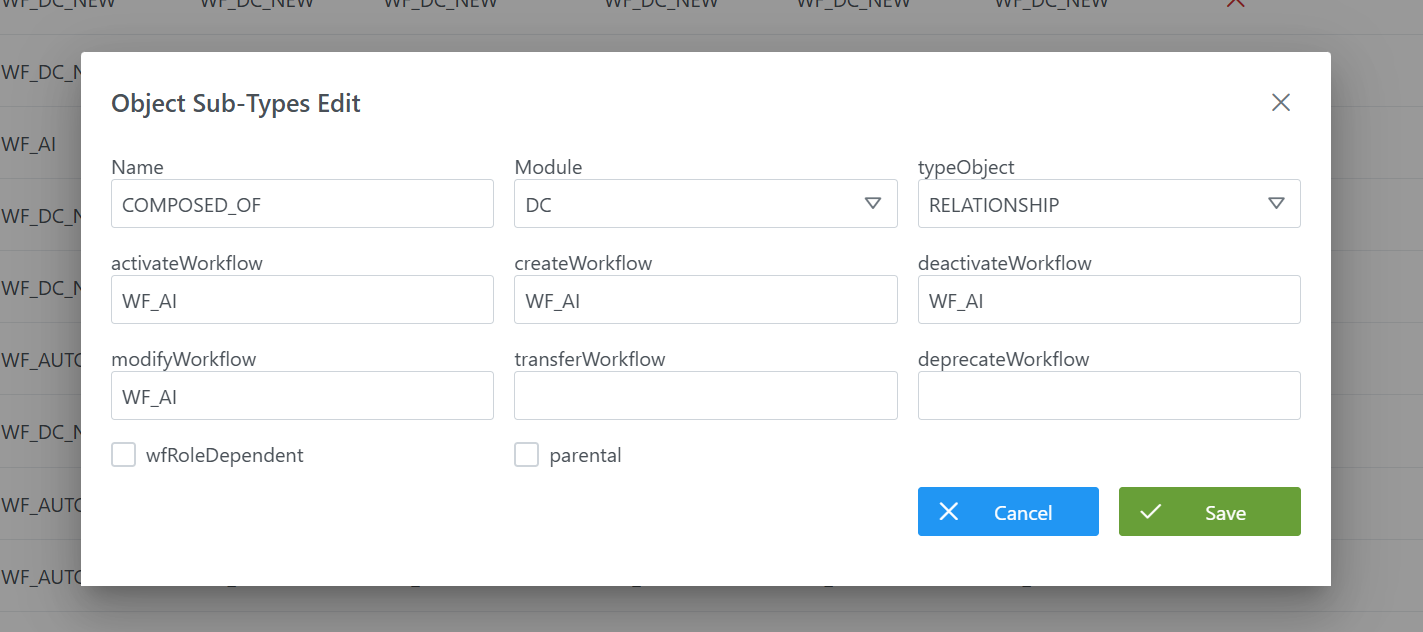
To add a new relationship:
-
Click the New button in the top right corner. This will open a wizard with the fields defined in the Structure of the Object Sub-types table section.
-
Fill in the corresponding fields:
-
name: name of the relationship (example:COMPOSED_OF). -
module: module in which it will be used (example:DC). -
object_type: selectRELATIONSHIP. -
Define the identifier names of the workflows associated with the actions:
-
create_workflow: Identifier of the creation workflow (example:WF_AI). -
modify_workflow: Identifier of the modification workflow (example:WF_AI). -
activate_workflow: Identifier of the activation workflow, does not apply to native relationships (example:WF_AI). -
deactivate_workflow: Identifier of the deactivation workflow, does not apply to native relationships (example:WF_AI). -
transfer_workflow: Identifier of the organizational unit change workflow (example:WF_AI). -
deprecate_workflow: Identifier of the deprecation workflow, does not apply to non-native relationships (left empty in that case).
-
-
wfRoleDependent: check only if you want to configure different workflows for each of the above workflows based on the user's role (left unchecked in the example). -
parental: check if the relationship should be represented in the lineage as a parent-child relationship (parent-child, vertical). Leave unchecked if the relationship is of input-output type (horizontal). (Left unchecked in the example)
-
-
Click Save to save the relationship or Cancel to discard it.
Modifying an entity or relationship in the Object Sub-types table
Modifying an object subtype (whether an entity or a relationship) is managed directly from the Object Sub-types table in the Configuration Panel.
When editing a subtype, the following considerations are important:
-
Fields that can be modified:
-
The workflow identifiers (
create_workflow,modify_workflow,transfer_workflow,deprecate_workflow, etc.). -
The
parentalandwf_role_dependentflags, which can be enabled or disabled at any time depending on lineage display needs or differentiated workflow management by role.
-
Note: any change in these identifiers implies that the corresponding workflows in the BPM must be updated as well, to maintain consistency.
-
Fields that cannot be modified once objects governed in the Data Portal exist associated with that subtype:
-
typeObject(ENTITY or RELATIONSHIP). -
nameof the subtype.
-
Procedure if changes to typeObject or name are needed:
-
It will be necessary to first perform a Clear data from the
Actions > Clear datamenu in the Configuration Panel, to delete the objects already created in the portal. -
Once the deletion is done, the information must be reindexed from the
Actions > Force indexingmenu to ensure data consistency.
In summary:
-
Workflow identifiers and flags can be adjusted at any time.
-
Changing
nameortypeObjectis not possible if governed objects exist in the Data Portal; it requires clearing data (Actions > Clear data) and reindexing (Actions > Force indexing).
Configuring object subtypes via direct database access (Developer view)
The database (DB) table that contains the parameters for the entities and relationships of the metamodel (anjana.object_subtype) has this structure:
|
Column |
Data type |
Constraints / Notes |
|---|---|---|
|
|
|
PRIMARY KEY. Unique identifier of the object subtype. Managed via sequences. |
|
|
|
Optional. Activation workflow identifier (does not apply to native entities/relationships). |
|
|
|
Optional. Creation workflow identifier. |
|
|
|
Optional. Deactivation workflow identifier (does not apply to native entities/relationships). |
|
|
|
Optional. Deprecation workflow identifier (applies only to native entities). |
|
|
|
Optional. Modification workflow identifier. |
|
|
|
NOT NULL. Module in which it is used: |
|
|
|
NOT NULL. Unique name of the object subtype. UNIQUE constraint ( |
|
|
|
NOT NULL. Object type: |
|
|
|
Optional. Transfer workflow identifier (change of organizational unit). |
|
|
|
Optional. Indicates whether workflows depend on the role of the user triggering the action. |
|
|
|
Optional. Default |
Below is a sample script for configuring the AI_MODEL entity:
INSERT INTO anjana.object_subtype
(id_object_subtype, activate_workflow, create_workflow, deactivate_workflow, deprecate_workflow, modify_workflow, "module", "name", object_type, transfer_workflow, wf_role_dependent, is_parental)
VALUES(32, 'WF_AI', 'WF_AI', 'WF_AI', 'WF_AI', 'WF_AI', 'DC', 'AI_MODEL', 'ENTITY', 'WF_AI', false, false);
Below is a sample script for configuring the COMPOSED_OF relationship:
INSERT INTO anjana.object_subtype
(id_object_subtype, module, name, object_type, create_workflow, modify_workflow, activate_workflow, deactivate_workflow, wf_role_dependent, is_parental)
VALUES
(102, 'DC', 'COMPOSED_OF', 'RELATIONSHIP', 'WF_AI', 'WF_AI', 'WF_AI', 'WF_AI', false, false);
Important:
-
Once the insert is executed, run the sequence update for the table. (From the Configuration Panel under
Actions > Reset DQ sequencesthe sequences of all tables, including this one, can be updated). -
The full weight of the configuration logic falls on the developer who executes the SQL queries directly on the tables. It is recommended to carefully review the Table Structure section.