
Azure configuration requires two components: an Enterprise Application (for SAML login) and an App Registration (for provisioning API permissions).
Part A: SAML configuration (Enterprise Application)
-
In the Azure portal, go to Azure Active Directory > Enterprise applications.
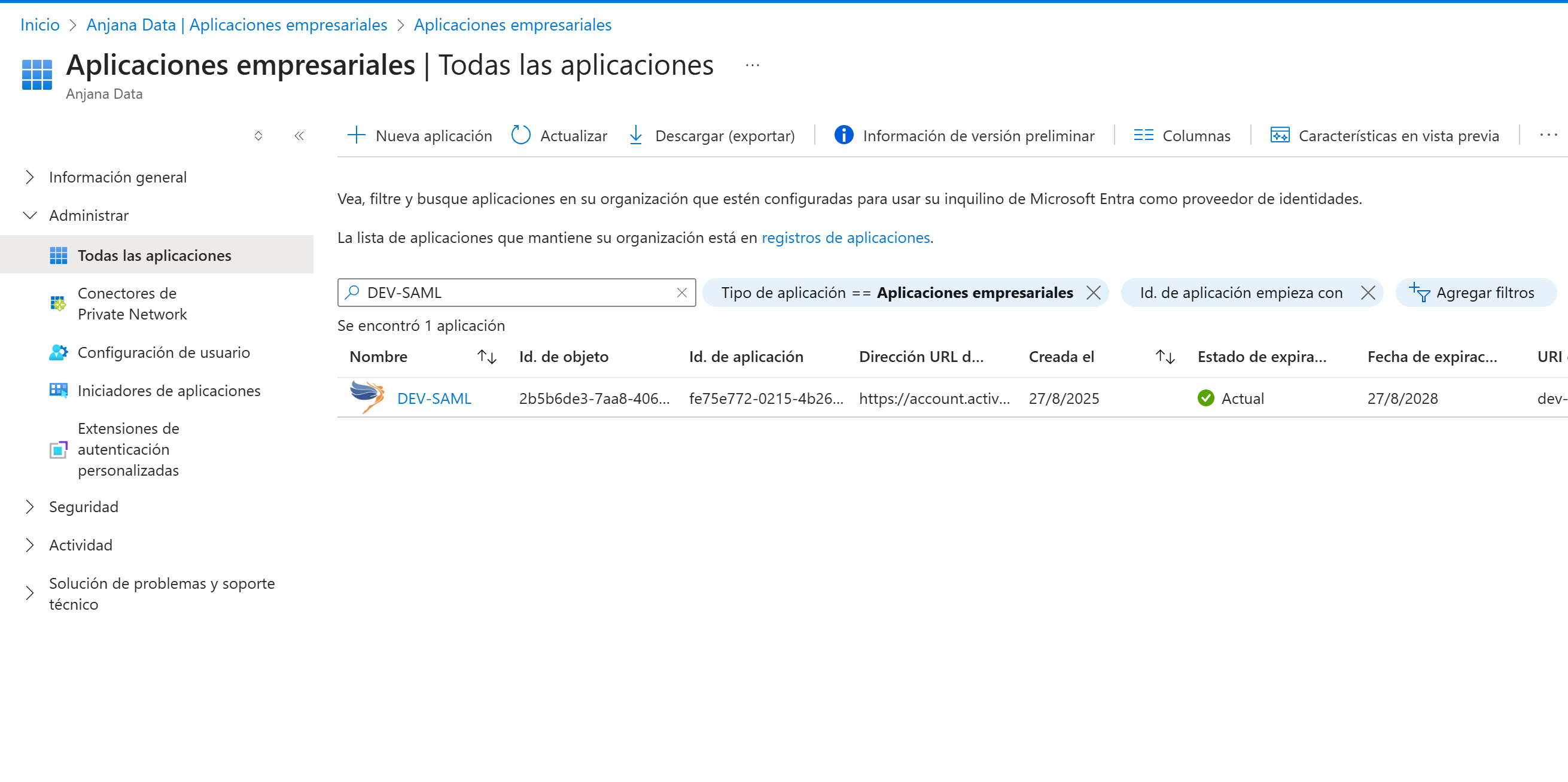
-
Click "New application" and then "Create your own application".
-
Give it a name (e.g.
Anjana SAML) and select "Integrate any other application you don't find in the gallery (Non-gallery)". -
Once created, go to "Single sign-on" and select SAML.
Data you must provide to Azure (SP Configuration)
Click "Edit" in the "Basic SAML Configuration" section:
-
Identifier (Entity ID): Provide a unique identifier. It must be identical to the value of the
entityIdfield in youryml.-
Example:
anjana-saml-azure
-
-
Reply URL (Assertion Consumer Service URL): This is the public URL where Azure will send the response. It must use your provider's key.
-
Example (for a
azureadprovider):https://your-anjana-domain.com/gateway/saml2/sso/azuread
-
Data Azure provides to you (IdP Configuration)
-
idpMetadataUri: In the "SAML Signing Certificates" section, copy the "App Federation Metadata Url". Paste it into theidpMetadataUrifield of youryml. -
Important: In
Properties, make sure "Assignment required?" is set to "Yes". -
Assign Users: In
Users and groups, assign the users or groups that will have access.
Part B: API Configuration (User Provisioning)
-
Go to Azure Active Directory > App registrations.
-
Click "New registration" (or use an existing one if you already have one for your APIs).
-
Give it a name (e.g.
Anjana API).
Data Azure provides to you (API Credentials)
-
tenant-id: On the registration's "Overview" page, copy the "Directory (tenant) ID". -
client-id: On the same page, copy the "Application (client) ID". -
client-secret: Go toCertificates & secrets, create a "New client secret" and copy the Value (not the ID). -
service-principal-id: Go back to the "Enterprise Application" (from Part A), go toPropertiesand copy the "Object ID".
API Permissions
-
In the "App registration" (the one for the API), go to
API permissions. -
Click
+ Add a permission>Microsoft Graph>Application permissions. -
Add the following permissions:
-
Application.Read.All -
AppRoleAssignment.ReadWrite.All -
User.Read.All -
GroupMember.Read.All
-
-
Crucial: Click the "Grant admin consent for..." button until all permissions have a green tick.
Example application-default.yml file
This example details the SAML-specific properties for Azure. The common properties for all providers can be found at SAML 2.0 (Deprecated)
security:
  provisioning:
    providers:
      azure-graph:
        # The 'azuread' key must be IDENTICAL to the key used in 'saml2'
        azuread:
          # Identifier of the tenant where users are retrieved and authenticated
          tenant-id: <tenantID>
          # Identifier of the authentication client in the provider
          client-id: <clientID>
          # Secret of the authentication client in the provider
          client-secret: <clientSecret>
          # Identifier of the object representing the application
          service-principal-id: <servicePrincipalID>