
This document details how to configure each of the secret repositories (Vaults) supported by Anjana Data Platform: HashiCorp Vault, AWS Secrets Manager, GCP Secret Manager, and Azure Key Vault.
⚠️ Important, who can connect directly to a Vault:
-
Anjana Data core services (Kerno, Minerva, Hermes, Zeus, Viator, Portuno, Drittesta, etc.) always obtain their configuration through Horus. Horus is the one that connects to the Vault (HashiCorp, AWS, or GCP) depending on the configured repository; core services never connect directly to a Vault.
-
Tot Plugins are the only components that can connect directly to a Vault or Secret Manager, without going through Horus, since they may not be deployed on Anjana's core network. The AWS Secrets Manager, GCP Secret Manager, and Azure Key Vault sections in this document describe that direct connection and are exclusive to plugins.
The HashiCorp Vault section describes the configuration of Horus as a centralized repository and applies to all core services.
HashiCorp Vault Configuration
In order for the configuration to be retrieved from HashiCorp Vault, only the configuration of the Horus module is required.
Required Credentials
For the correct configuration, the token corresponding to the user will be needed, setting it in the environment variable VAULT_HASHICORP_TOKEN in the file /etc/systemd/system/horus.service.d/env.conf.
There are 2 ways to obtain this token:
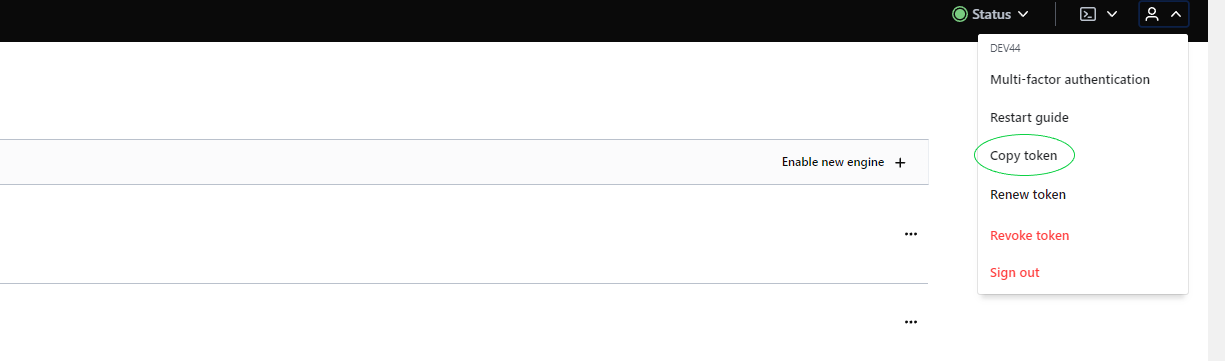
Using the user's own token. From our user account we can go to Vault and, once logged in, the option to copy the token will appear.
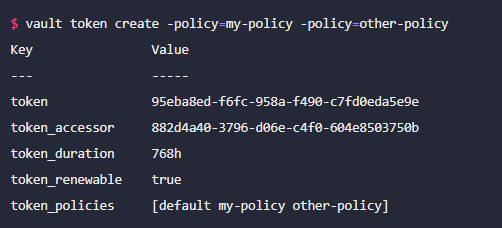
Using the command line. With this command we can create a token without needing to create a user. The command is vault create token. Below is an example, and the parameters can be configured as desired (more information in its documentation):
Things to keep in mind:
-
When the environment is restarted, HashiCorp remains locked, and 3 keys are needed to unlock it.
-
Tokens have a maximum validity limit of 10h (for now)
Required configuration in the microservice
To configure the service, this configuration must be set in the corresponding YAML:
|
spring.cloud.config:
|
The meaning of these properties is as follows:
-
order: In case there is more than one source of properties, this property will be set, establishing the priority with respect to others.
-
host: Server where Vault is hosted. Default: 0.0.0.0
-
port: Port of the server where Vault is hosted. Default: 8200
-
token: Authorization token
-
kv-version: Vault key-pair version
-
authentication: Vault allows several types of authentication; in this case we have opted for token. For more information, see its documentation
-
backend: prefix of the folder where the properties are hosted. Default: secret
In addition, when starting the service, this must be done by adding the active vault profile.
Things to keep in mind:
Even though vault is installed in the current environment for local use, the cluster where it is installed appears to be external, and it cannot be called from horus to localhost; it has to be with its IP.
AWS Secret Manager Configuration
In order for the configuration to be retrieved from AWS Secret Manager, each microservice must be configured.
⚠️ This direct-connection configuration is exclusive to Tot Plugins. Core services always obtain their configuration through Horus (see the HashiCorp Vault section).
Required Credentials
To connect the plugin to AWS Secrets Manager there are two options:
-
Create an IAM user with the Secrets Manager access policy attached, and configure its credentials as environment variables in the plugin's service descriptor:
-
AWS_ACCESS_KEY_ID
-
AWS_SECRET_ACCESS_KEY
-
-
Or, if the plugin is deployed on an AWS EC2 instance, attach an IAM role with the Secrets Manager policy to that instance (recommended option: avoids managing static keys).
Required configuration in the microservice
The following configuration has been included within the microservice's bootstrap:
aws:
  secretsmanager:
    enabled: true
    region: eu-central-1
In the microservice startup command, the following properties must be removed:
--spring.config.import=configserver:http://horusserver:8888
--spring.cloud.config.failFast=true
Within AWS Secret Manager, secrets are stored with the prefix '/secret', accompanied by the name of the microservice and the spring profile separated by '_' (default AWS Secret Manager configuration).
For example, to configure kerno with the default profile, the secret will be /secret/kerno_default and its value will be the properties required for it to work.
GCP Vault Configuration
Below, it will be detailed how to configure the microservice so that it calls the GCP vault to retrieve the properties.
⚠️ This direct-connection configuration is exclusive to Tot Plugins. Core services always obtain their configuration through Horus.
Required Credentials
Before configuring the plugin you need to:
-
Have a GCP project with the Secret Manager API enabled. It is recommended to create one GCP Secret Manager project per plugin.
-
Generate a service account credentials file (Service Account key) in JSON format, with read permissions on Secret Manager, and place it on the server where the plugin runs.
-
Note down the project-id of the GCP project, needed for the plugin configuration.
Required configuration in the microservice
The following must be included within the microservice's configuration file:
spring.cloud.gcp:
 core:
   enabled: true
 secretmanager:
   enabled: true
   project-id: <GCP Secret Manager project ID>
   credentials:
     location: file:*******.json # File containing the GCP credentials
In the microservice startup command, the following properties must be removed:
--spring.config.import=configserver:http://horusserver:8888
--spring.cloud.config.failFast=true
A single GCP secret management project must be created for each microservice. In this case, it does not depend on the active profile or the application name.
To obtain the properties, the prefix 'sm://' must be added.
This prefix can be omitted by setting the property spring.cloud.gcp.secretmanager.secret-name-prefix=sm://.
Azure Vault Configuration
Below, it will be detailed how to configure the microservice so that it calls the Azure vault to retrieve the properties.
⚠️ This direct-connection configuration is exclusive to Tot Plugins. Core services always obtain their configuration through Horus.
Required Credentials
Before configuring the plugin you need to have:
-
An Azure Key Vault with the secrets the plugin needs already created.
-
An App registration in Azure AD with read permissions on the Key Vault (via Access Policy or RBAC role), from which you obtain:
-
client-id
-
client-secret
-
tenant-id
-
-
The Key Vault endpoint (URL provided by Azure when the resource was created).
Required configuration in the microservice
Things to keep in mind:
-
Must be configured in every plugin that needs to connect to the Vault.
-
Azure does not allow "/" in the secret name.
-
The property
spring.cloud.config.enabledmust be disabled. -
The secret-keys property indicates which Vault secrets to use (if several, use a comma-separated list); if not specified, all secrets in the Vault will be retrieved.
-
The value of secret-keys must match the name of the secret created in the Vault, and will be referenced in the properties under that same name, for example: passwordDatabase:
${secretKeyName}.
spring:
  cloud:
    config:
      enabled: false
    azure:
      keyvault:
        secret:
          property-source-enabled: true
          property-sources:
          - credential:
              client-id: <client ID>
              client-secret: <client secret>
              endpoint: <Azure Key Vault endpoint>
              case-sensitive: true
              secret-keys: <secret name 1>, <secret name 2>
              profile:
                tenant-id: <tenant ID>