
This page describes how to set up the Anjana Data Platform MCP: what the organization must prepare on the platform and the network, how the AI client is configured and how each user authenticates. To understand what the MCP is and how it works, see MCP first.
Process overview
Installation has two parts with different owners. The first is done only once per environment; the second, once per user and AI client.
|
Step |
What is done |
Owner |
|---|---|---|
|
1. Enable the MCP on the platform |
Deploy the environment's MCP component and expose its endpoint to AI clients. |
The organization's technical administrators, or Anjana Data SL in SaaS |
|
2. Configure the AI client |
Declare the MCP server in the AI client pointing to the environment URL. |
Each user |
|
3. Authenticate |
Sign in with the platform account from the AI client. |
Each user |
|
4. Verify |
Check that the assistant lists the available operations and the user's roles. |
Each user |
Prerequisites
-
Platform version, Anjana Data Platform 26.1 or later.
-
MCP-compatible AI client, supporting remote MCP servers over HTTP with OAuth authentication. For example Claude (Claude Desktop, claude.ai or Claude Code), Visual Studio Code with GitHub Copilot or Cursor.
-
Platform user, with access to the platform and the roles required for the operations to be performed.
-
Connectivity, the computer running the AI client must reach the environment's public URL over HTTPS, just as it reaches
https://<url_entorno>/loginto access the Data Portal.
Step 1. Enable the MCP on the platform
The MCP is distributed as one more platform component (adp-mcp). How it is enabled depends on the deployment type:
|
Deployment type |
How it is enabled |
|---|---|
|
SaaS (Anjana Data Cloud) |
Request MCP enablement from Anjana Data SL through the Support Portal, indicating the environment (for example PRE or PRO). During version upgrades, it is confirmed whether the environment should keep the MCP active. |
|
Kubernetes ( |
The |
|
IaaS / On premise with Anjana Installer |
The installer manages the MCP component together with the rest of the microservices. See Anjana Installer. |
|
Installations with the Ansible kit |
The Ansible kit does not automate the MCP deployment. Contact Anjana Data SL support to receive the package and the manual deployment procedure. |
Paths that must be reachable
The AI client must be able to reach the following paths through the environment's public domain. If there is a reverse proxy, load balancer or WAF in front of the platform, they must be allowed and forwarded to the MCP service:
|
Path |
Use |
|---|---|
|
|
MCP protocol transport (HTTP with streaming). This is the URL configured in the AI client. |
|
|
OAuth discovery: tells the client how to authenticate. |
|
|
OAuth discovery: authorization server metadata. |
|
|
User authentication flow. Requires GET and POST. |
Proxy timeout
MCP sessions keep the connection open between operations. If the reverse proxy applies a short timeout, the AI client may disconnect after a few seconds of inactivity. In that case, increase the timeout for the /mcp path (for example, the ProxyTimeout directive in Apache).
Network reachability and responsibilities
Anjana Data SL provides the MCP capability. Enabling, exposing and securing it is the organization's responsibility: publishing the service, network controls (firewalls, segmentation) and access policies are its responsibility. Environments that require zero internet exposure must adopt an alternative in line with their policies, for example a local AI client or agent operating on the company's internal network.
Step 2. Configure the AI client
Configuration consists of declaring the MCP server in the AI client pointing to the environment URL. There is no need to configure tokens, API keys or passwords: authentication takes place in the next step.
Generic configuration
Most clients accept a JSON block like the following, where <url_entorno> is replaced with the domain of the Anjana Data Platform environment:
{
  "mcpServers": {
    "anjana-data": {
      "type": "http",
      "url": "https://<url_entorno>/mcp"
    }
  }
}
Examples by client
-
Claude Code, from the terminal:
claude mcp add --transport http anjana-data https://<url_entorno>/mcp -
Claude Desktop and claude.ai, add a custom connector from the connector settings, entering the URL
https://<url_entorno>/mcp. -
Visual Studio Code, in the workspace or user
mcp.jsonfile, with theserverskey instead ofmcpServers. -
Other clients, see their documentation on remote MCP servers over HTTP.
The exact location of these options may vary between versions of each client.
Multiple environments
It is common to declare one MCP server per environment (development, pre-production, production). In that case, give them clearly distinguishable names, for example anjana-pre and anjana-pro, to avoid running actions on the wrong environment.
Step 3. Authenticate
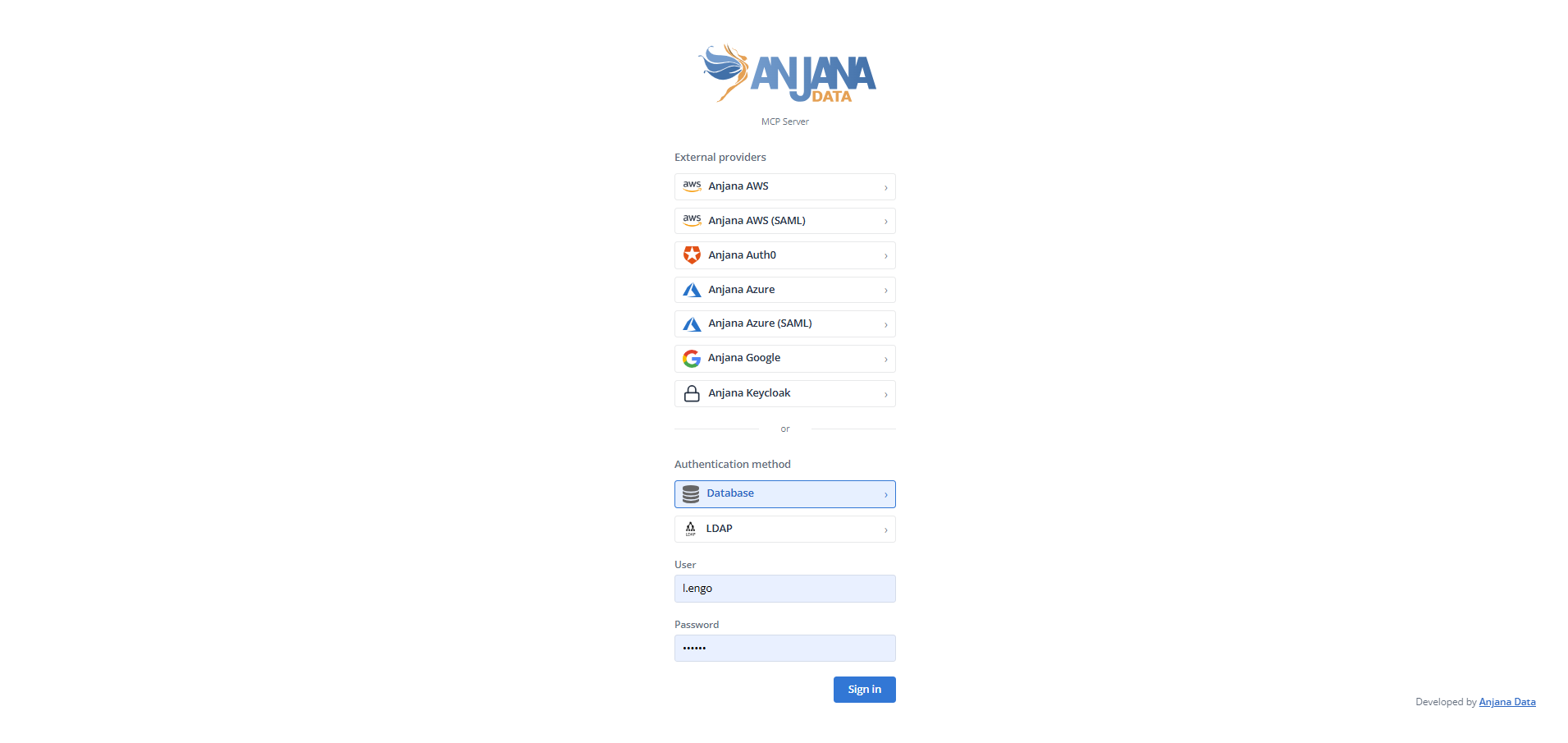
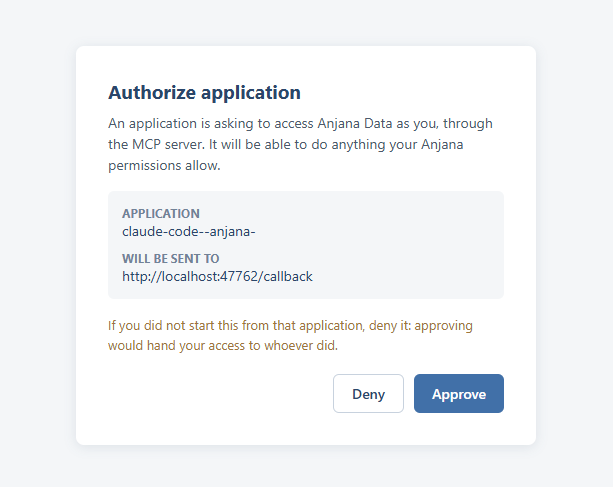
The first time the AI client connects to the MCP server, it starts the OAuth 2.0 authentication flow (Authorization Code with PKCE):
-
The client opens the Anjana Data Platform login screen in the browser. In some clients the server must be activated first; for example, in Claude Code with the
/mcpcommand. -
The user signs in with their platform account, with the same username and password as in the Data Portal or with the SSO configured in the organization.
-
The browser returns control to the AI client, which is now connected on behalf of that user.
The user who signs in determines what the assistant can do. The MCP applies exactly the same roles and permissions as the platform, managed by Zeus. If a user has several profiles, they should consciously choose which one to connect with.
Step 4. Verify the installation
Once the session is connected, simply ask the assistant to describe the MCP. For example:
Connect to the Anjana MCP and list all its capabilities and the roles I am authenticated with.
The answer should confirm the connection, list the available operations (search, details, lineage, cataloging, relationships, DSAs and audit) and show the user's roles. If the roles are not the expected ones, sign out and authenticate with the right user.
Troubleshooting
|
Symptom |
Probable cause |
What to check |
|---|---|---|
|
The client does not connect or returns a network error |
The |
Connectivity, firewall, VPN and that the MCP is enabled in the environment. |
|
|
The reverse proxy cannot reach the MCP service. |
That the service is running and that the proxy correctly resolves and forwards the paths in Step 1.
|
|
The login screen does not open |
The OAuth discovery paths are not exposed. |
The |
|
The login screen does not show the SSO option |
The MCP service does not know the environment's public URL. |
The public URL configuration of the MCP component (technical administrators or Anjana Data SL support).
|
|
The assistant reports that an operation was rejected |
The user does not have the required role or permission. |
The user's roles on the platform; this is not an installation failure. |
This page is intended for technical administrators who enable the MCP on the platform, security and network teams that must expose the service, and users who configure their AI client to work with Anjana Data Platform.